Back Up Snapchat Memories to a PC: A Bulk Method Beyond Official Export
Switching phones, clearing app space, or simply wanting to keep precious memories longer — Snapchat's Memories holds years of your snaps and stories, but they're locked inside the app: exporting them one by one through the official tool is tedious, and bulk backup feels like a dead end. The truth is, Memories is your own content — you have every right to back it up to your computer.
This article explains how Memories backup works, and the easiest bulk backup method in 2026.
Memories Is Your Archive — Not "View-Once"
First, one thing needs to be clear: Memories and snaps are two different things.
- Memories is your personal archive: snaps and stories you "save to Memories" stay in your account and never disappear automatically.
- Only you can see it: Memories is private by default — no one else can view or download it.
- The official export exists: Snapchat does offer a Memories export option, but it processes one item at a time — painfully slow when you have a lot of content.
So "can Memories be backed up" is not even a question — it's your content and you have full rights. The real question is how to back it up with the least effort.
Official Export vs Bulk Backup: What's the Difference
Official export suits the occasional one or two items — say, saving one special snap to your camera roll:
- Pros: official feature, safe and compliant.
- Cons: item-by-item operation, very slow with lots of content; what you get is the app-processed version, and quality may take a hit.
If you have dozens or hundreds of Memories, exporting one by one will eat an entire afternoon. A more practical approach: bulk-save the Memories videos locally in the browser, processing a batch at a time, with files landing directly on your computer.
How VidBrowser Bulk-Backs-Up Memories
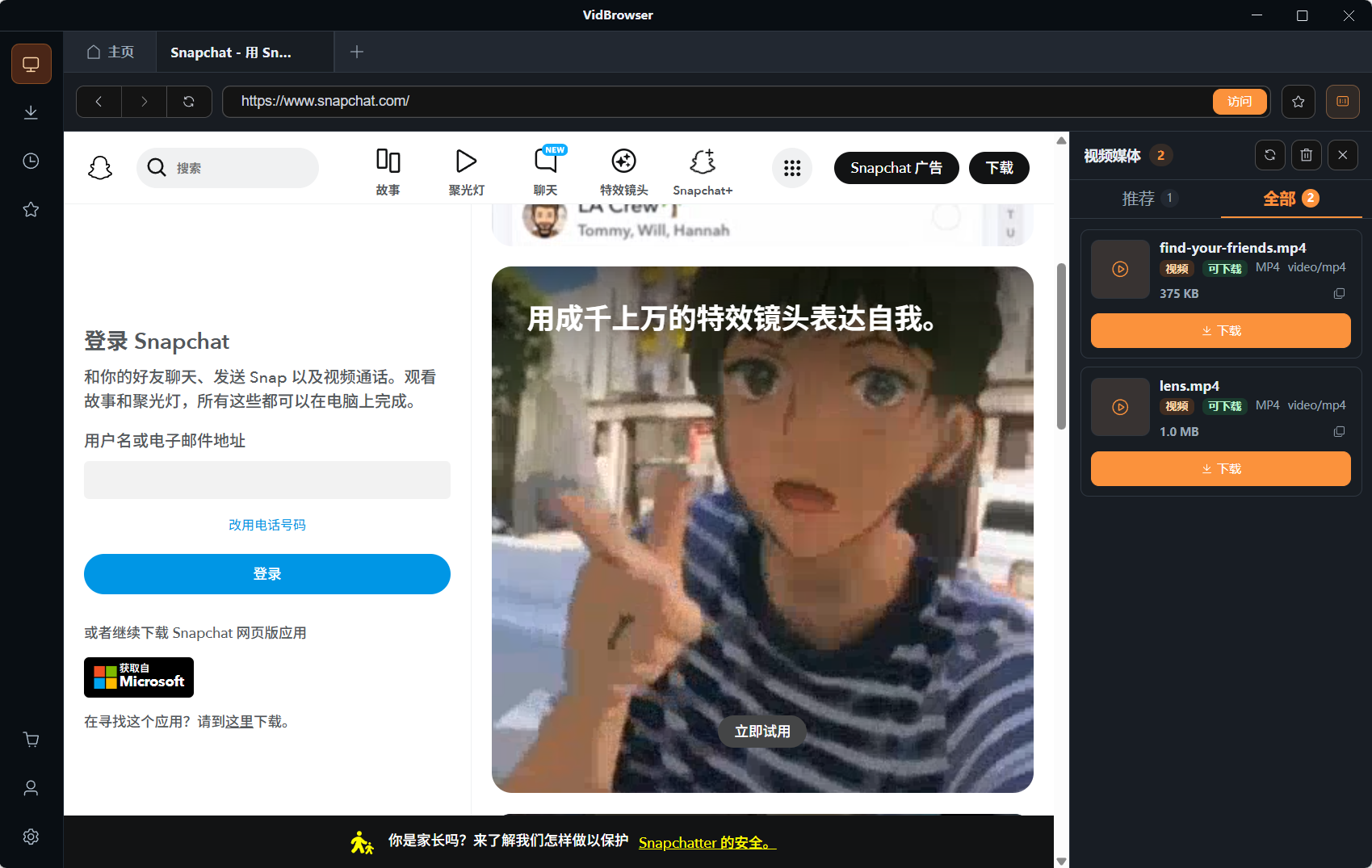
The idea stays the same: if a video in Memories plays, it can be saved while it plays.
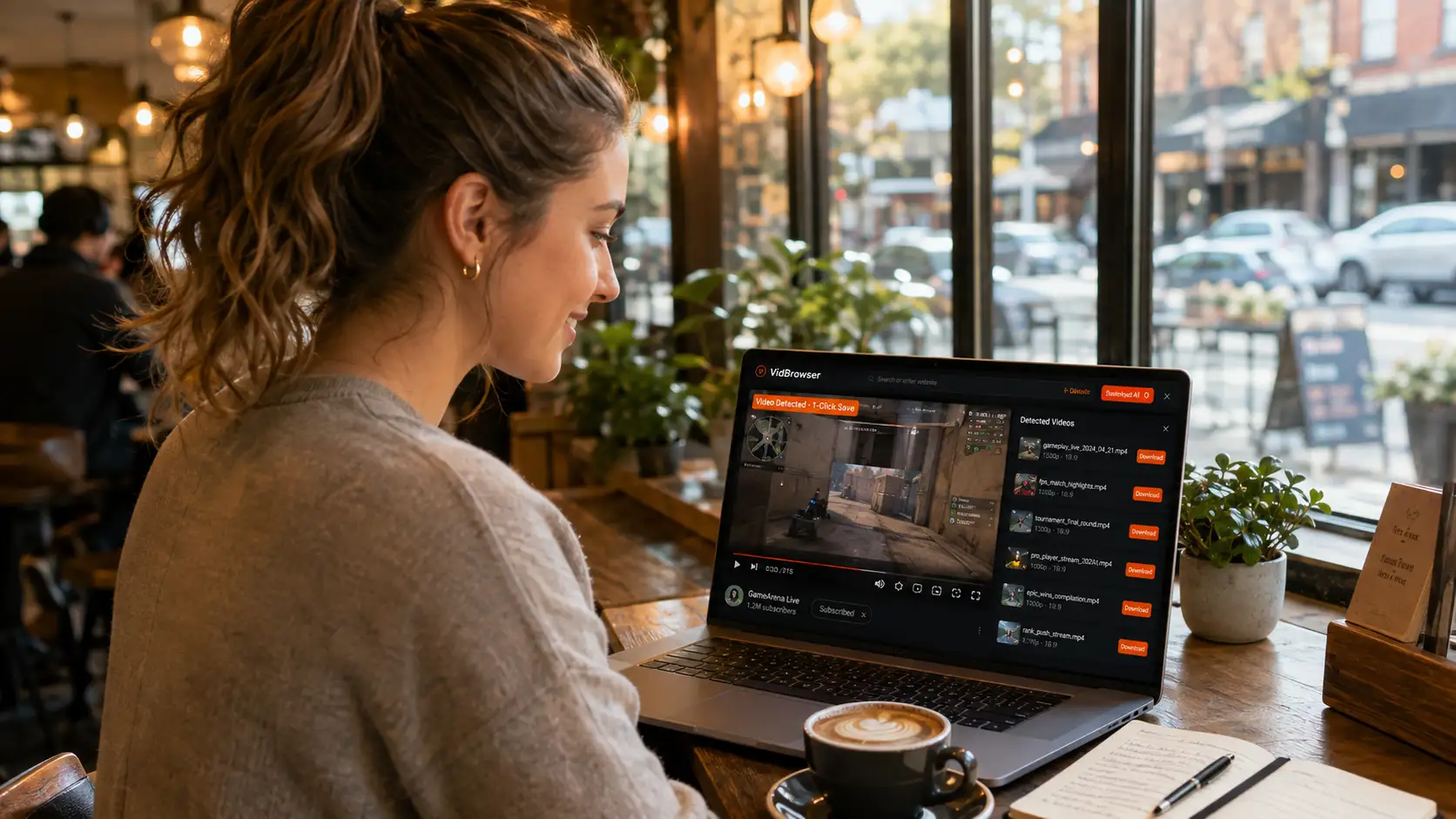
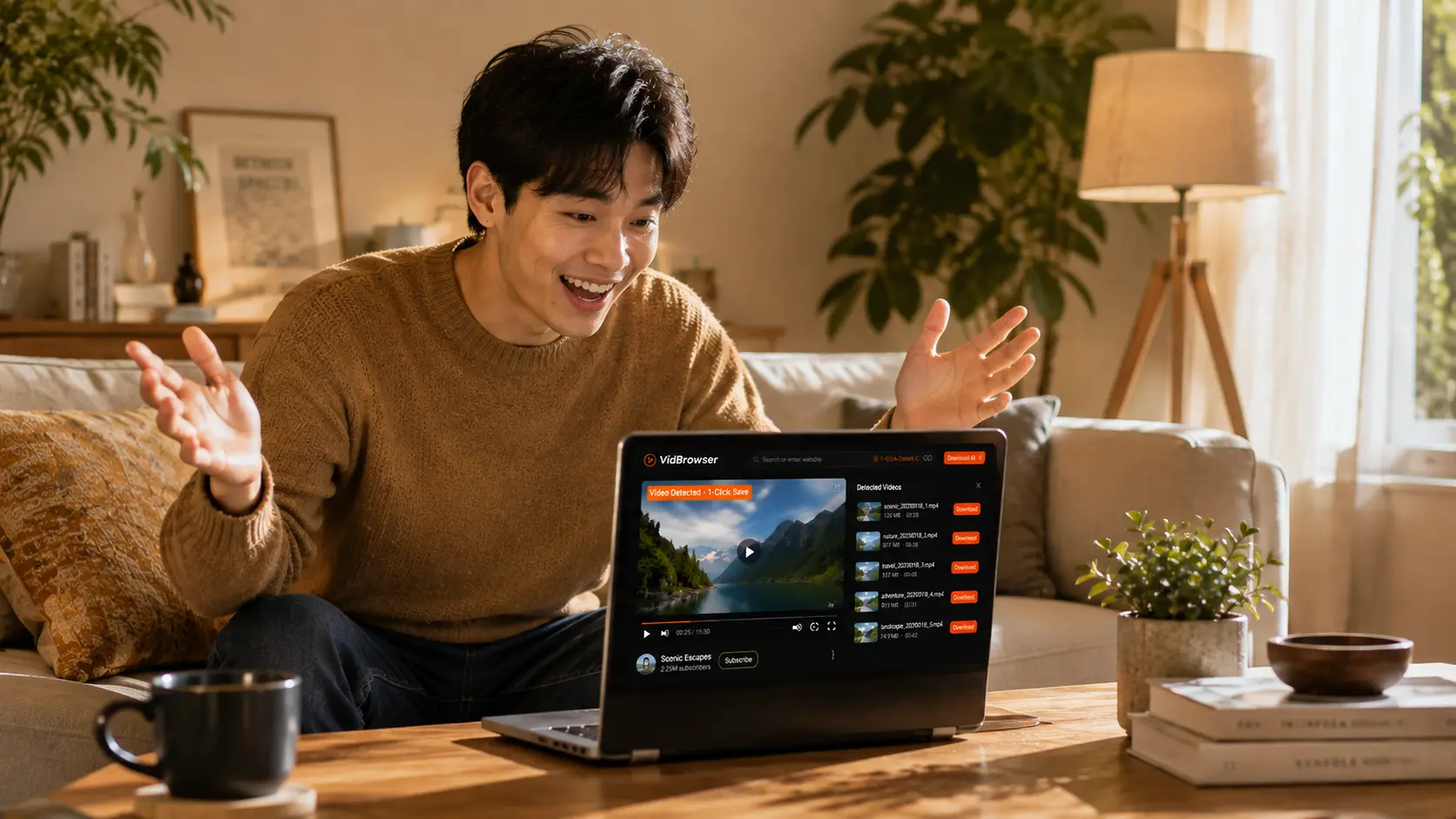
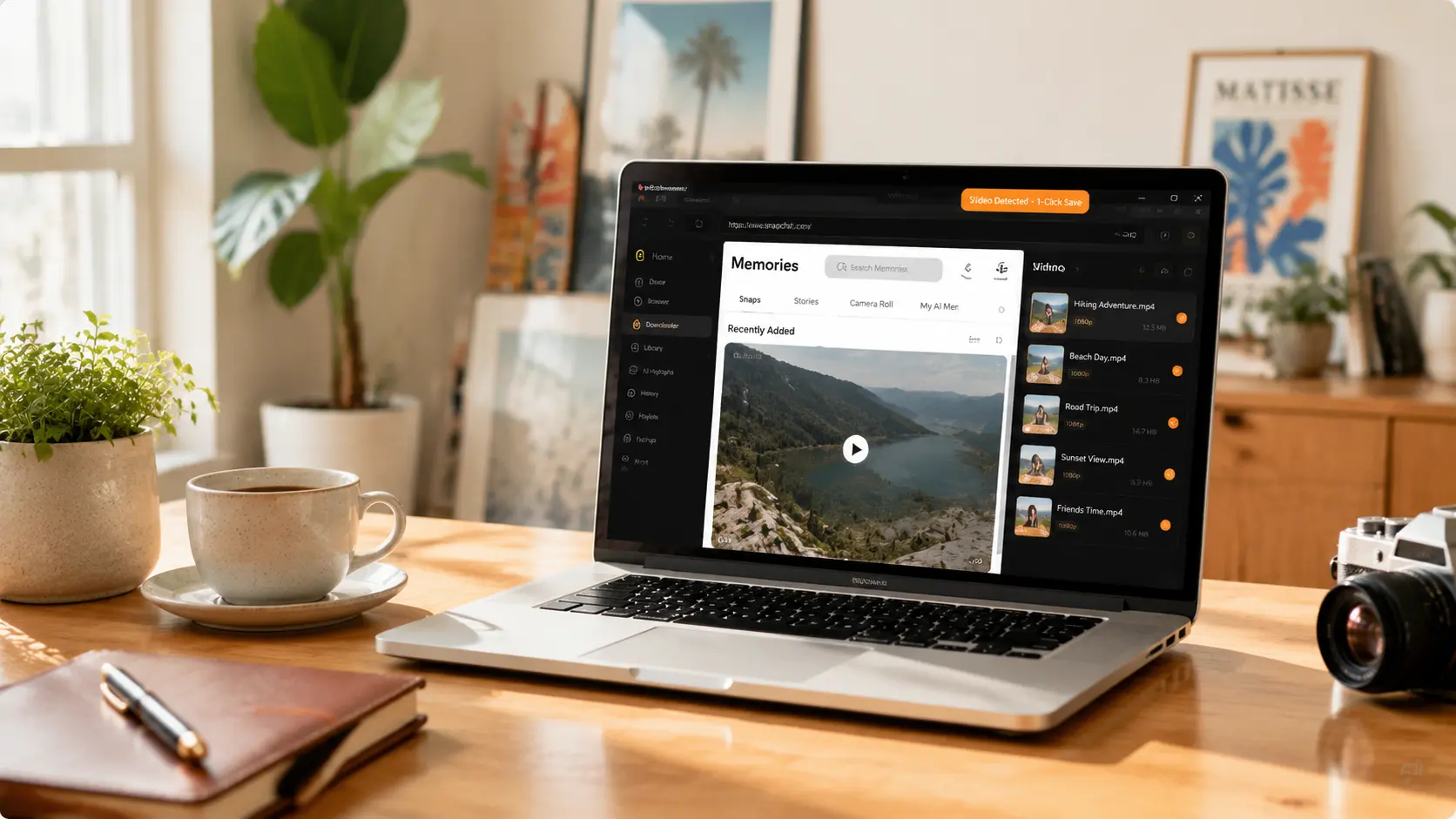
VidBrowser is a desktop browser designed for video, supporting Windows and Mac. Open snapchat.com normally, log in with your account, open Memories and play the video you want to back up. Once playback starts, an orange one-click save indicator appears in the top-right corner — click it and the video is saved as an MP4 file.
It takes just a few steps:
Step 1: Download and Install VidBrowser
VidBrowser is a desktop video browser for watching videos, trimming clips, and saving them locally on Windows and Mac. Installation takes just a few minutes.
Step 2: Open Snapchat in VidBrowser and Log In
Launch VidBrowser, visit snapchat.com, and log in with your own account as usual. Memories are only visible after logging in.
Step 3: Open Memories and Play the Video You Want to Back Up
Go to the Memories page, find the video to back up, and let it play normally for a few seconds. VidBrowser automatically detects video resources on the page in the background; once it identifies a savable video stream, it lists it in the "Video Library" panel on the right.
Step 4: Save from the Video Library on the Right
Once playback starts, the "Video Library" panel on the right automatically lists all videos detected on the page, each with an orange "Download" button. Play each video and click "Download" — the file saves as MP4 to your computer.
Step 5: Find the File in Your Library
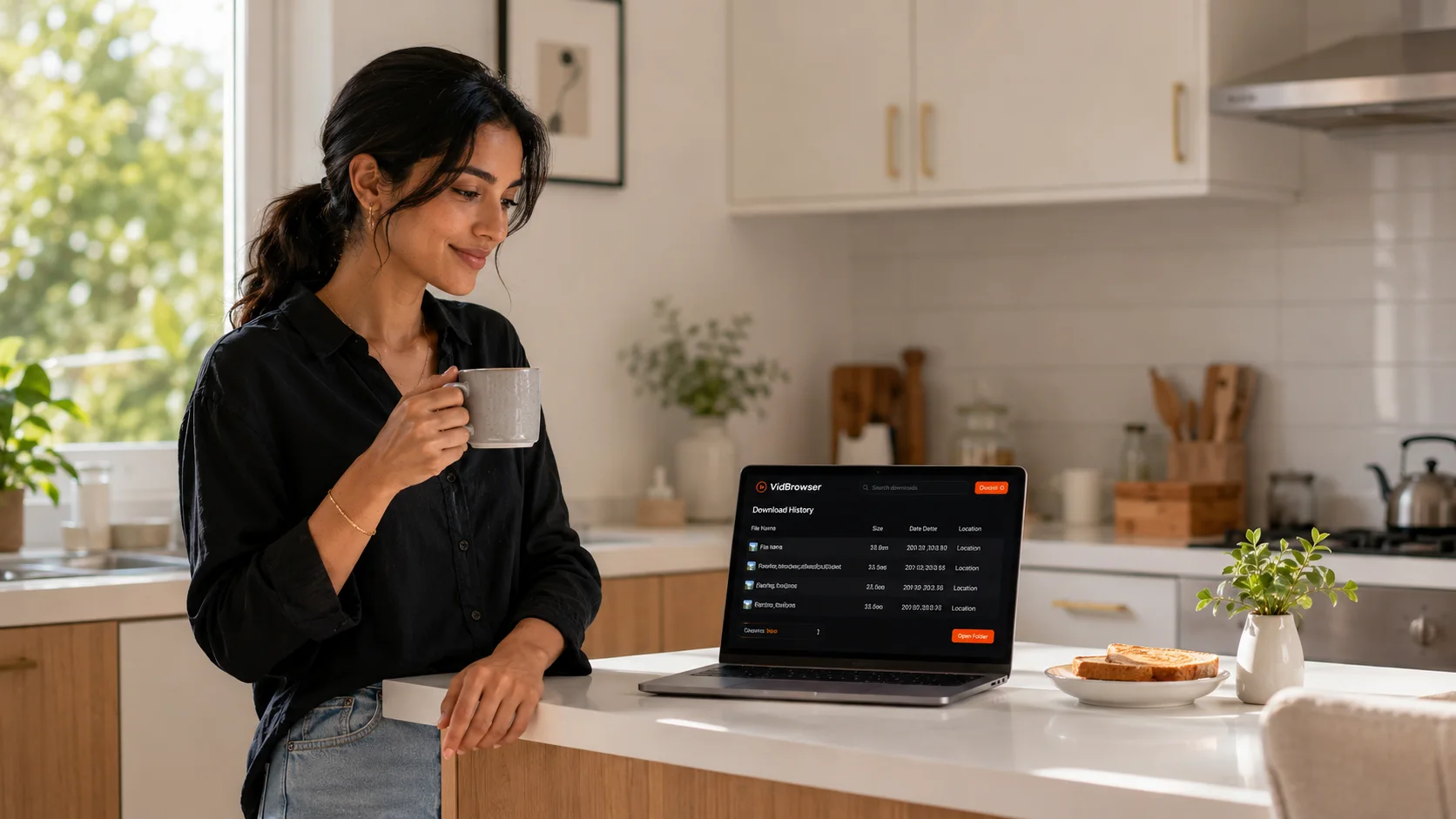
After saving, you can open the file from the folder you chose, or find it through VidBrowser's download history. Then view it anytime with compatible players like VLC or QuickTime.
How to Organize After Backing Up
Backing up dozens of Memories at once leaves a messy pile of files in one folder. A few practical tips:
- Create sub-folders by year (2024, 2025, 2026).
- Add the date or a keyword to filenames, e.g. "2026-08-11 family gathering".
- Play through the backup locally to confirm nothing is corrupted before deciding whether to clear old archives in the app.
One Bottom Line to Remember
Memories is your own content, so backing it up locally is totally fine — but don't spread private snaps others sent you. Those belong to the sender: you may save them, but that doesn't mean you may share them.
If you also want to download others' public Spotlight creative videos, see our Snapchat Spotlight video download guide.
FAQ
Can Memories be downloaded by others?
No. Memories is a private archive in your account, visible only to you by default. What you download is your own content — no one else has access.
Official export or VidBrowser backup: which should I choose?
For a small amount of content, official export is convenient; for lots of content (dozens or more), bulk-saving with VidBrowser is far easier — files land directly on your device with quality closer to the original.
Will backed-up Memories be lost?
Files saved locally won't disappear because of app updates, phone changes, or account issues — they're just ordinary local video files.