How to Download Snapchat Spotlight Videos? Public Content, Easy to Save
You come across a Spotlight creative video on Snapchat that you like — a dance, a challenge, a funny clip — and want to save it to watch later. Unlike snaps that vanish after viewing, Spotlight is Snapchat's public short-video feed (similar to TikTok and Reels): content stays up long-term and anyone can watch it. But when you try to save it locally, there's no download button on the web version, and the app only lets you "favorite" it — not "save to camera roll".
This article explains how to save Spotlight videos, and the methods that actually work in 2026.
Spotlight Is Public Content — Nothing to Do With "View-Once"
Let's clear up a misconception first: many people think all Snapchat content disappears, but Spotlight is a completely different story.
- Public and kept long-term: Spotlight is Snapchat's public short-video feed — anyone can browse it, and content doesn't vanish after 24 hours.
- Rivals TikTok and Reels: creators post creative videos on Spotlight and earn platform incentives from views. (For saving Instagram Reels, see our guide on how to save Instagram Reels on a PC.)
- No download entry: like TikTok, Spotlight has no download button on the web version, and the app only lets you favorite videos — not download them to your camera roll.
So "wanting to save a Spotlight video" and "worrying about view-once" are two different things — the former is simply missing a download entry.
The Screenshot-Notification Worry Doesn't Apply Here
Snapchat's snaps and stories have a "screenshot notification" mechanism — screenshots get detected by the other person. But Spotlight is public content: what you see is what everyone sees. Saving it involves no privacy violation and no screenshot-notification issue.
The only real problem to solve is this: how to turn the publicly playing video stream into a local file.
Common Methods and Why They Don't Work Well on Spotlight
- Online download sites: Snapchat delivers videos in a special way, and generic parser sites have inconsistent Spotlight support — what you get may be a compressed version. (For the common reasons download tools fail, see our video downloader not working guide.)
- Phone screen recording: recording visibly degrades quality, needs constant manual operation, and the notification bar may end up in the video.
- Tools demanding authorization: tools that make you authorize your Snapchat account expose your chat history and friend relationships — the risk far outweighs the benefit.
How VidBrowser Saves Spotlight Videos
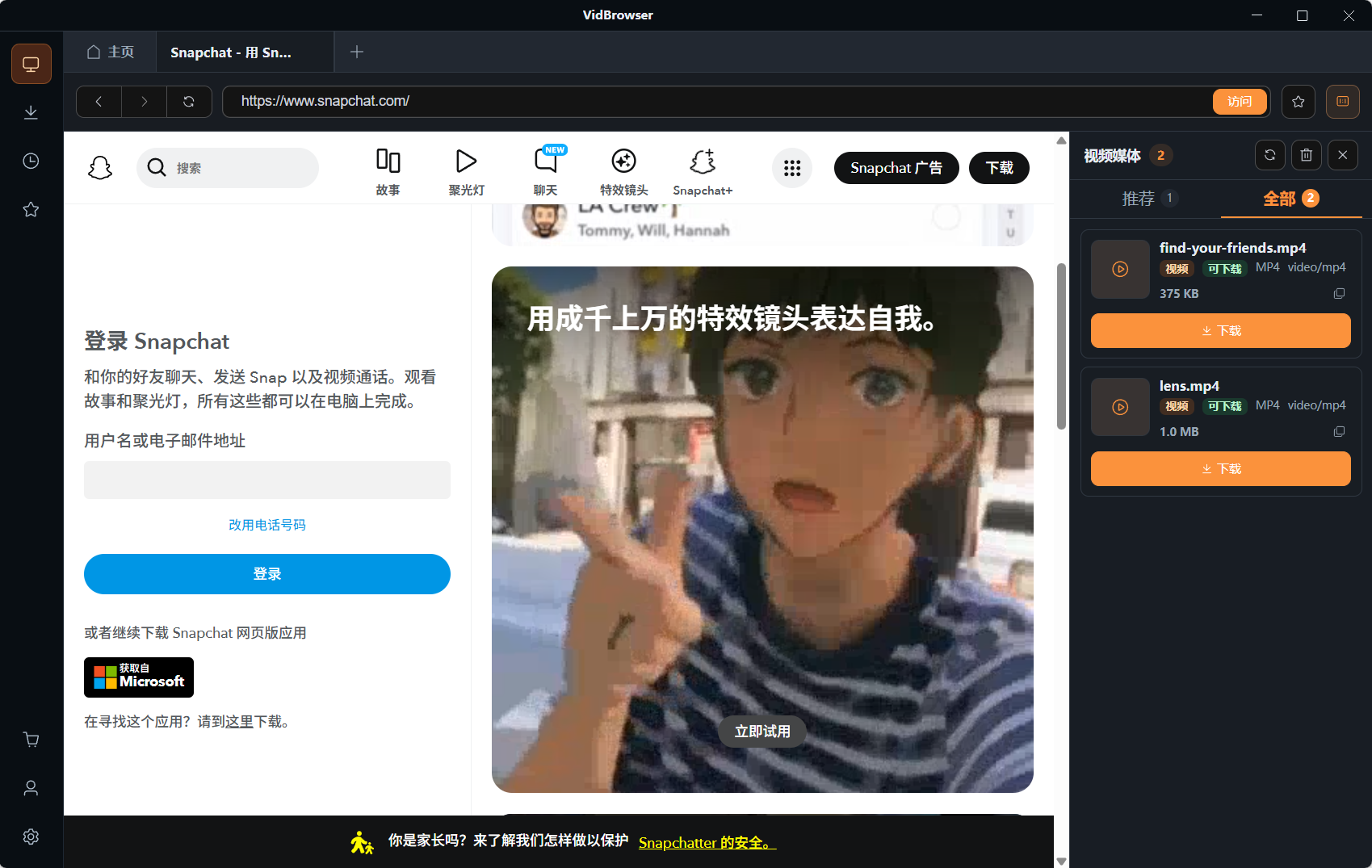
The idea stays the same: let the browser save the video stream it's playing while you watch.
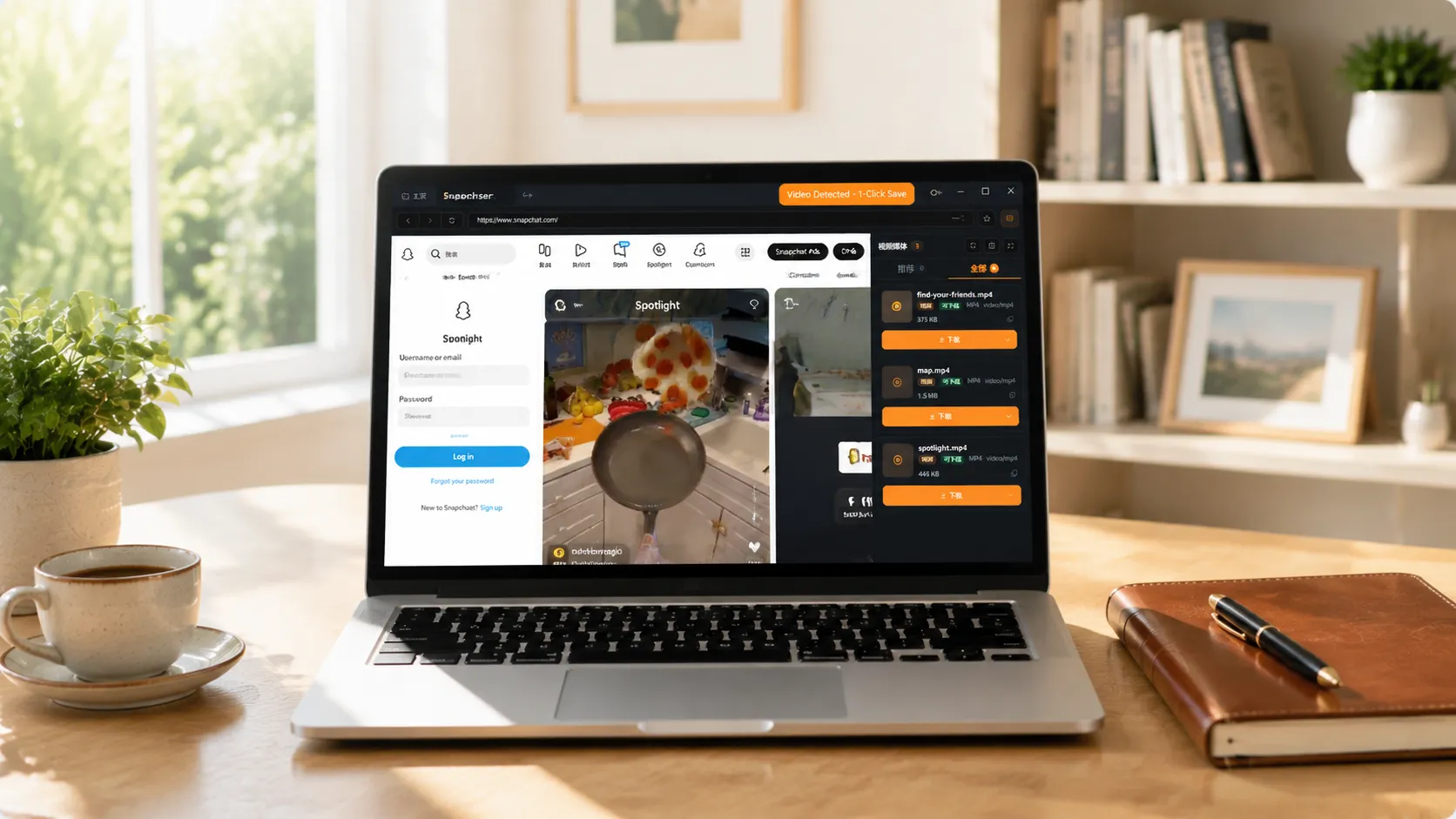
VidBrowser is a desktop browser designed for video, supporting Windows and Mac. Open snapchat.com normally, log in with your account, and play the Spotlight video you want to save. Once playback starts, an orange one-click save indicator appears in the top-right corner — click it and the video is saved as an MP4 file.
It takes just a few steps:
Step 1: Download and Install VidBrowser
VidBrowser is a desktop video browser for watching videos, trimming clips, and saving them locally on Windows and Mac. Installation takes just a few minutes.
Step 2: Open Snapchat in VidBrowser and Log In
Launch VidBrowser, visit snapchat.com, and log in with your own account as usual. Spotlight content is public, and logging in gives you the full experience.
Step 3: Play the Spotlight Video You Want to Save
Open the Spotlight page, find the video you want to save, and let it play normally for a few seconds. VidBrowser automatically detects video resources on the page in the background; once it identifies a savable video stream, it lists it in the "Video Library" panel on the right.
Step 4: Save from the Video Library on the Right
Once playback starts, the "Video Library" panel on the right automatically lists all videos detected on the page, each with an orange "Download" button. Click the "Download" button of the video you want and it saves as an MP4 file containing the original stream, with no re-encoding.
Step 5: Find the File in Your Library
After saving, you can open the file from the folder you chose, or find it through VidBrowser's download history. Then watch it offline anytime with compatible players like VLC or QuickTime.
One Bottom Line to Remember
Spotlight videos belong to their creators under copyright. Saving them for personal offline viewing or personal reference is fine; republishing, re-uploading, or commercial use is infringement. Save for yourself and respect the content creators.
If you also want to bulk-back up your own Snapchat Memories to your computer, see our Snapchat Memories backup guide.
FAQ
Can Spotlight videos be downloaded locally?
Yes. Spotlight is public content — as long as you can play it normally in your browser, you can get the file by saving the video stream.
Does saving a Spotlight video notify the creator?
No. Spotlight is public content, and Snapchat has no download notification mechanism. VidBrowser saves the video to your local device and sends no save records to the platform.
Why not just use phone screen recording?
Screen recording degrades quality and tends to capture the notification bar and operation traces. Saving the original video stream directly in the browser keeps quality identical to playback, with none of those distractions.