
Spliced the same clips, so why does your cut come back with black bars?
You shot a few segments and want them joined into one file. Then you start, and it is not that simple: the order came out wrong, the aspect ratio looks off, and you are not sure the audio will line up. That is not a bad tool. Splicing has a few preconditions you have to meet first.
Start with the conclusion: merging videos and adding intros and outros are two separate entries. The first joins several segments into one file; the second puts the same opening and closing on a batch of videos.
What Merging Videos and Adding Intros Solve, Respectively
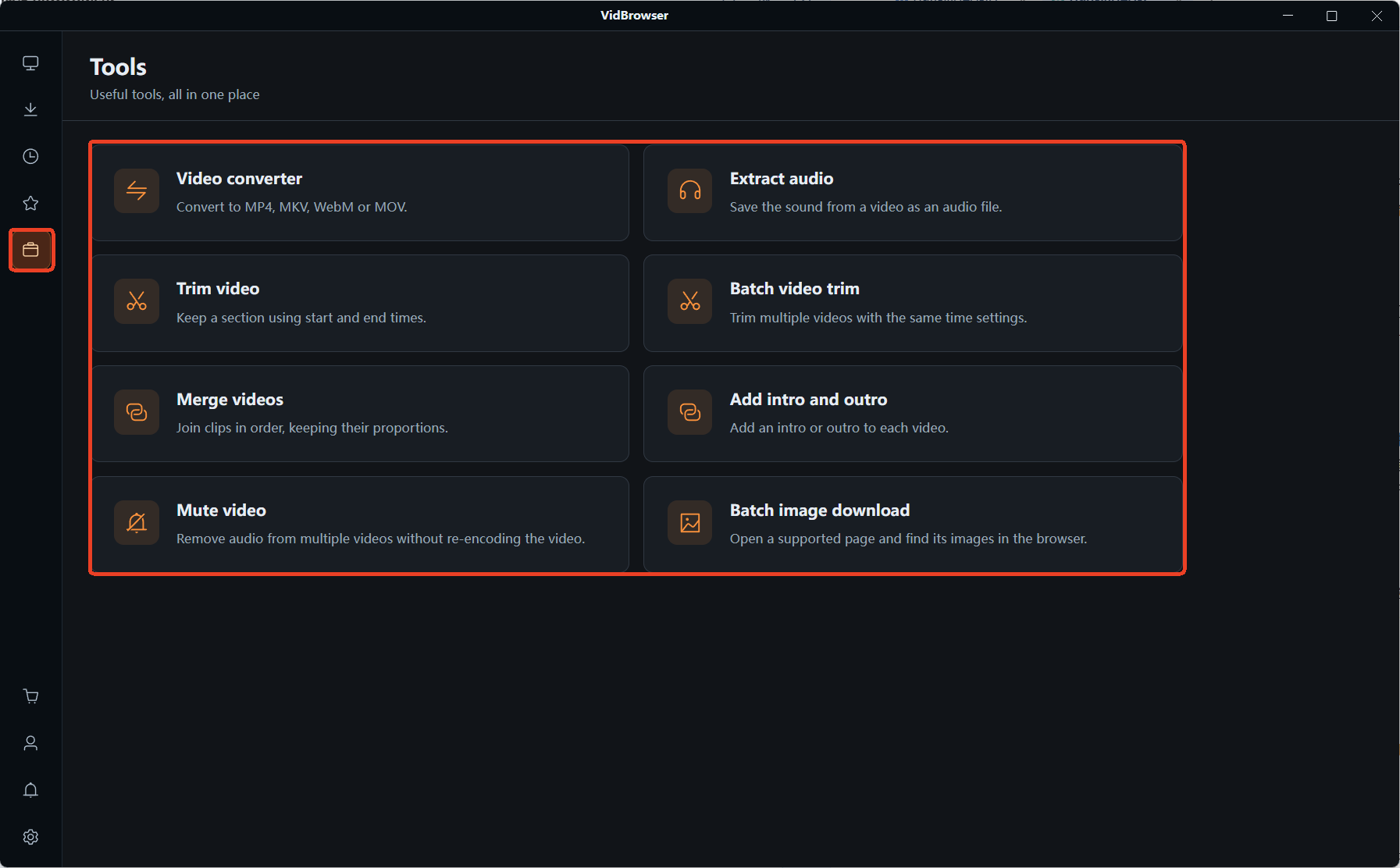
Merging videos stitches several segments into one file in list order; adding intros and outros gives every video an opening and a closing, set up once and applied to the whole batch. Both live on the Tools page, and they work very differently.
- Merging videos, described in the interface as "join videos in order, keep the aspect ratio". Several cameras on one event, one episode recorded in a few takes, a long video cut into pieces that you want back together, all go through this entry.
- Adding intros and outros, described as "add an intro and outro to each video". Course series, serialised content, every episode from the same creator usually opens and closes the same way; set it once here and a whole batch of files carries it.
The test: are the clips meant to become one, or does each one need the same thing attached?
Why Some Clips Splice Directly and Others Need Aligning First
At file level there are two paths: when the segments share the same encoding specs, the data is copied straight over; when the specs differ, they must be aligned and re-encoded first. Whether a straight splice works depends on the footage, not on the tool.
the official FFmpeg documentation splits this into exactly two cases: files with identical encoding and parameters go one way, and their data streams can be copied without re-encoding; files with different encoding go the other way and must be re-encoded, which costs compression quality. The same page adds a harder condition for the second path: the segments need the same frame size, should share a frame rate, and properties such as aspect ratio have to match, or they must be scaled into alignment first.
That explains the "why does it look wrong" moment: footage from different cameras, downloaded from different platforms, or a mix of recordings and downloads often differs in both encoding and resolution. The tool has to do more than join the ends, it has to bring each segment to a common spec first. The Export settings panel on the right says "use the frame size of the first video, scale the rest proportionally and pad with black bars, never stretch", which is precisely this: the frame comes from the first segment, everything else is scaled proportionally and padded, and the picture is never squashed or stretched. The same panel also states "no audio track compatibility settings needed, output is a uniform MP4", so neither the audio nor the output format is your problem.
When the gap is too wide, say one MOV and one WebM with different encoding, aligning the specs first in Video Format Conversion is far smoother; how to convert video formats covers that in more detail.
Order Comes From the List: Two Things to Check Before You Merge
The order is the list order, the source panel literally says "join in list order", and the tool will not work out which segment comes first for you. The two most common reasons for a redo:
- The segments were added in the wrong order. File names from a segmented recording often do not show the sequence, and if you hit start without scanning the list, segment 2 turns up in front of segment 1 in the finished file.
- The trims were not done first. The waiting at the head of each segment and the sign-off at the tail mean that trimming after the merge sends the whole file back to the start; trim each part first, then merge.
That second point is exactly what Video Trimming handles: a single file goes through Video Trimming, a batch goes through Batch Video Trimming, and you merge the trimmed results. Which mode to pick and how to enter the times is covered thoroughly in how to trim a video fast without wrecking the quality, so it is not repeated here.
Intros and Outros: Both Optional, Set Once and Applied in Bulk
Adding intros and outros turns "attach the same opening and closing" into a single setup: both the intro and the outro are marked optional, so you can add only an intro, only an outro, or both, up to 20 files at a time. What it saves is not the joining itself but the repetition.
The pain of serialised content is concrete: the same opening and closing on every episode, ten videos means twenty repeated joins, slow by hand and easy to skip one week, which leaves an obvious break in the finished set. Set it once here and the whole batch is covered.
You only need two things ready in advance: one intro video and one outro video, ideally close in spec to the footage they are attached to. Neither has to be made for the purpose, trim the few seconds you need out of an existing opening clip and save it as its own file.
Building One File From Your Footage in VidBrowser
The post-production utilities sit in the same application as downloading and recording: VidBrowser is a desktop video browser, so footage does not have to be shuttled between programs and the finished file lands locally.
Step 1: Download and install VidBrowser
VidBrowser is a desktop video browser for both Windows and Mac, with downloading and recording built in, and setup takes a few minutes.
Step 2: Get the segments you want to merge onto your machine
For anything that downloads directly, open the video page and play it, and the Video Library panel on the right lists the resources it detects. Click the orange Download button to save it as MP4, or pick a resolution first. For protected content or a live stream, use recording: move the mouse over the picture and the recording controls appear as an overlay, choose a recording speed (1x real time, or 2x and 4x to finish faster), hit Record All to capture the whole video, and the record button on the left starts and pauses at any point.
Step 3: Open Video Merge on the Tools page
The everyday utilities are collected on the Tools page in the left navigation, with Video Merge and Intro Outro Merge each getting an entry. Drag local files into the source area, or click Choose File to add them one by one.
Step 4: Put them in list order, or assign an intro and outro
To join them into one file, arrange the segments in the order you want the result, and the list order is the final order. To attach the same opening and closing, switch to Intro Outro Merge and point it at the intro and outro files, leaving the end you do not need empty.
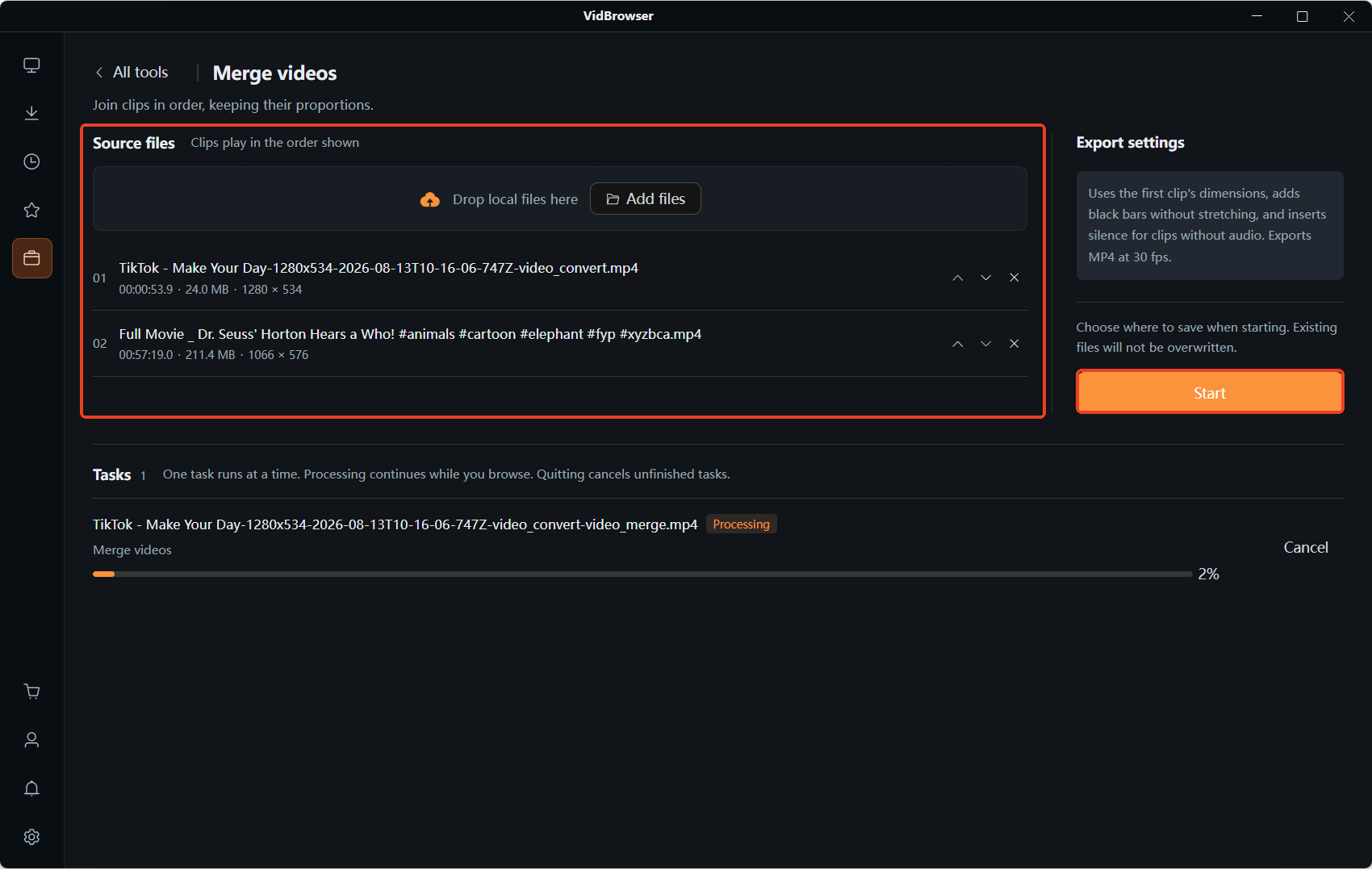
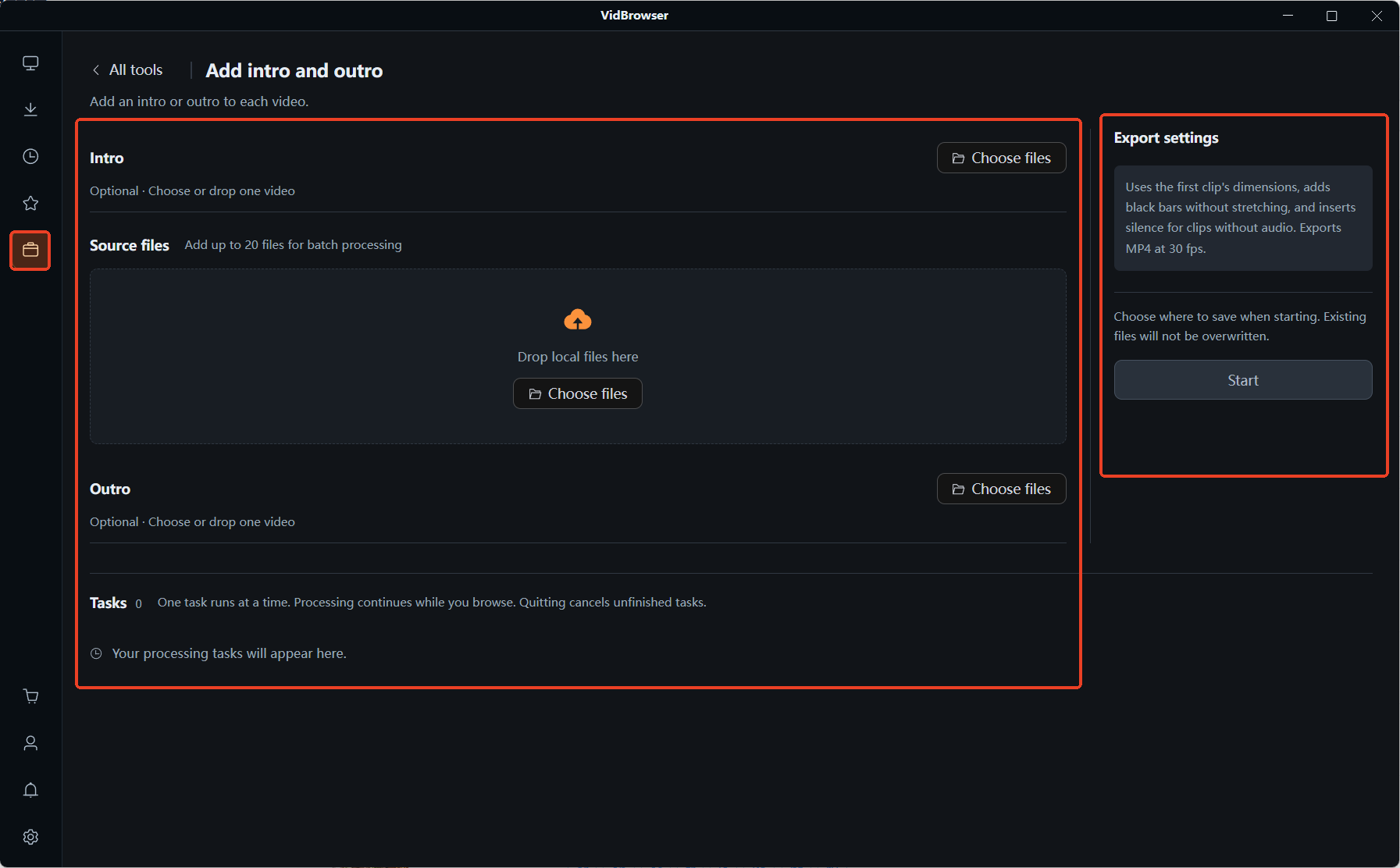
Step 5: Pick a save location and start
Choose the save location before you start, and existing files are never overwritten. Tasks run in order and keep going when you switch pages, but quitting the app cancels anything unfinished, so wait for it to finish before closing the window.
How to archive the finished file and how to keep it alongside what you downloaded earlier is set out in full in building a personal video library.
One last line worth holding: the footage, the music and the commentary each belong to somebody. Keeping a merged copy for yourself is fine; republishing it or passing it off as your own is a different matter.
FAQ
Will videos with different resolutions come out distorted?
No distortion, but there will be black bars. The Export settings are explicit: use the frame size of the first video, scale the rest proportionally and pad with black bars, never stretch. So the frame is decided by the first segment in the list: put the largest one first and everything else needs the least padding.
Does merging cost picture quality?
It depends on whether the segments share the same encoding. With identical encoding and parameters the data is copied over and the quality matches the source; with different encoding it must be re-encoded, and re-encoding costs compression quality. If quality matters, use footage produced by the same device and the same settings, or align the specs with format conversion first.
The audio formats differ. Do I have to convert them myself?
No. The line "no audio track compatibility settings needed, output is a uniform MP4" means both the audio alignment and the output format are handled by the tool. The only thing to watch is whether the segments carry sound at all: one with audio next to one without is audible at the join.


