Building Your Personal Video Library: Download, Organise and Keep It Offline
Dozens of links sit in your favourites and half of them are dead by now. Your Downloads folder is nothing but Video1, Video2 and file names you can no longer place. Then the drive stops reading, and two years of collecting disappears in one night. None of that is bad luck — it is the absence of a video library of your own. Treat it as a process, put in the work once, and every future save files itself.
Step one of a personal video library: build the three-tier folder structure
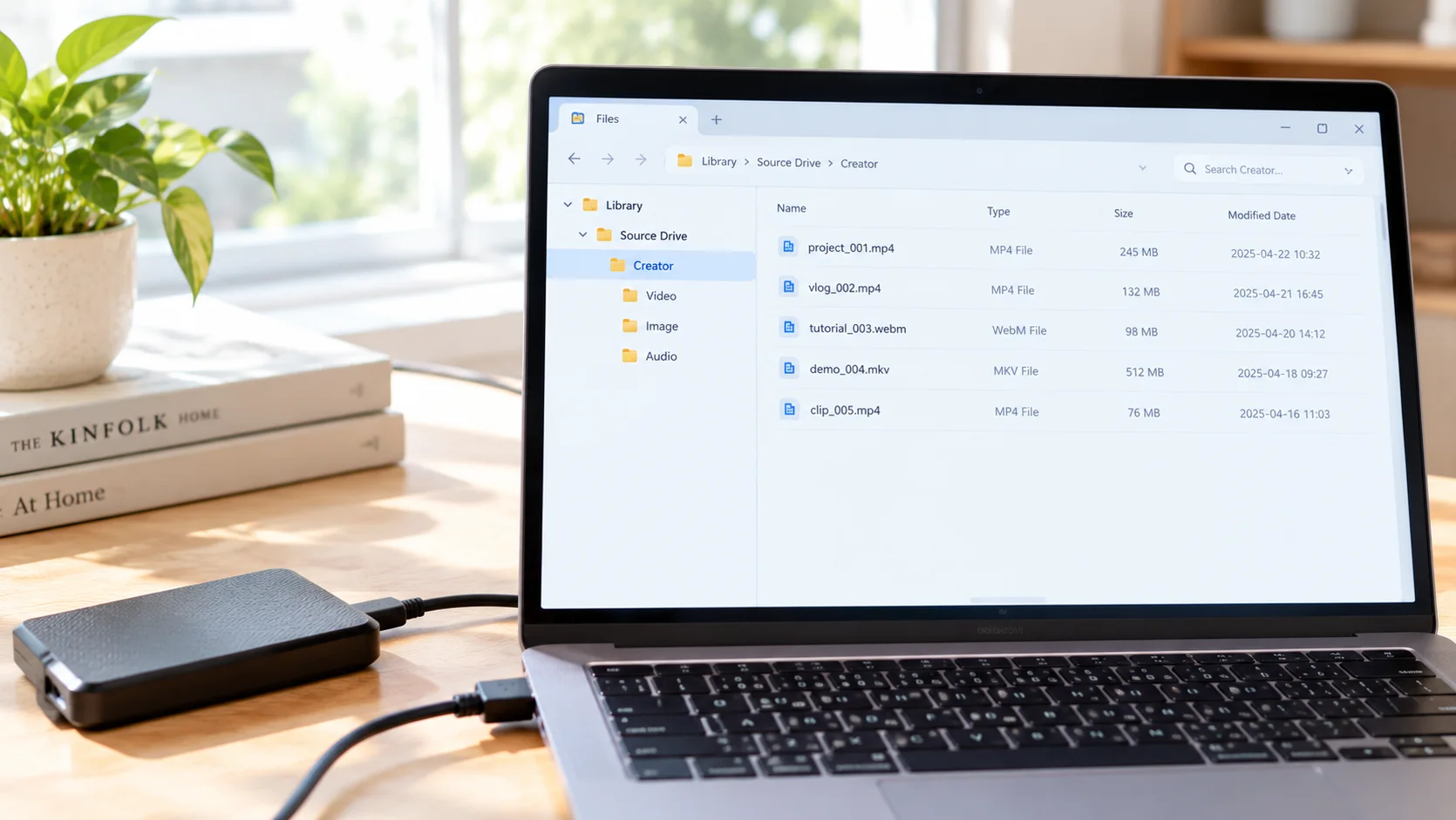
A personal video library that works rests on three tiers: one landing folder, a second tier split by source, and a third tier grouped by creator or topic. Most people just make a "Videos" folder and dump everything into it, and within six months it has turned into a junk room nobody can tidy.
Here is how the layers break down:
- Tier one — the library root. Set aside one location, say VideoLibrary on your D drive, and point every download tool's save path at it (if you are not sure how to change a default location, we gave the full steps in our guide to where downloaded videos go).
- Tier two — split by source. Three subfolders: subscription platforms, live stream replays, and videos from ordinary websites. The reason for splitting this way is that the three differ completely in how they are saved and how long they last: subscription content lasts as long as the subscription, live replays are strongly time-limited, and ordinary website videos can usually be fetched again at any time.
- Tier three — group by creator or topic. Under subscription platforms, give each creator a folder of their own; for ordinary website videos, group by topic (tutorials, matches, performances). Content with no creator behind it only gets messier if you force it into a folder named after a person.
With the three tiers in place, every video you save already has a home, and you find things by path instead of by memory.
Naming rules: let search replace digging around
There is only one naming formula: date_source_title. Something like 20260909_username_live-replay. Those three pieces cover every way you will actually recall a video — roughly when it was, whose it was, and what was in it.
A few practical details:
- Pad the numbers. Write 01, 02 instead of 1, 2 for a series, otherwise the order breaks the moment you reach 10.
- Avoid illegal characters. Windows file names cannot contain / : * ? " — if a title has them, delete them or swap in a hyphen.
- No more "final version" or "New folder (2)". Names like that are the same as no name at all; a month later even you will not know what is inside.
The payoff shows up when you combine it with system search: type a creator's name in File Explorer and every related file in the library appears in a second. Name things properly and you do not even need management software.
Privacy isolation: keep private content separate and encrypted
The biggest difference between a personal video library and an ordinary folder collection is that it needs a privacy wall of its own. There may be things inside you do not want family, guests or anyone sharing the computer to see, and "hiding it somewhere deep" does not hold up at all.
There are three approaches, in ascending order of strength:
- Account separation: give other people on a shared computer standard accounts rather than administrator accounts and set your library folder to be accessible only from yours — the cheapest wall you can build.
- Encryption: on Windows Pro, BitLocker can encrypt a whole partition, and Microsoft's official documentation covers the steps; for cross-platform users or Home edition, the open-source VeraCrypt is the common choice, letting you put private content in an encrypted container that you mount when needed and unmount afterwards.
- Physical separation: put the most private material on an external drive that never connects to the cloud and never sits inside a sync folder — for content you do not want a cloud copy of, the drive itself is the defence.
One reminder while we are here: right-clicking a folder and choosing "Hide" only means you stop seeing it. Anyone who can show hidden files can still find it, so it does not count as a privacy measure.
Against loss: the 3-2-1 rule and the truth about drive lifespan
The 3-2-1 backup rule is worth following for anyone building a personal video library: 3 copies, on 2 different types of media, with 1 kept off-site. It is the standard data-protection baseline in the security industry, and the logic is simple — any single storage device can disappear entirely.
Drives are not as reliable as they feel. Backblaze, a storage provider, publishes annual hard drive failure rate report every year, and the figures show an annualised failure rate of 1.57% across more than 300,000 drives it monitors in 2024, with failure rates rising noticeably past the five-year mark. Leave a single drive unattended and the risk compounds year by year.
Translated into a video library, a version that is good enough looks like this: the main library on your computer's drive, a full copy on an external drive, and a further encrypted cloud copy as the off-site one for the content that genuinely cannot be re-obtained (an expired subscription, a creator who has deleted their page). Two more things matter just as much:
- Spot-check your backups. Every month or two, open a few backup files at random and play them through — a backup nobody has verified is not a backup.
- Know the priority order. Saving what you want to keep while the subscription is still active comes first; the backup system comes second. If nothing was saved in the first place, there is nothing to protect.
Four steps to save videos into your personal video library
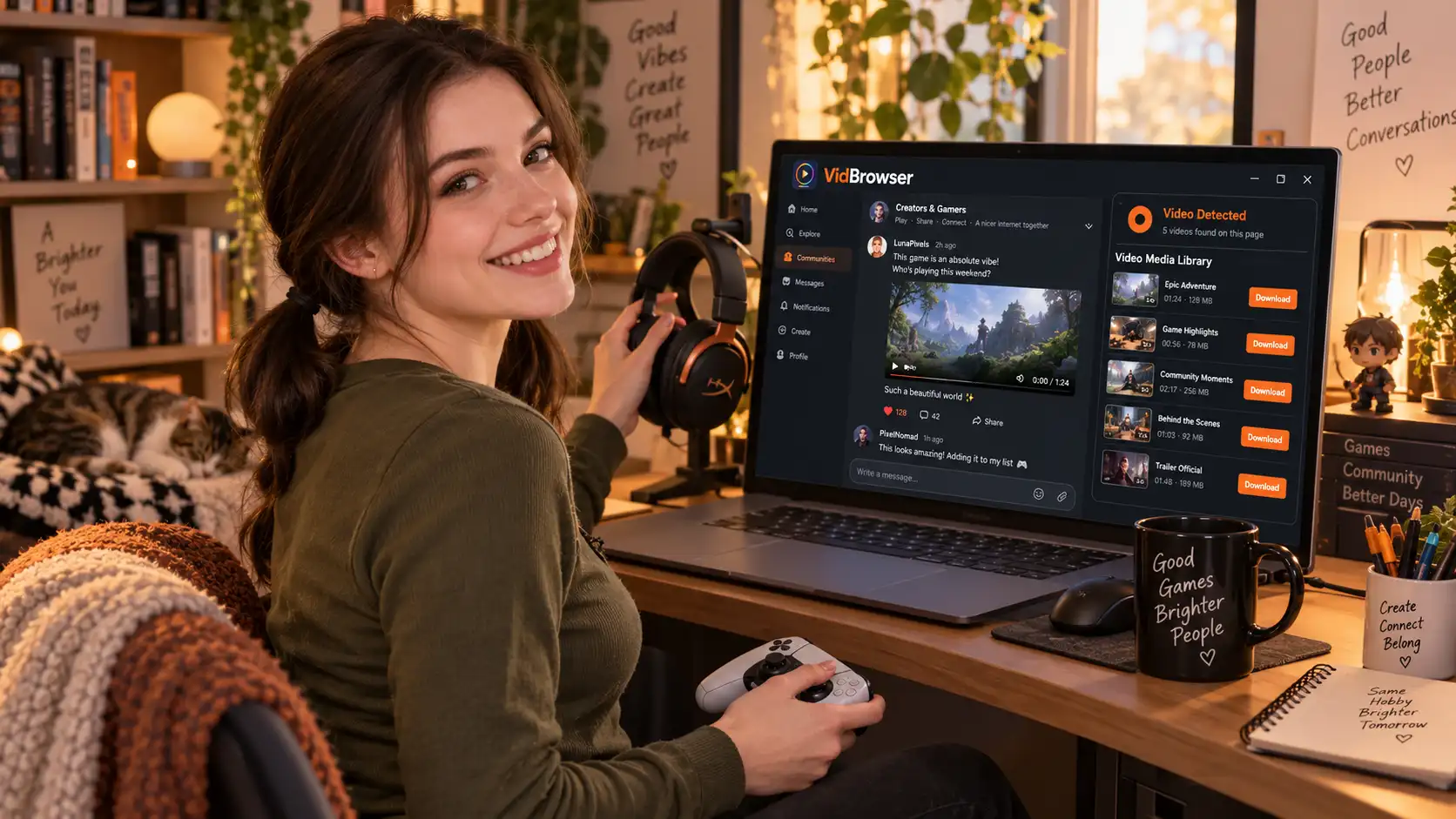
With the library built, all that is left is making every save land in the right place. With a desktop video browser like VidBrowser, watching and saving happen in the same pass:
Step 1: Download and install VidBrowser
VidBrowser is a desktop video browser with downloading and recording built in, made for watching and saving video on Windows and Mac, and installation takes only a few minutes.
Step 2: Open the video page you want to save in VidBrowser
Open whichever platform holds the video, sign in first if the content requires it, and let the page load the video fully.
Step 3: Pin the save path to your library folder
On the first save, choose the matching subfolder inside VideoLibrary, and later saves will remember the path. If you forget where a file went, the clock icon in the left navigation opens your download history, where every task records its save location.
Step 4: Record subscription platform content, download what can be downloaded
Most videos on subscription platforms are copyright-protected and ordinary download tools cannot reach them, so recording is the most reliable way to keep a copy: move your mouse over the video and a recording control appears — pick a recording speed (1x real time, or 2x and 4x to finish faster), click "Record All" to capture the whole video, and the record button on the left lets you start or pause at any time. If a video can be downloaded directly, click the orange "Download" button in the "Video Library" panel on the right, or set your preferred resolution in the quality filter first. Rename the file that lands in the library using the formula from section two, and the loop is closed.
Once the library fills up, syncing a copy of your desktop content to your phone for the commute is something we covered in our guide to transferring videos to your phone; the rhythm of saving during an active subscription has its own offline saving guide.
FAQ
External drive, NAS or cloud storage — which should a personal video library use?
From cheapest upward: an external drive is plenty to start with, a few tens of dollars covering the tens or hundreds of gigabytes most people have; a NAS suits advanced users with terabytes and multiple devices to serve; cloud storage is best kept as the off-site copy rather than the main one, and anything privacy-sensitive should be encrypted before it goes up. Combine the three and you have the 3-2-1 rule already assembled.
Will downloaded videos go bad after a few years?
The files themselves do not rot; the risk comes from the storage medium and the playback environment. Drives have failure rates, and formats can fall out of support in newer players. So fold spot-check playback into your maintenance habits, and for a file that will not open, run through our format and playback compatibility guide before blaming the medium.
How often does a personal video library need maintenance?
Once a month, ten minutes or so is enough: file new additions, fill in missing names, spot-check a few files play, and glance at the free space left on the backup drive. A fixed rhythm is far less effort than an occasional deep clean, and it keeps the library usable the whole way through.