Three Hours Recorded, Five Minutes Wanted: Cutting a Clip Fast Without Softening It
Three hours recorded, and the five minutes you actually want to keep.
You sat through a whole live stream — the countdown, the adverts, the small talk — and the goal, the crash, the song performed live is somewhere in the middle. Deleting the other two hours feels wasteful, keeping them is worse, so the whole thing goes into an editing app expecting it to take minutes. The progress bar runs for a quarter of an hour and the export comes out slightly softer than the original.
The app is not the problem. Recompressing a whole file and lifting one stretch out of the middle are two different jobs. The good news: a live stream can only be recorded whole, but cutting it afterwards does not mean redoing the whole thing.
Two trim modes: re-encode and fast mode, and how they differ
Video Trimming offers two modes — re-encoding compresses the section you want to keep a second time and writes MP4, while fast mode moves the audio and video data across as it is, with no re-encoding.
This is the one decision worth settling before you start, because it fixes time, quality and precision all at once:
- Re-encode: the selected range is encoded again and the clip is written out as MP4, at either standard or high quality. Because it recompresses, how long it takes depends on the length of the clip; what you get in exchange is exact start and end points and the widest compatibility
- Fast mode: the audio and video streams are copied straight across with no re-encoding. Whatever data the source holds is moved over, so it is quick and the picture matches the source file; the cost is that it is bound by keyframes, and the start and end times may be inexact
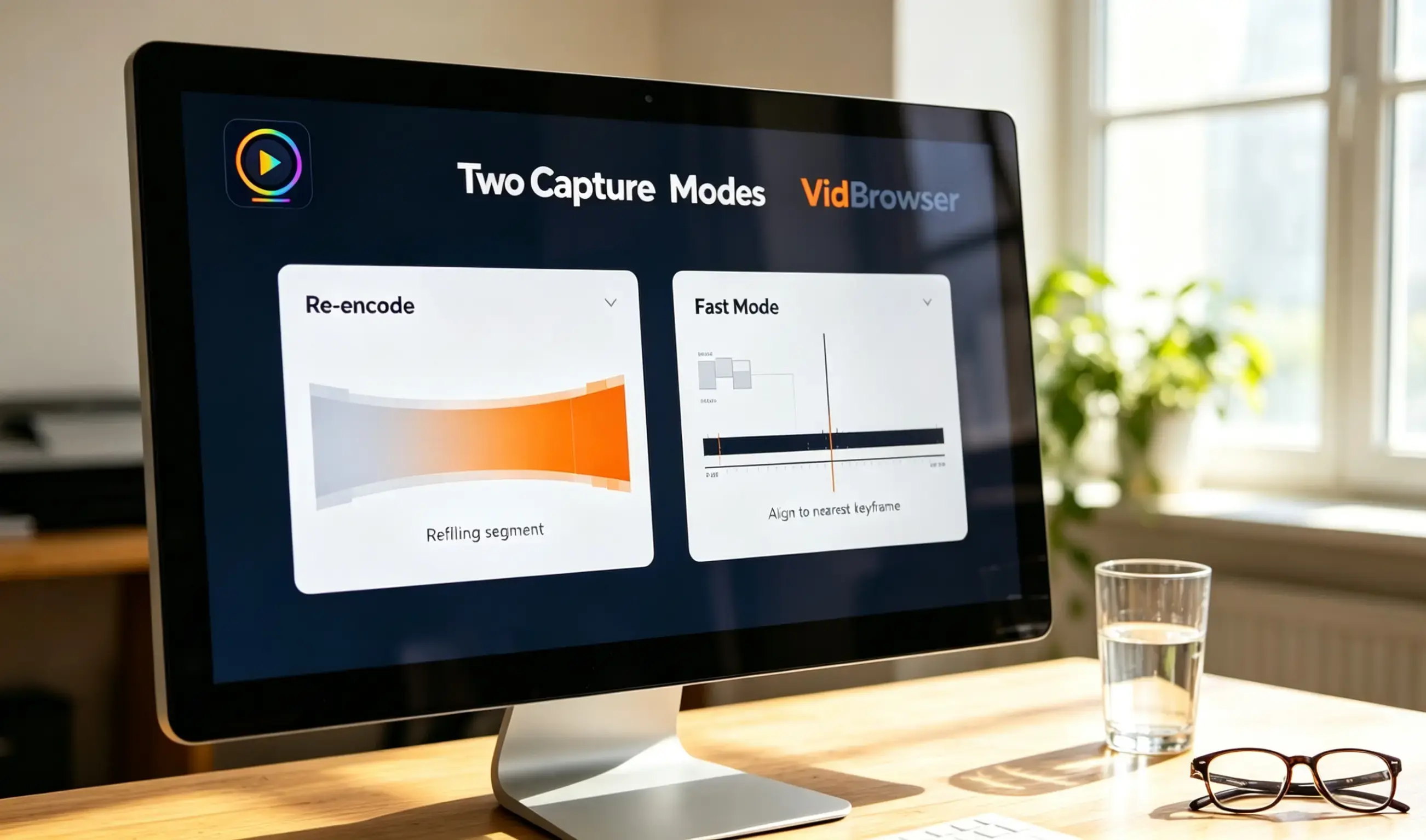
The rule is one line: to land on an exact second, re-encode; if roughly that stretch is enough and you want it quickly, use fast mode.
Why fast mode is fast: it leaves the picture data alone, and the cost lands on keyframes
Fast mode is quick because it does no re-encoding — it only moves the audio and video data out of the source file whole. The drifting times come from the same cause.
Frames in a video are not stored independently. To keep the file small, encoding stores one full picture (a keyframe) and then records only "how much changed" for the dozens of frames after it. The file ends up far smaller, at the price that those middle frames cannot be rebuilt into a full picture without the keyframe in front of them — and a tool therefore cannot cut at an arbitrary position.
The technique has a formal name; the official FFmpeg documentation calls it stream copy: move the data, do not touch the picture. So a fast-mode cut drifts to the nearest keyframes — that line in the panel, "affected by keyframes, start and end times may be inexact", is describing this, not a limitation of the tool.
One more detail: fast mode cares about containers — MP4, MOV, MKV and WebM keep their original container, and anything else is written out as MKV. If the source is already one of those four, the extension will not change.
Filling in start and end: the boxes want seconds
The panel takes seconds, not hours:minutes:seconds — note a timecode first and convert it. This is the step where things most often go wrong.
- Note the timecode in a player first. Drag the recorded file to the point you want to keep and write down the time shown (01:12:28, say), then drag to the end point and note the second one. "Somewhere around the middle" will almost never cut accurately
- Convert to seconds before typing. 01:12:28 is 1 hour 12 minutes 28 seconds, so enter 4348; the panel shows the total duration of the video, and comparing the two after typing stops most conversion errors
- Switch to re-encode when it has to be exact. Fast mode aligns to keyframes, so the start and end can be a few seconds out; if one instant has to survive — the moment of a goal, for instance — choose re-encode
- One stretch at a time. A trim writes out one clip per start-and-end pair; to keep three highlights from twenty minutes, cut three times separately
Batch trimming: two cut types, up to 20 files at once
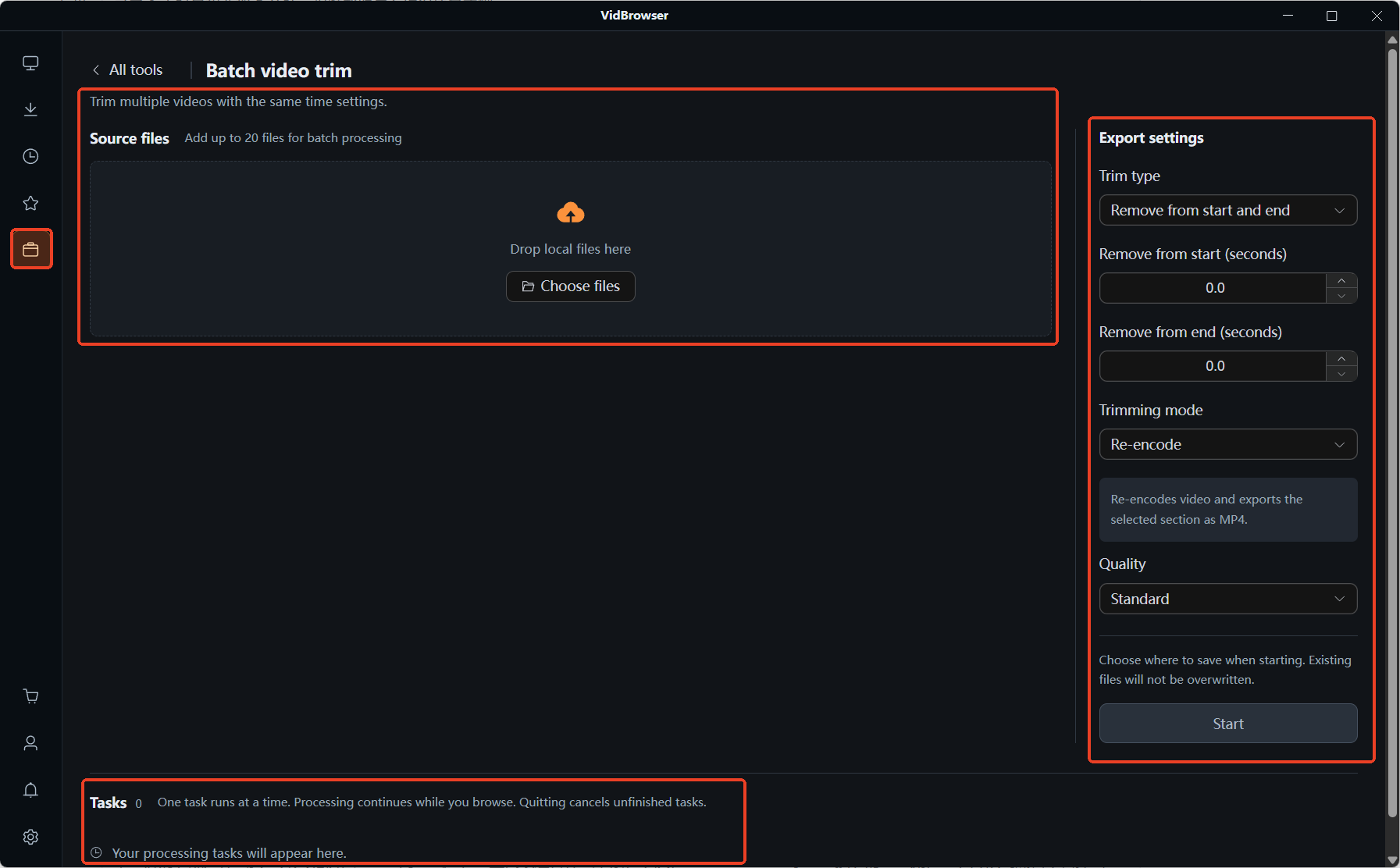
Batch trimming applies one set of settings to many files, and its cut type is either "fixed start and end times" or "remove the beginning and the end". Picking the right type matters more than the times themselves.
A single Video Trim takes one file at a time, which is slow when there are many; send bulk material through the batch entry, up to 20 files at once. The two types handle two different situations:
- Fixed start and end times: apply the same explicit in and out points to a batch of files. Twenty similar live streams that should each keep only the first three minutes — set it once and leave it. The condition is that the batch has similar duration and structure
- Remove the beginning and the end: shave a fixed length off both ends and keep the middle. Twenty course episodes that all need the opening wait and the closing sign-off taken out — this is the least effort, and it works even when the episodes run to different lengths
Record, cut, save: the whole flow inside VidBrowser
VidBrowser is a desktop video browser that handles both downloading and recording, so a recorded file can be trimmed on the same tools page and saved to your machine without switching apps.
A stream that is still running can only be recorded, and the full walkthrough for archiving a whole live stream is a separate thread, so we will not repeat it here; if a finished stream has a replay left up by the platform, the entries with an orange "Download" button in the right-hand panel can be saved directly.
It takes only a few steps:
Step 1: Download and install VidBrowser
VidBrowser is a desktop video browser that watches video, trims clips and saves them to your machine on both Windows and Mac, and it installs in a few minutes.
Step 2: Record the part you want to keep
Open the live page and let the stream play normally, then move the mouse over the picture and the recording controls appear on top: choose a recording speed (1x real time, or 2x and 4x to finish sooner), click "Record all" to capture the whole stream, and the record button on the left starts or pauses at any time. If you would rather not tidy up afterwards, get it right at this step.
Step 3: Find "Video Trimming" on the Tools page
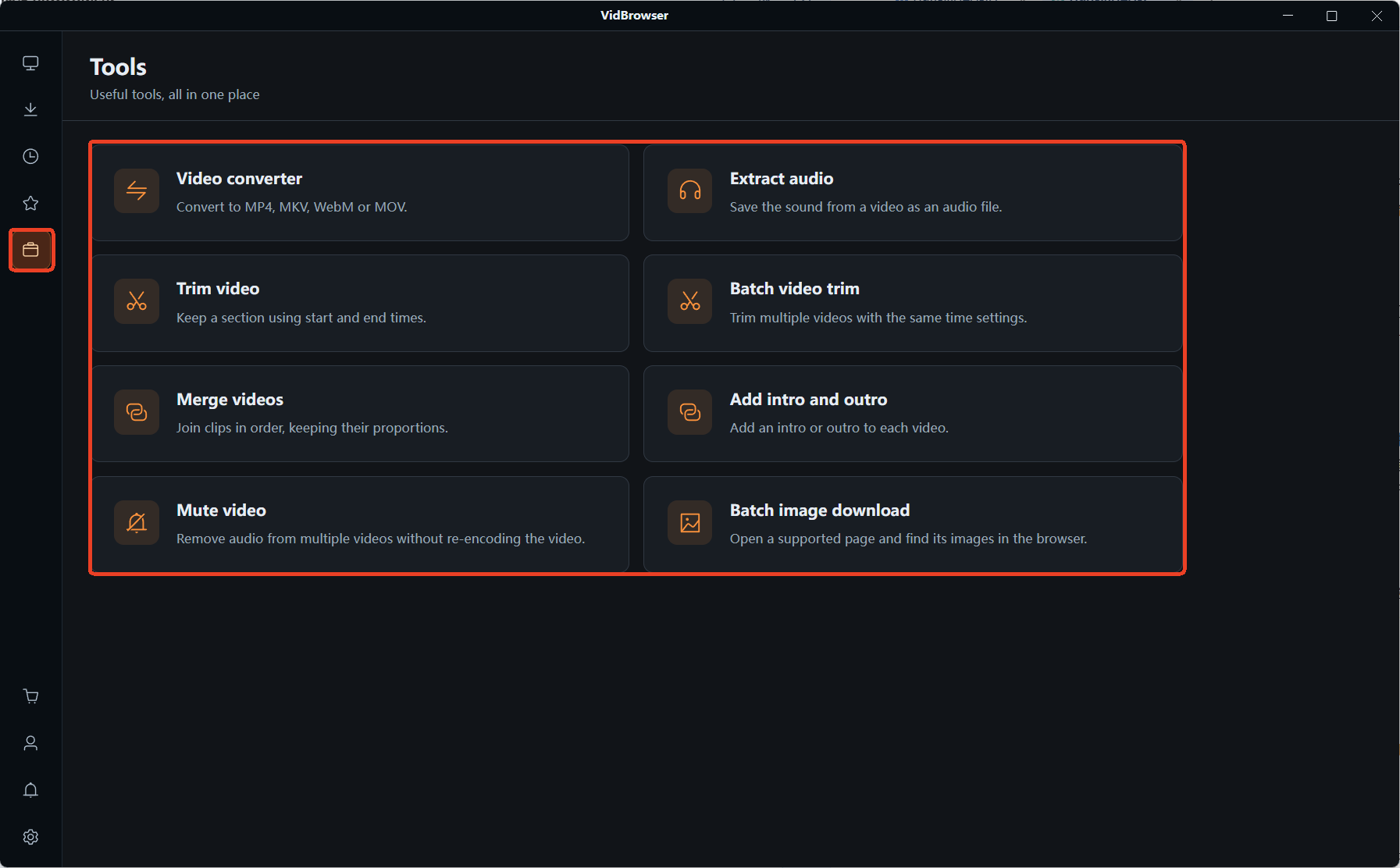
The clip-related tools live on the "Tools" page in the left navigation, which gathers eight small utilities. Two of them are for this job: "Video Trimming" (set a start and end time and keep the part you need) and "Batch Video Trimming" (apply one time setting across several clips at once).
Step 4: Enter the times and settle on the cut method
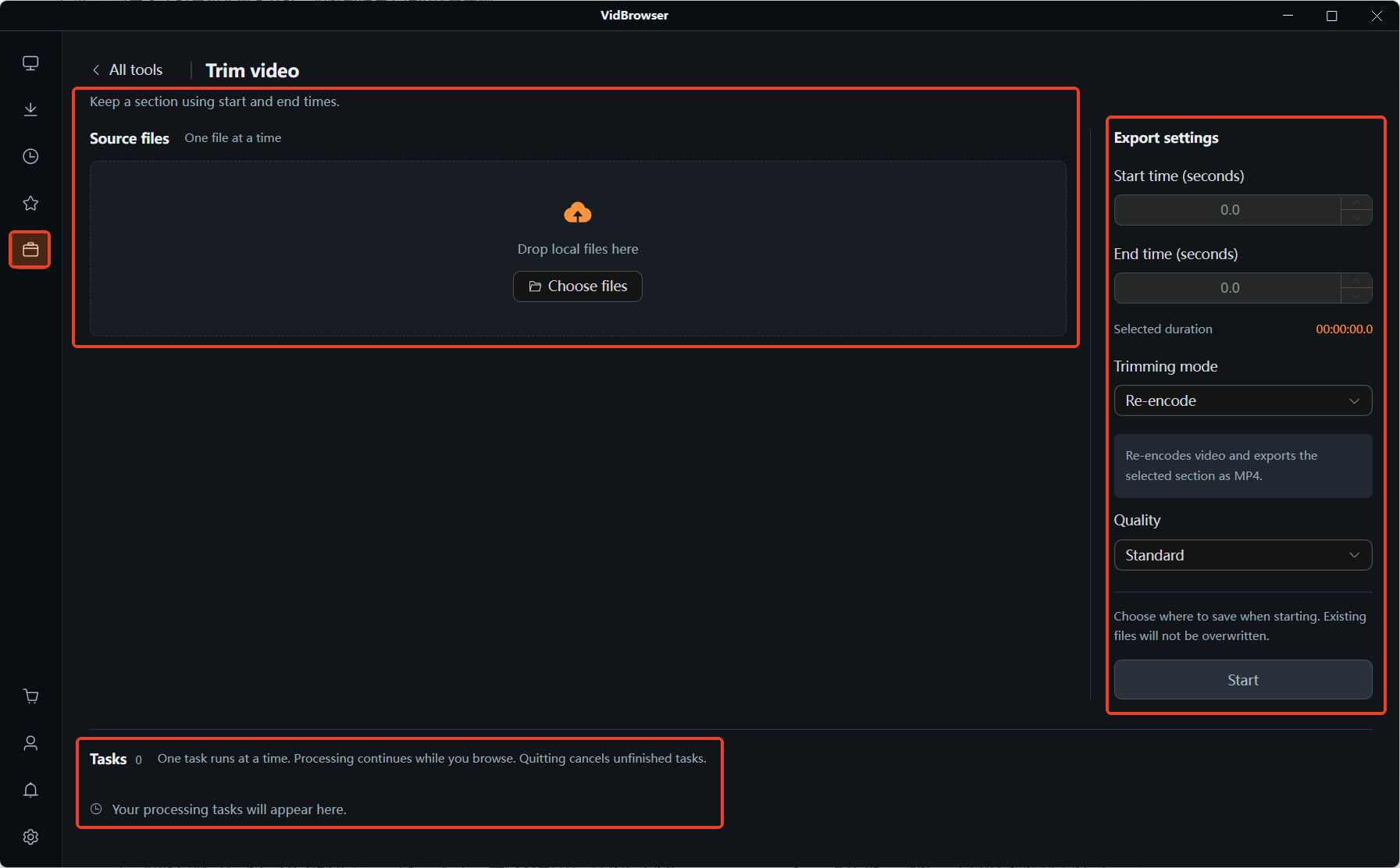
In "Video Trimming", add one file and fill in the start and end times — stay on re-encode if the timing has to be exact and pick a quality setting while you are there, or switch to fast mode if you just want it quickly. With many files, switch to "Batch Video Trimming", choose the cut type first (fixed times, or remove both ends), then enter the times.
Step 5: Choose where to save and start processing
Pick the save location before you start; an existing file will not be overwritten. Jobs are processed in order and keep running when you switch pages, so you can get on with something else while you wait — but quitting the app cancels whatever has not finished, so do not close the window in a hurry. If the clip is going to someone else, or an upload form complains about the format, format conversion on the same tools page sorts it out in passing — how to use format conversion goes into that in more detail.
One line to finish on: the picture, the music and the commentary in a stream each belong to somebody. Cutting a clip for your own offline viewing or as a keepsake is fine; republishing it or carrying it to another platform is a different matter.
FAQ
How do I choose between the two trim modes? Does the quality drop?
Fast mode does not re-encode, so the picture data matches the source and the quality is unchanged; re-encoding compresses the clip again, and the result depends on whether you chose standard or high quality. The trade-off is time precision: for an exact second, re-encode; for roughly that stretch, fast mode.
Does batch trimming require every video to be the same length?
It depends which cut type you pick. "Fixed start and end times" needs material of similar duration and structure — mix an hour-long file with a one-minute one and the same time pair will leave some clips half-cut and run past the end of others. "Remove the beginning and the end" shaves a fixed length off both ends, so it works even when the episodes vary in length.
Can the separate clips be joined back into one file?
Yes. The tools page has two more entries, video merging and merging intro and outro: merging joins several clips into one in the order you specify while keeping the aspect ratio, so mixing different resolutions will not stretch the picture; and for a series where every episode needs the same intro, merging intro and outro sets it once and applies it across the batch.