
Subtitles not loading or showing gibberish? Check the filename and encoding first
After downloading an SRT subtitle file, a few common problems can pop up: double-clicking does nothing, the player shows no subtitles, or the file opens as gibberish in Notepad. That does not necessarily mean the file is broken — it often comes down to the file extension, the character encoding, or how the player loads subtitles.
Here is the order that sorts all of this out: first make sure the player recognizes the subtitle (naming and automatic loading), then fix garbled text, switch to manual loading when the names do not match; then tell SRT from VTT, bring subtitles into editing software; finally use four steps to keep each subtitle and video paired for later playback and editing.
How do you name and load SRT subtitles?
Same name, same folder: what automatic loading requires
The first rule players use to recognize subtitles is same name, same folder: the SRT file name must exactly match the video file name and sit in the same folder, and mainstream players will load it automatically and time the captions to the video.If the video is named movie.mp4, name the subtitle movie.srt and put it in the same folder. Some players also support language tags in the file name, such as movie.zh.srt or movie.en.srt, but the exact rules for automatic loading and language detection depend on the player.
The easiest trap when renaming is Windows hiding known file extensions by default: the movie.srt you see may actually be movie.srt.txt — an extra suffix added when saving. To check, turn on "File name extensions" in the file explorer's View menu, let every suffix show itself, delete the extra part, and make sure the name ends in .srt.

Nothing but gibberish: check the character encoding first
SRT is plain text, so garbled characters usually do not mean the content is damaged — the reader is simply using the wrong character encoding.Some older tools export subtitles in GBK by default, while mainstream players read UTF-8, and the mismatch can turn Chinese into strings of question marks or boxes.
The fix is to convert the file to an encoding the player understands: open the SRT in Notepad, and if the text displays correctly, use "Save as" in the File menu, pick UTF-8 as the encoding and save, then reload it in the player. If it already opens as gibberish, use a text editor that supports multiple encodings, try reopening the file as GBK, UTF-8 and so on, keep the one that shows Chinese correctly, and save it as UTF-8; if common encodings all fail, go back and check the subtitle's source and the file itself.
Names do not match: two ways to load manually
When the subtitle and video names differ, almost every player keeps a manual loading entrance, so there is no need to rename just for pairing.One way is to drag the SRT straight into the playing window — VLC, the free player from the VLC website, picks it up and displays it immediately; the other goes through the menu, choosing "Add subtitle file" under the subtitle options, then selecting the local SRT. Menu locations vary; just look for the word "Subtitles".
Manual loading also suits another case: one video with both Chinese and English subtitles you want to switch between. Automatic loading picks the file with the matching name, while manual loading lets you swap any time — easier than renaming files twice.
How do SRT and VTT differ? And how do you import subtitles into editing software?
VTT is the subtitle format for the web, SRT is the one for local players and editing software; their content is nearly identical, their venues differ.VTT is defined by the W3C WebVTT specification, starts with a WEBVTT header line, and separates milliseconds with dots; SRT has no header and separates milliseconds with commas. Web players on video sites run on the VTT route, so when a downloader saves web subtitles as SRT, it actually performs a format conversion.
If you do get a VTT file and want it as SRT, use a subtitle editor or converter that supports both formats, then check the time codes and content after converting. For simple files with plain text and time codes the conversion is usually straightforward; files carrying positioning or styling need a second look to see whether those settings survived. If what you have is a video with embedded subtitles and you want to carry them into a new format, the container-level details are in our video format guide.
Importing into CapCut or Premiere: subtitles are one layer of text you can adjust all at once
Once editing software imports an SRT, the subtitles are not images burned into the frame but an independent subtitle track whose font, position and timing can be adjusted as a whole.CapCut offers an entrance for importing local subtitles; pick the SRT and every line lands on the timeline automatically. Premiere takes the regular import route, pulling the SRT into the project, and dragging it onto the timeline creates a subtitle layer. Change the style once and it applies to the whole film — something line-by-line manual typing can never match. Note that CapCut's entrance names differ across versions and platforms; if you cannot find the import option, trust the menus in the version you have.
Read the whole file before importing: auto-generated subtitles often carry typos and bad line breaks, and fixing them in Notepad first beats fixing them one by one on the timeline.
How do you organize downloaded SRT subtitles and videos?
Subtitle files are usually just a few KB, yet after downloading they easily get separated from the video and become hard to find later.Keep the subtitle and its video in the same folder with matching file names as much as possible — easier to manage and friendlier to automatic loading. In VidBrowser, subtitles appear in the download history just like videos, and from there you can open the file's folder directly. Four steps finish the archiving:
Step 1: Find the subtitle file in the download history.Judge by file name and size — an SRT subtitle is usually only a few KB, while video files are far larger.
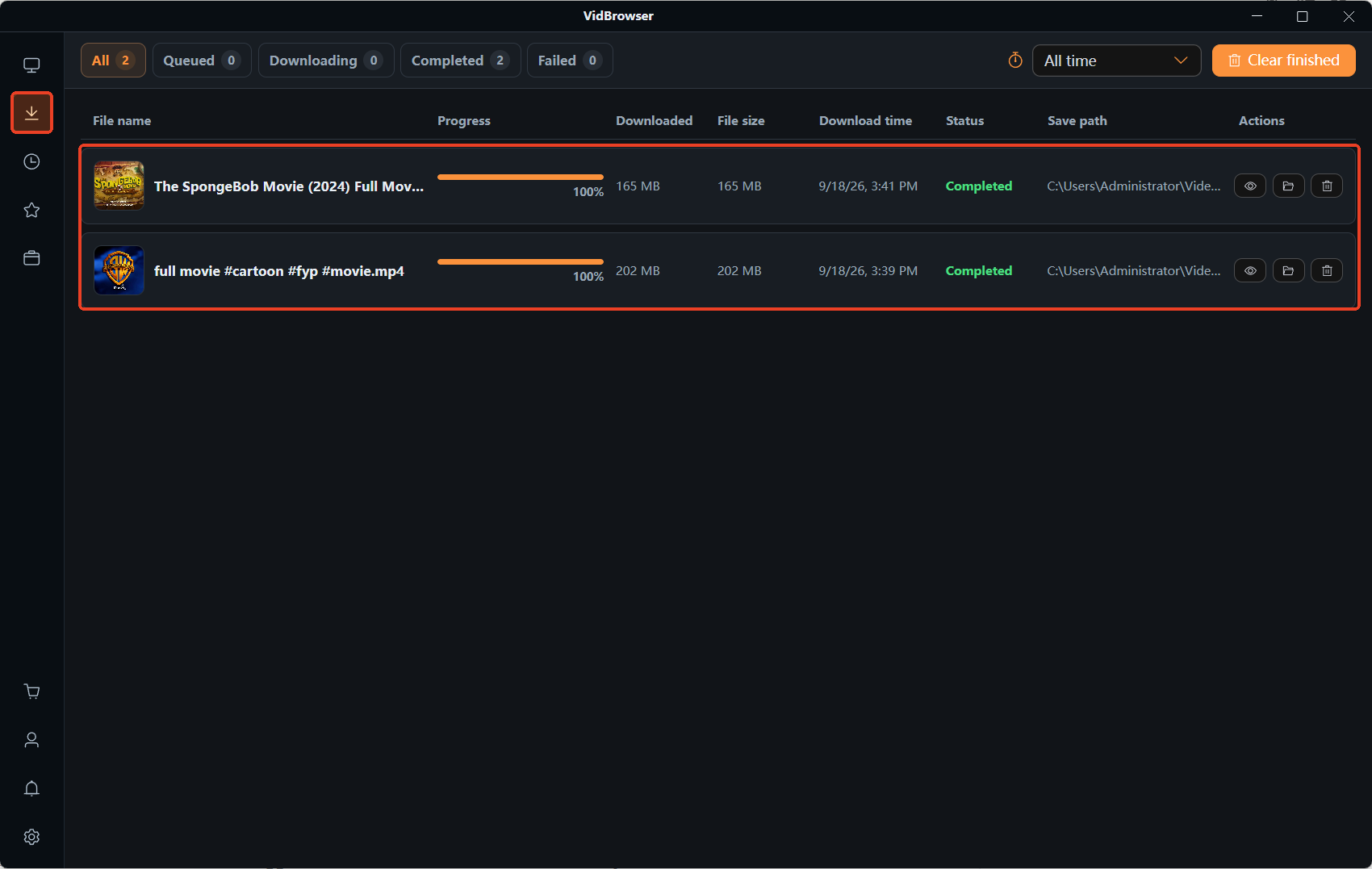
Step 2: Put the subtitle and the video into one folder.Create a folder named after the video title and drop the matching video and SRT into it, so later searches stay unambiguous.
Step 3: Check and unify the file names.Turn on extension display in the file explorer first, then rename the subtitle to the video's main file name — movie.mp4 pairs with movie.srt; add a language code if you need one.
Step 4: Play the video and confirm the subtitles show.Double-click the video to verify; subtitles appearing automatically means archiving is done. If nothing shows, recheck the name, extension and location, then try manual loading; for gibberish, return to the encoding section.
The download entrance and format choice for subtitles are covered in our YouTube subtitles guide; this article fills in the second half — what to do once the file is in hand.
FAQ
What if SRT subtitles and the video are out of sync?
No need to touch the file. Mainstream players such as VLC have a subtitle sync (delay) setting — adjust a few hundred milliseconds to a few seconds while playing, fix a constant offset once, and the whole subtitle track moves with it. If the gap keeps growing toward the end, the timeline probably belongs to a different video version; a single delay will not save it, so find subtitles matching that version.
Why does the player still not show subtitles after renaming?
Check three things in order: does the extension really end in .srt (beware a hidden .txt); are the subtitle and video in the same folder; does the video container already carry an embedded subtitle track — some players prefer it by default, and switching tracks in the subtitle menu solves it.
Can I load SRT subtitles on a phone?
Yes. Mobile players such as VLC follow the same naming rule: put the SRT and the video under the same file name in one directory; some players also let you pick a subtitle file manually during playback.


