LoyalFans Geoblocking: Why Can't You Open Some Creators' Pages? Fixes for 2026
You see a teaser from a creator on X (Twitter), click their LoyalFans link, and the page loads — but the profile says "This content is not available in your region," or it simply won't open. Your account is fine, your network is fine, but it just won't load. This isn't a glitch; you've likely hit LoyalFans' geoblocking.
This article explains what geoblocking is, why creators turn it on, and what you can and can't do when you run into it.
What Is Geoblocking? Understanding LoyalFans' Unique Mechanism
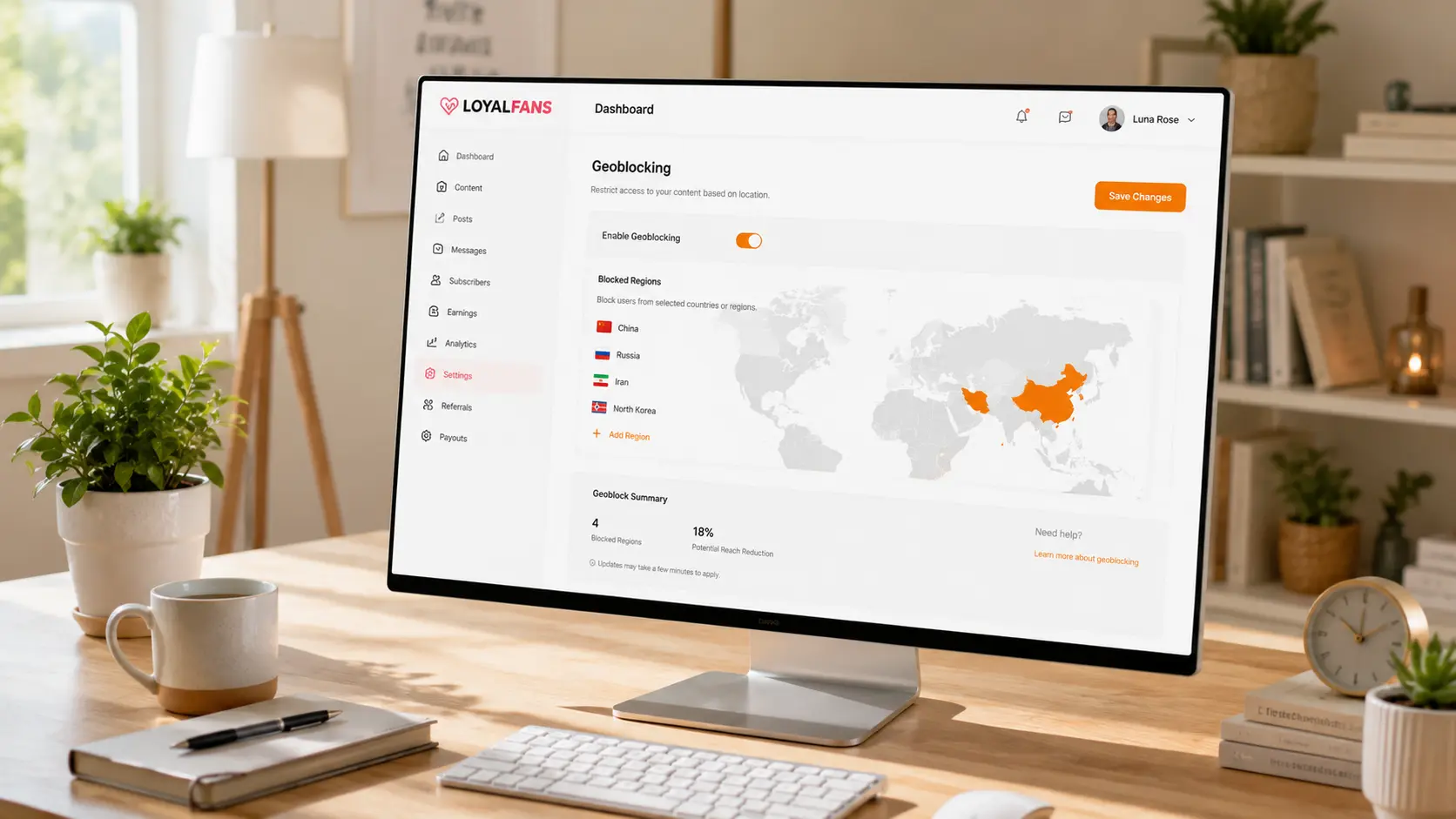
LoyalFans is a creator subscription platform run by a Canadian company, known for "giving creators more control" — it lets creators block access from specific countries or regions, and that's exactly what geoblocking is. (For LoyalFans' platform features, see our LoyalFans vs Fansly comparison.)
In short: each creator decides which regions can see their content. It's not a platform-wide block but a personal creator setting — so on the same platform, you can access creator A normally while being blocked from creator B. That can absolutely happen.
Note: geoblocking restricts "access to content," not "the platform itself." If you can log in to LoyalFans and view other creators normally, your account and the platform are fine.
Why Creators Block Regions
Geoblocking isn't personal. Creators usually turn it on for practical reasons:
- Professional and personal safety: creators often block their own country or places they travel to frequently, to keep content away from real-life acquaintances and colleagues.
- Legal compliance: some countries and regions have specific laws about adult content, and creators block those areas to avoid legal risk.
- Content strategy: some creators serve fans in specific markets only, or want to keep their content more private, deliberately narrowing who can see it.
- Payment and tax considerations: payment settlement and tax handling differ by country, and blocking certain regions reduces operational hassle.
Most of these reasons have nothing to do with whether the content is worth watching — it's not about you, and it doesn't mean the creator doesn't want you. It's a setting they made based on their own considerations.
How to Tell You're Actually Geoblocked
Don't jump to conclusions — rule out other possibilities first:
- Network issue: try another network (like a phone hotspot) to rule out a local connection problem.
- Account issue: make sure you're logged in to LoyalFans; some pages may look wrong when you're logged out.
- Content removed: if the creator's page is entirely gone (rather than a "not available in your region" notice), the content may have been deleted or the account closed — that's different from geoblocking.
- Explicit regional notice: if the page shows "not available in your country/region," you can basically confirm it's geoblocking.
Once you confirm geoblocking, remember this: it's the creator's deliberate setting, and working around it isn't appropriate — bypassing geoblocking with a virtual network goes against the choice the creator clearly made, and we don't recommend it.
What You Can Do When Geoblocked
While respecting their settings, there are still a few realistic paths:
- Contact the creator: creators usually have public accounts on other platforms (X, Instagram, Reddit). Send a DM asking whether there's another way to support them — e.g., whether they post elsewhere or might adjust regional settings. Many creators will tell you about the other platforms they run.
- Follow them on other platforms: the same creator often posts on OnlyFans, Fansly, and other platforms, either synced or with different content. Check those first (for platform choice, see our OnlyFans free vs paid subscription guide).
- Check for content you can still access: some creators only block part of their content (e.g., specific paid videos), so the profile and free content may still be accessible — use what you can see.
In one line: don't force content you can't access, and don't waste content you can.
Save the Content You Can Access
If some of the creator's content is still accessible (or you found them on another platform), saving the videos you genuinely love and want to rewatch is the most reliable move — content can be deleted or changed at any time, and local files are truly yours.
Using VidBrowser is simple:
Step 1: Download and install VidBrowser
VidBrowser is a desktop video browser for watching videos, capturing clips, and saving them locally on Windows and Mac, with built-in download and recording features. Installation takes just a few minutes.
Step 2: Open the platform in VidBrowser and log in
Launch VidBrowser, go to the platform you can access normally, and log in with your own account. Permissions work exactly the same as in a regular browser.
Step 3: Play the video you want to save
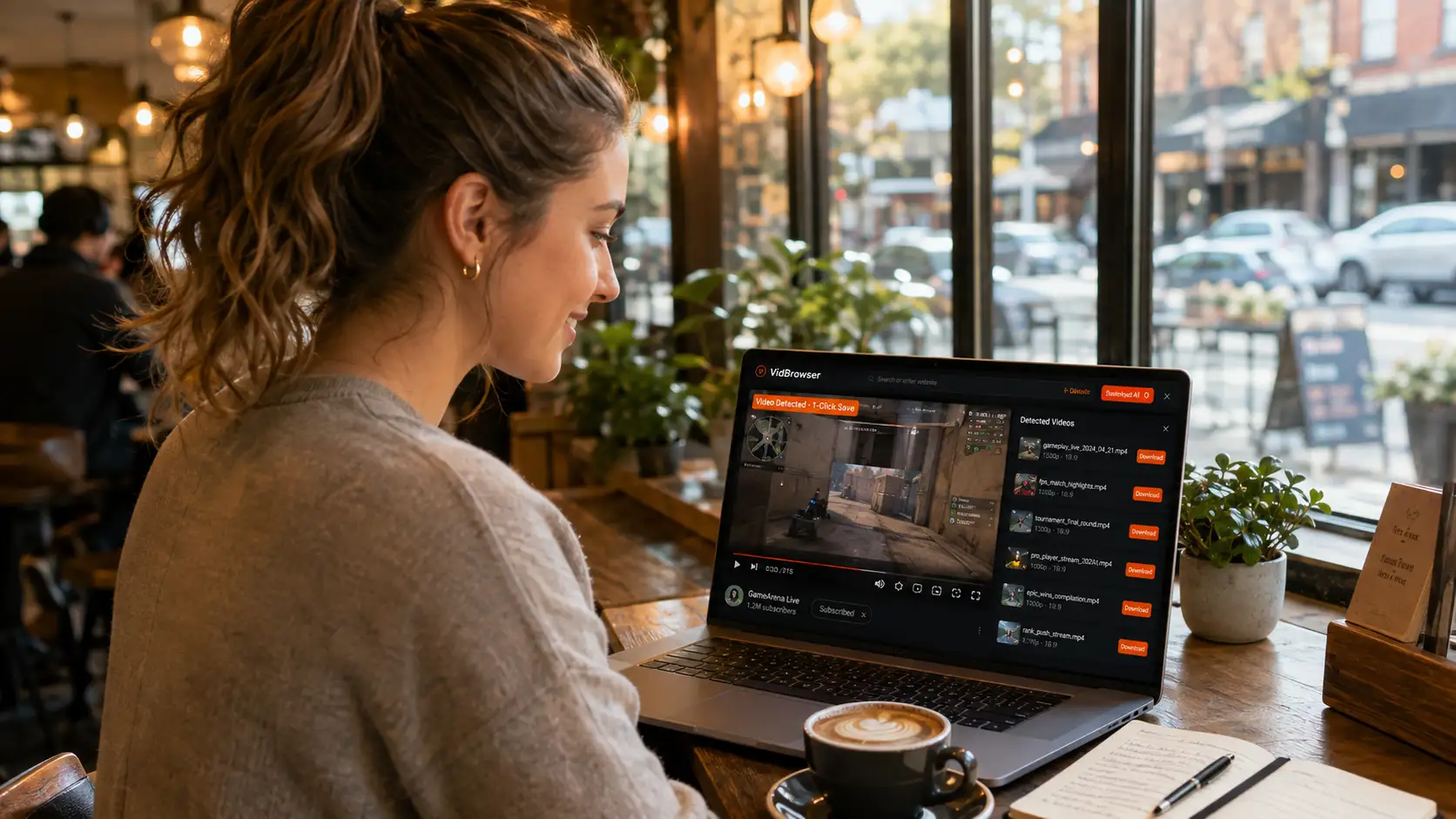
Open the video and let it play for a few seconds. VidBrowser automatically detects video resources on the page in the background and, once it finds a savable video stream, lists it in the "Video Library" panel on the right.
Step 4: Download or record — two ways to save
The "Video Library" panel on the right lists all detected videos, each with an orange "Download" button — click to save as MP4. You can also choose a resolution before downloading: higher for quality, lower to save space.
If you run into content that can't be downloaded (some protected content, special content that fails to parse), use the recording feature as a fallback: hover over the video and recording controls appear — choose a recording speed (1x real-time, 2x, 4x to finish faster), click "Record All" to record the whole video, and the button on the left starts or pauses anytime. Anything that can play can be recorded.
Step 5: Find the file in your library
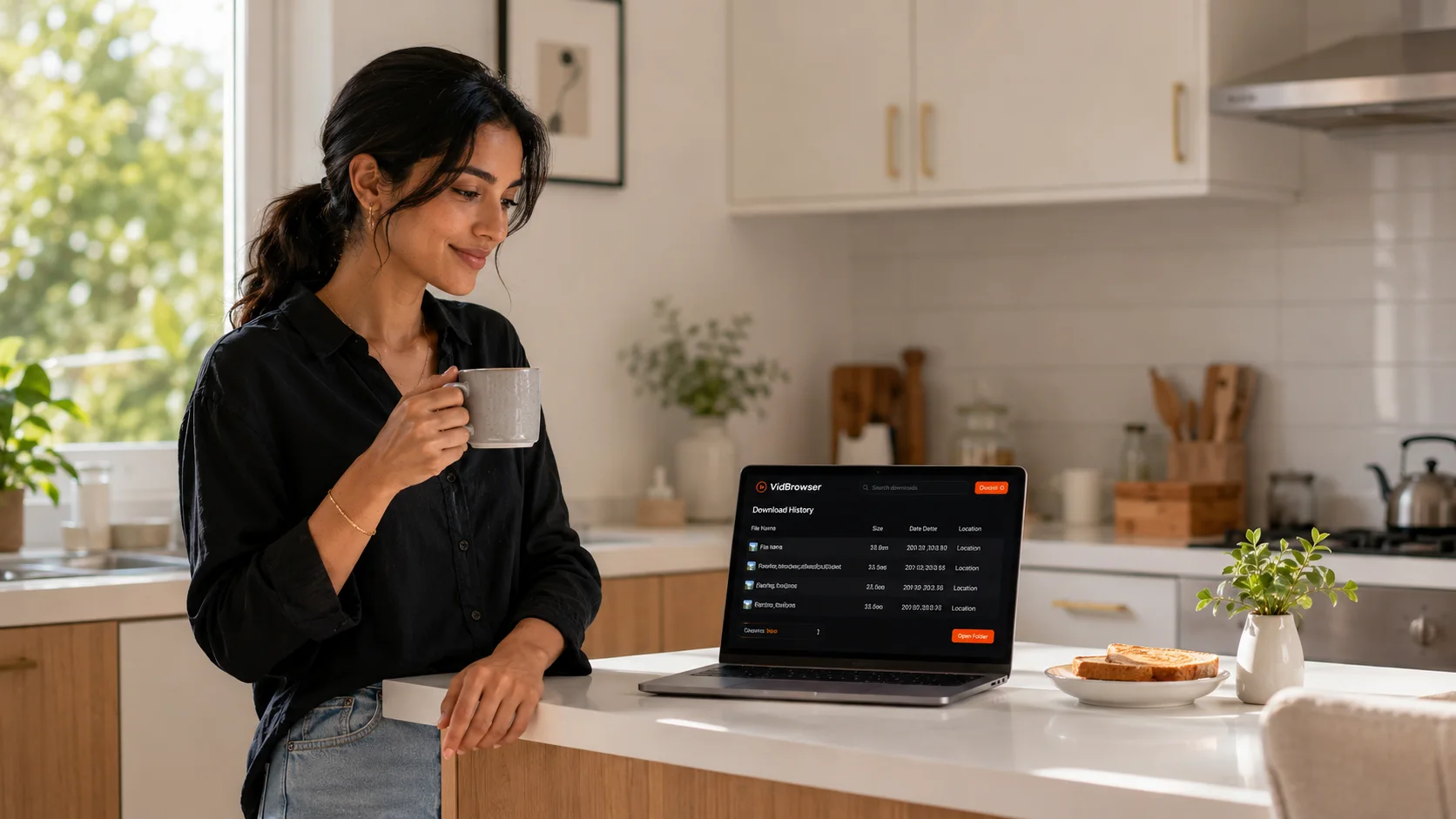
After saving or recording, you can open the file from the folder you chose or find it in VidBrowser's download history. Then watch offline anytime with players like VLC or QuickTime.
FAQ
Is geoblocking permanent?
Not necessarily. Geoblocking is a personal creator setting that can be adjusted at any time. A creator may enable or disable a region's block because they moved or changed strategy, so being blocked now doesn't mean forever.
Is it okay to bypass LoyalFans geoblocking with a VPN?
We don't recommend it. Geoblocking is a choice the creator clearly made; bypassing it goes against their wishes and may also violate platform rules. A better approach is to contact the creator or support them on another platform they run.
Does geoblocking affect content I've already saved?
No. Files already saved locally have nothing to do with geoblocking — videos you saved while you had access remain yours, even if the creator later changes settings or deletes content.