How to Watch OnlyFans Anonymously: Browsing & Payment Privacy Tips
Subscribing to OnlyFans takes only a few minutes — what actually makes people hesitate is never the price, but the fear that their identity leaks through some small detail: an email address with their real name in it, a notification that pops up, a computer shared with family. According to the 2024 financial report of OnlyFans' parent company Fenix International, the platform has surpassed 377 million registered users, and most subscribers want to keep this side of their life private. Watching OnlyFans anonymously comes down to three layers: the identity you register with, the traces of everyday browsing, and isolating your spending. We covered the payment layer in our billing privacy guide; this article goes deep on the first two.
Watching OnlyFans anonymously is decided at sign-up: the email, username and password trio
Your anonymity is basically fixed the moment you register — a dedicated email, a neutral username and an independent password are all three non-negotiable. Registration asks only for an email and a password, no real name, no ID — which means you hold the controls:
- Dedicated email: create one unrelated to your real name just for subscription platforms. Don't use your main inbox (the one with colleagues and relatives sitting in the contacts), and avoid addresses that contain your name
- Neutral username: your username is the only "identity" creators and the platform ever see — pick something different from every social account you own
- Independent password: never reuse passwords from other sites, so a breach at one site can't cascade into your other accounts
The core logic of the trio is cutting the links: the email can't be searched back to you, the username can't be found anywhere else, and a leaked password won't ripple further. Get these three right and, inside the platform, you're "a stranger who exists only on OnlyFans."
Browsing traces: the identity clues hiding in sync, autofill and shared devices
Signing up anonymously is just the start — everyday browsing most often goes wrong in the browser, not on the platform. Four things are worth checking:
- Browser account sync: signing the same account into Chrome or Edge syncs history and bookmarks across every device — a page watched at home showing up in the office computer's history is an incident that has really happened. Either give your subscription browser a separate profile, or switch sync off entirely
- Autofill: the names, addresses and emails your browser remembers pop up in forms, plain to see on a shared device. Fill subscription-site forms manually, or clear the saved entries
- Shared computers: on a family PC, logging out afterwards is the bottom line; incognito mode only means "no local trace" — it doesn't end an active session, and it does nothing about the records on the platform's servers
- Cookies and local sessions: logging out ends the session; to go a step further, clear that site's cookies (you'll have to sign in again next time, which is normal)
These are the everyday-level traces. If you ever want to retire the account and its digital footprint entirely, we've put together the full deletion and data-export checklist in our OnlyFans account deletion guide.
A VPN hides your local network, not the platform's records
What a VPN does for anonymity is very specific: it stops your local network from seeing which sites you visit. The manager of a home router, an office network or public Wi-Fi can normally see which sites you connect to; with a VPN on, they only see you connecting to a VPN service. It can't cover the other two ends — the platform still knows your account activity, and the bank still records your payments; those two ends are handled by the sign-up trio and payment isolation respectively. In other words, a VPN is the "network layer" of the three, not an anonymity switch in itself. For choosing and using one, our OnlyFans VPN guide has the full version — and one reminder: always comply with the laws and regulations of your region when accessing any platform.
The five easiest ways to leak your identity
Even with sign-up and browsing handled, leaks tend to happen in details you never planned for. Check yourself against these five:
- Usernames colliding across platforms: your OnlyFans username is the same one you use on X, Reddit or elsewhere — one search ties the accounts together, the most overlooked item of the trio
- Screenshots carrying personal info: send a screenshot or a screen recording to a friend, and the corner may show your profile banner, your username or even a notification banner — once it's out, it's out
- Oversharing in DMs: chat with a creator long enough and you casually mention your job, your city or your travel plans; the platform doesn't collect these, but they stay in the chat log forever
- Password-reset emails going to the wrong inbox: if the account is still tied to your main email, the reset message's subject line literally reads OnlyFans — bind the dedicated email at sign-up
- Automatic cloud sync: saved content landing in a folder that a cloud drive or photo backup automatically syncs is just a copy in another place
Item 5 deserves one more word: what you want to keep belongs in a local folder you fully control and that never takes part in automatic sync — that way the archive is truly yours to manage.
Keeping what you paid for: saving subscription content locally, off the cloud
A subscription buys access — creators can delete posts and accounts can close, so saving the videos you truly want to your local drive is the safe play. With VidBrowser it takes four steps:
Step 1: Download and install VidBrowser
VidBrowser is a desktop video browser for Windows and Mac with built-in download and recording features; installation takes a few minutes.
Step 2: Open the platform in VidBrowser and sign in
Visit OnlyFans and sign in with your dedicated account — your subscriptions look exactly as they do in a normal browser.
Step 3: Save the videos you want with the recording feature
Videos on subscription platforms like OnlyFans are usually protected, so ordinary downloaders can't grab them — recording is the most reliable way to keep them: move your mouse over the video and the recording controls appear — choose a recording speed (1x real time, or 2x / 4x to finish faster), click "Record All" to capture the whole video, and the record button on the left can start or pause at any time.
Step 4: For direct downloads, use the Video Library panel — files stay local
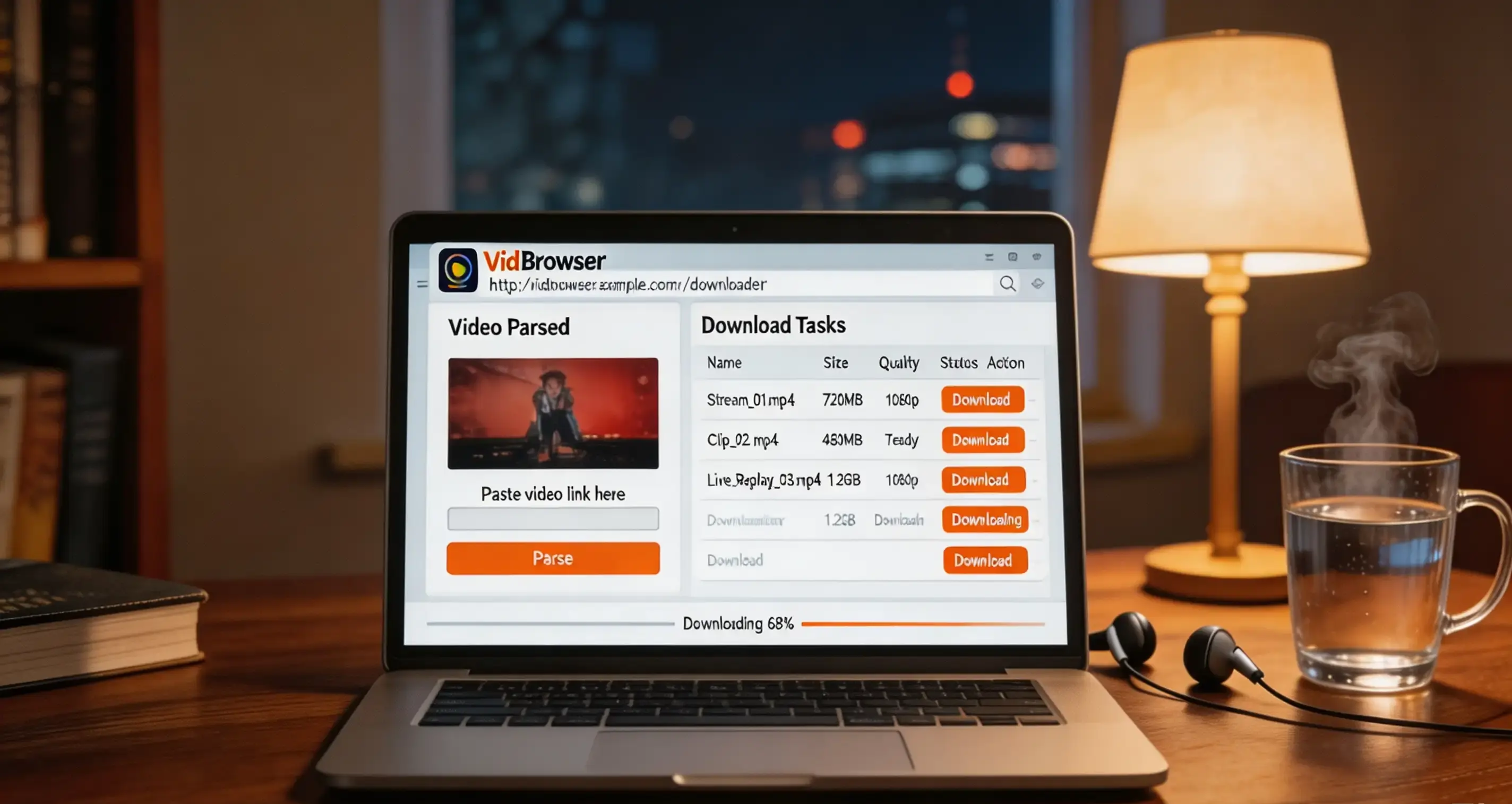
If a video can be downloaded directly, the "Video Library" panel on the right lists entries with an orange "Download" button; one click saves it as MP4 (pick the resolution first if you like). Files land in the local folder you specify, and the download history (clock icon on the left) lets you find them again anytime — just set the save path to a directory that doesn't take part in cloud sync.
FAQ
Does incognito mode make watching OnlyFans anonymous?
No. Incognito only means "no local history once the window closes" — it doesn't end an active session, and it says nothing about the records on the platform's servers. Identity anonymity comes from the sign-up trio (dedicated email, neutral username, independent password); browsing anonymity comes from logging out and clearing sessions. Incognito is just an assist.
Can creators find out who I really am?
No. Creators only see your username and your interactions — not your real name, card number or email — as long as your username isn't the same one you use on social media and you don't volunteer details in DMs. For the billing side of what's visible, the billing privacy guide breaks it down layer by layer.
I once signed in on someone else's computer — how do I clean up?
Three steps to close it out: log out to end the session, clear that site's cookies, then change the password so all old sessions expire. If the browser had account sync turned on, also check whether that device's history and autofill have already synced to other devices.