
What Shows Up on Your OnlyFans Statement? Fansly/LoyalFans Billing Privacy Explained
Scrolling through payment FAQs before subscribing, the line that worries people most is the one on their bank statement — what does the charge actually say, and does it give away the subscription? It's a common concern, and an easy one to address: none of the three major subscription platforms puts its own name on your statement; they show the operating company instead. This article explains exactly how OnlyFans, Fansly and LoyalFans charges appear, then covers practical ways to harden your privacy one layer further.
What Does OnlyFans Show on Your Bank Statement? All Three Platforms Compared
None of the three platforms prints a recognizable name like "OnlyFans", "Fansly" or "LoyalFans" on your statement — they show the registered name of the operating company instead. The common mappings:
- OnlyFans: usually appears as "Fenix International" or a string starting with "OFAN" — Fenix International is the registered name of OnlyFans' parent company, verifiable in its public corporate filings.
- Fansly: usually appears as "Select Media LLC" — the billing entity behind Fansly. According to the third-party statement checker fanchecked, Fansly charges show up under this name rather than the Fansly brand.
- LoyalFans: usually appears under a name related to "Loyal Fans Inc", again without the platform's full brand name.
One thing to get straight first: billing descriptors aren't whatever the platform feels like writing. They're set by the payment processor's registered merchant name with the card networks, and they vary by region, card network and even card type. Seeing Fenix on one card and OFAN on another for the same platform is perfectly normal. The only reliable way to verify is to check the actual transaction in your own banking app; names quoted online are reference only. (The card-linking and payment process itself is covered in detail in the OnlyFans payment guide.)
Platform, Creator, Bank: Who Can Actually See What
Statement privacy is layered — the creator sees nothing at all, while the platform and your bank each keep full records. Separating the three roles dissolves most of the worry:
- The creator: sees only your username and purchase history. No real name, no card number, no issuing bank, no access to anything billing-related. If you don't want to be identifiable, pick a neutral username.
- The platform and payment processor: for risk control and compliance they can see your billing name and card details, but under privacy policies this is used only for payment and security purposes.
- Your bank: sees the complete transaction record. "The statement shows a company name" only means someone *glancing at your statement* won't instantly recognize the platform — the bank itself knows exactly what you paid for.
So the accurate framing is: private, but not invisible. The descriptor shields you from "someone casually flipping through your statement", not from "institutions with the right to audit your account". Some articles online oversell this layer; the real boundary is exactly here.
Going Further: Virtual Cards, Prepaid Cards or a Separate Account
If a company-name descriptor still isn't reassuring enough, there are three ways to fully separate subscription spending from your main account. Each fits a different situation and each has a cost:
- Virtual card services: generate a dedicated card number through a provider like Privacy.com; your main statement shows only the provider's name, with the merchant hidden at the service layer. Good for long-term use — pick one that supports 3D Secure.
- Prepaid cards: a cash-loaded prepaid Visa/Mastercard isn't linked to your main account, so the transaction never appears on it. The limits are clear too — some prepaid cards fail the subscription platforms' 3D Secure verification or don't support auto-renewal; whether one works is decided at checkout.
- Separate account or card: open a card used only for subscriptions with a fixed monthly top-up. Your main statement stays clean, spending stays visible — the low-effort, reliable option.
One aside: for payment declines (risk controls, failed 3DS verification and the like), the Fansly payment failed guide breaks down each cause — check that before swapping cards repeatedly. And for privacy on the browsing side, the OnlyFans VPN guide covers a different dimension that complements payment privacy.
Refunds and Unfamiliar Charges: The Safest Way to Verify
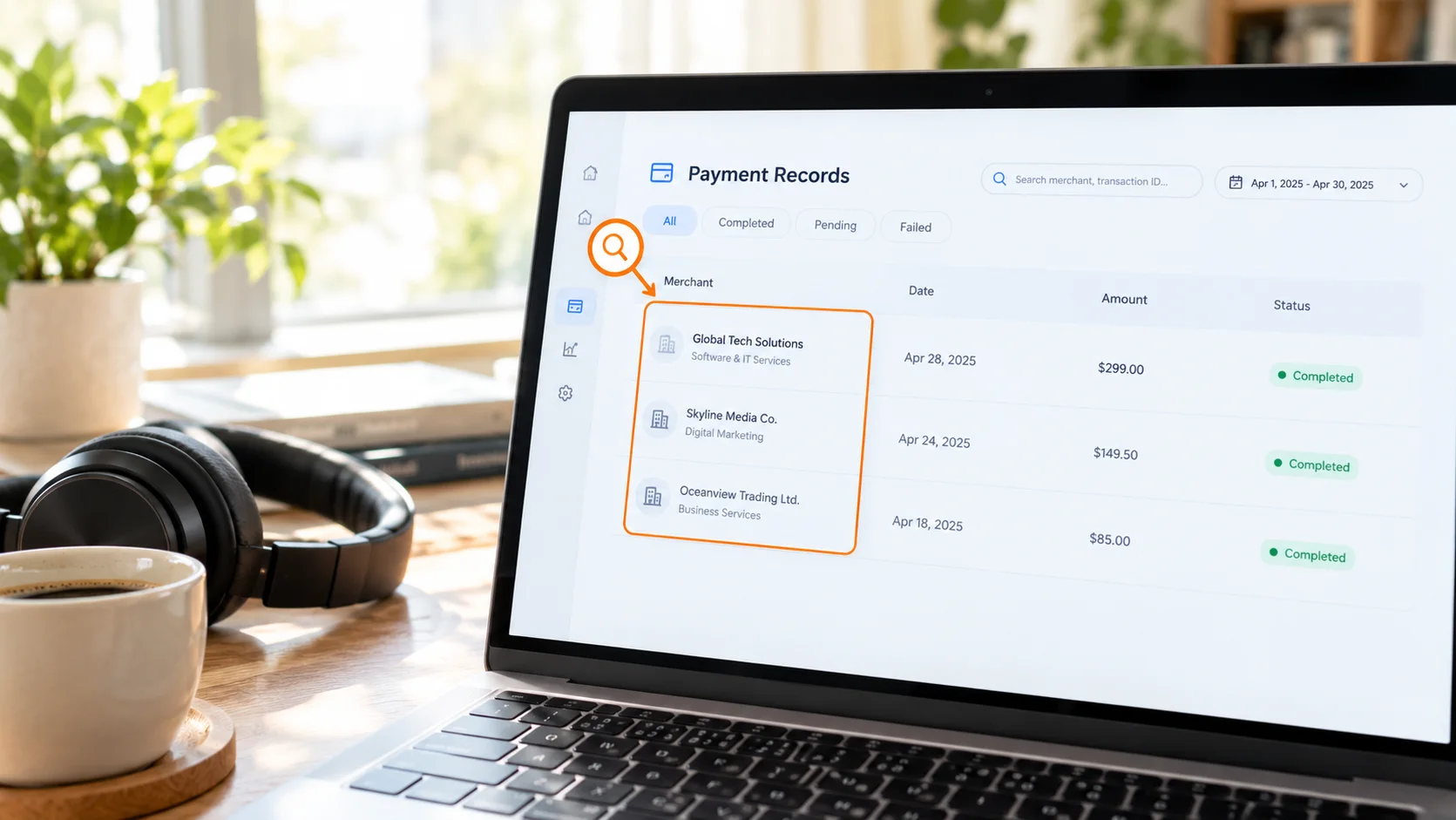
When you spot a charge you don't recognize, match the descriptor and amount first, then decide whether to contact your bank. Two kinds of statement entries are easy to panic over:
- Small verification charges: the under-$1 verification fee when linking a card. It's refunded automatically — nothing to do.
- Amounts that don't match: beyond the standard subscription, one-off tips and pay-per-view purchases post as separate entries with the same descriptor but different amounts. Match date and amount against your in-platform purchase history and they almost always reconcile.
If you do file a chargeback, the descriptor stays the same, but the process takes longer and your account may be affected — so start with the platform's own support first. One more suggestion in the same privacy spirit: if you share a bank account with family, think about statement visibility *before* subscribing rather than explaining afterwards.
Pay Privately, Save Reliably Too
Privacy has a content-side half: what a subscription buys is access, not ownership — a creator deleting posts or an account shutting down can take paid-for content with it. Instead of leaving your spending record only in the ledgers of your bank and the platform, keep the videos you genuinely want on your own device — that's the only record fully under your control.
Saving subscribed content with VidBrowser takes just a few steps:
Step 1: Download and install VidBrowser
VidBrowser is a desktop video browser for Windows and Mac with built-in download and recording.
Step 2: Open the platform in VidBrowser and log in
Visit OnlyFans, Fansly or LoyalFans and sign in with your own account — subscribed content looks exactly as it does in a regular browser.
Step 3: Play the video you want and save it
Videos on these subscription platforms are usually copyright-protected, so ordinary downloaders can't grab them — recording is the most reliable way to save: move your mouse over the video and a recording toolbar appears — choose the recording speed (1x real-time, or 2x/4x to finish faster), click "Record All" to capture the whole video, and the record button on the left can start or pause anytime. If the video can be downloaded directly, the video library panel on the right lists entries with an orange "Download" button — one click saves it as MP4 (resolution selectable first). Files land on your own hard drive, retrievable anytime via download history, with nothing left in the cloud.
FAQ
Will an OnlyFans statement show the creator's name?
No. All three platforms' descriptors show only the operating company name (such as Fenix International or Select Media LLC). The creator's name or username never appears on any statement — and on the creator's side, they can't see your real name either.
I see a Fenix International or Select Media charge — how do I confirm it's my subscription?
Recall your recent subscriptions and tips, then match the date and amount against the purchase history inside the platform. If both line up, it's confirmed. Still unsure? Ask your card issuer for merchant details instead of filing a chargeback right away.
Prepaid cards keep failing for subscriptions — what now?
Most prepaid cards fail because they don't support 3D Secure verification or auto-renewal. Switch to a 3D Secure-capable virtual card, or open a separate bank card dedicated to subscriptions — far more reliable than cycling through prepaid cards.


