
VidBrowser plans: run the free tier for a week before you decide
Whether a tool is worth paying for comes down not to the length of its feature list, but to which tier matches how often you use it. VidBrowser currently comes in three tiers — Free, Flagship and Lifetime — and the structure is simple. Two things matter: whether the free quota is enough, and whether an annual plan or a one-time buyout works out cheaper. With the 2026 October deal running, the Lifetime math deserves a closer look. Here is the breakdown by tier, price and how to decide.
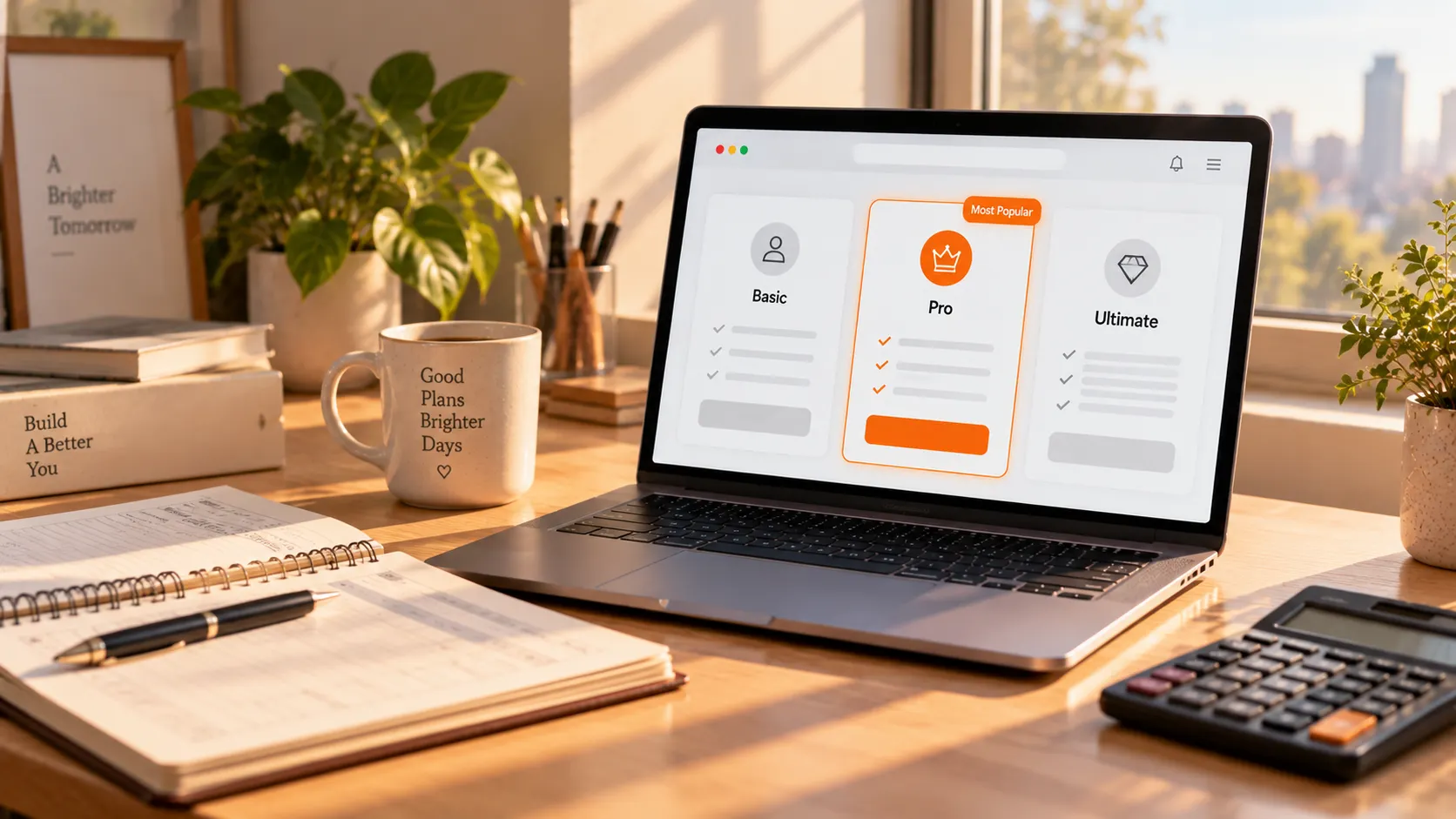
VidBrowser plans side by side: same software, different limits and billing cycles
All three tiers run the same software — downloading, recording and the tool pages are all there; what separates the tiers is usage quota and payment method.Here are the core differences first:
- Free ($0): no cost, usable forever, with daily limits on count and length. Every core feature is present with a cap on volume — a good way to test what it really does before paying.
- Flagship ($59/year, about $4.9/month): unlocks the full quota on an annual payment, for people who already use VidBrowser daily but would rather not spend a lot at once.
- Lifetime ($149 list, $104 in the 2026 October deal): one payment, no renewals afterwards — $45 off during the event. Pay once, use it for good.
In other words, choosing a plan means choosing how to pay for it; the differences sit in quota, duration and billing method, and that shapes the next two sections.
The free tier boundary: 3 saves a day, 2 minutes each, 2 batch tasks
The free tier limits are spelled out clearly: 3 saves per day, up to 2 minutes of video per save, and at most 2 batch tasks.These three numbers come from the plan notes inside the client — know them before you start a download so you do not hit the wall halfway.
- 3 saves a day: counted per save task you start, resetting automatically the next day — fine for saving a few clips now and then.
- 2 minutes per save: short videos, clips and subtitle jobs are barely affected; full replays and two-hour videos are where the free tier struggles.
- 2 batch tasks: batch operations on the tool pages (such as bulk image downloads) have a cap on how many can queue at once.
If you save only a handful of short items a week, the free tier is very likely enough; if you hit the ceiling daily, that is the signal to look at a paid tier.
Flagship vs Lifetime: same full capability, different ways to pay
Flagship and Lifetime unlock the same complete capability; the real difference is the billing cycle and long-term cost.Flagship is $59 a year, about $4.9 a month — a low bar and flexible, for a "try it for a year" approach. Lifetime is $149 up front, and from year two on it beats renewing at $59 every year — the longer you use it, the thinner the cost spreads.
A rough line: if you expect to use it beyond two years, Lifetime already costs less than two consecutive years of Flagship; a few months in or still undecided, annual is the safer pick. Neither tier is "more premium" — do not pay for a capability gap that does not exist.
The 2026 October deal: Lifetime at $104 — the math is worth doing now
The 2026 October deal (October 1 to 31) cuts Lifetime from $149 to $104, a one-time saving of $45.To put that in perspective: it equals one year of Flagship ($59) plus $45 — and waives every renewal after that.
- At the $149 list price, Lifetime needed more than two and a half years to beat annual; at $104 the break-even point drops below two years.
- The deal is time-limited; after it ends the price returns to $149, and there is no promise it will "come around again".
- Prices in this article follow the checkout page on the official site — check the current price before you buy.
Simply put, if you were already on the fence about whether Lifetime is worth it, the $45 gap will most likely make the call for you; if you just installed it and barely used it, use the checklist in the next section first.
Pick a plan by usage: three questions, find your row
You do not need to study specs to pick a plan — answer three questions and your tier picks itself.Ask yourself, in order:
- How many saves did you start last week? Three or fewer, none of them long — stay on Free and spend nothing.
- Using it every week, often for long videos or full replays? Take Flagship — $59 opens the quota for a year.
- Certain it will stay with you long-term, like keeping an offline copy of subscription content every week? The $104 Lifetime in this deal is the lowest long-term cost of the three.
The three questions run from light to heavy, and most people know the answer by instinct. If you are unsure, run the free tier for a full week and answer the first question again — the answer will surface on its own.
Once installed, walk your most-used save paths first
Whichever tier you pick, walk both save paths — download and record — once after installing, and see which tier matches your actual usage.
Step 1: Download and install VidBrowser
Start with the free tier. VidBrowser is a desktop video browser for Windows and Mac that watches videos, grabs clips and saves them locally, with downloading and recording built in — installed in minutes.
Step 2: Open a video page and check the right-side panel
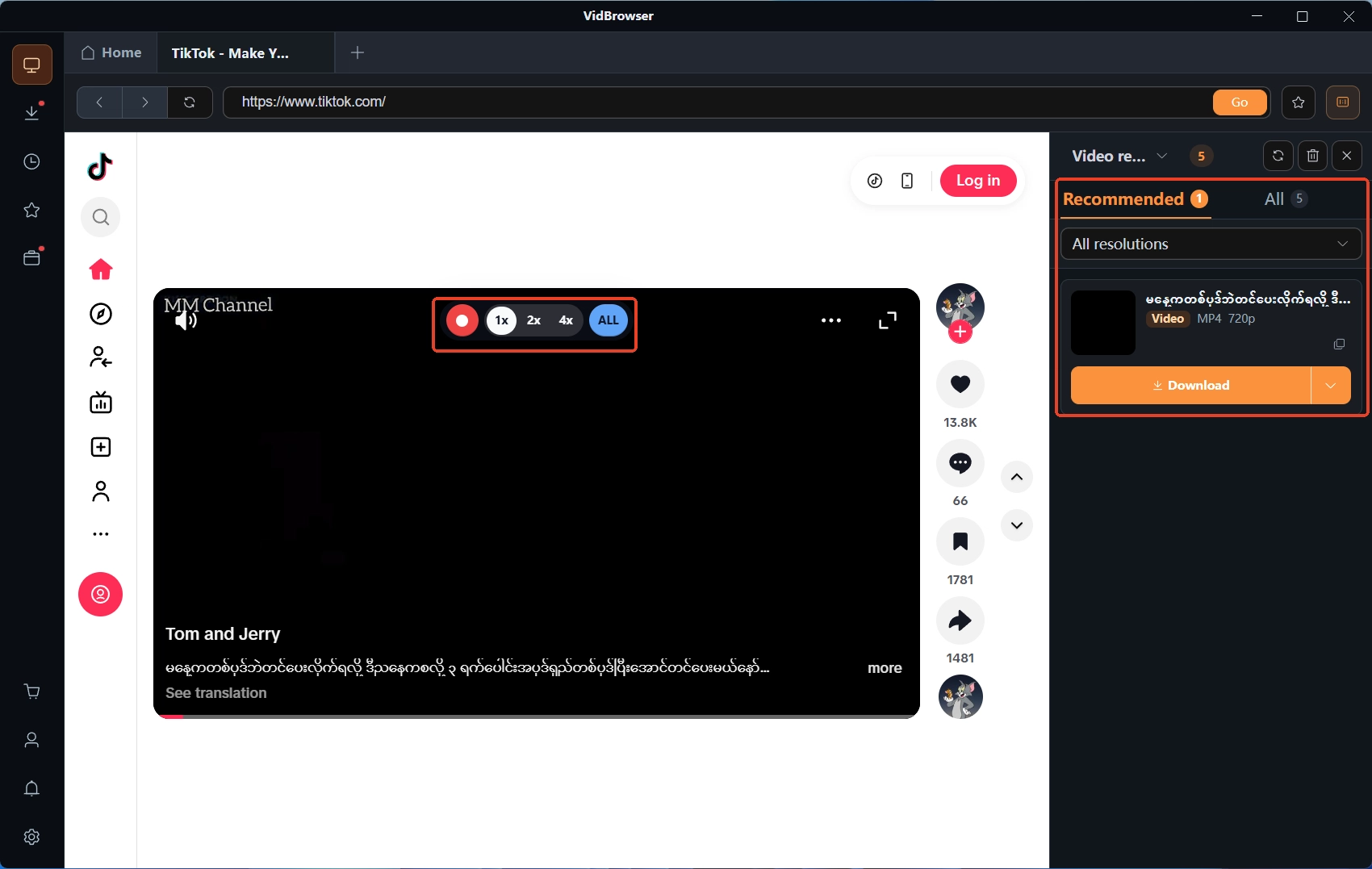
Open the video you want in the built-in browser; the "video media library" panel on the right lists the detected video resources, each with an orange download button — one click saves it as MP4 (you can pick the resolution first if you like). The YouTube video download guide walks the same path. The free tier's 3-saves-a-day quota is counted on tasks like these.
Step 3: Use recording for protected content
Protected content on subscription platforms cannot be grabbed by ordinary downloaders; recording is the most reliable way to keep it. For the full walkthrough see the public-platform save guide: moving the mouse over the video overlays the recording controls, choose a recording speed (1x real time, or 2x/4x to finish faster), hit "record all" to capture the whole video, and the record button on the left starts or pauses at any time.
Step 4: Finish up in the tool pages and download history
The "tools" page in the left navigation collects the everyday utilities such as format conversion and YouTube subtitle download; the download history under the clock icon shows each task's progress, size and save location. Get familiar with these two places, one real week of usage tells you which tier to move up to.
FAQ
If I upgrade from Free to a paid tier, do I lose what I have already saved?
No. The plan affects quota and permissions only; saved files and download history live on your own computer, so upgrading requires no migration.
Does Lifetime include future feature updates?
Per the official deal notes, Lifetime is a one-time buyout that includes lifetime feature updates; $104 and $149 carry the same entitlements, differing only in purchase price and deal window.
After the October deal ends, will $104 ever come back?
The official promotion window is October 1 to 31, after which the price returns to $149. This article does not predict future deals; before buying, go by the current price on the official checkout page.


