What Is a Video Download Manager, and How Does It Differ from a Browser's Built-in Downloader?
When you want to keep a video, you really have two paths in front of you: click the download bar at the top right of your browser, or install a dedicated download tool. The first is convenient, but it is little more than a "click and it saves" channel. The second is feature-rich, but you need a direct download address before it can do anything. Both paths stall on many videos—and the problem is not your reflexes, it is that "downloading" itself comes in several different forms. This article explains what a video download manager actually is, where it beats a browser's built-in downloader, and where it runs out of road.
What is a video download manager? Start with how it divides labour with a browser
A video download manager is software dedicated to handling "receiving, queuing, resuming and sorting"—and its fundamental difference from a browser's built-in downloader is who owns the management.
A browser's built-in downloader (the bar at the bottom of Chrome or Edge) has a very simple goal: you click, the file lands in your Downloads folder, the task is over. It does not queue, does not throttle, does not sort; pile up a few tasks and they crowd together. It is a minimalist channel built to be good enough. The exact behaviour is documented on Google Chrome's official help page.
A download manager, by contrast, puts its effort into management, and usually covers four things:
- Task queuing: multiple downloads line up and are processed in order rather than all grabbing bandwidth at once.
- Resuming: after an interruption it continues from where it stopped instead of starting the whole file over.
- Segmented downloading: a single file is split into several pieces downloaded simultaneously (the mechanics get their own section below).
- Destination sorting: files are filed by type, and history is kept long term.
The classic names in this category are IDM, Free Download Manager and JDownloader. Their main clientele is large files—software installers, games, high-resolution assets.
Is a browser's built-in downloader enough? Three places where it looks fine but quietly fails
For the occasional PDF or image, a browser's built-in downloader is perfectly adequate; switch to a large file or a video and it hits three unavoidable weak spots.
- Single connection, slow, no queue. A browser usually opens just one connection per file and pulls it from start to finish. If the server throttles single connections, no amount of bandwidth on your side will saturate it. Multiple tasks can only be started one at a time, one wait after another.
- It cannot pause, and it cannot pick up cleanly. Open the downloads page (Ctrl+J) and an interrupted task occasionally offers "Resume"—but that only works if the server supports range requests. The moment you switch networks or drop Wi-Fi, you will often be starting over.
- It only understands direct links, not video streams. This is the most serious one: most videos on a web page are not a single downloadable file but a stream of segments played as they arrive, so a browser's built-in downloader typically ends up with an empty file or a dead link. We covered that mechanism separately in why streaming videos refuse to download, so we will not repeat it here.
Where a download manager wins: the mechanics of segmented downloads and resuming
What makes a download manager stronger than a browser comes down to two things: splitting one large file into several pieces downloaded at once, and writing "how far along we are" to disk so the job can always be picked back up.
Both depend on the same thing—an HTTP Range request. As MDN's official documentation explains, the client can state in a request header "I only want bytes X through Y", and the server, if it agrees, returns that slice with a 206 Partial Content status code. That is the technical foundation of segmentation. The overall flow looks roughly like this:
- Ask the server: send a request first to confirm how large the file is and whether it supports segmented downloads.
- Split it: cut the file into several byte ranges, commonly 4–16 segments.
- Download in parallel: open an independent connection per segment to side-step single-connection throttling.
- Track progress: write each segment's progress into a map table on disk—this is what lets a resume actually continue.
- Assemble and verify: once everything has arrived, stitch the segments back together in order.
To sum it up in one line: segmentation solves "slow", the progress table solves "broken". Theoretically four parallel segments approach a fourfold speed-up; in practice bandwidth and server policy cap it, usually landing between 2 and 3.5 times.
Why a download manager still cannot rescue video: the hard part is not speed
The whole repertoire of a download manager presumes "there is a complete file address you can download directly"—and video is precisely what lacks that address.
For a large file the address is ready-made: copy it, paste it into the download manager, and off it goes. Video pages are different:
- There is no copyable direct link on the page—the playback address is a temporary reference held in memory that dies on refresh;
- A segmented stream is made of hundreds of small fragments, and a download manager wants "one file", which it cannot find;
- Videos on subscription platforms add another layer: the content is protected, so even scraping it down will not play.
In other words, a download manager solves transfer reliability, while a video's core problem is detection and acquisition—you first have to find the video and obtain the complete content before transfer even becomes a question. That is why "a tool that can save videos" and "a manager that can move large files" are two different things requiring completely different capabilities. For the wider picture of how the various tools divide the work, our roundup of five types of video downloaders covers it more fully.
Putting detection, downloading and recording inside one browser: a newer way to save video
Since the hard part of video is finding it and getting it down, the smoother approach is to put detection, downloading, recording and management inside one piece of software—which is exactly the thinking behind a desktop video browser such as VidBrowser.
It is a full browser in its own right. You open video sites and play things as usual, and the remaining three steps take care of themselves:
Step 1: Download and install VidBrowser
A desktop video browser with downloading and recording built in, available for both Windows and Mac, installed in a few minutes.
Step 2: Open the video page and play it, then choose a saving method by content type
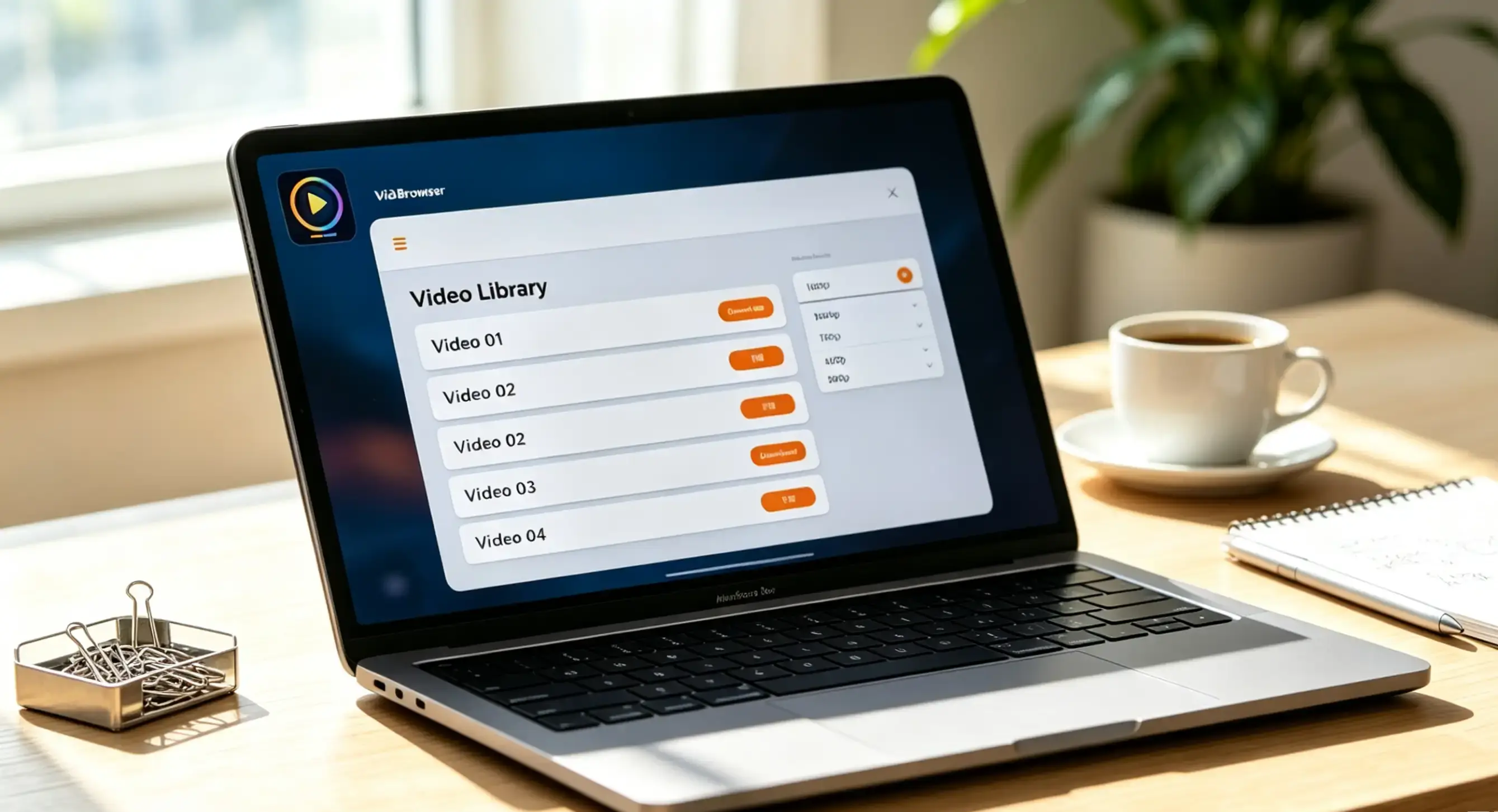
The "Video Library" panel on the right automatically lists the videos it has detected. For ones you can download directly, click the orange "Download" button to save them as MP4, or pick a resolution from the dropdown first; for protected content such as subscription platforms, recording is more reliable—move your mouse over the picture and the recording controls overlay it, choose 1x real time, 2x or 4x to finish faster, and click "Record All" to capture the whole video, with the button on the left letting you start or pause at any time.
Step 3: Check where the files landed in your download history
Open your download history from the clock icon in the left navigation: file name, size, download time and save location are all there, so no amount of tasks will get mixed up.
The difference from an ordinary download manager can be understood this way: a download manager is responsible for carrying home a file whose address you already have, while VidBrowser is responsible for finding the video in the page and taking it with you—two jobs, but it is the second one that actually trips people up when they just want to watch something. (For the full difference between this kind of product and an ordinary browser, see what a video browser is.)
FAQ
What is a video download manager, and what is the biggest difference from a browser's built-in downloader?
The core difference lies in the word "management". A browser's built-in downloader is a minimalist channel—click once, save once—that does not queue, does not throttle and cannot reach video streams. A download manager centralises queuing, resuming, segmented downloading and file sorting, but its precondition is that you already have an address you can download directly from.
Why does resuming sometimes not work?
Because it depends on the server supporting range requests. Only a 206 response makes segmentation and resuming possible; if the other side has disabled range support (common on some older sites and internal systems), an interruption means starting from scratch.
Do I need both a download manager and a video browser?
It depends on what you do. If you regularly download large files—software, games, assets—a download manager is worth keeping around. If your main goal is to save videos from web pages and subscription platforms, a product like a video browser covers detection, downloading and recording in one go, so there is no need to assemble a whole toolkit.