
Converting WebP back to JPG makes the file bigger — that is the format trade-off, not corruption
Save an image from a web page and you will usually get a WebP; send it to a friend or upload it into a form, and the other side says it cannot open it. The reverse happens too: you picked WebP to save space when compressing, and days later the recipient's old device simply will not recognize it. No image format does everything — JPG, PNG and WebP each mind their own stall, and picking the wrong one is far more common than file corruption. This guide sorts out the three formats, then shows how to batch-convert WebP back to JPG.
JPG, PNG and WebP each mind their own stall
The division of labor comes down to two things: whether the image has transparent areas, and who is going to view the file.
JPG is the default format for photos, with the best compatibility — almost every device and app can open it; its compression is lossy, which suits photos but makes text screenshots look fuzzy at the edges. PNG is lossless and supports transparency, so screenshots, charts and logos belong there, at the cost of larger photo files. WebP was designed by Google for the web and is the smallest at equal quality: per the official Google WebP FAQ, lossy compression runs about 25%–34% smaller than JPEG at similar quality and 26% smaller than PNG losslessly, plus it supports transparency and animation. New browsers all accept it; the weak spots are old software and upload forms.
A simple line to remember: photos for sharing go as JPG, anything transparent goes as PNG, and only bulk web uploads call for WebP. Photos straight from a phone or camera are already JPG, so everyday snapshots need no format decisions at all.
WebP will not open? Find the cause first, then run three checks before converting
WebP failures concentrate on the receiving side: an outdated system, software that never caught up, or upload forms that validate by extension.
The most common culprit is an old system. On the official support list, Safari only gained native WebP support at version 14, corresponding to iOS 14 and macOS Big Sur; earlier Apple devices either show nothing or report an unsupported format. Then there is software: some older image viewers and office components never added WebP decoding, so a double-click that does nothing does not mean the file is broken; a blank thumbnail in the file manager usually traces to the same cause. The third group is upload forms: many website forms, registration systems and print shops validate by extension, and .webp gets rejected outright — switching to JPG clears it immediately.
To tell which side has the problem, try a simple test: send the same image to a newer device or browser. If it displays fine, the image is intact and the fault is in the old receiver; if the new device cannot open it either, then suspect the file itself. After this step you will know whether converting is even necessary.
Once you decide to convert, three checks come first: transparency, animation, and size expectations.
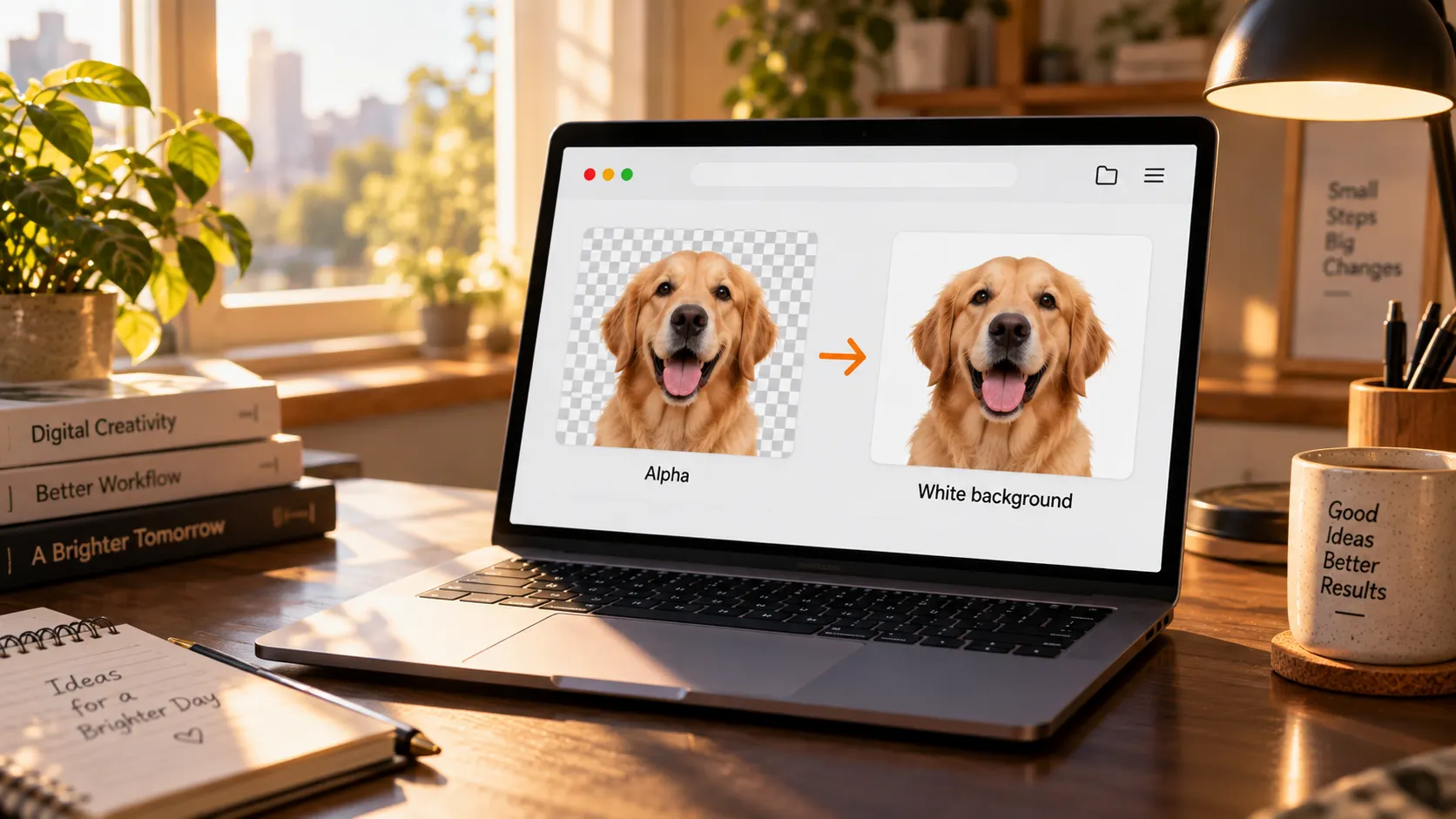
Watch out for images with transparent areas: JPG stores no transparency, so conversion pads a solid layer underneath, usually white; to keep transparency, choose PNG as the target. An animated WebP converted to JPG keeps only one frame, and moving images need another home. Set size expectations straight too: WebP compresses more efficiently than JPG, so a JPG copy is naturally larger — working backward from the official figures, expect roughly thirty to forty percent bigger than the original WebP; that is not corruption. Details already lost in compression cannot be recovered either; converting is not quality repair.
One more JPG trait worth knowing: every re-save compresses it again, and a photo passed around a few times loses quality step by step. Decide the target format before converting, convert once, and skip the back-and-forth.
Batch-converting WebP to JPG: five steps to finished files on disk
The image compression tool inside the VidBrowser toolbox is the conversion entry; batch WebP to JPG takes five steps, and the quality and size dials are already covered in the compression guide, so they are not repeated here.
Step 1: Download and install VidBrowser
The download lives on the VidBrowser website. It is a desktop video browser for Windows and Mac that watches videos, clips segments and saves them locally; its Tools page carries local utilities like image compression, and installation takes a few minutes.
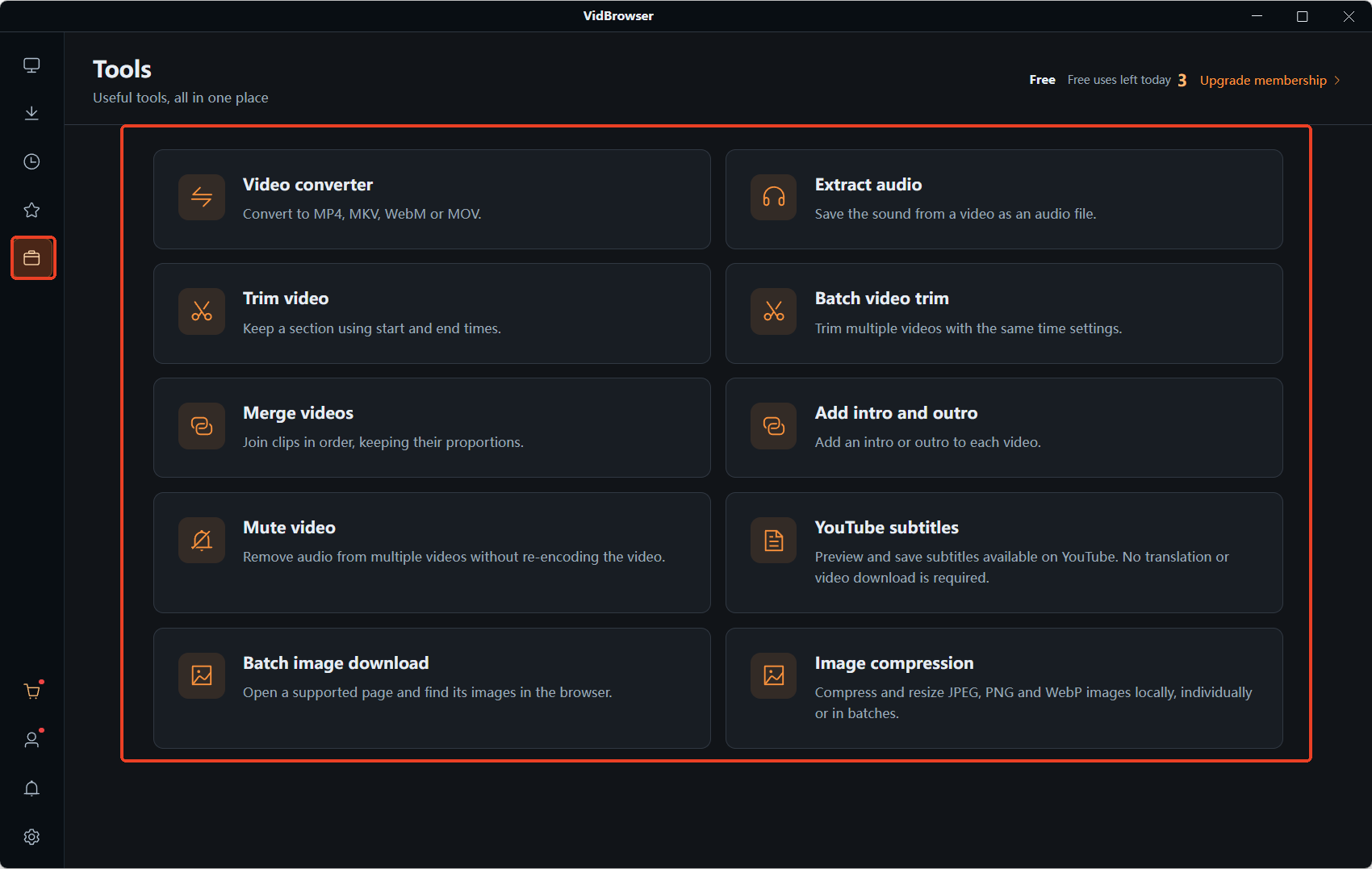
Step 2: Open Image Compression and drop the WebP files in
Open the Tools page in the left navigation, click Image Compression, then drag the WebP files onto the drag-and-drop area or add them one by one through the file picker.
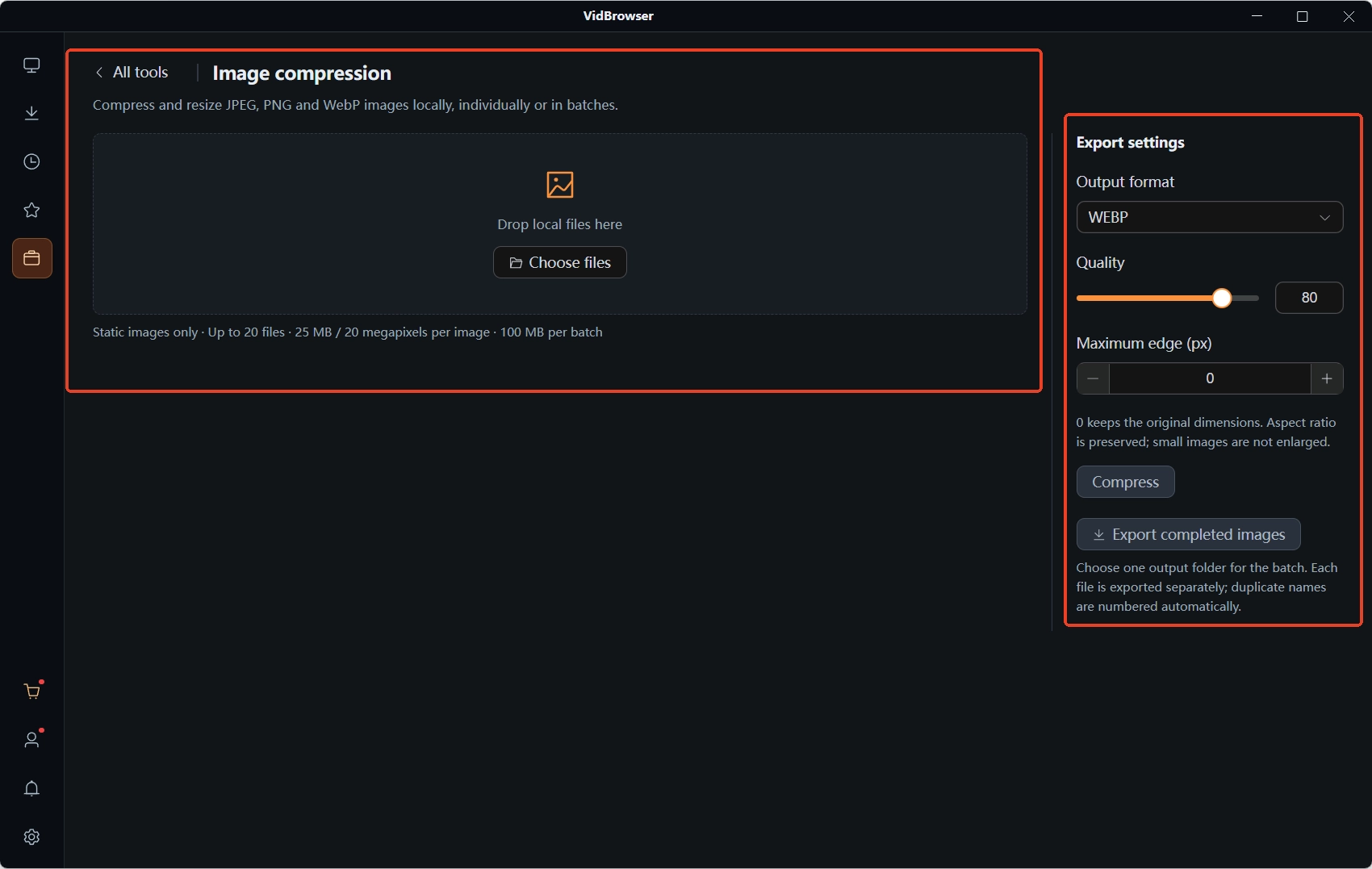
Step 3: Switch the output format from the default WEBP to JPEG
In Export Settings on the right, open the Output Format dropdown — it defaults to WEBP, and this is the key move: switch it to JPEG by hand; for images with transparency, choose PNG instead.
Step 4: Keep the longest side at original size, and do not drag quality too low
Leave Longest Side (pixels) at 0 to output at the original size — converting does not change dimensions; keep the quality slider fairly high, because format conversion already compresses once more, and a low slider means compressing twice.
Step 5: Click Compress, then export
When the batch finishes, click Export Finished Images to write them to the chosen folder, with same-name files auto-numbered. Send this batch of JPGs through email, forms or old devices, and no format gate will stop them again.
Where the converted images go and which format to archive depends on the receiver: chat apps and social platforms preview JPG and WebP directly; email attachments, registration forms and print shops are safest with JPG; for transparency or further editing, PNG is the choice that rarely goes wrong.
Where the images come from matters too: to batch-save images still on a web page, the web image batch download guide covers the method; to squeeze the size down a notch afterwards, the dials live in the image compression guide. Source, compression and conversion each handle one stretch — pick what you need.
FAQ
Does converting WebP to JPG degrade quality?
JPG is lossy, so conversion compresses once more; keep the quality slider high and the difference is usually invisible to the eye. Remember that converting cannot recover details already lost — it is not quality repair.
The converted JPG has a white background. What now?
The original had transparency, and JPG stores none, so a solid layer was padded in. Go back to Output Format, choose PNG, and convert again — the transparent areas survive.
Old devices cannot open WebP. Do I have to convert every time?
Newer systems, browsers and chat apps preview WebP directly, so everyday sharing rarely needs conversion. For email attachments, older forms or old devices, batch-convert to JPG once, keep a local set, and reuse it any time.


