Downloaded Video Has No Sound or Won't Play? Fix It First (2026)
The download hits 100%, you double-click the file, and either there's no sound at all, the picture is a glitchy mess, or the player simply reports "can't play." Don't delete and re-download yet — in most cases the file isn't broken. What's broken is the "translation" step: your player doesn't recognize the audio or video codec inside. This article gives you a fast-to-slow checklist by symptom; most cases get solved within ten minutes.
No Sound, No Picture, or Won't Open: Sort by Symptom First
Downloaded videos with no sound, no picture, or that won't open point to three different causes: a missing codec, an incomplete file, or a format-device mismatch — diagnose before you act.
- Plays fine, no sound → almost certainly an audio codec issue. Many videos carry AC3 or DTS audio tracks, and if your player lacks the matching decoder it will mute exactly this kind of file
- Sound works, but no picture or green blocks → the video stream itself is damaged, common after interrupted downloads or failed stream grabs
- Double-click errors out immediately → a broken container, usually because the download never finished before the file was closed out
One boundary worth drawing: if a file was "black screen with sound" from the moment it finished downloading, the saving tool never captured the picture (platform protection at work) — that's a different problem, covered in our earlier black screen fix guide. This article is about problems with the file itself.
Windows 11 24H2 Dropped the AC3 Codec: the Top New Culprit for Silent Videos
"The picture plays but there's zero sound" — the most common cause is a missing AC3/DTS audio decoder, especially right after a system upgrade.
According to an official reply on Microsoft Learn, fresh installs of Windows 11 from version 24H2 onward no longer ship with the AC-3 (Dolby Digital) decoder — and files produced by many download tools carry exactly this kind of audio track. The codec reference site free-codecs puts it even more bluntly: roughly 90% of "video has no sound" cases come from missing or misconfigured decoders, not file corruption.
Two fixes, neither requires re-downloading:
- Switch to a player with built-in codecs: VLC Media Player decodes AC3, DTS, and nearly every common audio format out of the box — install it and sound appears, zero configuration
- Keep your current player: install a codec pack like K-Lite Codec Pack to restore AC3 support at the system level
That single step resolves most "no sound" cases, and it's all free.
Three Steps: Is the File Broken, or Is the Player the Problem
The test is simple: if a good player still produces no sound, start suspecting the file itself. Work through this order:
- Try another player: right-click the file → Open with → VLC. If it plays normally, the original player was missing codecs and the file is fine
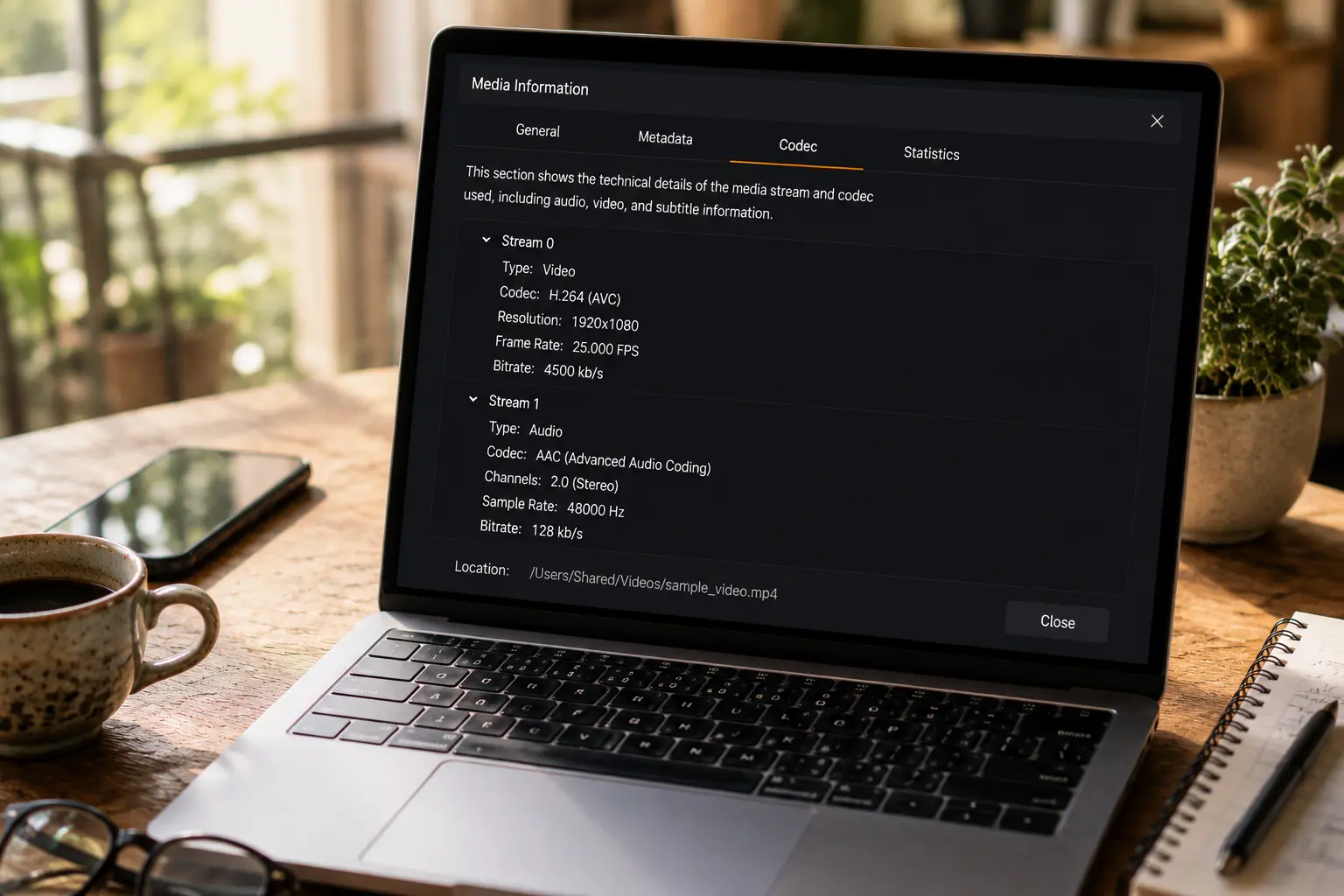
- Check whether an audio track exists: in VLC, open Tools → Codec Information and look for an Audio line in the stream list. No audio track = the sound was lost at download time, and no player will ever play it — that one's on the download tool
- Verify with MediaInfo: this free utility lists the container format, video/audio codecs, and bitrates. Complete info but playback issues means a compatibility problem; missing duration or truncated bitrates means an incomplete download
After these three steps you'll know whether the file or the player is at fault, so the next move isn't wasted.
The File Really Is Broken: Repair What You Can, Replace the Rest
Bottom line: most "won't open" cases are index or compatibility issues; true corruption is rare, and truly unfixable files are rarer still.
- Won't open, but file size looks normal: an interrupted download often leaves the MP4 index unwritten. Try opening it in VLC (it tolerates damaged files well) or remux it with ffmpeg to rebuild the index — the picture and sound data are usually still in the file
- Sound on PC, silent on phone: iPhone and QuickTime handle AC3 poorly. Use VLC's Convert/Save or HandBrake to transcode the audio track to AAC and it will play everywhere
- Multiple audio tracks, the default one is silent: some files carry a commentary or silent track — switch tracks in the player's audio menu before blaming the file
- Nothing works: the source was written incorrectly at download time. Re-downloading beats any repair software here — repair tools are essentially guessing at data, and they can't guess back what was never written
Avoid the Problem at the Source: the Right Saving Tool Means Clean Files
Half of these no-sound and won't-open headaches can be avoided at the source — save with the right tool and you get a fully packaged, standard file.
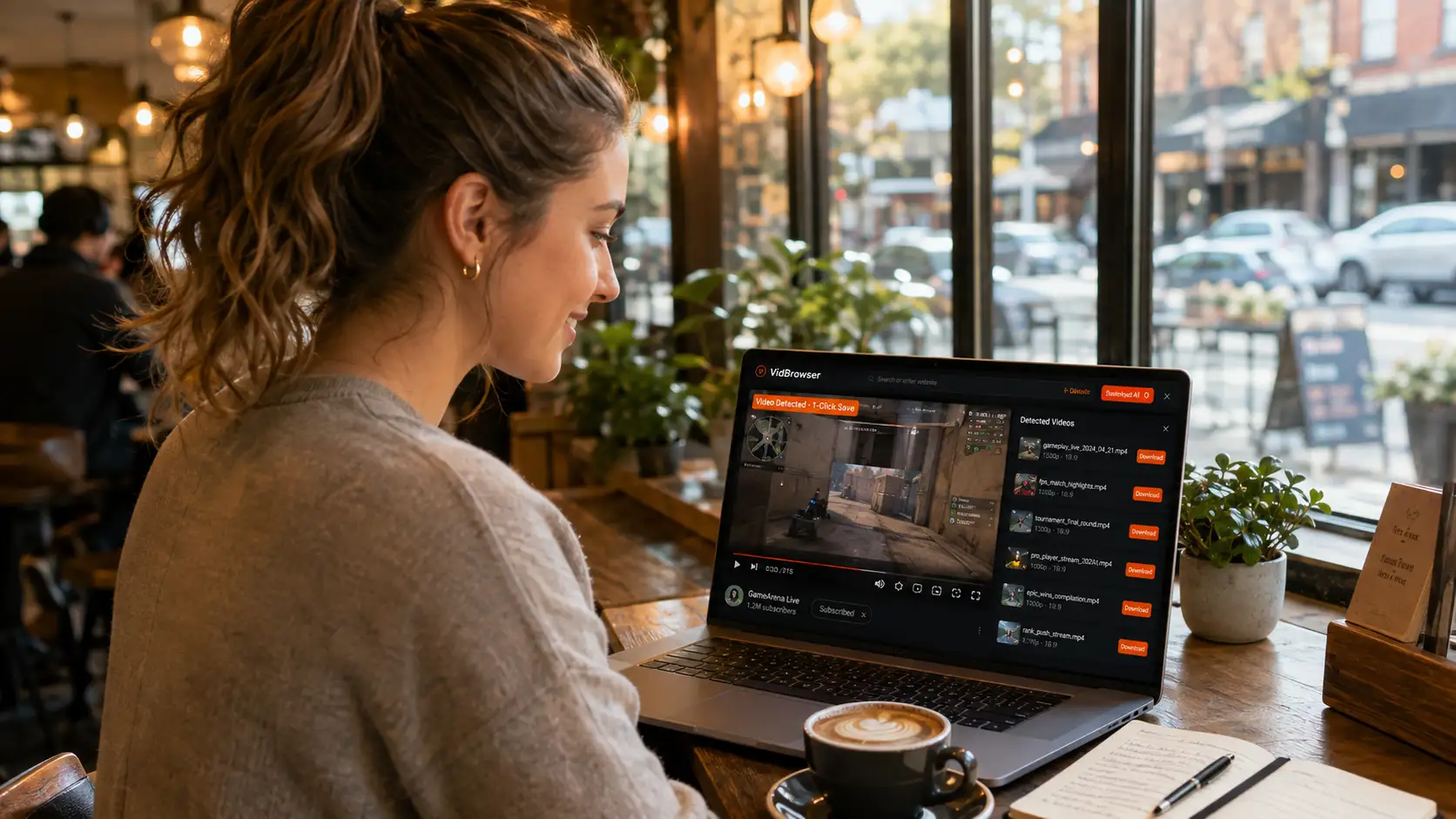
A desktop video browser like VidBrowser saves the complete stream the platform is playing and packages it as a standard MP4 with picture and audio intact:
Step 1: Download and install VidBrowser
Get the Windows or Mac version from the official download page; it offers both download and recording as saving methods.
Step 2: Open the video page in VidBrowser and play it
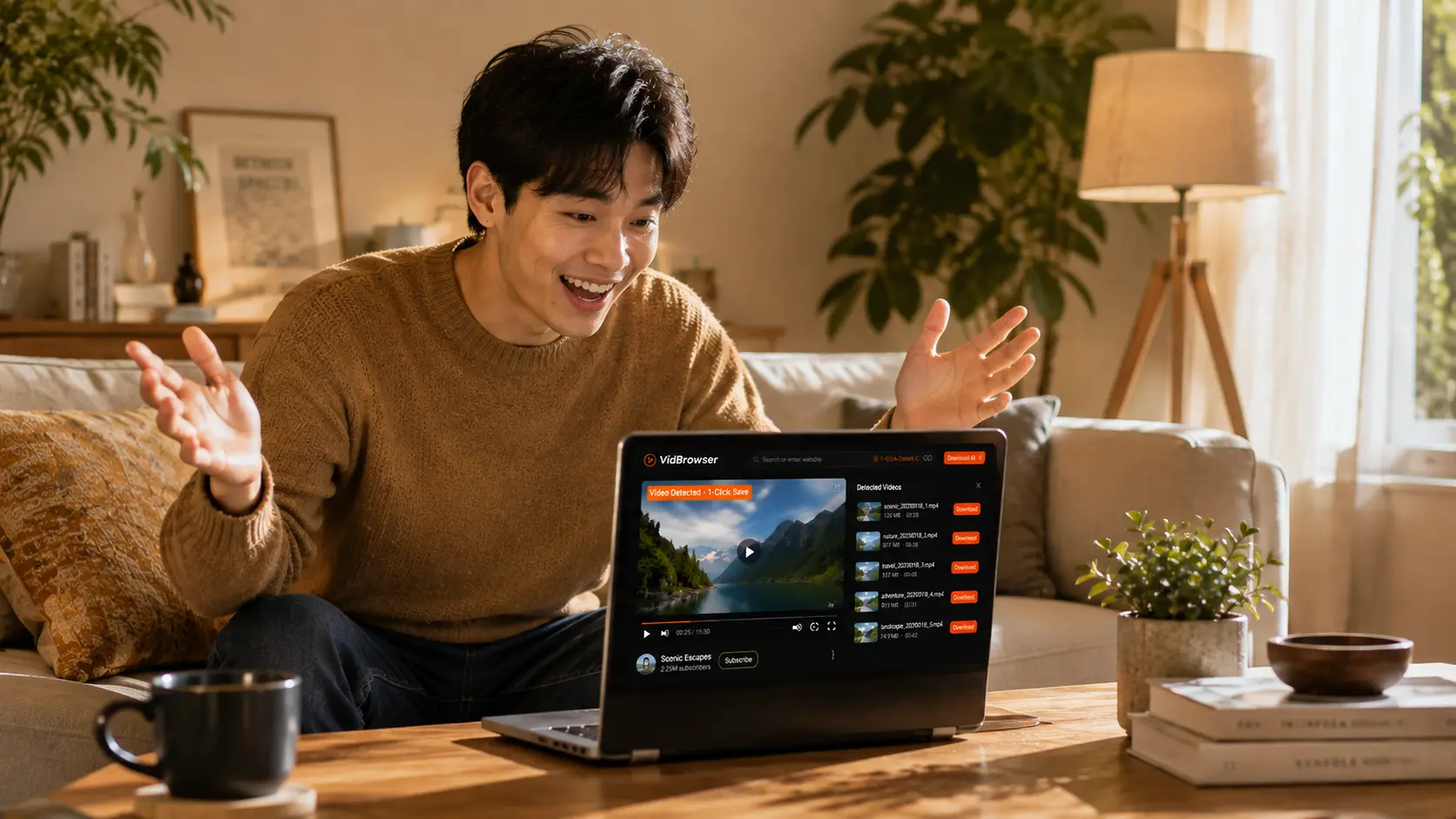
The "Video Library" panel on the right automatically lists every detected video resource.
Step 3: Click the orange Download button to save
Filter by resolution first if you like, then download — the file is saved as MP4 with audio and video in sync, no missing tracks.
Step 4: Use recording for content that won't download
Hover over the video and recording controls appear — pick a recording speed (1x real-time, or 2x/4x to finish faster), hit "Record All" to capture the entire video, and use the record button on the left to pause anytime. Anything that plays can be recorded.
One more note: if your problem isn't a broken file but a downloader that fails no matter what you try, that's a different diagnosis — see our earlier downloader not working fix guide.
FAQ
My downloaded video has no sound — will re-downloading fix it?
It depends. If the cause is a missing codec (VLC plays it fine), re-downloading a hundred times changes nothing — install the right player instead. If the file is corrupted from an interrupted download (silent even in VLC, duration clearly truncated), then re-downloading makes sense. Run the three-step diagnosis first before spending the bandwidth.
Why does the same video have sound on my computer but not on my phone?
Devices ship with different decoders. Your computer has VLC or a codec pack that handles AC3/DTS; iPhone and many Android phones support neither well. Convert the audio track to AAC before transferring, or install VLC mobile and play it there.
K-Lite codec pack or VLC — which one do I actually need?
For watching and listening, VLC alone is enough — it bundles nearly every decoder and it's free and open source. Only install K-Lite if you're set on using Windows' built-in Media Player and want system-level support. And avoid stacking random "mega codec packs" from unknown sources; multiple packs often conflict with each other.