
How to Batch Download Images from a Web Page (2026 Guide)
You find a page full of images you like. Most people reach straight for right-click, Save image as. Fine for one or two — but on a page with a dozen or several dozen pictures it turns into pure manual labour. And the part that really stings: after all that work you open the files and discover you did not save the sharp large version at all, but a compressed one.
Why batch downloading images gets stuck
Batch downloading images from a web page is hard not because of the clicking, but because modern pages hide the real full-size file behind several layers of technology.
Start with the most common layer: responsive images. A single image tag can carry several files at different sizes, and the browser loads whichever one matches your screen width. According to MDN's documentation on responsive images, the same picture resolves to a different file on different devices. What you save by right-clicking on a laptop is usually the version prepared for that screen — the far larger original sitting on the server was never fetched at all.
The second layer is lazy loading. To save bandwidth, a page does not request images that have not been scrolled into view; it puts a tiny placeholder there first. Right-click before the real image loads and you save that barely visible placeholder.
The third layer comes from CDN format conversion: what was uploaded as a JPEG is delivered to the browser as a re-compressed WebP, and that is the version your right-click saves. Some images are even painted on with a CSS background, in which case the context menu does not offer Save image as at all.
You might think: I already have a video download tool, can it just grab the images too? It cannot. Video tools watch for segmented streams (HLS, DASH); images arrive in a separate request down a different pipe. The two are unrelated — the tool has no reason to listen for jpg or png and simply skips them.
So the real problem is not "which menu item to click" but needing a tool that is willing to scan the whole page and list the image resources as an inventory.
Paste one URL and the whole page becomes a list
The method is direct: hand the page address to a tool, let it scan the page's image resources inside the browser, and organise them into a filterable list.
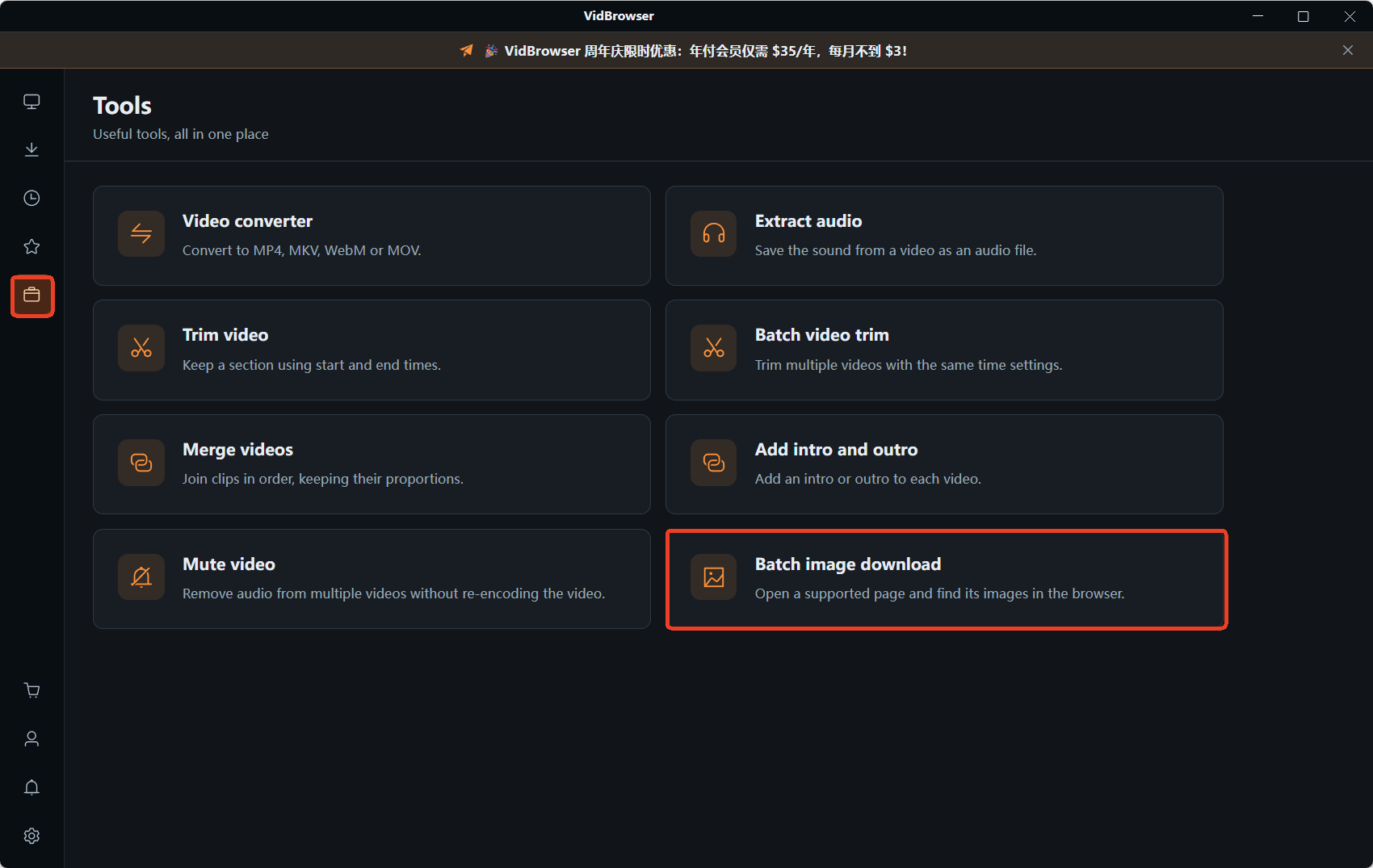
The entry point is the Tools page on the left of VidBrowser — eight handy utilities are gathered there. Open image batch download, paste in the URL and click the orange "Open image sniffer"; the page opens in a new tab while the tool switches into image-sniffing mode.
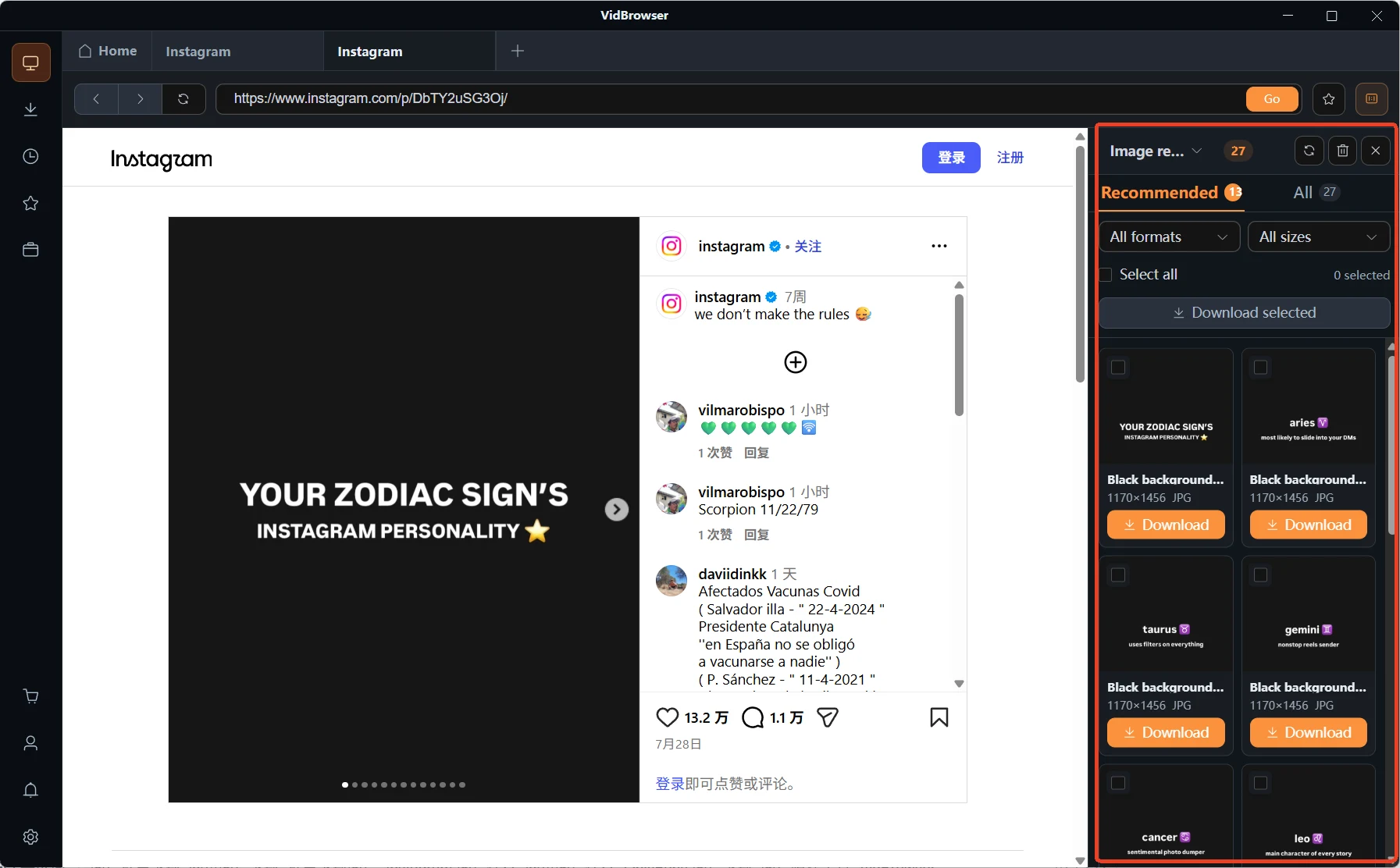
Once the page has loaded, an "Image resources" panel pops out on the right, showing how many images were captured this time. The panel has two views: Recommended, the refined results, and All, the complete list
Every image in the list is a card showing its dimensions and format, such as 480×640 JPG or 1080×1440 JPG, with an orange download button below — click it to save that one image on its own.
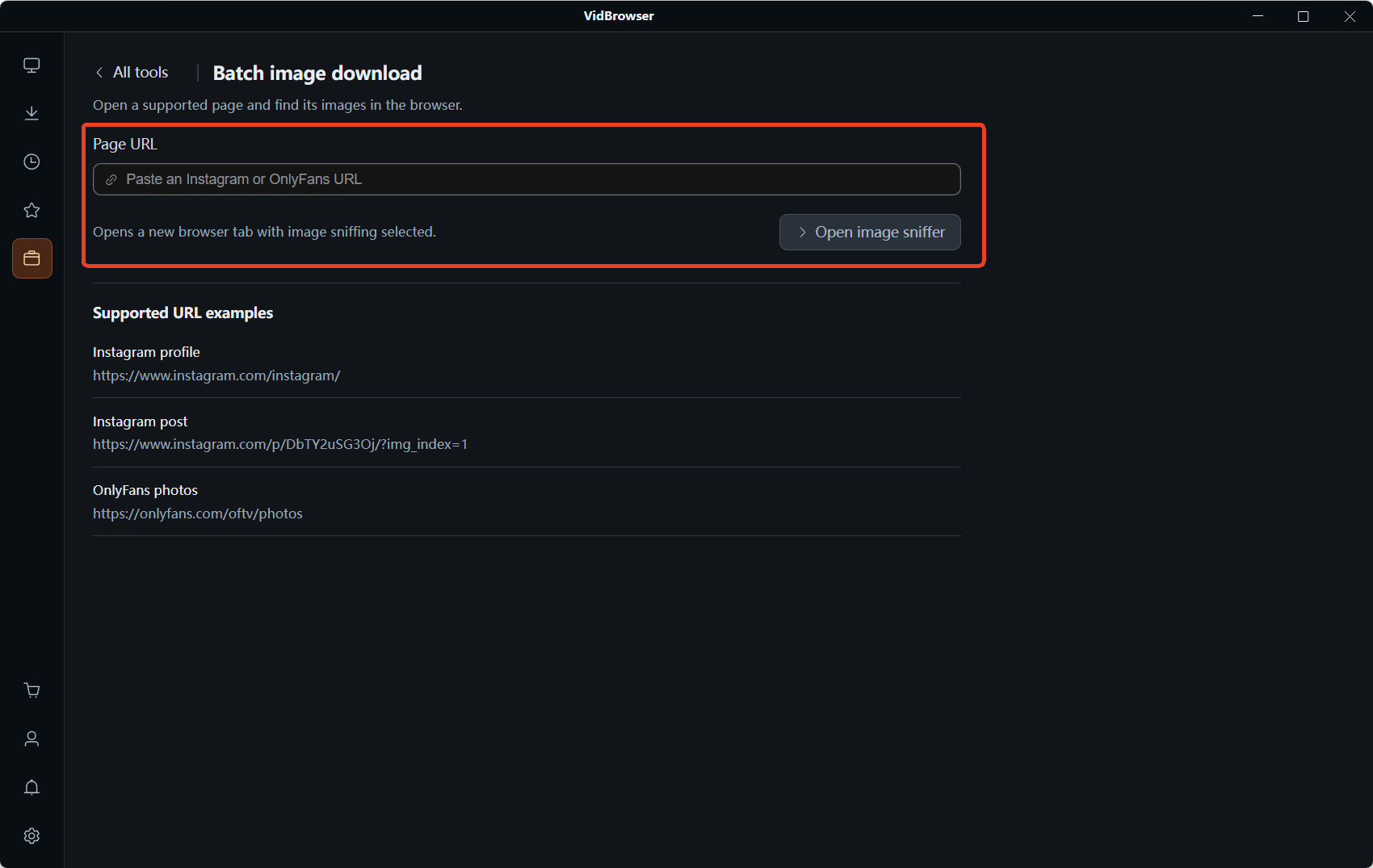
The official supported examples cover three cases: Instagram user profiles, Instagram posts (album posts carrying an img_index parameter), and OnlyFans image pages.
Filtering by size and format is where the time is saved
The single greatest value of the size filter is letting you skip every thumbnail in one step.
The size dropdown above the panel offers tiers from small to large: ≥200px, ≥500px, ≥800px, ≥1200px, ≥2000px. The usage is straightforward: if you want images you can actually use, stop at ≥1200px or ≥2000px, and the avatars, icons, emoji and thumbnails on the page disappear from the list in one go.
Format filtering works the same way — want only JPG, or only PNG? One selection does it.
When you are done filtering, tick the entries you need (or just select all) and hit batch download to hand them over in one pass.
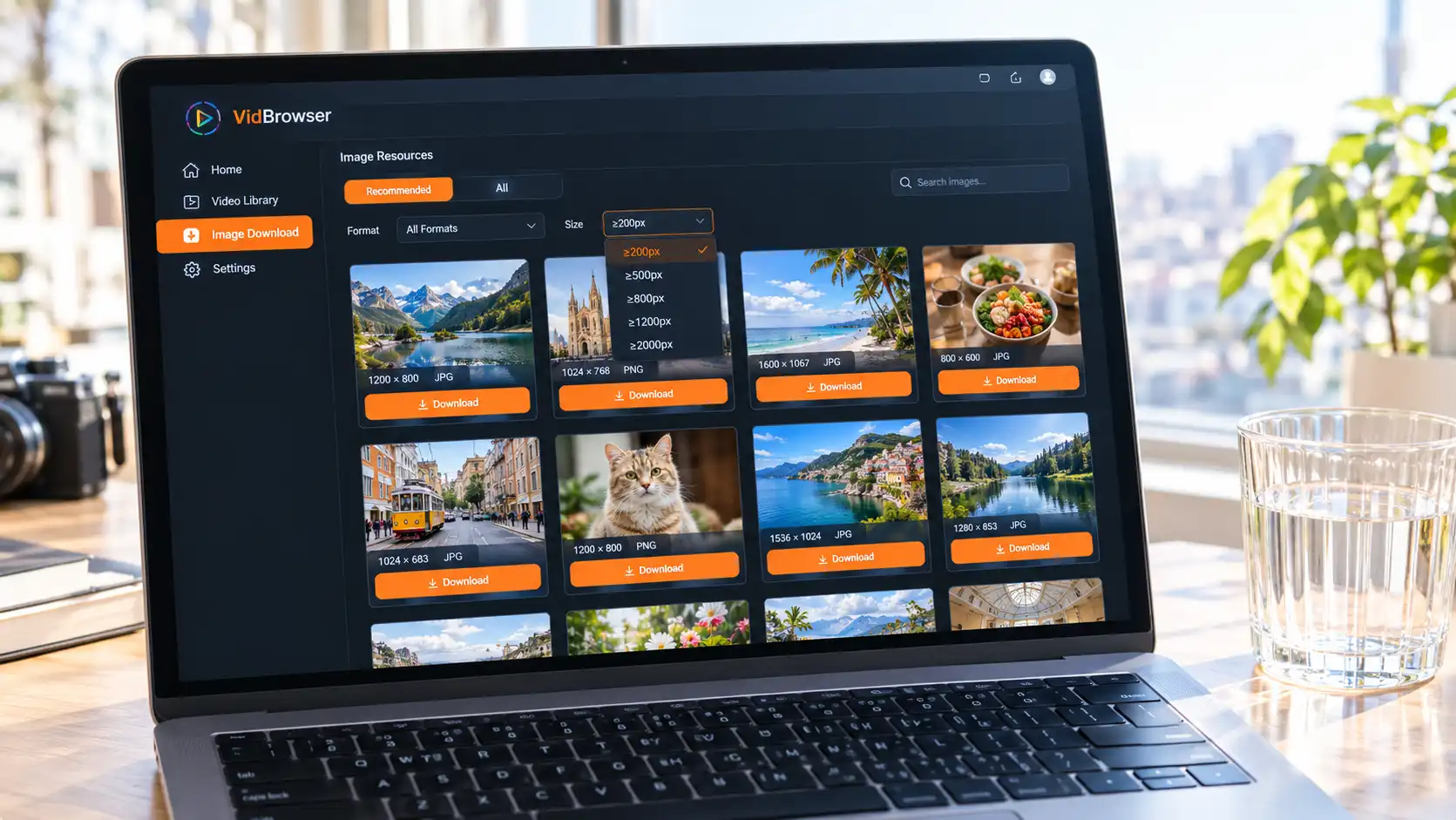
Compare that with the old routine: a dozen images in one album post means a dozen right-clicks, a dozen confirmations in the save dialog, and then you still have to work out which file was the large one. Now it is filter once, select all, done in one pass.
The three groups who get the most out of it
Batch image downloading shows up most often in three pairs of hands: subscription platform users, people producing social media material, and anyone collecting reference images.
Subscription platform users mostly run into multi-image posts, and the official supported examples list OnlyFans image pages directly. You can view that content while your subscription runs, but it may not still be there once the subscription ends or the creator changes things — if you want to keep it, deal with it while you can still see it. Where the risk boundary of saving itself lies is set out in more detail in saving subscription content and where the line sits.
People producing social media material need to collect in bulk from an Instagram profile or a single post, and album posts make it obvious — one post can hold a dozen images. Images aside, the video side works differently; see saving Instagram videos for that.
The rest are design, operations and e-commerce sourcing jobs where you are stockpiling reference images: scan the whole page, filter by size, then save — far quicker than saving one at a time.
Four steps to save a whole page of images locally
From pasting the URL to images landing on your machine, it takes four steps.
Step 1: Download and install VidBrowser
VidBrowser is a desktop video browser for both Windows and Mac with built-in downloading and recording, and image batch download lives on the Tools page. Installation takes a few minutes.
Step 2: Open the tool and paste the page address
Go to the Tools page on the left, choose "Batch image download" and paste the address of the page you want to process into the input box.
Step 3: Click "Open image sniffer"
The page opens in a new tab, the tool switches to image sniffing automatically, and the "Image resources" panel pops out on the right.
Step 4: Filter, tick, download
Narrow the list to the range you need by size and format, then tick the items or select all and hit batch download; if you only want one image, click the orange download button on that card.
If the page also contains video, the same flow covers it: the orange download button saves MP4 directly, while live content goes to the recording feature (1x is real time, 2x or 4x finishes faster, and "Record All" captures the whole thing in one pass).
The other seven entries in the toolbox
Batch image download is just one eighth of the Tools page; the other entries all work on video, and the material you save can be processed further inside the same app:
- Video format conversion: convert to MP4, MKV, WebM or MOV
- Extract audio: save the sound out as its own file
- Video trimming / batch trimming: set start and end times to keep a segment
- Video merging / add intro and outro: join clips in order, or give them a uniform intro and outro
- Mute video: remove the audio track without re-encoding the picture
For how downloading and organising works on the video side, video download manager has the full explanation.
FAQ
Is there a copyright risk in batch downloading images from a web page?
The key dividing line is whether the file left your device — keeping it on your own computer to watch offline is a very different risk from passing it on to someone else. Platform terms generally do not permit downloading other people's content without permission. Note too that batch image download is triggered by hand: you enter the URL, you click the sniffer, you decide what to keep — it is not a background crawler.
How is batch downloading different from right-click and save?
Right-click saves whatever the browser happens to have rendered at that moment — possibly the responsive small image prepared for your screen, possibly a transcoded WebP, possibly just a placeholder that had not finished loading. The list shows the image resources the page actually references, and the size tiers filter all the way up to ≥2000px, which tells you the larger versions are in there too.
Does it only work on Instagram and OnlyFans?
The officially listed supported examples are these three: Instagram user profiles, Instagram posts and OnlyFans image pages. What the tool does is scan the image resources on a page, without being tied to any particular platform, so other web pages with images are worth trying too.


