
Instagram Stories Vanish in 24 Hours? VidBrowser One-Click Save Makes Them Permanent
You scroll past a friend's story or a post video you love and want to keep it as a memory, only to find the story vanishes automatically after 24 hours, before you can even take a screenshot; you want to download someone else's post video, but Instagram's web version has no download button; online tools mostly fail to grab the video. Instagram's content comes in many forms with short lifespans, making saving more troublesome than you'd think.
This article explains the saving rules for Instagram posts and stories, plus the method that actually works in 2026 — with VidBrowser, if it plays, you can save it with one click.
Stories Only Last 24 Hours: After That, They're Really Gone
Let's start with the most overlooked point: Instagram Stories are time-limited content.
- They remain visible for only 24 hours, then are deleted automatically with no way to recover them.
- Only if the publisher saves the story into Highlights does the content stay permanent — but whether you can view Highlights and for how long is up to them.
- Feed videos have no 24-hour limit, but they have no official download entry either.
So "I'll save it in a couple of days" simply doesn't hold for stories — they disappear far faster than Twitch replays (7 to 60 days). If you want to keep one, you have to act while it's still there.
Official Downloads: Yours Yes, Others No
Instagram isn't completely download-proof, but the permissions are clearly split:
- Your own content: Instagram lets you export posts, stories, and Reels you published (via "Download your information" in settings), as original files.
- Others' content: there is no official download entry at all. No download button on the web version, none in the mobile app — only "save", which is a bookmark, not a file; if the other person deletes the content, your bookmark dies with it.
That's the reality for ordinary users: what you want to keep is others' content, and the official path is closed. (For Reels specifically, see our guide on saving Instagram Reels on a PC.)
Common Methods and Why They Fail on Instagram
- Online download sites: Instagram's video URL structure changes frequently; many parser sites work one day and fail the next, and even when they work, you may get compressed quality. (For the common reasons download tools fail, see our video downloader not working guide.)
- Screen recording: recording re-captures the picture, degrading quality noticeably; story content only has a 24-hour window, and record it too late and it's gone.
- Tools demanding authorization: tools that make you authorize your Instagram account hand over your account, friend list, and message history — the risk far outweighs the benefit.
These methods all work from outside the player, and Instagram's content mechanism is exactly what makes those workarounds increasingly difficult.
How VidBrowser Saves: If It Plays, One-Click Save
Take a different approach: instead of fighting the platform's mechanism, let the browser save the video stream it's playing while you watch.
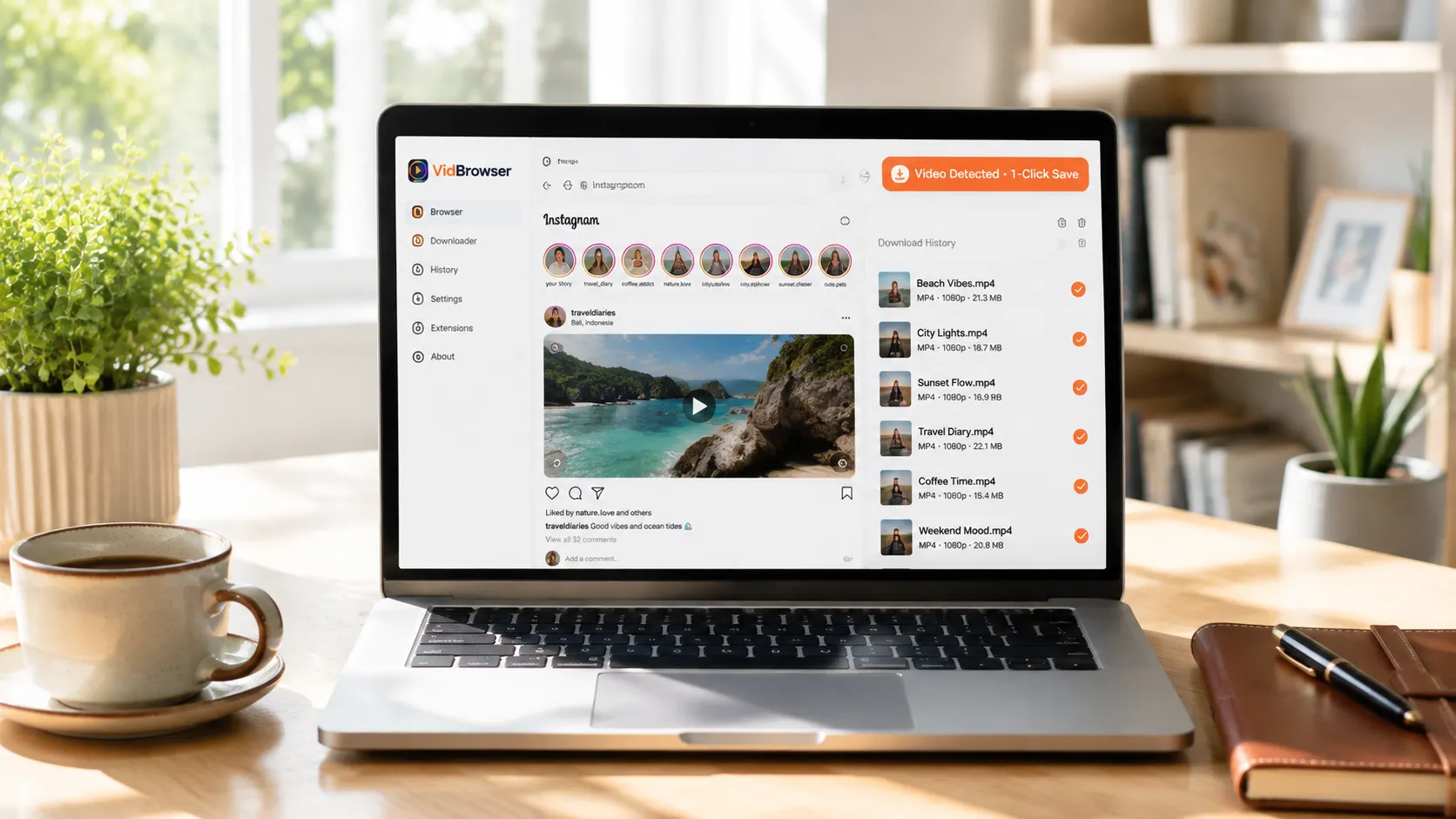
VidBrowser is a desktop browser designed for video, supporting Windows and Mac. It has built-in automatic video detection: open instagram.com, log in with your account, and play the post video you want to save. Once playback starts, an orange "Video Detected · 1-Click Save" indicator automatically appears in the top-right corner — click it, and the video is saved as an MP4 file.
It takes just a few steps:
Step 1: Download and Install VidBrowser
VidBrowser is a desktop video browser for watching videos, trimming clips, and saving them locally on Windows and Mac. Installation takes just a few minutes.
Step 2: Open Instagram in VidBrowser and Log In
Launch VidBrowser, visit instagram.com, and log in with your own account as usual. After logging in, the browser remembers your credentials (you can also choose "remember password"), so you don't have to re-enter them next time you open Instagram.
Step 3: Browse Your Feed and Open the Post Video You Want to Save
Go into your Instagram feed and open posts with videos to play them. Act on stories within 24 hours — after that they vanish automatically. VidBrowser automatically detects video resources on the page in the background.
Step 4: Save from the Video Library on the Right
Once playback starts, the "Video Library" panel on the right lists all videos detected on the page (possibly including copies in different resolutions), each with an orange "Download" button. Click the "Download" button of the video you want and it saves as an MP4 file containing the original stream, with no re-encoding.
Step 5: Find the File in Your Library
After saving, you can open the file from the folder you chose, or find it through VidBrowser's download history. Then watch it offline anytime with compatible players like VLC or QuickTime.
Compared with traditional downloaders, this mechanism differs in three ways:
- Not limited by content type. Post videos, stories, Reels, live replays — if it plays, it can be saved.
- Doesn't depend on a download button. Whether the publisher enabled downloads doesn't matter — what you see is what you save.
- Multiple files queue up. The download queue handles files automatically, so you can save several post videos in a row without babysitting.
Saving Isn't the End: Highlights, Clipping, and Library Management in One App
Downloading is just the starting point for VidBrowser. In the same software, the Instagram videos you save can keep working for you:
- AI highlight detection: automatically marks the best moments in videos, so you don't have to scrub long videos from the start.
- Built-in clipping: trim segments right in the browser and save a separate copy — no need to open a separate editing app.
- Library management: videos are automatically filed into the media library, with search, tagging, and sorting — no mess no matter how much you save.
- Offline viewing anytime: saved files are local MP4s that play in VLC, QuickTime, and more, without needing network or an account.
From "seeing a video" to "saving it" to "clipping and organizing it," you never switch software.
Two Bottom Lines Before You Download
The first is privacy. Stories and post videos are often personal content shared by friends and family — keep what you save strictly for your own memories, and don't forward or spread it.
The second is copyright. Content belongs to its publisher; personal offline saving is understandable, while republishing, reposting, or commercial use is infringement. Save for yourself and respect the content creators.
FAQ
Can Instagram stories be recovered after 24 hours?
No. Stories are deleted automatically by Instagram once they expire, with no way to recover them, unless the publisher saved them into Highlights. So if you want to keep a story, act within 24 hours.
Can I download others' post videos and stories?
As long as you can play them normally in your browser, you can save them with VidBrowser in one click. But keep downloaded content strictly for personal use — don't forward or spread it.
Does downloading an Instagram video notify the other person?
No. Instagram has no download notification mechanism. VidBrowser saves the video to your local device, sends no save records to the platform, and doesn't affect your account.


