How to Download Fansly Videos in 2026: 5 Steps to Beat the Black Screen and Save MP4
You paid for a subscription, found a video you love, and wanted to save it for offline viewing — but Fansly doesn't even have a download button. Try screen recording? You get nothing but a black screen. Search for a "Fansly downloader"? Either it doesn't work, or it asks for your account password right away.
This isn't your fault — it's how Fansly is designed. This article explains why saving is so hard, and the methods that actually work in 2026.
Why Are Fansly Videos So Hard to Save?
Let's start with the conclusion: Fansly has no official download feature and no offline cache. This is a platform-level design choice — content stays locked inside its own player, because both the platform's and creators' revenue depends on content staying on-site.
That leads to three real consequences:
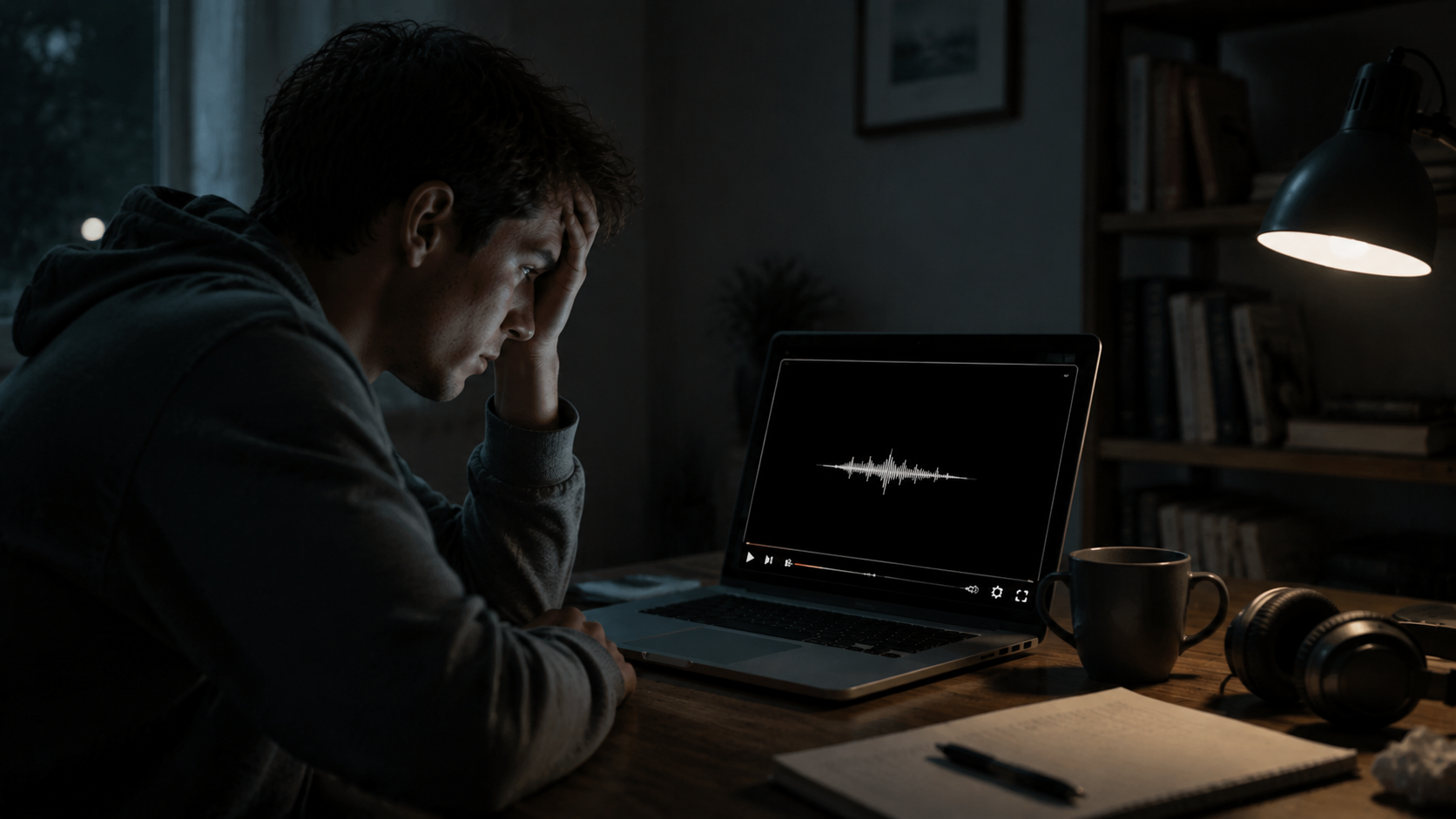
- Screen recording only captures a black screen. While a video plays, Fansly protects the video output at the system level. OBS, Bandicam, and your system's built-in recorder all produce a black video with sound but no picture. (If you already have such a file, check out our black screen video fix guide.)
- Browser extensions and online downloaders mostly fail. Fansly delivers videos in a special way, so ordinary extraction tools can't reassemble a playable file. Those sites that claim to be "Fansly downloaders" may work for regular web videos, but they're useless against Fansly.
- Shady tools steal accounts. Any software that asks for your Fansly password or session cookie is effectively handing over your account, payment info, and subscription history. Stolen accounts and bans are extremely common in this space. Never enter your Fansly credentials anywhere except the official login page.
So the real question isn't "is there another downloader to try" — it's "find a different way to capture the video stream."
The Method That Works: Save the Video Stream Inside Your Browser
Since neither screen recording nor external tools can get the video, you need to flip the approach — let the browser save the stream you're watching while it plays.
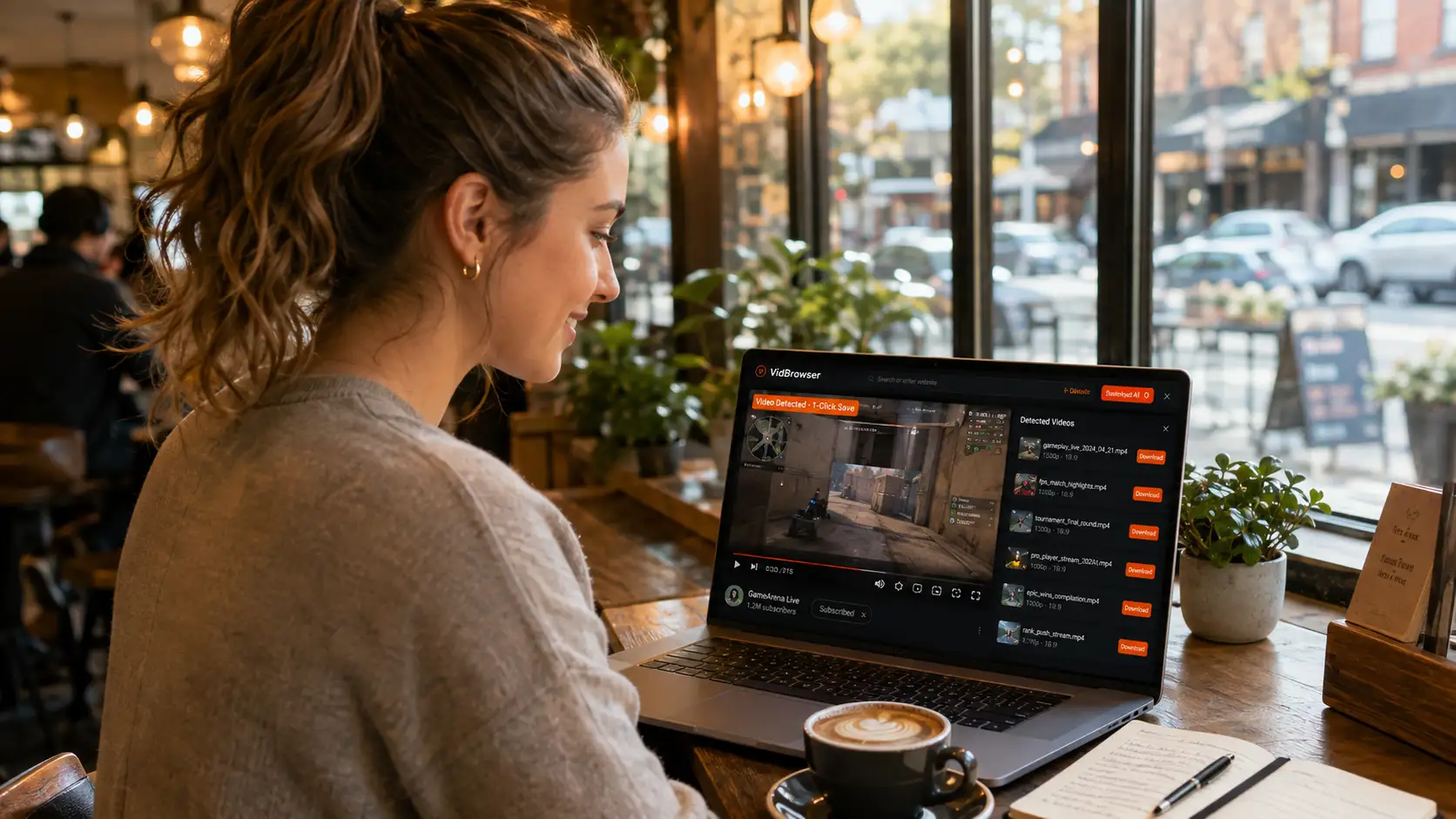
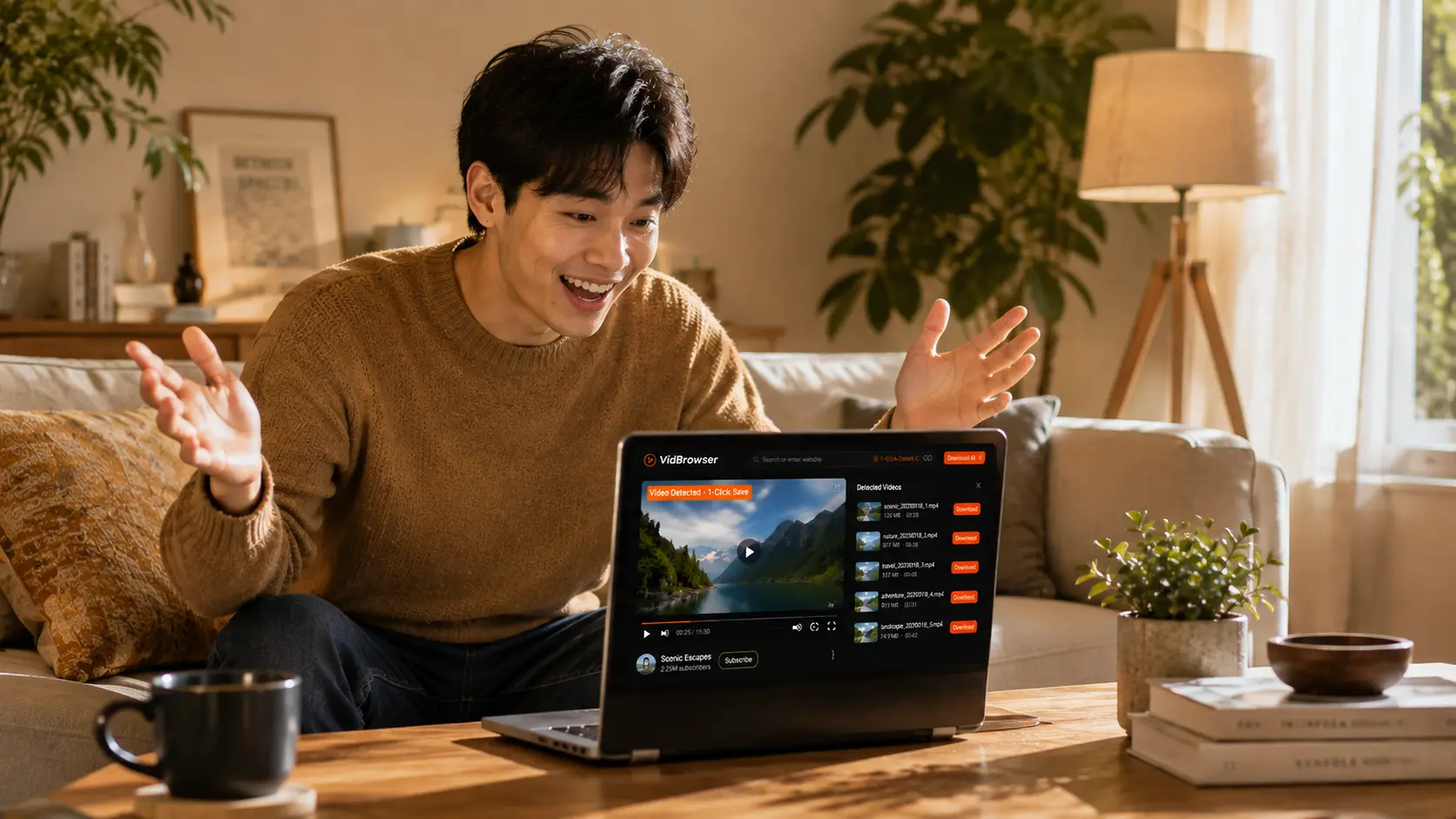
VidBrowser is exactly that: a desktop browser designed for video, available for Windows and Mac. It's a complete browser in itself — you open fansly.com normally, log in normally, and play videos normally. The only difference is that once playback starts, it detects the video stream and shows an orange one-click save button in the top-right corner.
Here's the 5-step process:
Step 1: Download and Install VidBrowser
VidBrowser is a desktop video browser for watching videos, trimming clips, and saving them locally on Windows and Mac. Installation takes just a few minutes.
Step 2: Open Fansly in VidBrowser and Log In
Launch VidBrowser, visit fansly.com, and log in with your own account as usual.
Step 3: Go to Your Subscribed Content and Play the Video You Want to Save
Open the creator page or posts you've subscribed to and let the video play normally. VidBrowser automatically detects video resources on the page in the background; once it identifies a savable video stream, it lists it in the "Video Library" panel on the right.
Step 4: Save from the Video Library on the Right
Once playback starts, the "Video Library" panel on the right lists all videos detected on the page:
- Normal videos: each has an orange "Download" button — click it and the video saves as an MP4 file containing the original stream, with no re-encoding.
- DRM videos: if a video shows "⚠ DRM video, use the recording feature to download", it's protected by DRM and can't be downloaded directly — use VidBrowser's recording feature instead. (For how DRM breaks download tools and screen recording, see our DRM explainer.)
Step 5: Find the File in Your Library
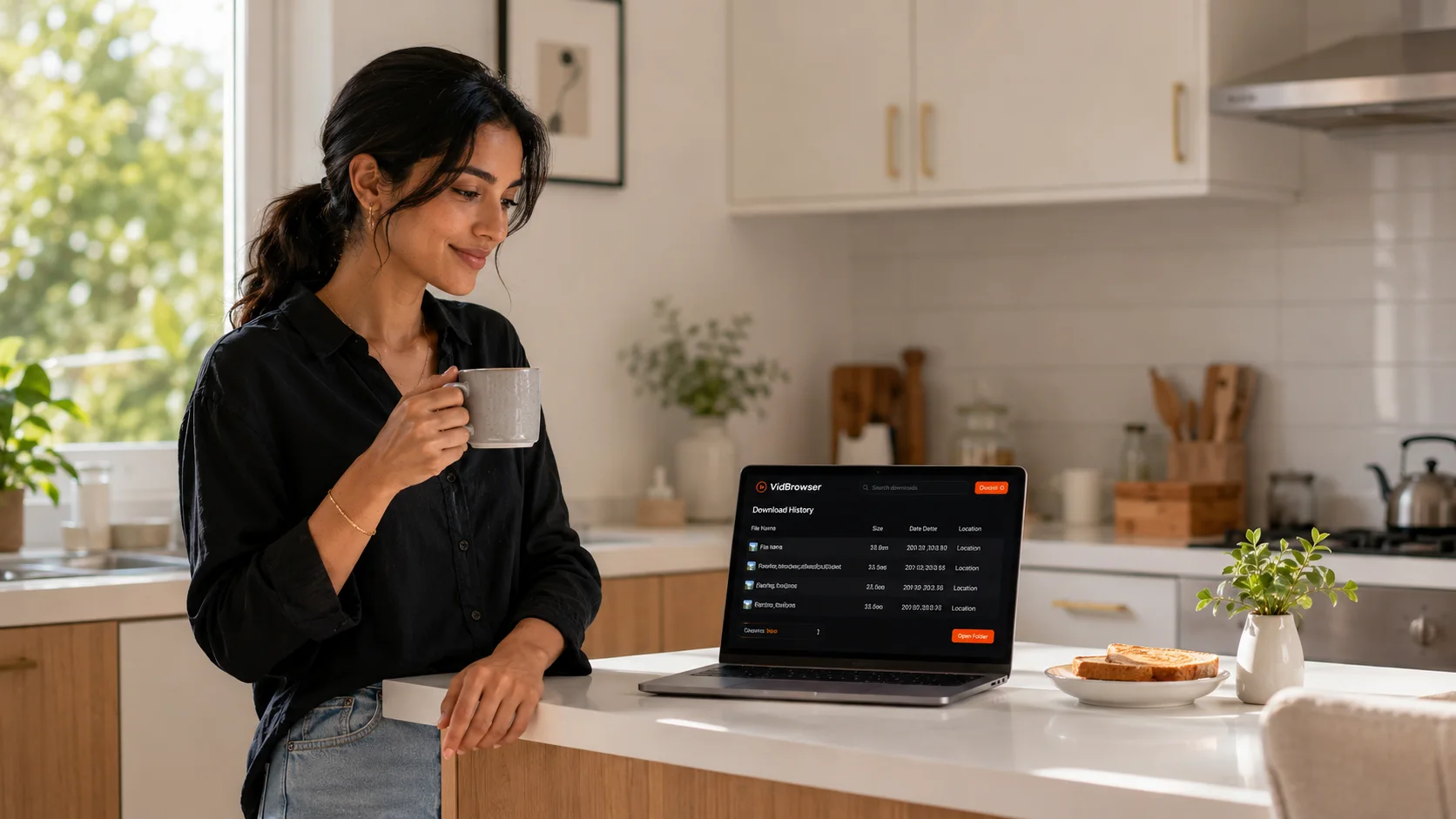
After saving, you can open the file from the folder you chose, or find it through VidBrowser's download history. Then watch it offline anytime with compatible players like VLC or QuickTime.
Why does this get around the black screen? Because saving happens inside the browser: VidBrowser has legitimate access to the video stream during playback, and it simply writes the stream you're watching to a local file. Screen recording is like filming the screen from outside, so the protection mechanism blocks it.
What About Quality? Can You Save Live Streams and DMs?
VidBrowser saves the original video stream Fansly delivers to your account — the same resolution you see when playing, no re-encoding, no platform watermark, and perfectly synced audio and video.
Videos in live streams and DMs work the same way: save live streams while you watch them, so you still have a copy even if the creator never posts a replay; for videos sent in DMs, as long as they play, the orange indicator appears and you can save them with one click.
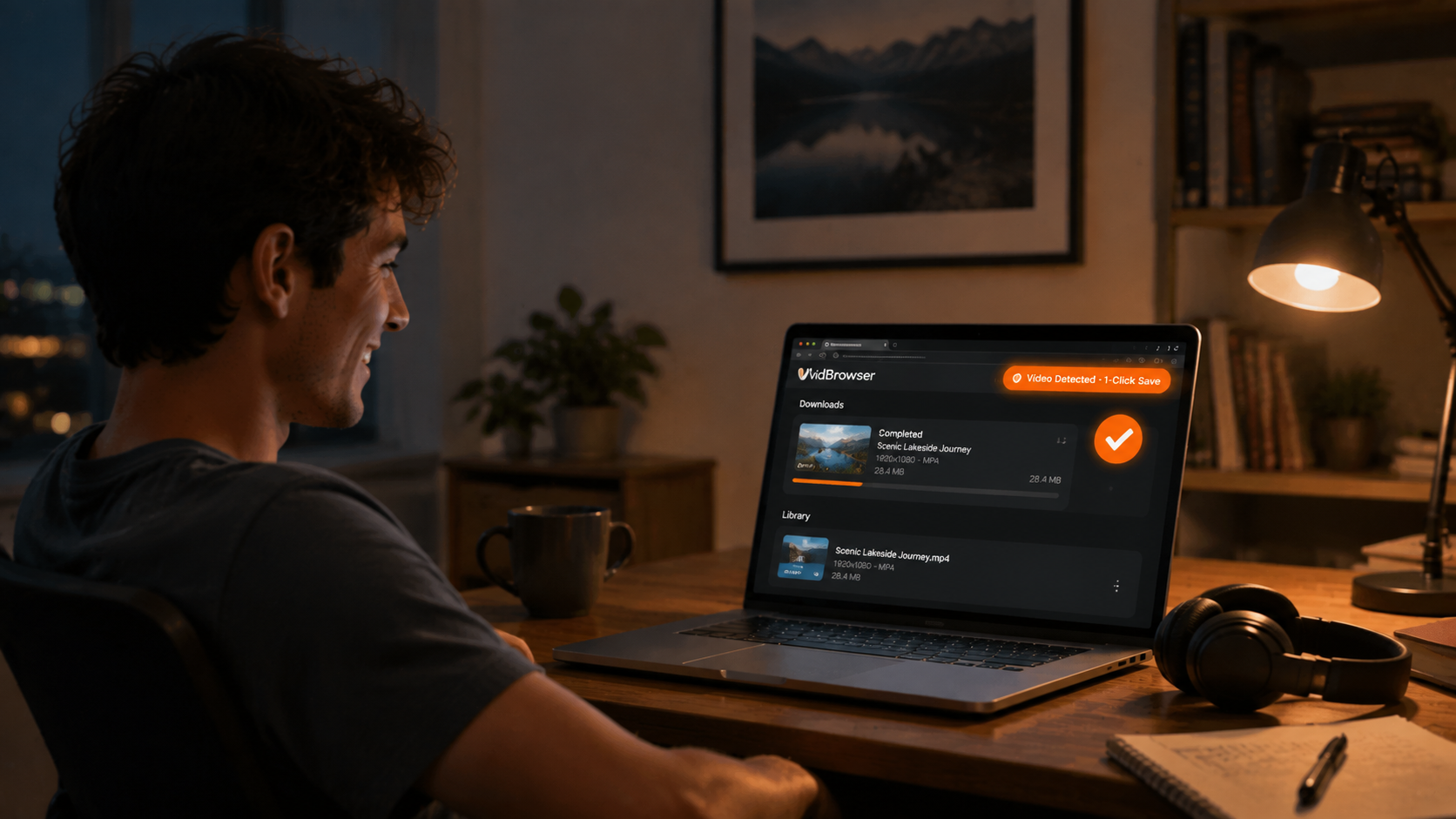
If you're a regular on creator platforms, this workflow isn't limited to Fansly — the same software works on OnlyFans, LoyalFans, Patreon, as well as YouTube, TikTok, Twitch, and a thousand more platforms. Log in, play, click save — the process is identical.
Before You Save, Think About the Legality
Fansly's terms of service don't allow downloading, and every video on the platform is the creator's copyrighted content — there's no way around that. What really determines the nature of the issue is what you do with the file afterward:
- Saving only content you've paid for and have access to, purely for personal offline viewing — this is a personal use choice, and it's the scenario VidBrowser is designed for.
- Reposting, sharing, reselling, or uploading anywhere — that's copyright infringement. It directly harms creators, is illegal in most jurisdictions, and many regions have specific laws against the spread of intimate content.
In short: saving for yourself is fine — respect creators and keep your subscription active.
FAQ
Will Fansly know that I saved a video?
No. Fansly has no download or screenshot notification mechanism. VidBrowser saves the video to your local device and sends no save records to the platform.
Can I download Fansly videos on my phone?
VidBrowser is currently a Windows and Mac desktop app with no mobile version. You can transfer the saved MP4 files to your phone and play them like any regular video file.
Can I still watch saved videos after my subscription expires?
Yes. The saved MP4 files are local files that play offline anytime — they won't expire just because you unsubscribe or a creator deletes their account. Just note that you must have an active subscription at the time of saving.