
Twitch VODs Expire, But Saved Streams Don't: The 2026 Guide to Archiving Live Streams
You watched an exciting esports match or a streamer’s broadcast, and when you go back to rewatch it later, the VOD has already disappeared from their page. You’d like to keep a copy yourself, but Twitch’s download feature is only available to streamers. Live content is time-sensitive — miss it and it’s gone.
This article explains Twitch’s “archiving rules” clearly: why replays disappear, who the official download is for, and the methods viewers can actually use in 2026.
Why Twitch Live Stream Replays Disappear
Twitch VODs (replays) aren’t permanent — they’re cleared on a schedule depending on the streamer’s account type. According to Twitch’s official Help Center, the three retention tiers are:
- Regular accounts: live stream replays are kept for 7 days.
- Affiliates: kept for 14 days.
- Partners and Prime/Turbo subscribers: kept for 60 days (per Twitch’s official VOD documentation).
After that, the VOD disappears from the streamer’s page with no way to recover it. Streamers can clip their broadcasts into Highlights that stay on their channel long-term — but since April 2025, Twitch caps Highlights and uploaded videos at a combined 100 hours, and anything beyond that is cleared automatically. Highlights are no longer an absolute safety net either — and regular viewers have no clipping permission anyway.
So “I’ll watch it again in a few days” is a risky habit on Twitch — the stream you love may be cleared before you even remember it.
Official Downloads: Only Streamers Hold the Key
Twitch does have an official download feature, but it’s made for the streamers themselves: a streamer logs into the creator dashboard and can download their broadcast to local storage before the VOD expires (generally within 60 days, and only after the stream ends).
As a viewer, you have no access to this. Twitch has no “download this stream” button for viewers — neither on the web version nor in the app.
That creates an awkward situation: the content exists on the platform, but it’s time-limited, and ordinary viewers have no official way to keep a copy before it’s gone.
Ways Viewers Try to Archive — and the Pitfalls
- Screen recording software: a live stream is a continuous video feed, so recording means keeping your PC running for the entire broadcast — often overnight, with the fans spinning. Any network fluctuation during that time can produce a stuttering file with out-of-sync audio, and you only find out after it’s done that it’s unwatchable.
- Third-party download tools: Twitch’s live stream travels over HLS segmented delivery, and many generic downloaders can’t keep up — the stream may drop mid-broadcast or you get a broken file; some tools rely on parsing scripts that break with every platform update. (For the common reasons download tools fail, see our article video downloader not working guide.)
- Waiting for the VOD and then downloading: pinning your hopes on the VOD is already passive — it only lives 7 to 60 days, and once the window passes, it’s gone. (If the replay is still within its validity period, our Twitch VOD download guide has the complete steps for downloading it directly.)
Save While You Watch: Turn the Stream Into a Local File in Real Time
Since VODs expire and official permissions are only for streamers, the most reliable approach is: don’t rely on the platform’s storage — record it directly the moment the broadcast starts playing.
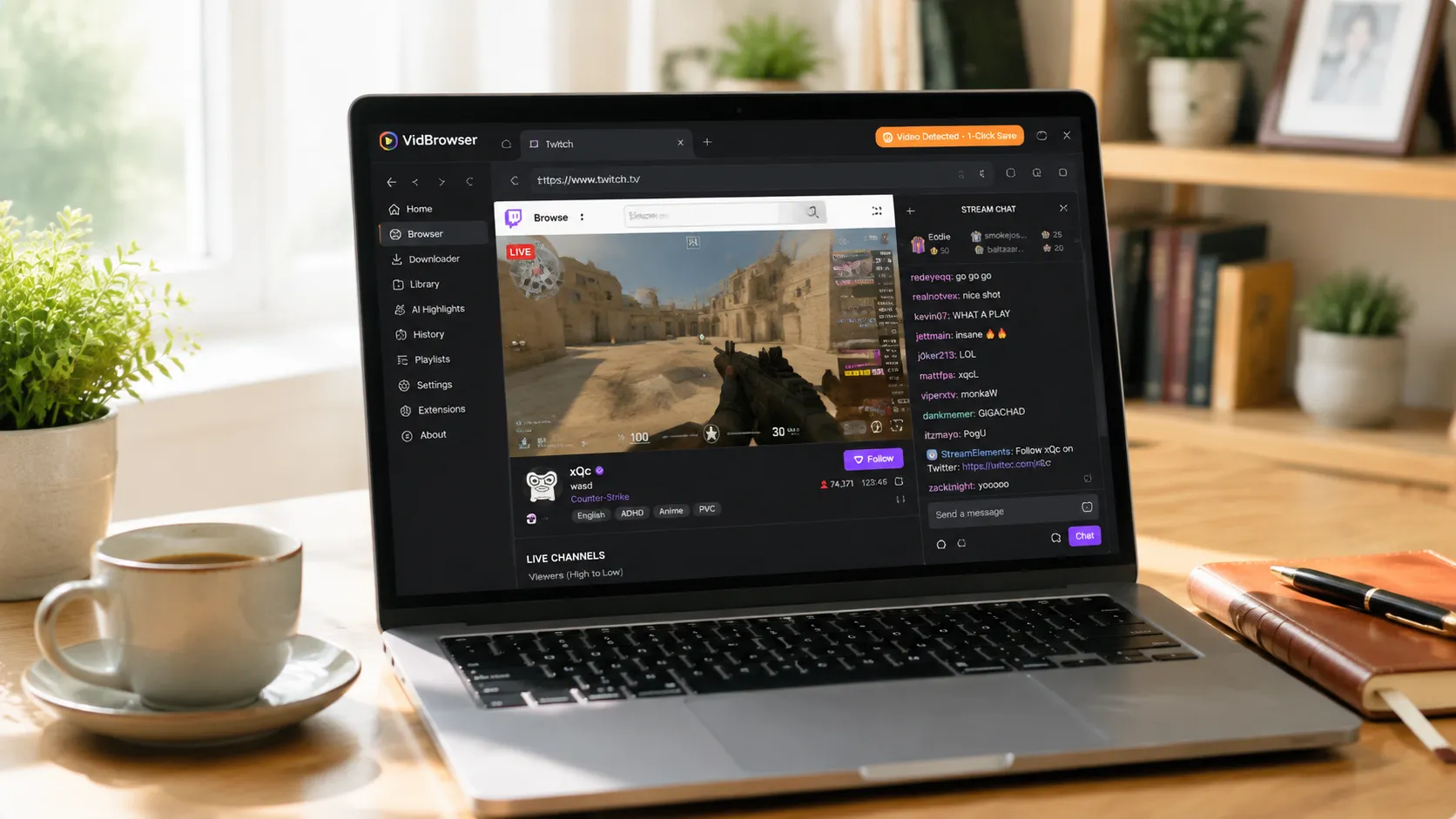
VidBrowser is a desktop browser designed for video, supporting Windows and Mac. Open twitch.tv, enter a live channel normally, and once the stream starts playing, use VidBrowser’s recording feature to record the live stream as it plays — a live stream is a real-time flow: unlike a regular video, it can’t be downloaded directly, only recorded.
It takes just a few steps:
Step 1: Download and Install VidBrowser
VidBrowser is a desktop video browser for watching live streams and videos, trimming clips, and saving them locally on Windows and Mac. Installation takes just a few minutes.
Step 2: Open Twitch in VidBrowser and Log In
Launch VidBrowser, visit twitch.tv, and log in with your own account as usual. Most live viewing requires logging in — only then can streams play normally.
Step 3: Enter the Channel You Want to Archive and Let the Stream Play
Enter the live channel and let the stream play for a few seconds. VidBrowser automatically detects video resources on the page in the background; once it identifies the live stream, it lists it in the “Video Library” panel on the right.
Step 4: Download Replays Directly; Record Live Streams in Real Time
Content on streaming platforms comes in two kinds, and each is saved differently:
- Replays and videos (VODs): these can be downloaded directly. Find the video in the “Video Library” panel and click its orange “Download” button to save it as an MP4.
- Live streams: a live stream is a real-time flow that can’t be downloaded directly — use the recording feature instead. Pick a recording speed (1x real time, or 2x/4x to finish faster), click “Record All” to start recording the whole broadcast, and use the record button on the left to start or pause at any time.
When the broadcast ends (or for replay content), the video is saved complete on your local drive.
Step 5: Find the File in Your Library
After saving, you can open the file from the folder you chose, or find it through VidBrowser’s download history. Then watch it offline anytime with compatible players like VLC or QuickTime.
This method has three key advantages:
- Not affected by VOD expiry. The file is already on your device before the broadcast even ends — a replay disappearing after 7 days has nothing to do with you.
- Not limited by streamer permissions. Saving happens on your device; no permission from the streamer is needed, and no official download portal either.
- The post-stream VOD can also be saved. As long as the replay is still within its validity period and plays normally, the same process applies.
Two Reminders Before You Archive
The first is copyright. The visuals, music, and commentary in a stream each have their own owners. Saving them for personal offline viewing is fine; republishing, reposting, or commercial use is infringement. Save for yourself and respect the content creators.
The second is to archive early. Saving during the live stream is the safest — don’t wait until the VOD is about to expire. Getting into the habit of “save it when it’s worth keeping” is far easier than rescuing things afterward.
FAQ
How long does a Twitch VOD (replay) last before expiring?
7 days for regular accounts, 14 days for Affiliates, and 60 days for Partners and Prime/Turbo subscribers. After that, the replay is permanently deleted from the servers with no way to recover it. Archive early if you want to keep it.
Will saving a stream notify the streamer?
No. Twitch has no notification mechanism for stream saving. VidBrowser saves the video to your local device, sends no save records to the platform, and doesn’t affect your account.
Can I still save after the live stream has ended?
Yes, but there’s a window. As long as the VOD is still within its validity period and plays normally, you can download it directly; if the replay has already been deleted, you’ll have to wait for the next stream. That’s why saving during the broadcast is the safest option.


