
Twitch Replays Last 60 Days at Most: VOD Retention Rules and How to Save Them in Time
You come back a week later to rewatch a streamer's title-winning match, open the channel's Videos tab, and a chunk of the Past Broadcasts list has simply vanished; others assume Highlights are safe forever — a habit that also needs changing after April 2025. Twitch keeps replays (VODs) for different lengths of time depending on the streamer's account type — regular accounts 7 days, Affiliates 14 days, Partners and Prime/Turbo subscribers 60 days, after which they are permanently deleted from the servers, and even support can't get them back; Highlights don't expire, but since April 2025 they've been subject to a combined 100-hour storage cap. This guide covers the retention rules, how to check what's left, and the steps to save replays before they disappear.
Twitch VOD Retention Rules: How the 7-, 14- and 60-Day Tiers Work
According to Twitch's official Help Center, how long a replay is kept depends only on the streamer's account type: regular accounts 7 days, Affiliates 14 days, Partners and Prime/Turbo subscribers 60 days — deleted automatically at expiry, with no way to recover them.
The three tiers (per Twitch's official VOD documentation):
- Regular accounts: 7 days — most of the small streamers you casually follow sit in this tier;
- Affiliates: 14 days — reached after meeting the affiliate program threshold;
- Partners and Prime/Turbo subscribers: 60 days — where most top streamers are.
Three details matter more than the raw numbers:
- Replay storage is off by default. The official wording is "Past broadcast storage is not enabled by default" — if the streamer never turned on Store Past Broadcasts in the creator dashboard, no replay is generated at all. That's why some channels' Videos tab is empty: nothing was deleted, it was never recorded.
- 2K and vertical (Dual Format) versions expire after 7 days. Twitch states that the high-quality and vertical replays stop being available 7 days after the stream ends, leaving only the 1080p horizontal version — even for a 60-day-tier streamer, the vertical source is a one-week window.
- The 60-day tier depends on an active subscription. If Prime/Turbo lapses, retention drops back to the account's base tier.
At expiry, replays are permanently deleted, and Twitch confirms that even support has no recovery option. So the real question is never "why was it deleted" but whether you saved a copy before the deadline.
Where to Find Replays and How Long They Have Left: Check the Channel's Videos Tab
Replays live in the Videos tab of a streamer's channel — filter to Past Broadcasts to see every stored broadcast; the page only shows the publish date, with no countdown of days remaining, so you have to work that out yourself.
The self-check takes three moves:
- Open the streamer's channel page, go to the Videos tab and filter Past Broadcasts (keeping it distinct from Highlights and Clips);
- Check each replay's publish date: day 7 for regular accounts, day 14 for Affiliates, day 60 for Partners — that's the deadline;
- Some streamers lock replays to subscribers (Subscriber-Only VODs, available to Partners) — you'll see them in the list but need a subscription to open them; that's a permissions issue, not a missing file.
One misconception worth clearing up: "still in the list" does not mean "will always be there". Past its tier's deadline, the entry disappears along with the video — don't treat the list as insurance.
Save the Replay Before It Expires: Downloading First, Recording Only for Live Streams
A replay within its retention window is a standard video on demand — if it plays normally, you can download it directly; only a live stream in progress needs recording. The approach for archiving live streams is covered in depth in our guide to saving Twitch live streams, so we won't repeat it here.
It takes just four steps:
Step 1: Download and install VidBrowser
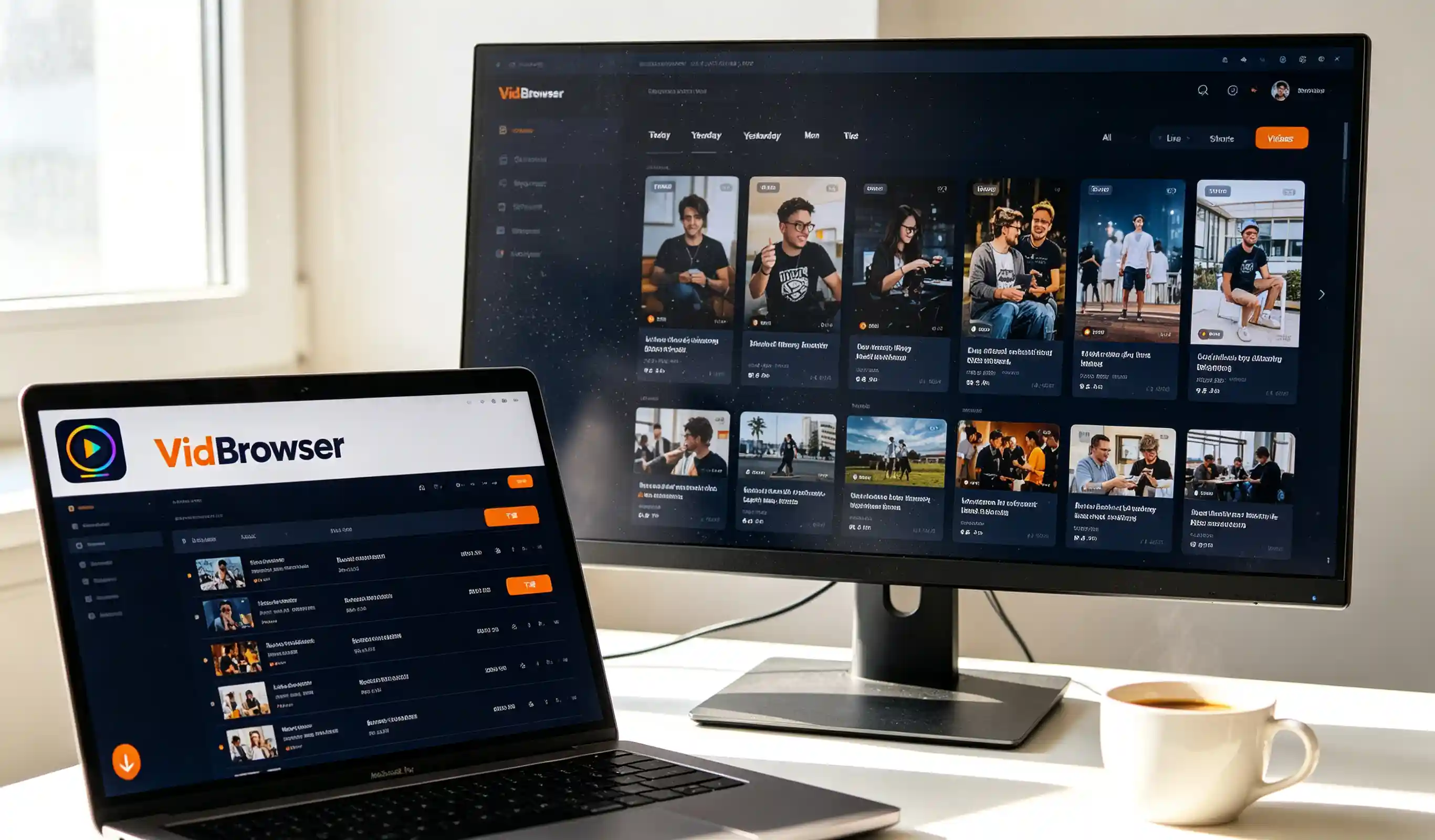
VidBrowser is a desktop video browser for watching and saving streams and videos on Windows and Mac, with built-in download and recording — installation takes a few minutes.
Step 2: Open Twitch and log in
Visit twitch.tv inside VidBrowser and log in with your own account — subscriber-only replays open normally if you're subscribed.
Step 3: Open the target replay in the Videos tab
Switch to Past Broadcasts, open the one you want to keep, let it play for a few seconds, and set the quality first.
Step 4: Download replays directly; record sources that can't be detected
The "Video Library" panel on the right lists the videos detected on the page, each with an orange "Download" button — one click saves it as an MP4 (you can pick the resolution first). If a particular replay is playback-restricted and no saveable source is detected, hover over the video and a recording overlay appears — choose a recording speed (1x real time, or 2x/4x to finish faster), click "Record All" to start recording the whole broadcast from the current point, and use the record button on the left to start or pause at any time.
For clips under 60 seconds there's a shortcut: Twitch Clips can now be downloaded directly from the official site, in both horizontal and vertical versions, no third-party tool needed (as compiled in cutfast's write-up of the official Clips feature) — it's full replays that need the workflow above.
After saving, check the download history via the clock icon in the left navigation — the file is already on your machine (if you can't find the file after downloading, our guide to locating downloaded videos has a complete method). If a replay downloaded with another tool won't open on double-click, it's usually a .ts/.mkv container issue — see our format and playback compatibility guide for the order of fixes.
The 100-Hour Highlights Cap: Stop Treating Them as a Permanent Vault
Since April 2025, Twitch has applied a combined 100-hour storage cap to Highlights and Uploads; once you're over it, the platform automatically clears the least-watched content, and unpublished highlight drafts count toward the limit too.
Two things this means for viewers:
- "Highlights are saved forever" now has an exception: highlights accumulated over years on older channels may already have been pruned — a compilation you watched might be gone if you look for it six months later;
- Highlights you want to keep long-term also need a local backup. Replays expire, highlights have a cap — nothing on Twitch's servers should be your only copy.
Put the three layers together and it's clear: live streams rely on recording in the moment, in-window replays on timely downloads, and long-term collections on local backups — cover all three and deleted channels, platform cleanups or lapsed subscriptions can't touch your library.
FAQ
Why do some channels have no replays at all?
Most likely the streamer never enabled replay storage — it's off by default, and without the Store Past Broadcasts switch turned on, a stream generates no replay. It's not a deletion; it was never recorded, and viewers can't do anything about it except wait for the next stream.
Can Twitch support restore an expired replay?
No. Twitch states that expired replays are permanently deleted from its servers and support has no recovery path. Don't count on "getting it back" — the window before expiry is the only chance.
Will downloading a Twitch replay notify the streamer?
No. Downloading and recording both happen on your local device; Twitch has no viewer-side save notification, and normal watching and saving doesn't affect your account or subscription.


