
Leaving OnlyFans? The Pre-Deletion Checklist: Export Data First (2026)
Most people who want to leave OnlyFans for good get stuck at the same place: they find "Delete account" and click it, only then discovering they still have a wallet balance, a subscription with two weeks left, and three years of chat history with nothing exported. Deletion is unforgiving about order — once the account is gone, the balance is voided, chats are wiped, and the official data export is no longer available. This article walks through everything you must do before deleting, in the right order.
Before You Leave OnlyFans: Deleting Your Account Is Not the Same as Canceling a Subscription
Delete Account and Cancel Subscription are two entirely different operations, and confusing them is the most common mistake. According to the mechanism described in the OnlyFans Help Center, canceling a subscription only stops auto-renewal — your account, bookmarks, and history all remain. Deleting the account removes the entire profile from the platform: subscriptions end immediately, personal data is cleared shortly after, and the process is irreversible.
The rule of thumb is simple: only want to stop spending → cancel the subscription (we covered the full cancel-subscription steps and billing mechanics before, so we won't repeat them here). Certain you'll never use the platform again and want your digital footprint gone → then delete the account. But whichever path you take, the first item on the pre-deletion checklist is the same: export your data first.
How to Export Your Data: Get "Your Data" Back in Your Hands
OnlyFans officially offers a data-export feature inside Settings — submit the request before you do anything else. Per the platform's privacy policy, you can request a copy of the personal data it holds about you. The path: log in on the web → profile menu → Settings → Privacy → find the personal-data option → Request data export.
After submitting, be patient:
- The export file arrives as a download link via your registered email — hours in the best case, days in others, and in rare cases up to 30 days
- The file is usually a JSON data package containing your profile, transaction history, subscription records, and DM history
- The download link expires after a limited window — save the file as soon as the email lands
- Don't submit multiple requests; it doesn't make things faster
Two expectations to set: first, the export leans "compliance-oriented" — the JSON opens as code, and media files may not all be included, so anything important should be saved manually as well. Second, payment-processor records are outside the export's scope (that part sits with CCBill and similar processors), so screenshot your Statements page in advance if you need receipts. EU users can also invoke GDPR Article 15 for data access, which the platform must answer within 30 days; California residents fall under CCPA with a 45-day response window.
Account Deletion Steps and Timelines: Think Before You Click
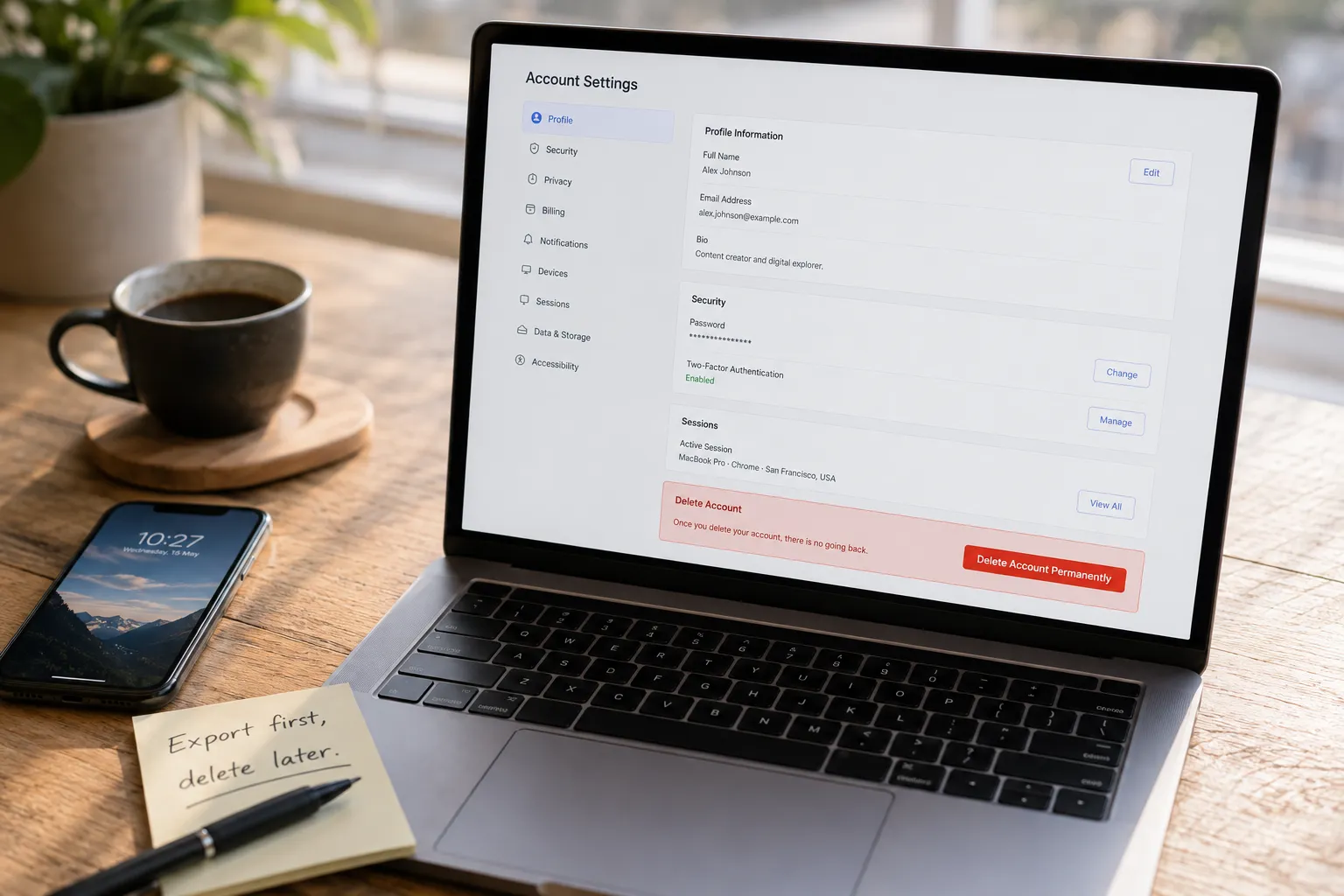
The deletion option sits at the very bottom of the account settings page, takes effect immediately after verification, and there is no "cooling-off period" to fall back on. On the web:
Step 1: Log in at onlyfans.com, click your profile icon at the top right, enter Settings, and switch to the Account tab.
Step 2: Scroll to the very bottom and find Delete account under the Account management block.
Step 3: Enter the verification code (some accounts also re-ask for your password), click the red delete button, and confirm in the popup.
Step 4: You'll be returned to the login page and receive a confirmation email. Data processing usually completes within 30 days, followed by a final completion email.
Once deletion takes effect: all active subscriptions end immediately, and the creators you followed get no named notification — they'll only see a subscriber count drop; your profile typically 404s within about 24 hours, and your username is eventually released for others to claim. Most guides repeat the same warning: deletion is irreversible. Even if some sources mention a grace window, never treat recovery as a fallback — plan as if it's gone the moment you click.
Three Traps Before You Delete: Wallet Balance, Unexpired Subscriptions, and Data Retention
All three traps involve money or data, and every one of them happens after deletion, beyond any remedy.
- Wallet credit is voided outright. Funds in your wallet can't be withdrawn or transferred — delete the account and it drops to zero. Spend it first: one subscription, a tip, or a single purchase all work.
- Unexpired subscriptions aren't refunded. Paid subscriptions are non-refundable; delete mid-cycle and the remaining weeks are gone. To get full value, turn off auto-renewal and let the current period run out before deleting (the cancel-subscription article covers that flow).
- The platform won't wipe everything clean. Per the OnlyFans privacy policy, personal data may be kept for up to about 6 months after deletion, while transaction records and identity-verification (KYC) data are retained longer for legal compliance — standard practice across payment platforms. Deleting your account doesn't erase payment trails. If data retention worries you, our earlier OnlyFans privacy and security guide covers bill and privacy protection during everyday use.
One easily missed point: messages you sent stay in the recipients' inboxes — deleting your account doesn't unsend delivered DMs.
The Last Lesson Before You Leave: Save the Content You Paid For
When the account is deleted, all content access from your subscription resets to zero — the most irreversible item on the whole checklist. To keep the videos you watched, VidBrowser takes the approach of saving them before you leave — it's a desktop video browser: open OnlyFans inside the app, log in, and save while you watch.
The exact flow:
Step 1: Download and install VidBrowser — it bundles download and recording as two saving methods, on Windows and Mac.
Step 2: Open OnlyFans inside VidBrowser, log in to your account, and browse and play content normally.
Step 3: Open the video page you want to keep and let it fully play and load.
Step 4: Use recording to save (the first choice for protected content). Videos on subscription platforms like OnlyFans are mostly copyright-protected, and ordinary download tools can't grab them — VidBrowser's recording is the most reliable way to save: hover over the video and recording controls appear — pick a recording speed (1x real-time, or 2x/4x to finish faster), hit "Record All" to capture the entire video, and use the record button on the left to pause anytime. Anything that plays can be recorded.
Step 5: If a video can be downloaded directly, the "Video Library" panel on the right also lists it with an orange Download button — one click saves it as MP4 (you can filter by resolution first).
If you only want receipts and not the content, screenshot the Statements page for your records. Leaving isn't a panicked escape — work through this checklist and your money is spent well, your data is in hand, and the content you paid for has a backup. That's a dignified goodbye.
FAQ
Can a deleted OnlyFans account be recovered?
Basically no. Most guides agree: once the deletion request is confirmed it's irreversible, with no official "undo" channel. If you only want a break, the safer route is to keep the account, turn off auto-renewal, and remove your payment methods — then simply stop logging in.
What's in the data export, and how long does it take?
It contains your profile, subscription records, transaction history, and DM history, usually as a JSON file delivered via a download link to your registered email — hours in the best case, up to 30 days at the limit. Note that media files aren't necessarily fully included; videos you want to keep must be saved separately before deletion.
How long does OnlyFans keep my data after I delete my account?
Per the OnlyFans privacy policy, personal data is kept for up to about 6 months after deletion; transaction records and identity-verification data are retained longer for legal compliance. EU users can invoke GDPR to request erasure (answered within 30 days), but legally mandated financial records fall outside what can be deleted.


