
How to Cancel an OnlyFans Subscription: Auto-Renewal Keeps Charging You?
At the end of the month you check your bill and find that the OnlyFans subscription you thought you cancelled last month charged you again — you can't find the cancel entry, you're afraid of losing access immediately, and before you know it the money is gone. This is the real dilemma of many subscribers: subscribing takes seconds, but cancelling is full of detours, and auto-renewal quietly charges you every month. This article explains cancelling subscriptions and managing auto-renewal clearly. Follow along in 2026.
OnlyFans Cancellation and Auto-Renewal: Understand the Billing Mechanism First
The bottom line: OnlyFans subscriptions enable auto-renewal by default and charge automatically at renewal; cancelling does not mean losing access immediately, but stopping renewal after the period ends. According to OnlyFans' official Help Center, the core logic of the platform's subscription mechanism is "renewal by period":
- Auto-renewal is on by default: Subscribing immediately enables auto-renewal, which charges the linked bank card automatically at the end of every billing period unless you turn it off.
- What you cancel is "renewal", not "immediate access": After cancelling, content in the already-paid current period remains viewable, and renewal and access stop only after the period ends.
- Free trials also convert to auto-charging: When the trial ends, it automatically converts to a full subscription and charges you — this is the most common "free trial turns into charges" trap (to avoid trial conversion traps, see our how to save money on OnlyFans).
Once you understand that "cancelling renewal ≠ immediate lockout", you won't panic when operating — what you want to cancel is "don't charge me next month", not "kick me out right now".
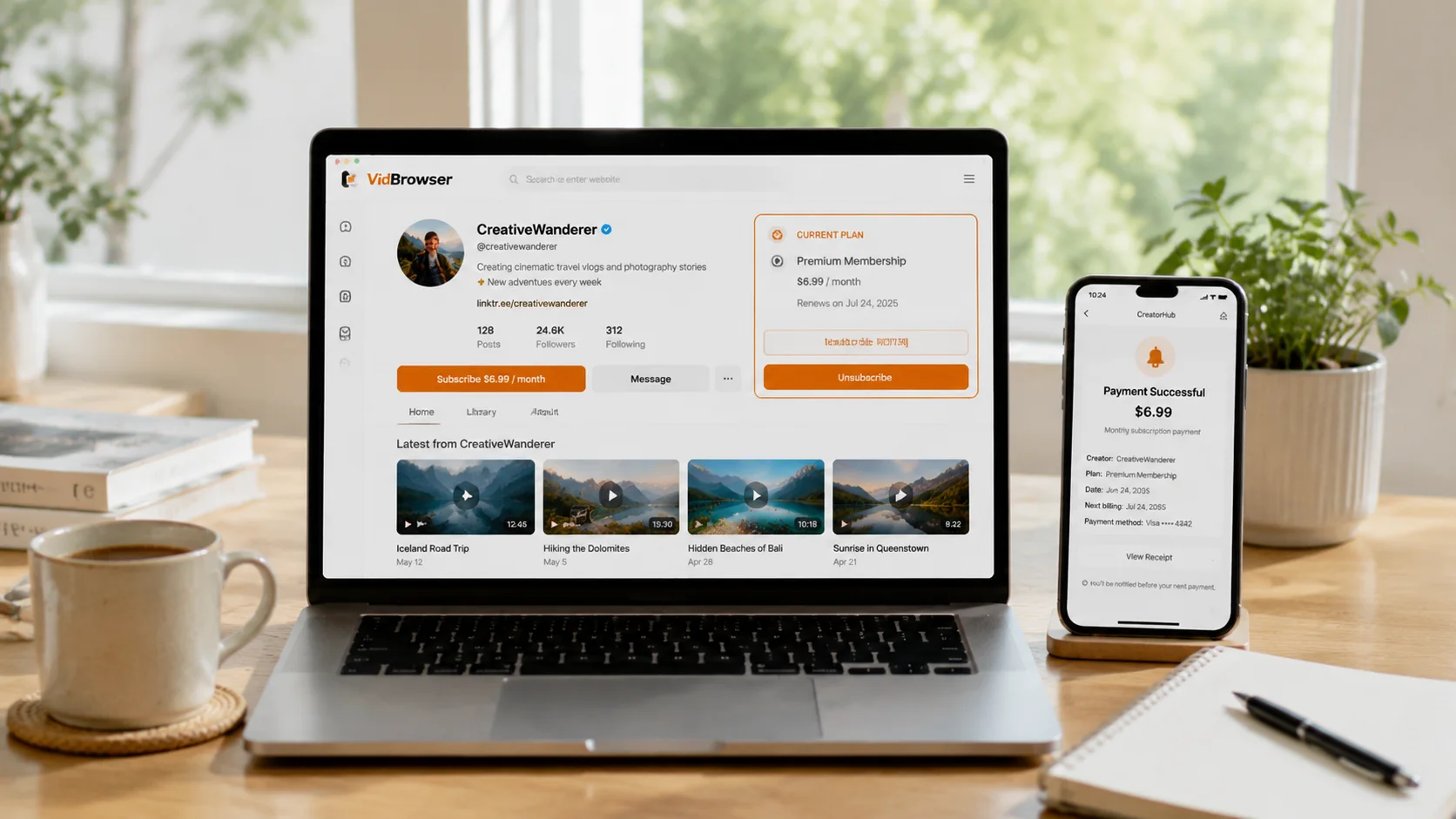
Auto-Renew Off vs Immediate Unsubscribe: The Difference Between the Two
OnlyFans offers two controls — turning off auto-renewal (Auto-Renew Off) and unsubscribing (Unsubscribe); the difference is "this period" vs "the next period". Use the wrong one and the result is completely different:
- Turn off auto-renewal: Your current-period subscription keeps working normally, then stops automatically at renewal with no further charges. It suits the "I still want to watch this month but not next month" case.
- Unsubscribe immediately: You also keep current-period access (already-paid access is not taken away), but the account immediately enters the "no renewal" state. The effect is basically the same as turning off auto-renewal, just with a different entry and wording.
According to OnlyFans' platform mechanism, both operations lead to the same result: the current period stays valid and charges stop at renewal — the real difference is where the entry is and when you cancel: cancelling right after being charged is like giving up the whole period; cancelling near the end of the period is both non-wasteful and a timely stop-loss.
The Exact Steps to Cancel an OnlyFans Subscription
Cancelling is done on the creator's page — no need to contact support; the whole process takes under a minute. Here are the steps:
Step 1: Log in to your OnlyFans account
Log in to onlyfans.com with your account (the web version is most convenient; mobile browsers work too).
Step 2: Go to the creator's page
Find the creator whose subscription you want to cancel and go to their page. If you subscribe to multiple creators, you need to visit each page and cancel them separately — OnlyFans has no "cancel all subscriptions" entry.
Step 3: Click the subscribe button and choose to cancel
The page shows your current subscription status (e.g. "Subscribed $15/month"). Click the subscribe button, choose "Unsubscribe" in the pop-up options, and confirm.
Step 4: Confirm the status has changed
After cancelling, go back and confirm the button shows "Subscribe" instead of "Subscribed", and check whether you received a confirmation email. After cancelling, current-period content remains viewable, and no further charges occur after expiry.
(For card binding and payment issues, see our how to pay on OnlyFans; for subscription prices and cost breakdown, see how much OnlyFans really costs per month.)
How Long Can You Watch After Cancelling: Access Rules and Three Myths
After cancelling, you can still finish the current paid period (remaining time is unaffected), and you lose access when it ends. According to OnlyFans' platform mechanism, access to content within a subscription period has nothing to do with "whether you renew" — only with "whether you are inside the period". Three myths people often fall for:
- Myth 1: Cancel = instant lockout. On the contrary, cancelling only stops renewal; current-period content is still fully viewable — this is exactly why "cancelling before expiry" costs you nothing.
- Myth 2: Getting the bank to refuse the payment or blocking the card is easier. Not recommended — bank-side refusal may trigger platform risk controls and affect your account, and it processes slower; cancelling inside the platform is the proper path.
- Myth 3: Cancelling once solves everything. When subscribing to multiple creators, cancellations happen one by one — if you only cancel one, the others keep charging next month. This is also the most common reason "the bill keeps charging".
In short: the time between cancelling and the period ending is your "last window" — watch and save what you want now, don't wait until expiry to remember.
Save the Content Before You Cancel
The most important step before cancelling is to save the content you want to keep locally — after expiry you lose access to all historical content, and creators deleting posts or deactivating can take content away even earlier. Most content on subscription platforms like this is copyright-protected and ordinary download tools cannot grab it; you paid for the content, so save it while it can still play, and you won't regret it after expiry.
Saving with VidBrowser is simple:
Step 1: Download and install VidBrowser
VidBrowser is a desktop video browser (Desktop Video Browser) for watching videos, clipping segments, and saving to local storage on Windows and Mac, with both download and recording features built in. Installation takes just a few minutes.
Step 2: Open OnlyFans in VidBrowser and log in
Launch VidBrowser, visit onlyfans.com, and log in with your own account. Your existing subscriptions and access are exactly the same as in a regular browser.
Step 3: Play the video you want to save
Open the video you want to keep and play it for a few seconds. VidBrowser automatically detects video resources on the page in the background; once it recognizes a savable video stream, it lists it in the "Video Media Library" panel on the right.
Step 4: Save with the recording feature (first choice for protected content)
Videos on subscription platforms like OnlyFans are mostly copyright-protected, and ordinary download tools cannot grab them. VidBrowser's recording feature is the most reliable way to save: move your mouse over the video and recording controls appear overlaid — choose the recording speed (1x real-time, 2x or 4x to finish faster), click "Record All" to record the whole video, and the recording button on the left lets you start or pause anytime. Anything that can play can be recorded.
If the video can be downloaded directly, the "Video Media Library" panel on the right also lists an entry with an orange "Download" button; click it to save as MP4 (you can also choose the resolution first).
Step 5: Find the file in the media library
After saving or recording, you can open the file from the folder you chose, or find it through VidBrowser's download history. Then watch offline anytime with VLC, QuickTime, or other players — even if you cancel, the subscription expires, or the creator deletes posts, your local files are always watchable. (For the complete OnlyFans usage flow, see our OnlyFans subscriber beginner guide.)
FAQ
How long can I watch after cancelling my OnlyFans subscription?
You can finish the current paid period. Cancelling only stops renewal; access to content within the already-paid period is unaffected, and you only lose access after expiry. So save what you want to keep while the period is still active.
Do I need to contact support to turn off auto-renewal?
No. Just click the subscribe button on the creator's page and choose to turn off auto-renewal or unsubscribe; the whole operation takes under a minute, and the platform sends a confirmation notice.
If I cancel one subscription, do the others cancel too?
No. OnlyFans subscriptions are independent one by one; cancelling only affects the current creator. If you subscribe to multiple creators, you need to visit each page and cancel separately — don't miss any, or other subscriptions will keep charging next month.
Does saving OnlyFans videos notify the creator?
No. VidBrowser saves videos to your local device and sends no saving records to the platform or creator, and it does not affect your account or subscription status.


