
Can you rewind a live stream? Twitch and YouTube play by different rules
You step away from a live stream to grab a drink, come back, and reach for the progress bar — some streams rewind smoothly, others refuse to budge. The difference has nothing to do with your device. It comes down to the conditions each platform sets for live time shift: Twitch and YouTube both let you rewind, but how the window opens, how far it goes, and when it closes are handled in completely different ways.
Rewinding runs on DVR: it is a temporary buffer, not a file
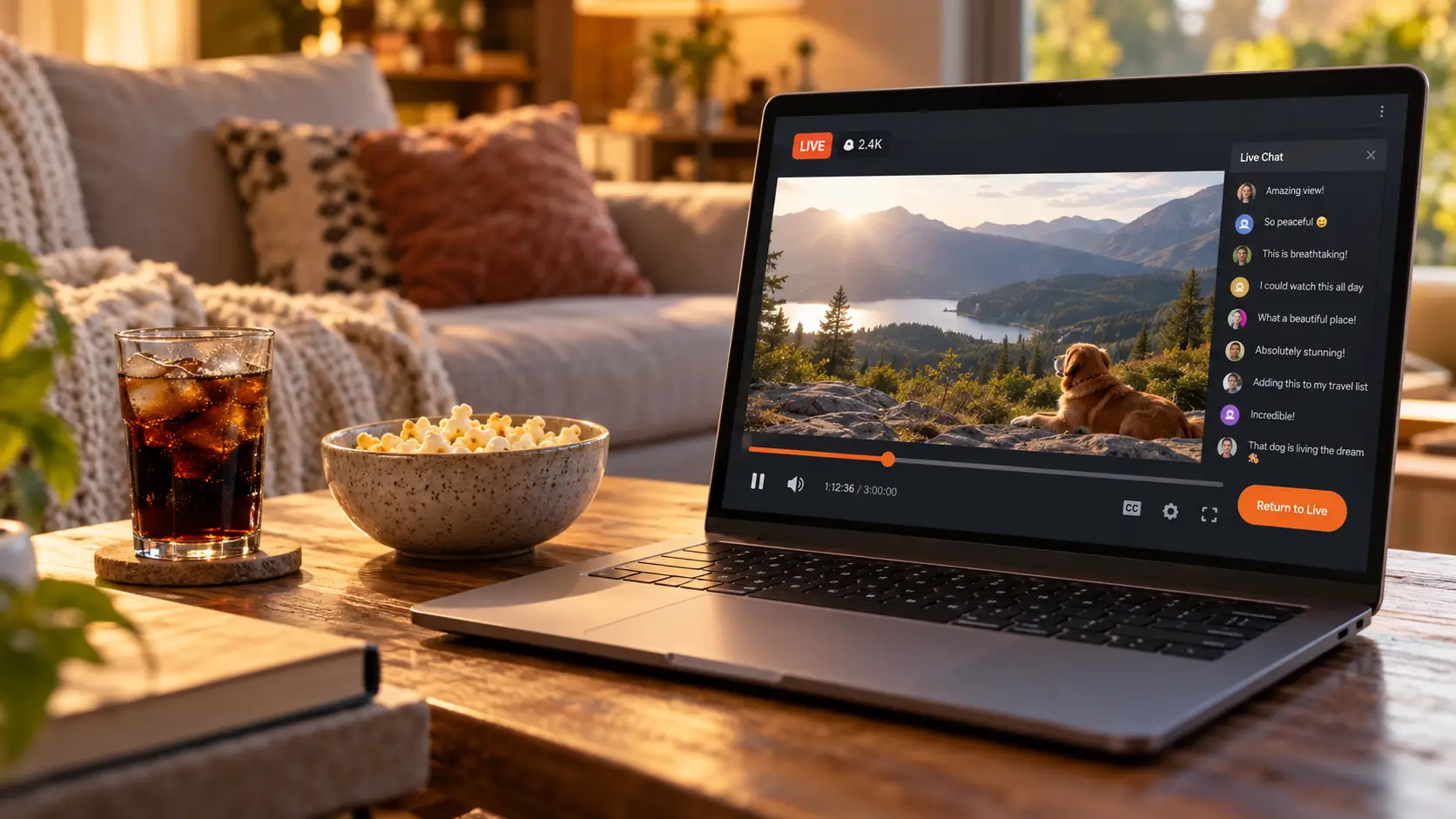
Yes, you can rewind. Both Twitch and YouTube support time shift (DVR), but each platform provides it differently, and the window is always temporary. DVR is a stretch of dragable history the player keeps besides the "live edge". Dragging back lets you replay an earlier moment of the same stream; one tap on the return-to-live button and the picture chases the present again.
Precisely because it is a buffer and not a file, you can watch it but not keep it. The replay that appears after the stream ends (the VOD) is a separate track — its retention and download paths are covered in the Twitch VOD download guide.
On YouTube, DVR is a creator switch: off means nobody can rewind
Whether a YouTube live stream can be rewound depends first on whether the creator enabled DVR. The official help pages describe the path: YouTube Studio, live settings, other settings, enable DVR. With it on, viewers can pause, replay, and resume from where they paused while the stream is running.
Two details are worth remembering. First, camera and mobile streams cannot have DVR disabled — broadcast through those routes and the rewind bar will always be there. Second, changing the setting mid-stream is allowed, but the official wording says the change only affects viewers who start watching after it. Turning DVR off does not affect the recording: the full archive still gets generated after the stream ends.
The YouTube rewind window has three lines: very long streams get limited, older devices see less, and pre-stream is out of reach
Even with DVR on, the official documentation promises no unlimited window. According to the official YouTube help article, if the stream runs extremely long (over 12 hours), DVR may become limited or unavailable; on Apple TV, AirPlay, or older app versions, the reachable window shrinks further; pause-and-resume has its own restrictions. The most basic line: footage from before the stream started is out of reach no matter how far you drag.
The five situations in which archives and replays disappear are catalogued in full in the YouTube Gaming archive guide — that piece covers where replays live after the stream, this one covers how far back you can go while it is still running.
Twitch Stream Rewind: channel status and viewer perks, you need both
Twitch only caught up on live rewinding in September 2025, with one extra layer of conditions. The Stream Rewind feature was announced on September 25, 2025 by the official support account. The broadcaster-side requirements are written in the official Twitch help article: the channel must be an Affiliate or Partner, with Store past broadcasts and Always publish VODs enabled in VOD settings — channels that keep both on get it automatically; enabling mid-way takes effect from the next stream.
The viewer-side gate is where the controversy sits: the initial rollout covers "channel subscribers with ad-free perks" and Twitch Turbo users, web only at first. In the Dexerto report, CEO Dan Clancy explained that this group was chosen first because ad compatibility was still unsolved — the replay must not become a tool for getting around the ads. The DJ category is excluded wholesale — such streams cannot publish VODs, so rewind has nothing to stand on. No unified maximum rewind window has been announced.
Three shared boundaries: chat does not rewind, the window shrinks, and ending wipes it
Put the two rulebooks side by side and the boundaries line up to a striking degree.
- Chat stays in the present: rewind the picture five minutes and the chat is still talking about now — Twitch treats this as a feature (Clancy: it keeps you in the room), at the price of spoilers in the scroll.
- The window shrinks: the longer you stay behind, the earlier parts slip out of reach, and older devices see a shorter window.
- Ending wipes it: the moment the stream stops, the DVR window vanishes — whether you can catch up later depends on the archive replay surviving, which on Twitch runs on 7-day, 14-day, and 60-day tiers.
Rewinding shows it, recording keeps it: four steps to save a stream locally
However wide the window, the content belongs to the platform; a local copy is the finish line.
Step 1: Download and install VidBrowser
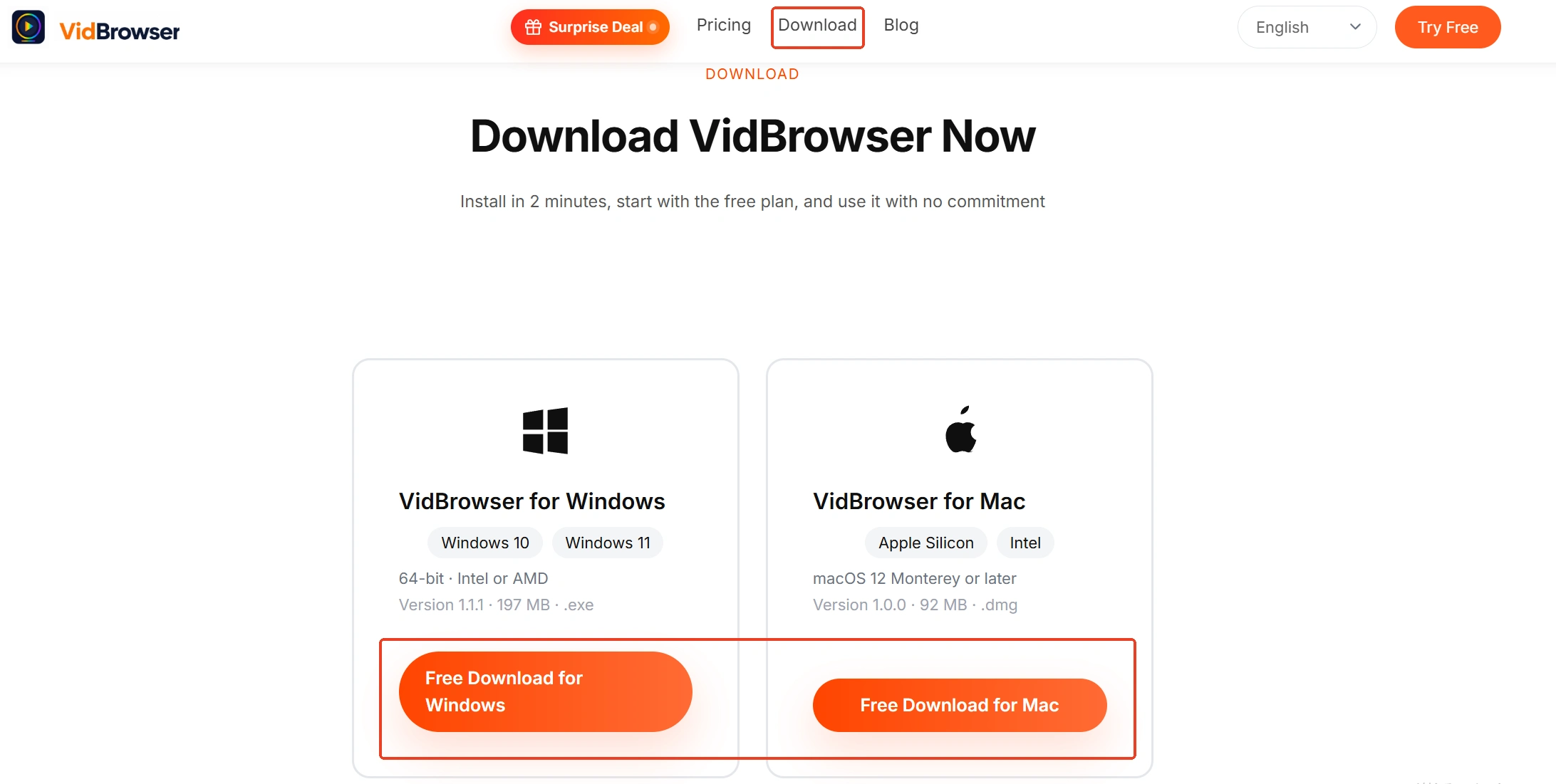
VidBrowser is a desktop video browser for Windows and Mac that plays videos, trims clips and saves them locally, with download and recording built in — installation takes a few minutes.
Step 2: Open the live room in VidBrowser and sign in
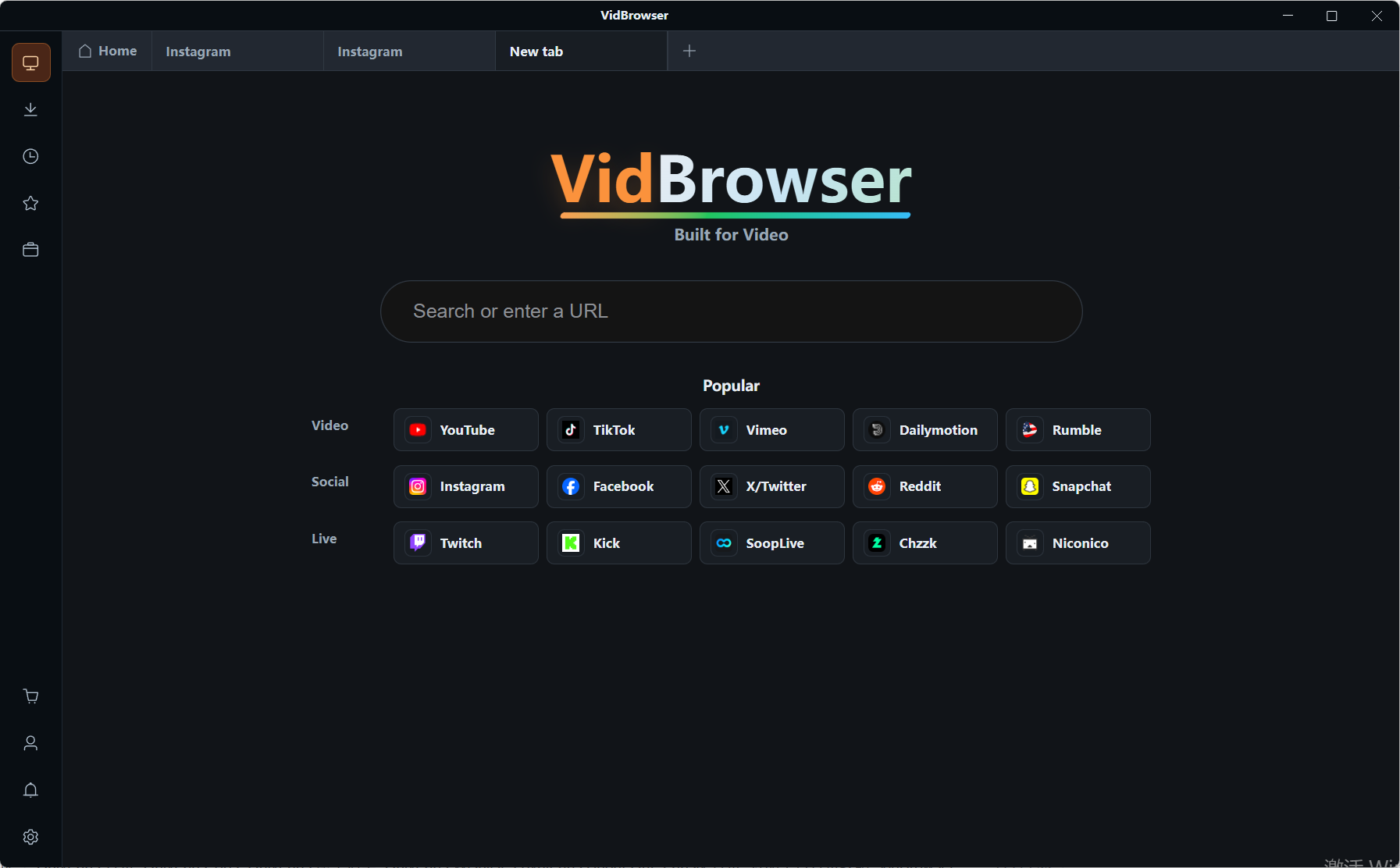
Enter the live room through the built-in browser and sign in to your account; Twitch and YouTube live pages both open directly.
Step 3: Treat replays and running streams differently
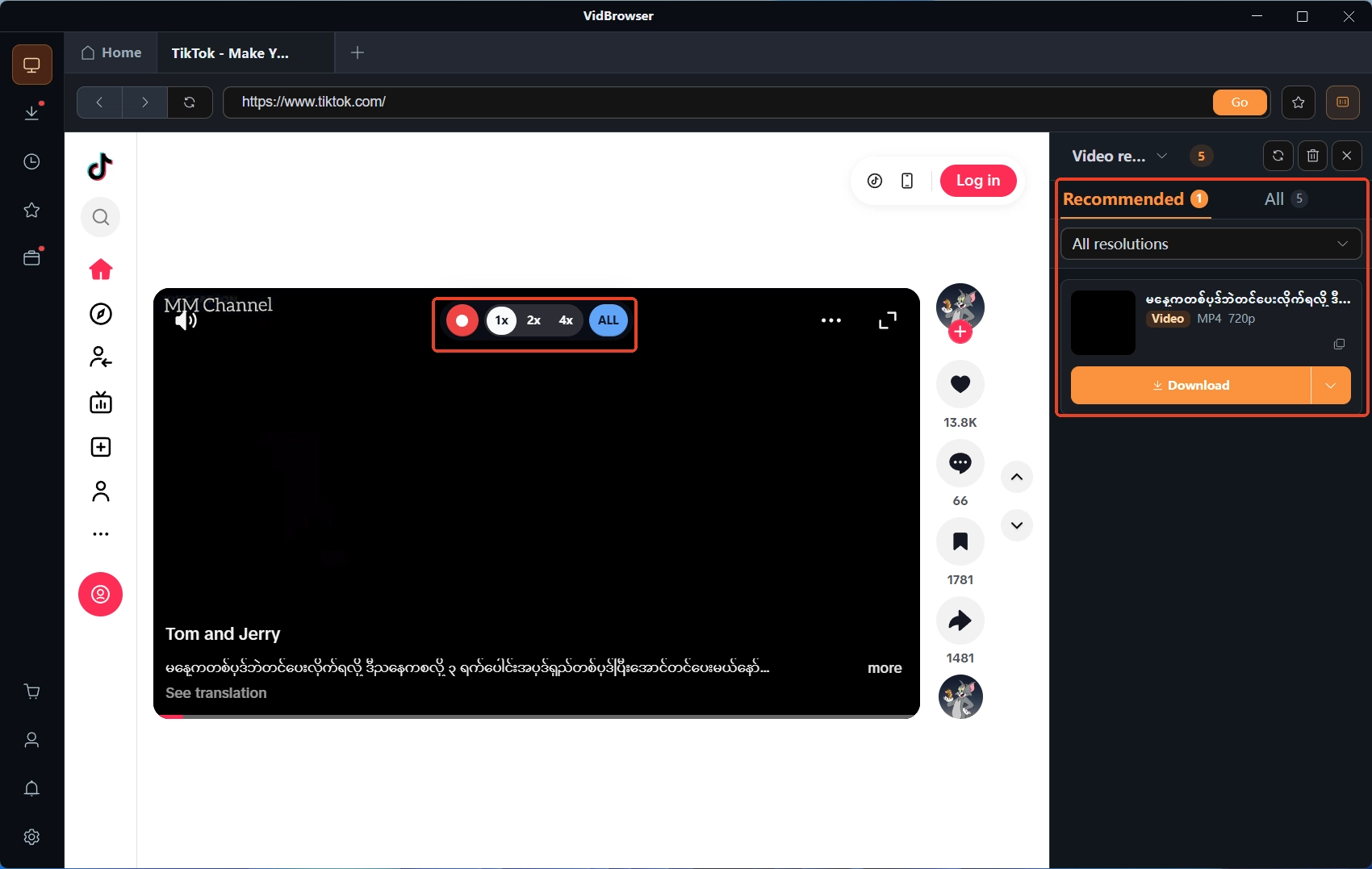
For a finished replay (VOD), the video library panel on the right lists the detected video — tap the orange download button to save it. For a stream that is running right now, hovering over the picture brings up the recording controls — choose a recording speed (1x real time, 2x or 4x to finish faster), press record-all to capture the whole stream, with the pause button on the left available at any moment; this kind of live feed has no ready-made file, so recording is the more reliable path.
Step 4: Check results in download history
The clock icon in the left navigation lists every download task, with file name, progress, size and status in plain sight. The fuller watch-and-save walkthrough lives in the Twitch live stream saving guide.
FAQ
Can you still rewind after the stream ends?
No. The DVR window exists only while the stream runs, and it is wiped the moment the stream stops. Catching up afterwards depends on the replay: YouTube generates the full recording even with DVR off, while on Twitch it comes down to whether the streamer archived it and whether the retention window has expired.
Why does the progress bar refuse to move on some streams?
Check three layers: on YouTube, whether the creator turned DVR off; on Twitch, whether the channel has Stream Rewind enabled and your account qualifies (a subscription to that channel with ad-free perks, or Turbo, watching on web); and streams in the DJ category are excluded from rewind on the Twitch side entirely.
What is the chat saying while you rewind?
The present. The chat does not follow the picture back — it keeps scrolling live and will spoil what comes next; the official Twitch documentation states this explicitly.


