
Where to Find Twitch Highlights: Official Clips and Community Channels
Miss a stream and want that one moment where the whole chat lost it, and the reflex is to search the streamer's name. If that works, you got lucky. Most of the time you only remember that they did something insane that night, and have no idea which page to dig through.
Clips on Twitch is not one thing. Who made them, how long they run and where they are stored all differ. Here is every place highlights surface, on the site and off it.
Three Kinds of Twitch Highlight, and Which One You Want
Short-form Twitch content comes in two main types — Clips cut by viewers and Highlights cut by the streamer — plus full VOD replays. All three differ in author, length and retention rules. If you are after the best few seconds, the target is usually Clips.
- Clips: 5–60 seconds, cut by anyone watching, during the stream or after it ends. Viewers make them, so what you watch is the frame someone else thought was worth keeping. Per Twitch documentation they are not bound by the replay retention window.
- Highlights: segments the streamer cuts out of their own replay, and they can run long. They dodge replay expiry, but share a storage allowance with uploaded videos — go over it and the least-watched are cleared first.
- VOD: the full replay, retained by account type and deleted from the servers on schedule. what to do when Twitch VODs expire breaks down the tiers and the local-backup options.
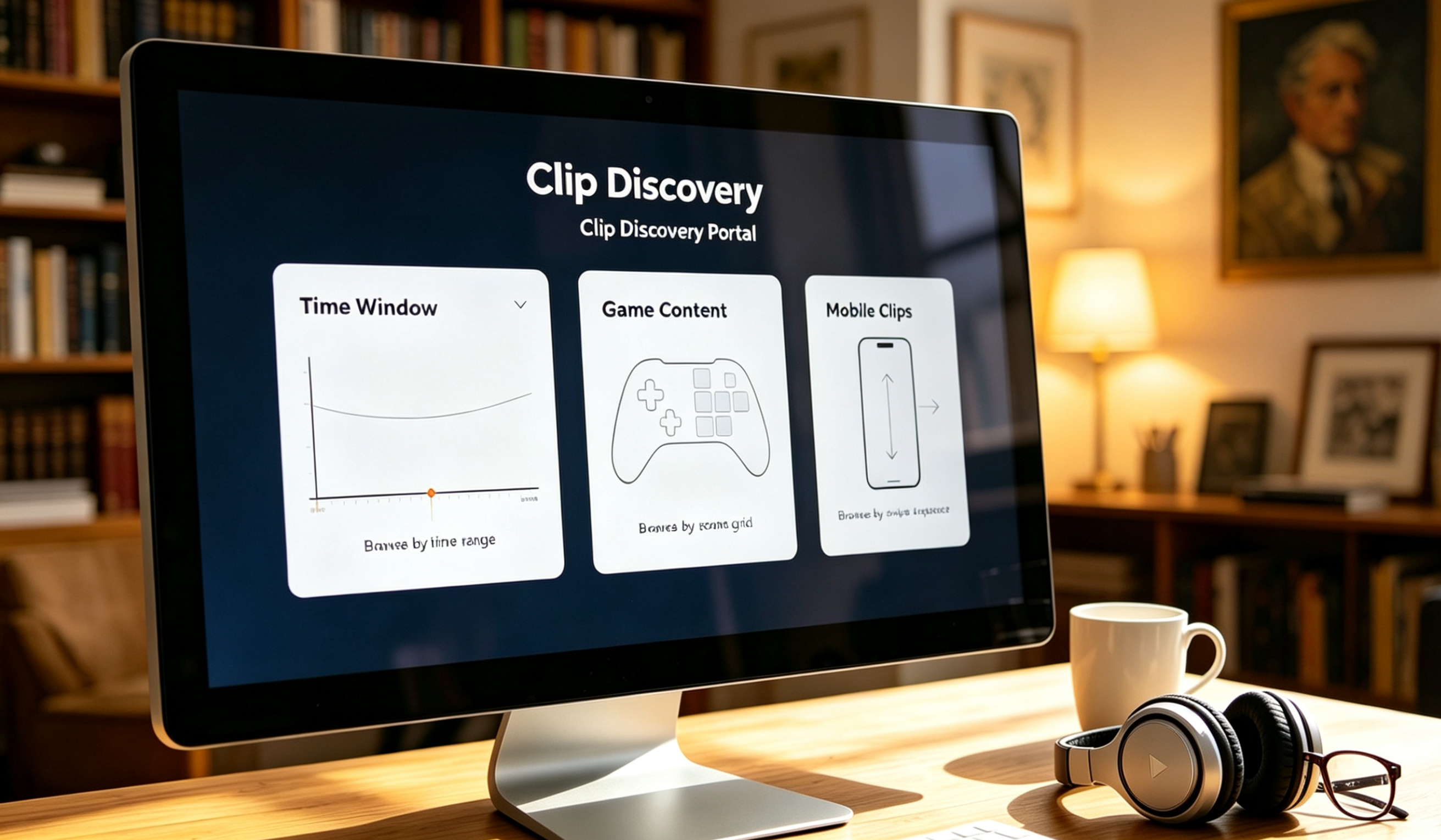
Two On-Site Routes: By Streamer, or By Game
To see one streamer's highlights, the entry point is their channel page; if you do not know who, only which game, it is the category page. Twitch help centre documents both, but most people only know the first.
By streamer:
- Open the channel and click the avatar to reach the Video tab (if they are offline, go straight to the Video tab);
- Click Filter by and choose Clips;
- Switch the time window between 24 hours, 7 days, 30 days and all time, and sort by views alongside it.
The 24-hour window is for what just happened; 7 and 30 days are for catching up on a stretch. Sort by all time and the top of the list is usually what this channel got clipped and watched most. The Clips tab at the top of the channel page holds the same set — only the door differs.
By game:
- Click Browse at the top of the site and open the game category you want (the search bar gets you there too);
- Click the Clips tab;
- Use the dropdown to filter by language, then sort by heat within a time range.
It is especially useful when a new season or a new game lands: a channel page finds clips by person, a category page finds clips by game.
Why Some Highlights Show Up Without Looking for Them
Streamers and editors can mark clips from their channel as Featured, and Twitch pushes those ahead on the home page, category pages and the mobile discovery feed. the Featured Clips documentation says it plainly: unmarked clips still appear, but the platform is moving toward featuring selected clips only.
Two uses follow. Highlights you scroll past on the home page or on mobile are essentially moments the streamer vouched for, so the floor is higher. And to size up an unfamiliar streamer fast, a few of their featured clips tell you the tone of the channel.
Off-Site Community Channels, and What Each Is Good For
Off-site is flooded with Twitch clips because the platform opened the door itself: clips export to YouTube, TikTok and Instagram in one click with the title and description pre-filled, and every clip is stored in both landscape and vertical — the vertical cut exists for exactly those platforms. One moment, met in several places, each with a different shape and purpose.
- Live-stream clip communities (such as the live-stream boards on Reddit): the fastest to update, with a hot clip reposted within minutes. The trade-off is that posts get removed under board rules and links rot; these communities even developed a habit of pasting backup links.
- YouTube clip channels and compilations: good for watching a whole tournament or a streamer's year in one sitting. But they are re-edits, often with quality loss, captions and voice-over — not the same thing as the original clip.
- Vertical short-form channels: the official vertical export, easy to watch, but the sides are cropped, so the original framing is gone.
- The streamer's own community (Discord servers, X): fans usually drop links first, which makes these good for smaller clips the big accounts never picked up.
The shared problem off-site: none of those versions are in your hands. If the clipper deletes their account, the clip takes a copyright takedown, or the post is cleared under board rules, any one of those turns the link into a dead end.
Once You Have Found It, Keep It Locally
A clip worth keeping long term has to land on your own drive. If the target is a stream still running, saving a live stream while it is still running is a different procedure. VidBrowser is a desktop video browser with downloading and recording built in, and the steps below are the shortest path.
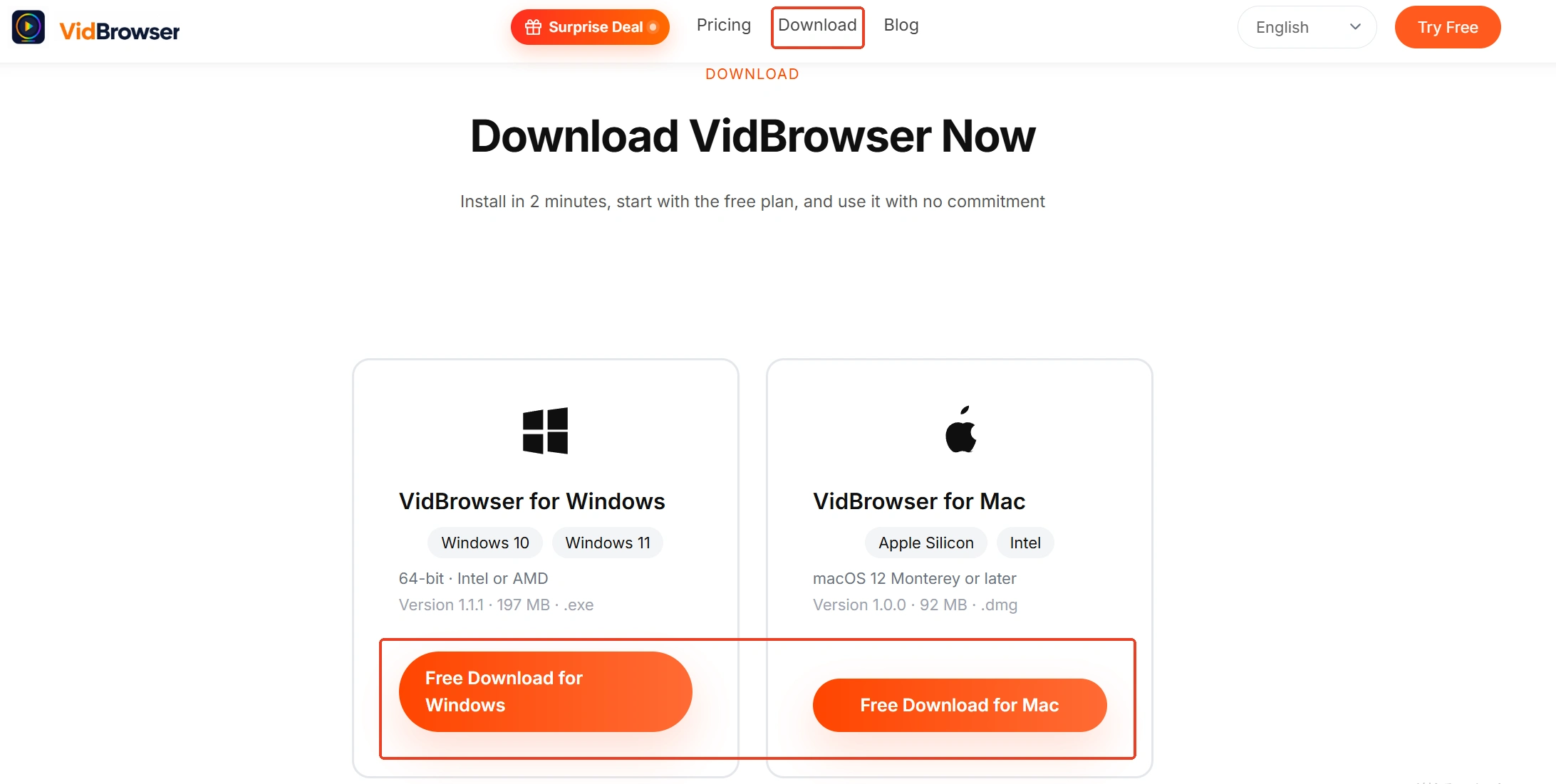
Step 1: Download and install VidBrowser
Windows and Mac are both supported, setup takes a few minutes, and browsing and saving happen in the same window.
Step 2: Open the clip you want to keep in VidBrowser
Paste the clip page or the clip video address, or just browse to that page inside the app.
Step 3: Save it straight from the Video Library panel on the right
Once the video starts playing, the Video Library panel on the right lists the resources it detects, each with an orange Download button that saves it as MP4. The resolution filter starts on all resolutions; pick a tier first and the matching quality expands next to the button.
Step 4: When downloading does nothing, switch to recording
Some clips are streamed as they play and the download button stays dead. Move the mouse over the picture and the recording controls appear as an overlay — choose a recording speed (1x real time, or 2x and 4x to finish faster), hit Record All to capture the whole clip, and the button on the left pauses whenever you want.
Step 5: Dig it out of the history list when you need it
The clock icon in the left navigation lists every task: file name, progress, size, save location and status, with both downloads and recordings collected there.
To be clear, what it solves is keeping publicly visible clips on your own machine — not reposting someone else's content somewhere else.
Twitch Clips FAQ
Do Twitch clips expire the way replays do?
No. They are not bound by the replay retention window and do not eat into the Highlights storage allowance. When a clip disappears it is almost always one of three things: the clipper deleted it, the channel owner deleted it, or the platform removed it for copyright or community rules — why Twitch clips get deleted goes deeper on the copyright route. Which is why a three-year-old clip with modest views can outlive a replay of a stream from yesterday.
I remember what happens in the clip, but no search finds it. Why?
Two places. Search matches the title, and the title was typed by whoever clipped it — a few words, or a string of emoji — so what you remember rarely lines up with it. Second, a streamer can turn clipping off for their channel, in which case no new clips get made. The way around is to open the channel Clips tab, widen the window and sort by views; or search the streamer's name in community channels, where a backup usually exists.
Can I watch all this on my phone?
Yes. The Twitch mobile app has a discovery feed split into live and Clips branches — swipe up and down — and Twitch said at launch in 2024 that featured clips would be pushed first. Separately, at TwitchCon 2026 Twitch announced a test of Auto Clips, where a trigger word in chat generates a clip automatically; if it rolls out widely, finding clips may shift from following streamers to following recommendations.


