Twitch stream speed test looks fine, so why is the picture still stuttering? Start from the viewer side
The lag hits right in the middle of the fight you were watching. You run a speed test, the bandwidth looks fine, and you go back to blaming the server. A live stream is not a video on demand: a VOD can buffer tens of seconds ahead on your machine, while a live stream has to deliver every second as it happens, so its buffer is thin by design.
This piece walks the viewer side in order: read the numbers in the Twitch player itself first, then work along quality tier, latency and finally this machine.
Twitch lag: work out which kind you have first
There are three kinds of lag on Twitch and each one is fixed in a different place, so classify before you change anything. Get the category wrong and everything after it is wasted.
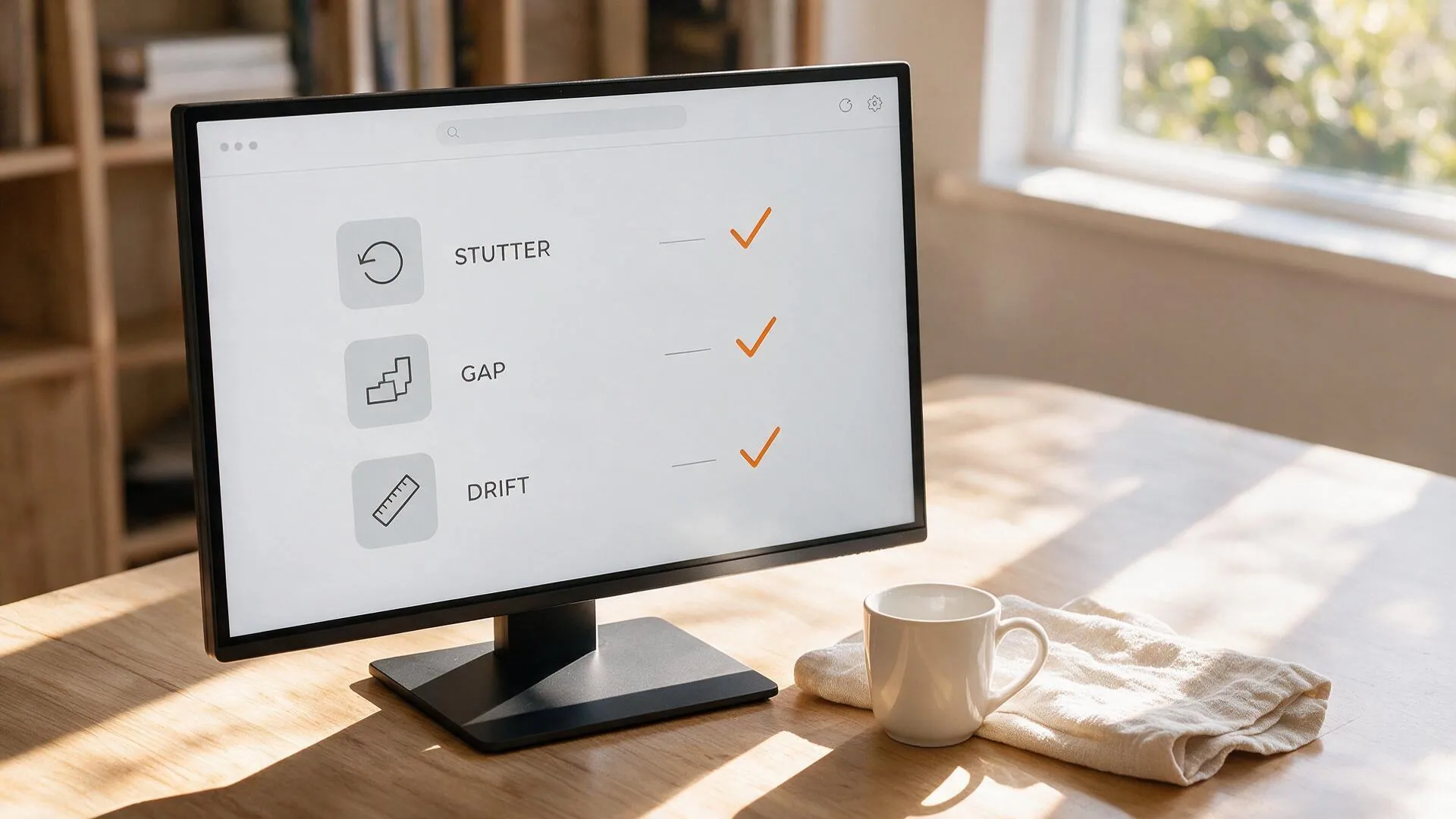
- Spinning wheel, freezing for a few seconds, then catching up: the buffer ran dry because data did not arrive on time, which points at the network path or the quality tier.
- Picture stutters while the audio stays smooth: the data is arriving, but this machine is not drawing every frame on time, which points at decoding and rendering.
- Latency keeps growing and chat drifts out of sync: that is the transport delay a live stream always carries, and it is not the same thing as lag.
Read Video Stats before you change any setting
Click the gear icon at the bottom right of the player, then Advanced, and switch on Video Stats, which lays a live readout over the video. Per the official help centre you can see Latency to Broadcaster and Latency Mode here: a stable latency with a spinning wheel is a network path problem, while latency that climbs on its own is a different story.
If the latency figure is not growing either, the problem sits in the decoding and rendering on this machine, and a speed test or a router restart is aimed at the wrong place.
- Browser hardware acceleration: when a graphics driver or a decoder no longer matches the browser build, decoding misbehaves and you get dropped frames or a black picture. Turn hardware acceleration off and restart the browser completely; that alone recovers it in plenty of cases.
- Everything else competing for the same machine: chat, channel extensions and animations run alongside the player and eat into the decoding headroom. Pause other video tabs and switch off the extensions you do not use.
No low tiers in the quality menu: this stream may have no transcoding
If the quality menu offers nothing between Source and Audio Only, no 720p, 480p or 360p, then this stream has no transcoding and you are watching the broadcaster's original bitrate with no lower tier to fall back to. According to the official Twitch broadcast guidelines, 1080p60 is recommended at 6000 kbps, so a steady download needs to carry roughly 6 Mbps.
Lower quality versions are computed live on Twitch servers, and that capacity is limited: Partners are guaranteed transcoding on every stream, while everyone else, Affiliates included, is allocated from whatever headroom exists when they go live. Twitch goes out of its way to note that the allocation is not affected by follower count, viewer count or past enforcement history, so it has nothing to do with channel size.
The Source tier is not re-compressed, so the picture matches the broadcast exactly, and it is also the heaviest on bandwidth, which explains why a large channel runs smoothly while a small one spins. bandwidth and decoding when several streams run at once worked through the bandwidth and decoding maths in more detail.
Auto keeps switching tiers; locking one is often steadier
Quality defaults to Auto, which steps up and down with your connection, and during a stutter it may be bouncing between 1080p and 480p, re-buffering a little on every switch. Locking a single tier keeps the picture more continuous.
- See which tiers this stream actually has. Low tiers exist only if transcoding was allocated, and no viewer can turn them on.
- Work downwards and pick the tier that holds five straight minutes without a spin; for most people that lands on 720p.
- Once it holds, stop handing control back to Auto. On mobile data you should lock it by hand.
Plenty of people open at the highest tier and drop down once it stutters, but a live stream has to fetch a fresh segment every time the tier changes.
The low latency switch: live chat, thinner buffer
Low latency mode is on by default on Twitch, which pulls the delay between broadcaster and viewer down to a few seconds; the price is that the buffer the player can hold in advance gets thinner too, so a small network wobble is enough to outrun it. If you are not there for real time chat, turning it off is the easy win.
Per the official Twitch low latency explainer, viewers can turn it off on their own side: click the gear icon at the bottom right of the player, then Advanced, and low latency sits in that section. The same document lists the supported clients: Chrome, Firefox and Edge on desktop plus the Twitch desktop app, along with the Android app, Android TV, Xbox One and PS4.
When you cannot watch it any more, save it locally instead
A live stream lags because every frame has to arrive as it happens; once it is a file on your drive, network wobble, quality tier and the low latency switch stop mattering to it. Rather than hunting for someone else's clip afterwards, record it while it still plays. VidBrowser is a desktop video browser for Windows and Mac, and both downloading and recording happen in the same window.
Step 1: Download and install VidBrowser
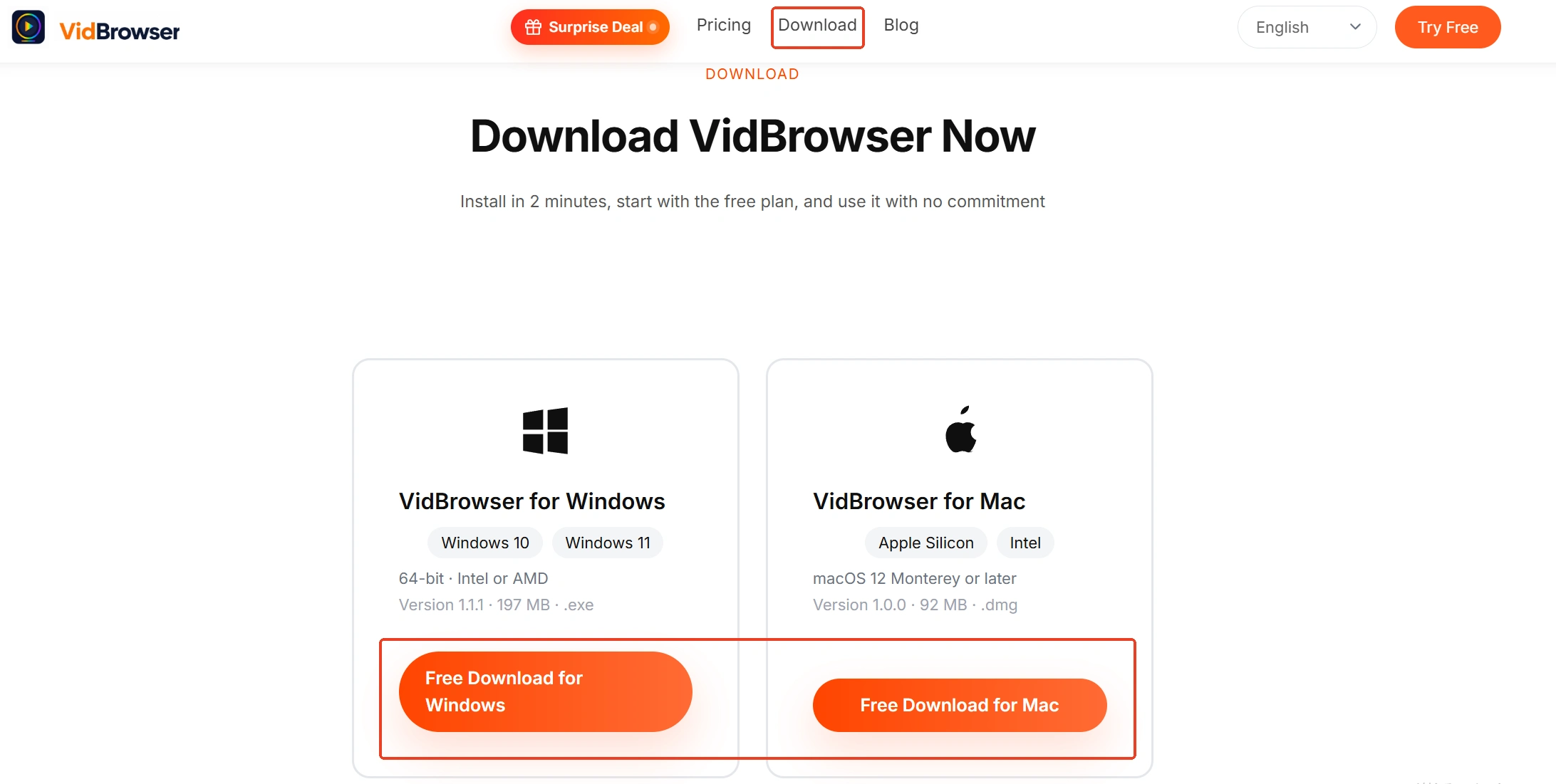
VidBrowser is a desktop video browser built for watching video on Windows and Mac, cutting clips and saving them locally, with downloading and recording built in, and installation takes only a few minutes.
Step 2: Open Twitch inside VidBrowser and enter the channel
Go to twitch.tv and sign in with your account, then open the channel you want to keep and let it play for a few seconds. VidBrowser detects the video on the page automatically and lists it in the video library panel on the right. The quality tier and the latency mode are both there, so once the troubleshooting is done you can lock the tier and start recording.
Step 3: Record it, because a live stream is recorded rather than downloaded
A live stream cannot be downloaded the way a video file can, so recording is how you keep it: move the mouse over the video and the recording controls appear on top, where you pick a recording speed (1x real time, or 2x and 4x to finish faster), click record all to capture the whole session, and use the record button on the left to start or pause at any time. For protected content inside a live stream, a recording is the safest way to keep it. If the replay is still up, the video library on the right also lists it with an orange download button that saves it as an MP4 in one click.
Step 4: Find the file in your download history
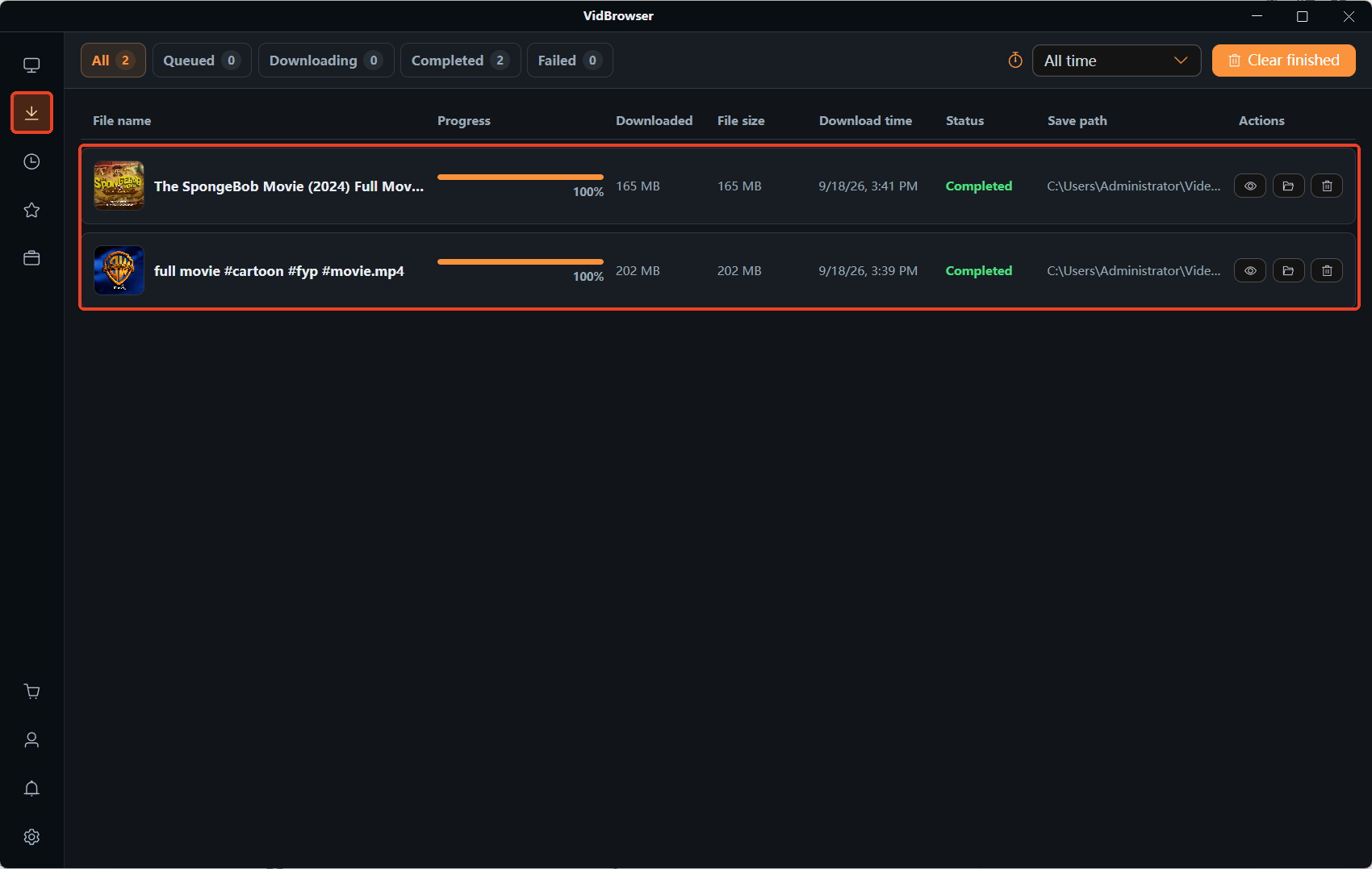
The clock icon on the left lists every download and recording with its file name, size and save location; once it is local, opening it no longer means racing the network. For the full picture on keeping streams, see our guide to saving Twitch live streams.
Frequently asked questions
The speed test looks normal, so why does Twitch still lag?
A speed test measures peak bandwidth, while a live stream needs sustained, steady delivery. First the tier: with no low quality options in the menu you are carrying the broadcaster's original bitrate, and 6000 kbps is the recommended figure for 1080p60. Second, low latency is on by default, so the buffer is thin and one brief packet loss can start a spin. Try locking 720p for a round.
Does turning low latency off put me further behind chat?
Yes, a few seconds further behind, in exchange for a thicker buffer. The test is whether you are mainly watching or mainly interacting: a few seconds is nothing for a match, and it is only worth trading away if you are trying to answer first.
Why is the same channel smooth some days and badly lagged on others?
It is very unlikely to be the broadcaster changing bandwidth, and far more likely to be transcoding. Low tiers are computed on the server, Partners are guaranteed them on every stream, everyone else is allocated from headroom at go-live, and Twitch states plainly that this is not affected by follower count or viewer count. When the menu offers nothing, the lag is not something viewer side settings can fix.