How to Watch Multiple Twitch Streams at Once: One-Screen Multi-View
Two esports matches going live at the same time, or two favorite streamers scheduled head-to-head — Twitch's page can only hold one stream at a time, and switching back and forth is tiring and an easy way to miss key moments. The good news: multi-viewing is a solved problem. On desktop you can either arrange multiple windows yourself or use a third-party multi-view site to fit two or three streams onto one screen. This guide covers how each method works, how to budget your bandwidth, and how to keep the moments you want to save.
Three ways to watch multiple Twitch streams — pick the one that fits you
Twitch has no official multi-view tool for viewers. To put several streams on one screen, you have three options: manually arranging windows, third-party multi-view sites, or a multi-device combo. The three differ a lot in what they're for:
- Manual window arrangement: open one browser window per stream and snap them side by side. The most stable and the least dependent on third parties, but the layout is all manual.
- Third-party multi-view sites: load several streams on one dedicated page with automatic layouts; adding a channel is as easy as filling in a blank. Convenient, but it's a separate service.
- Multi-device combo: main match on the computer, second stream on a tablet or phone. Fine in a pinch, but less comfortable long-term than the first two.
Race days spent following several driver perspectives, collab streams where you want several angles at once — these are classic multi-view scenarios. Decide first whether you value "stable and controllable" or "quick and easy" (and if you're weighing which platform deserves your time, see our viewer-side comparison of Twitch and Kick).
Manual window arrangement: the most reliable no-frills method
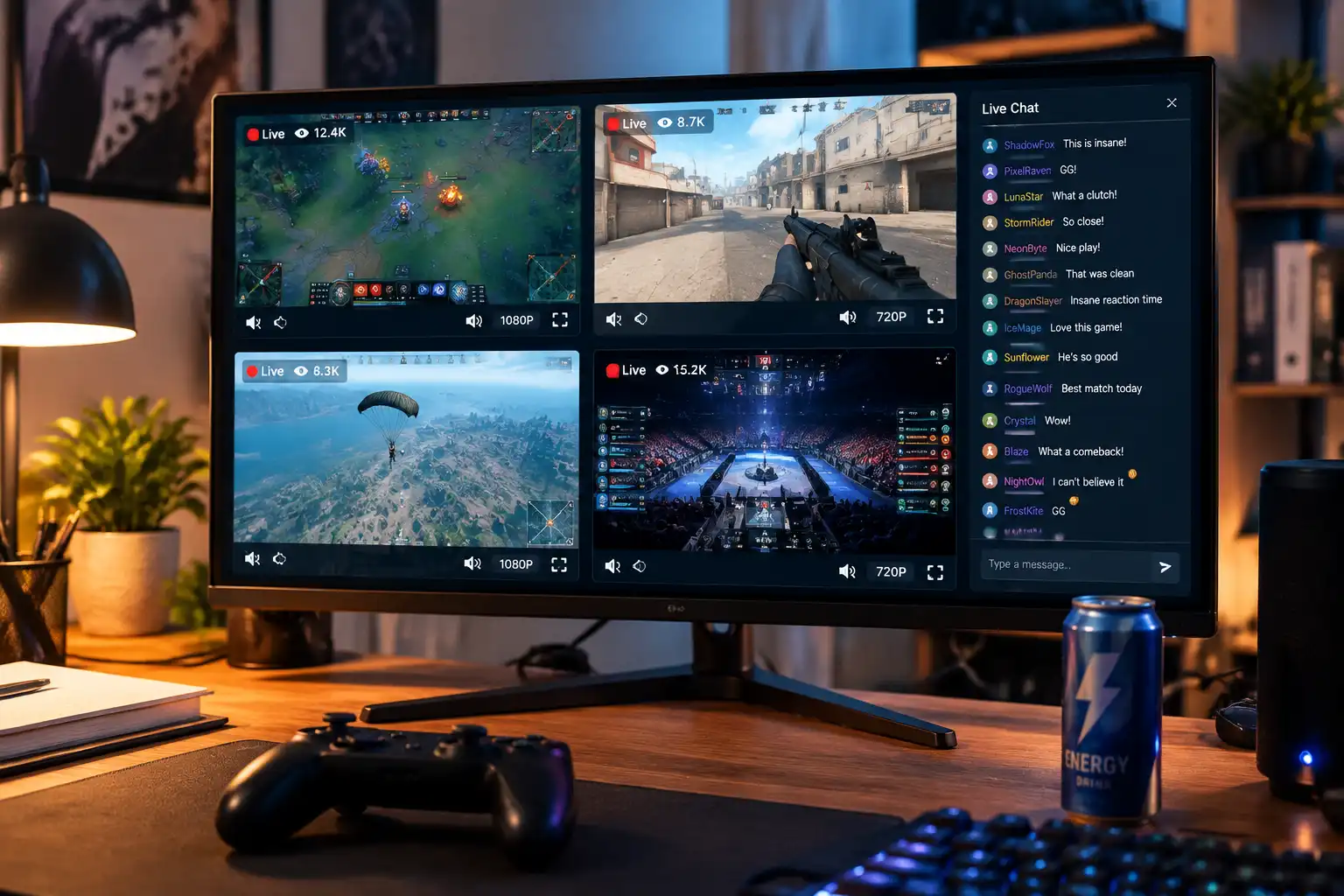
Open one browser window per stream and snap them with your system's built-in split screen — the highest-control, most security-friendly approach. On Windows use Snap Layouts (drag a window to the screen edge to halve it, or press Win+arrow), on Mac use full-screen drag or Mission Control; two or three streams are arranged in minutes.
Three details decide how good the experience feels:
- Keep only one main audio: several streams talking at once is unlistenable. Unmute only the one you're actually watching and switch manually when needed.
- Drop quality on background streams: keep the main window at 1080p and manually lower the rest to 480p — they're small on screen so you won't notice, but decoding load shrinks massively.
- Close chat panels you don't use: every chat area takes space and rendering resources; keep only the main one.
A hidden bonus of this method: you only ever touch the official Twitch site, no third-party service is involved, and account security stays entirely in your own hands.
Third-party multi-view sites: choosing between three veterans
Multi-view sites automate the "open windows, arrange layout" part — adding channels and adjusting layouts all happen on one page. The three most used:
- MultiTwitch: the URL is the manual — type multitwitch.tv/channel1/channel2 in the address bar and hit enter for a multi-view page. Veteran, zero learning curve, great for a quick start; the downside is that layouts can't be customized.
- Multistre.am: fill channels into boxes one by one, then pick a layout from the menu; supports roughly 8 streams and reserves one slot for chat. Great for people who want fine control over screen space.
- TwitchTheater: dashboard-style management — set quality and volume for all streams at once, toggle each stream's chat individually, and even mix in streams from other platforms. Best for heavy long-term multi-view users.
Two security red lines to remember with third-party sites: never enter your Twitch password, access token, or login authorization on any of them — legitimate multi-view sites load the official embedded player using only public channel names, and anything asking for credentials is suspicious. Also, Twitch periodically flashes a purple notice screen on these sites (reminding you that you're not watching on the official page); it disappears by itself after about 30 seconds — it doesn't affect anything and there's no need to panic.
Bandwidth and decoding: how many streams before it stutters
Whether multi-viewing stutters comes down to two resource budgets: network bandwidth and video decoding power. A rough estimate: one 1080p60 stream needs about 6 Mbps; four streams at 1080p means 25-40 Mbps, which saturates a lot of home Wi-Fi. Decoding multiple HD streams also loads the CPU/GPU — with browser hardware acceleration on, GPU usage can spike easily.
Practical optimizations you can apply right away:
- Tier your resolutions: main stream at 1080p and the rest at 480p is the recognized sweet spot; for watch-along commentary, a 720p main plus several 360p streams also works.
- Wired first: Ethernet is more stable than Wi-Fi — one less packet-loss variable when four streams are running.
- Limit the count: 3-4 streams at 720p is the stable ceiling for ordinary desktop devices; beyond that, it's time for a bigger screen or a second monitor.
- Keep the laptop plugged in: battery mode and heat throttling both make decoding fall behind.
Configured this way, your multi-view stays smooth when it matters — in esports, the ten seconds you stutter are often the decider.
Loved what you watched? How to save streams in multi-view
Multi-view has a built-in pain point: several things happening at once means you can never switch over in time for every highlight. Rather than digging through other people's clips afterwards, save the sessions you care about as local files — the Twitch live stream saving guide covers the full process; here's just the multi-view angle.
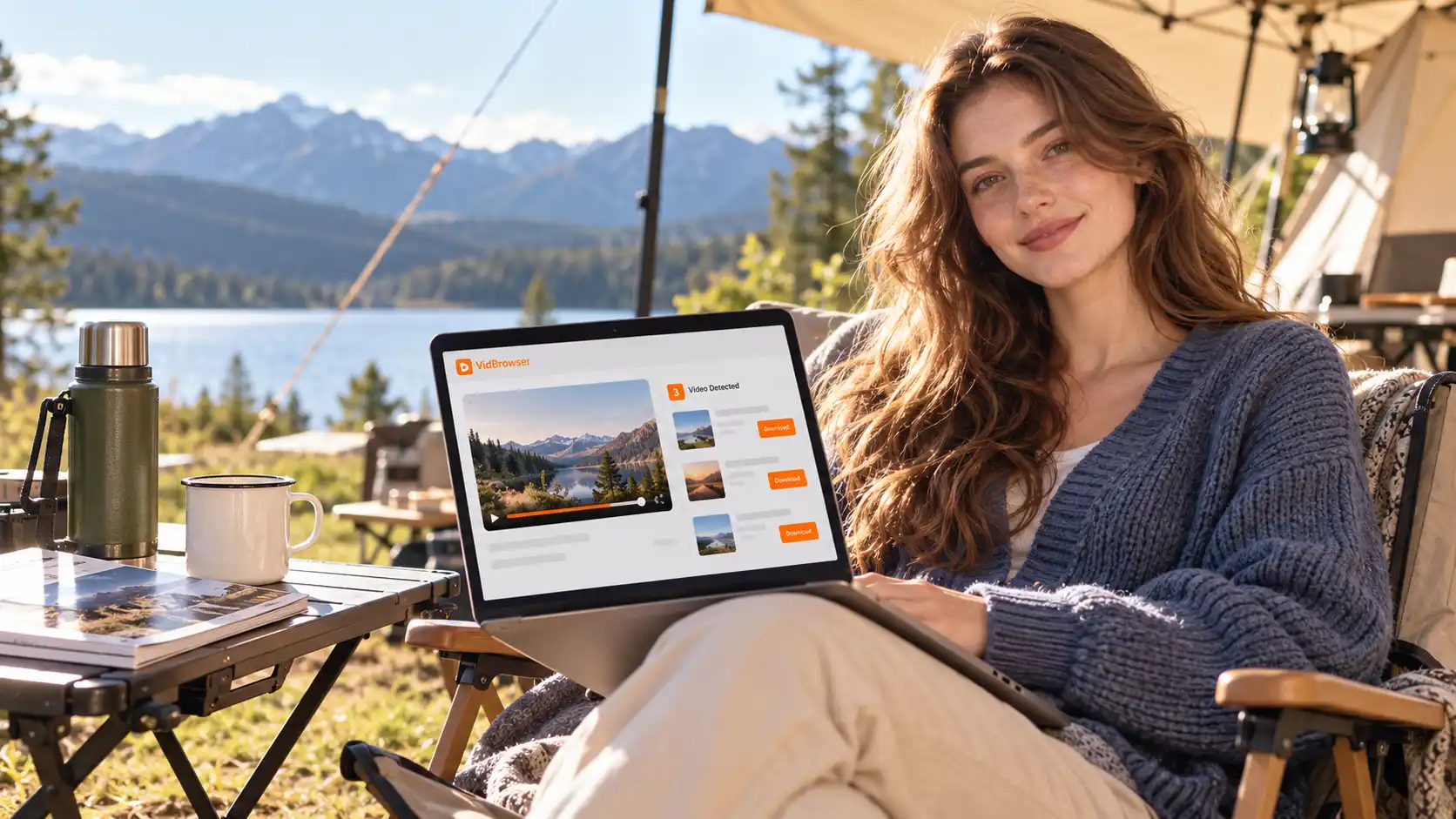
VidBrowser handles it nicely. It's a desktop video browser with built-in download and recording, and opening several tabs to watch side by side doesn't conflict with arranging your viewing:
Step 1: Download and install VidBrowser
Works on Windows and Mac; installation takes a few minutes.
Step 2: Open Twitch in VidBrowser and log in
Go to twitch.tv and sign in with your own account; open one tab per stream — viewing feels identical to a regular browser.
Step 3: Record the sessions you want while watching
Live streams are real-time, so use the recording feature: hover over the video and recording controls appear — pick the recording speed (1x real-time, or 2x/4x to finish faster), click "Record All" to capture the whole stream, and use the record button on the left to start or pause anytime. To keep the VOD after the match ends, the "Video Library" panel on the right lists entries with an orange "Download" button — one click saves them as MP4 (resolution selectable first). Everything is saved on your own drive, and every highlight you watched across multiple streams is ready for replay anytime.
FAQ
Does Twitch have an official multi-view feature?
No. Twitch has done co-streaming on the streamer side, but viewers have never had a general-purpose multi-view tool — putting several streams on one screen means manual window arrangement or third-party viewing sites.
Can I watch multiple Twitch streams on my phone?
Not in the official app. Opening a multi-view site in a mobile browser and switching to "desktop site" sort of works, but decoding several streams heats up the phone and drains the battery fast — emergency use only; desktop is the better daily experience.
Will watching multiple streams get flagged by Twitch?
Normal viewing won't. Multi-view relies on the standard playback behavior of the official embedded player, but deliberately running a large number of players to inflate view counts is explicitly against platform rules — use multi-view tools for genuine viewing needs.