
Paid courses, opposite offline doors: how Udemy and Coursera differ
The most unsettling moment after buying an online course is wondering whether it will always be there. The subscription-platform story of zero official offline does not apply to course platforms — Udemy and Coursera both offer official offline routes, but in completely opposite ways: one locks it inside a phone, the other opens the door on your desktop. Map the boundaries of each route and you will know where the gaps are and how to fill them.
How long your purchased courses stay yours: the two official answers differ
Purchase-based Udemy promises lifetime access; subscription content follows the billing cycle — with conditions attached to lifetime. According to the Udemy Help Center, a purchased course remains accessible as long as your account stays valid and the platform keeps the license to that course; instructors may unpublish it, and the platform may remove it for policy or legal reasons. Subscriptions (Coursera Plus, Personal Plan) are more direct: after you cancel, access lasts until the last day of the billing period, and course progress and certificates expire with it. The money buys long-term access, not a file on your hard drive — which is exactly why a local copy is worth keeping.
For comparison: our saving subscription content offline piece covered how OnlyFans, Fansly and LoyalFans seal every exit; course platforms run the other way and hand out official offline packages — but the two draw the line in different places.
Udemy locks official offline inside its mobile app, and you get no ordinary video file
Whole courses, whole sections and single lectures can all be downloaded in the Udemy mobile app, but the packages are encrypted and only play back inside the app. The official note is blunt: for privacy reasons the download packages are encrypted and no matching file exists in device storage; and due to the platform security mechanism, some content expires after 30 days and comes back once you are online (see the official offline download note). Also, not every course or resource (practice tests included) supports downloading.
The desktop web is the exact opposite — no full-course offline package, and downloading is up to the instructor: only when a lecture has download switched on does the player show the option, and on most courses that switch is off. If you want the complete course on your computer, the official route will basically not get you there.
Coursera is the reverse: the desktop web lets you download video, subtitles and transcripts
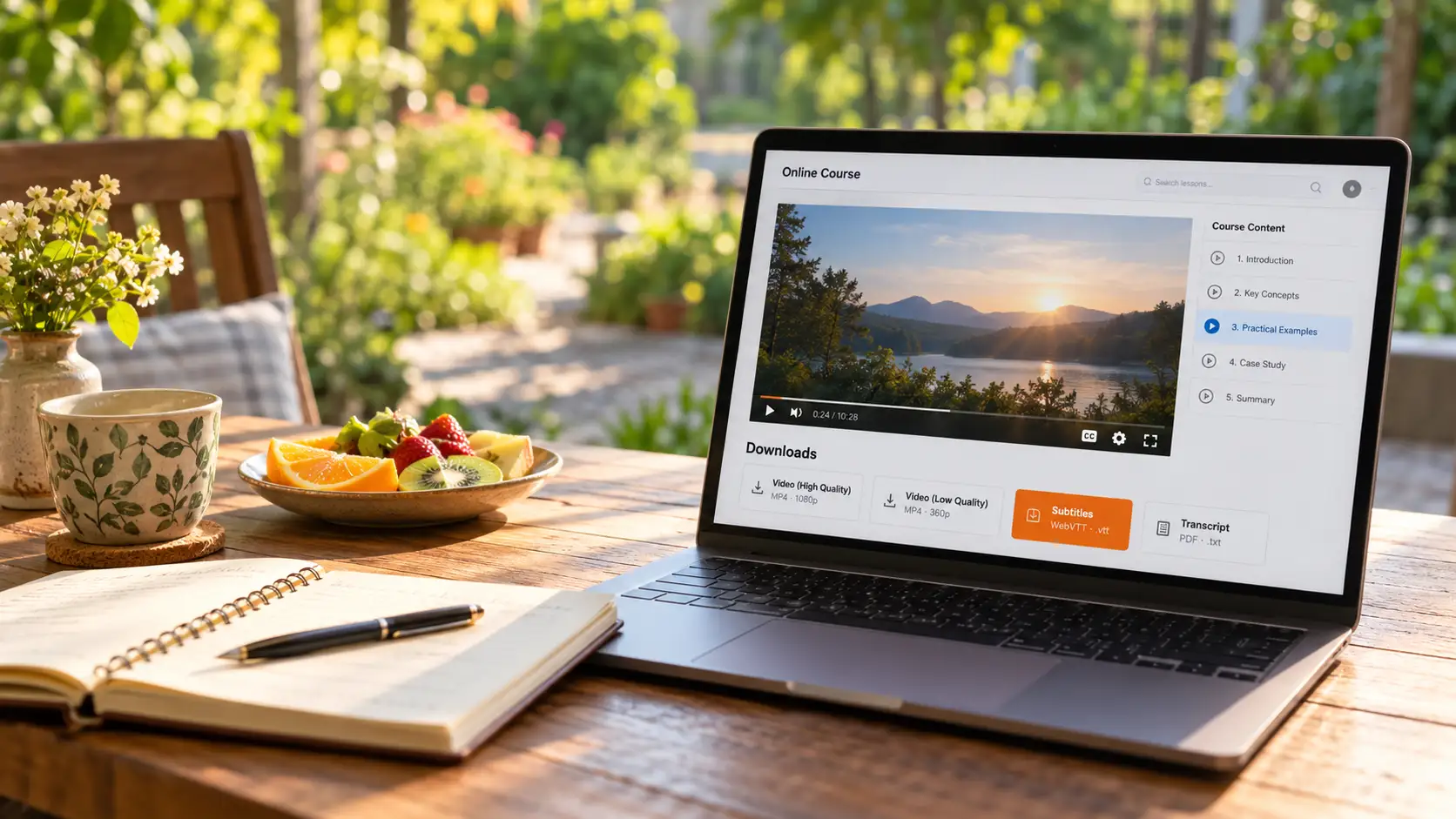
Coursera opens desktop downloading end to end: video, WebVTT subtitles and transcripts all come straight down. Find the Downloads area below the web player, open Lecture video options and save the video in high or low quality; for subtitles click Subtitles as well, keep the WebVTT file in the same folder as the video, and any subtitle-capable player will show them side by side; the plain-text Transcript downloads too, handy for notes (see the official Coursera download help). In the mobile app save by module: iOS uses Download Videos, Android uses Save for Offline.
One detail: videos downloaded in the app carry no translated audio track (the original language is usually English), though translated subtitles and transcripts can be downloaded. The desktop advantage is obvious — quality is selectable and what you save is an ordinary video file.
Three assumptions that quietly void your purchased courses
The offline package is not a file, expiry is not loss, and a file that will not open is not platform encryption — three assumptions, each one a waste of effort.
- Assumption one: downloading a lecture in the mobile app means you have the video file. It is actually an encrypted package that plays only inside the app — it cannot be backed up or moved to a computer; change phones or clear app data and the whole offline set may reset to zero.
- Assumption two: 30-day expiry means the content is gone. Expiry locks the offline copy only; refresh it online and access returns, while the course itself stays in your account.
- Assumption three: a course video you saved yourself will not open because the platform extended its protection to your local file. Errors on local files have nothing to do with platform encryption and are usually about the playback environment — our black-screen fix for downloaded videos walked through them one by one.
Saving course videos on desktop: official routes first, recording fills the rest
The desktop rule: take the official road where one exists, and let recording cover what is missing. Coursera lectures go straight through the Downloads area on the web; the Udemy web has no full-course offline package, so if you want a long-term copy on your computer, recording is the main option. Four steps:
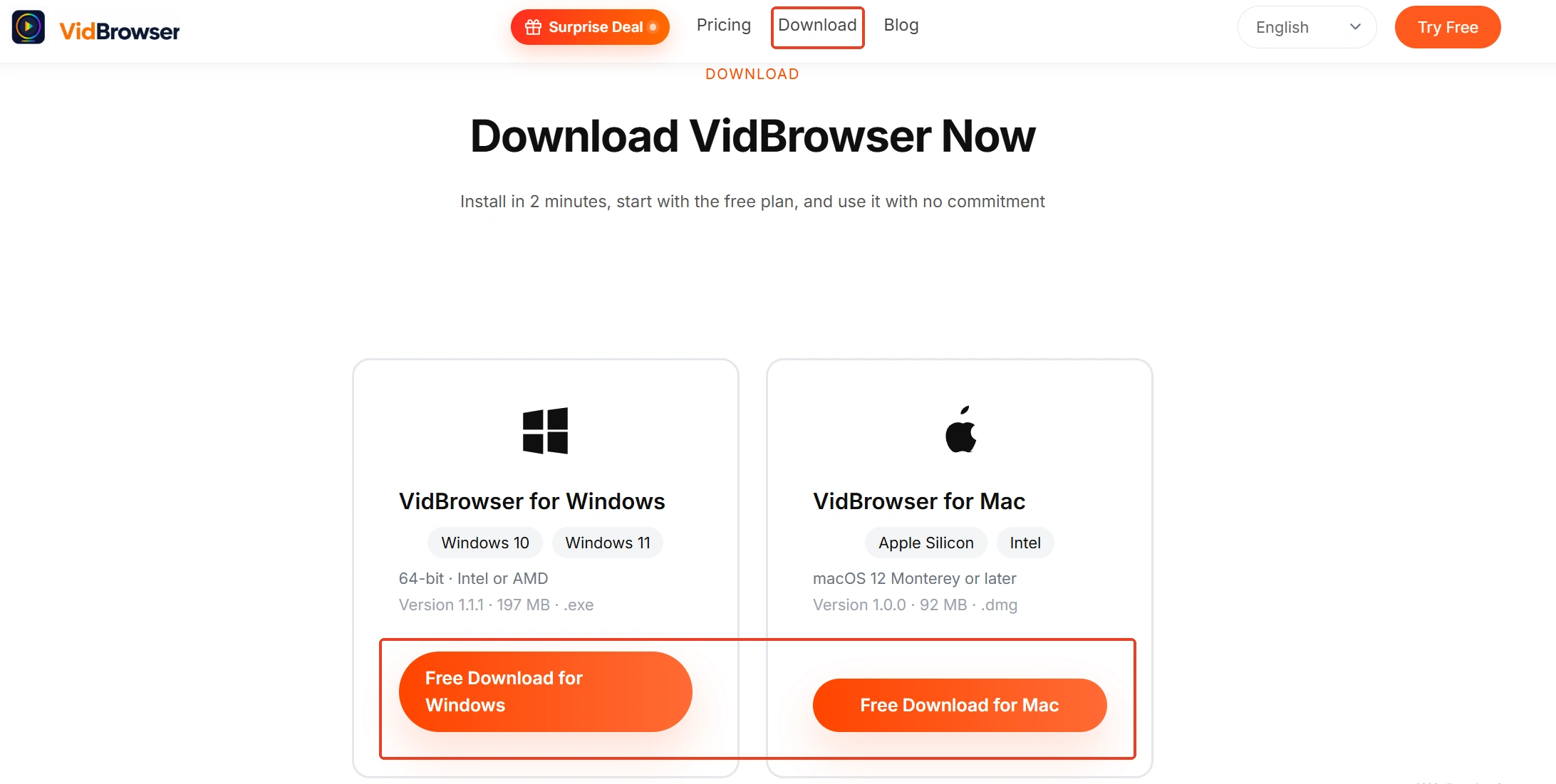
Step 1: Download and install VidBrowser
VidBrowser is a desktop video browser for Windows and Mac that watches videos, trims clips and saves them locally, with built-in download and recording — installation takes a few minutes.
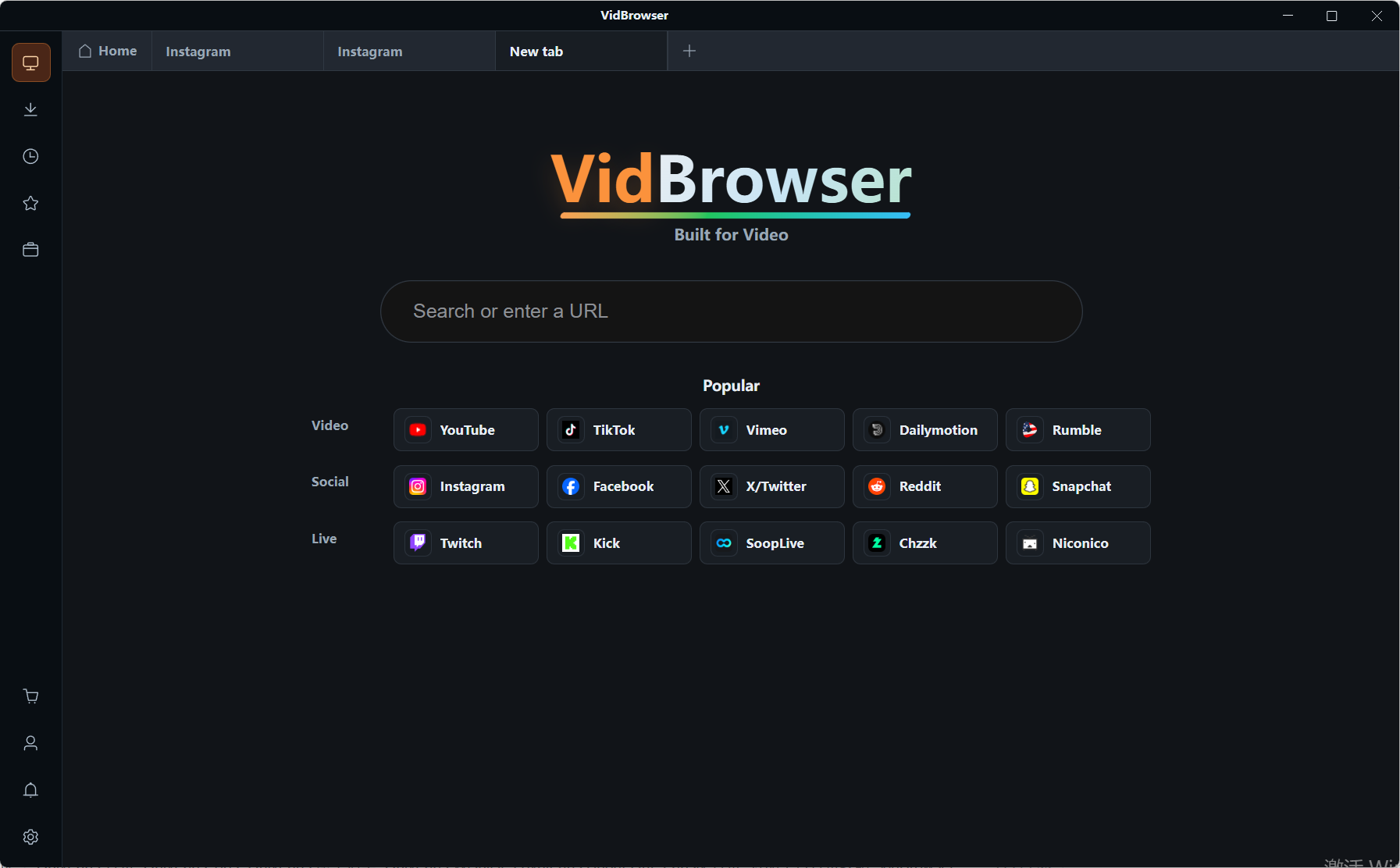
Step 2: Open the course platform in VidBrowser and sign in
Type the address of your purchased course playback page into the address bar and sign in.
Step 3: Play the lecture you want to keep
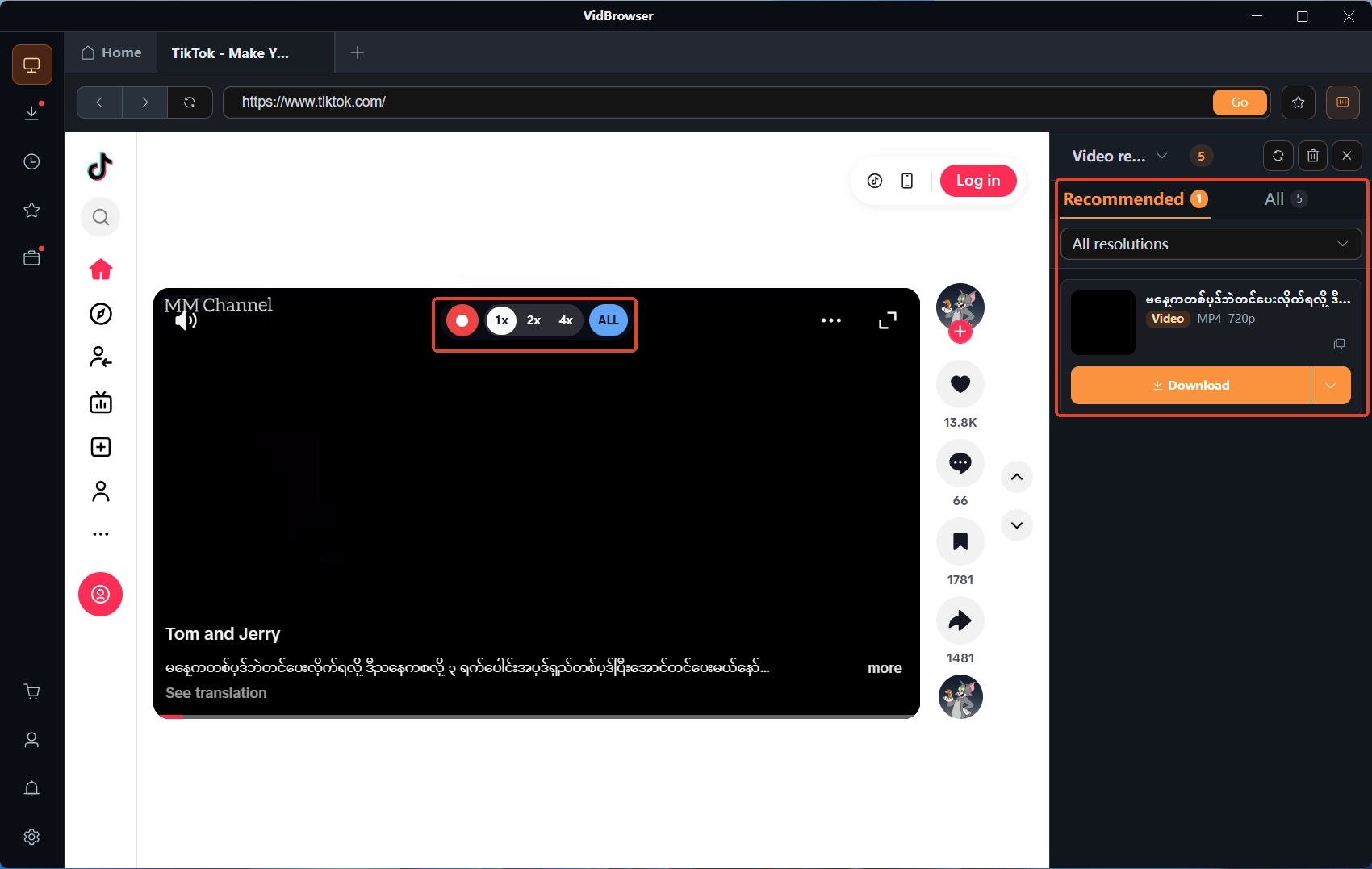
Open the target lecture and let it play for a few seconds. Course videos are mostly treated as protected content, and the Video Library panel on the right may not list a downloadable entry — if one appears, click the orange Download button first (pick a resolution before saving); if not, go with recording.
Step 4: Save with recording, history on record
Hover the mouse over the video and the recording controls overlay the picture — choose a recording speed (1x real time, or 2x / 4x to finish faster), click Record All to capture the whole video, and the record button on the left can start or pause at any time; anything that plays can be recorded. Download and recording records sit under Download History (the clock icon) in the left navigation. If you plan to listen on the commute, the extract audio tool converts lectures to audio and saves space. Personal offline study is fine; redistribution is outside the scope of this piece.
FAQ
Why can I not find Udemy lectures downloaded on my phone in file management?
Because the download packages are encrypted and play only inside the Udemy app, there is no matching file in device storage. To keep ordinary video files on a computer, save them yourself on desktop.
How do I watch Coursera downloads with subtitles?
Download Subtitles from the Downloads area as well to get a WebVTT file; keep it in the same folder as the video and open it with a subtitle-capable player (the official example is VLC). The transcript downloads too and works well for notes.
Will my purchased courses really always be there?
Purchase-based Udemy courses officially promise lifetime access, on the condition that the account stays valid and the platform keeps the license; instructor unpublishing or platform removal affects access. Subscription content ends when the subscription does. No guarantee is written in stone — keeping a local copy of key lectures is where the value is.


