Videos Other Download Tools Can't Handle? Here's How VidBrowser Record-Download Works
Parsing fails, screen recording comes out black, files show up corrupt — some videos you simply can't get no matter which common download tool you try. You might think you haven't found the right tool, but in many cases this kind of content is "born" to resist ordinary download tools.
This article explains VidBrowser's record-download feature thoroughly: how it differs from ordinary downloading and system screen recording, what "content other tools can't handle" it can cover, and how to use it in 2026.
Why Ordinary Download Tools Fail on Some Videos
First, look at the root of the problem. Ordinary download tools work by "grabbing the video stream" — parsing the video URL and pulling the file locally. But there are three kinds of content where this path doesn't work:
- DRM-protected videos: platforms like Netflix, Disney+, YouTube Premium, and OnlyFans encrypt their streams with DRM — what you grab is just encrypted data with no key to play it. (For how DRM actually works, see our DRM explainer.)
- Encrypted or special protocol streams: some platforms deliver video in non-standard ways that generic parsing tools can't recognize.
- Login- or region-restricted content: content that only plays for certain accounts or in certain regions — parsing tools can't get authorization, so they naturally fail.
So when you hit "download failed" or "file won't open", it's often not the tool's fault — it's the way the content itself is designed.
Record-Download vs Ordinary Download vs System Recording: What's the Difference
Ordinary download, system screen recording, and record-download are three different routes:
- Ordinary download: grabs the video stream file. Best for ordinary public videos, fastest; but with DRM, encryption, or permission-restricted content it simply can't get it.
- System screen recording: records the screen at the system level. It can "shoot" anything, but quality is limited by your screen resolution, and DRM-protected content records as a black screen.
- Record-download: saves the content currently playing inside the browser. It doesn't rely on file parsing and isn't limited by system recording — anything that plays can be recorded.
In one sentence: ordinary download relies on "getting the file", screen recording relies on "shooting the screen", while record-download saves the playing content directly inside the browser — it relies on neither file parsing nor the DRM limits of system recording. (For the exact reasons behind black-screen recording, see our black screen video fix guide.)
What Content Can Record-Download Handle
- DRM videos: protected content from Netflix, Disney+, YouTube Premium, OnlyFans, etc. — where ordinary tools and screen recording both fail, record-download works.
- Content other tools fail to parse: platforms with unusual or frequently changing URL structures — when download tools throw errors, recording is a reliable fallback.
- Time-limited or private content: stories, time-limited live streams, member content — as long as it plays, it can be recorded and archived.
- Fast archiving of long videos: recording supports 1x/2x/4x speed; recording a multi-hour live stream at 4x dramatically cuts the real waiting time.
Here's a real example: you subscribe to a DRM-protected platform and want to save a video you like — ordinary download tools return an unopenable encrypted file, system screen recording comes out black. But in VidBrowser you play it normally, hit record, and minutes later you have a local video that plays fine. That's the whole point of record-download.
Who Needs Record-Download Most
- Users subscribed to DRM platforms: Netflix, Disney+, OnlyFans, etc. — the scenario where ordinary tools and screen recording both fail.
- People whose download tools keep failing: when a target platform's parsing breaks often, recording is a stable fallback — no more endless trial and error.
- People who want to save time-limited content: stories, time-limited live streams, member-only content — record as you watch, because once missed it's gone.
- People who need to archive long videos quickly: multi-hour streams or meetings — 4x speed recording dramatically shortens the wait.
How to Use VidBrowser Record-Download
VidBrowser builds record-download in as a built-in browser feature: no extra screen-recording software needed, everything happens in the playback interface.
It takes just a few steps:
Step 1: Download and Install VidBrowser
VidBrowser is a desktop video browser for watching videos, trimming clips, and saving them locally on Windows and Mac. Installation takes just a few minutes.
Step 2: Open the Platform and Play the Target Video
Open the target platform in VidBrowser, log in with your account normally (when needed), and play the video you want to save.
Step 3: Hover Your Mouse Over the Video
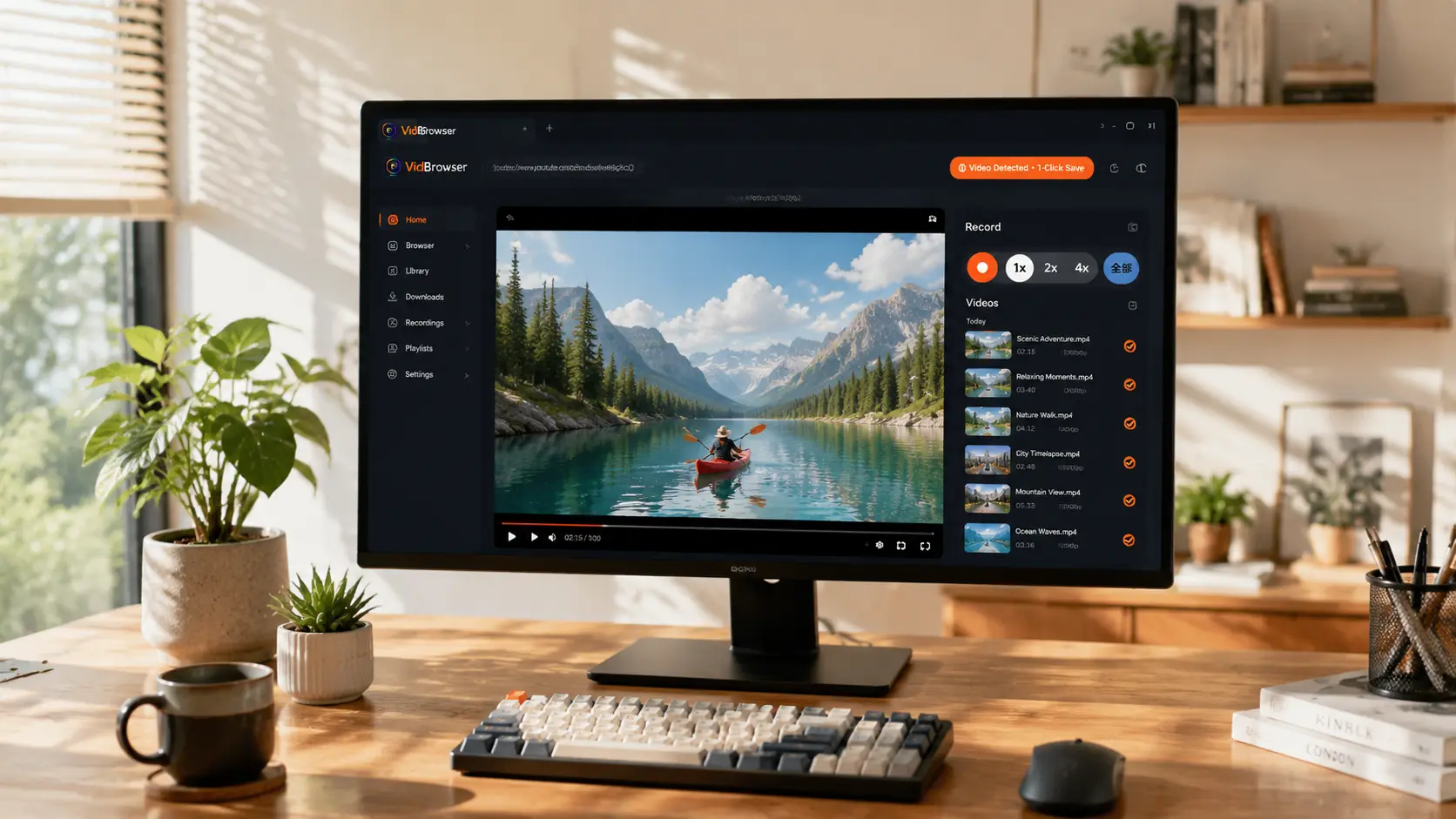
Move your mouse over the video you want to record — the recording controls (start button, 1x/2x/4x speed options, and "Record All" button) appear right on top of the video.
Step 4: Choose a Recording Speed and Click "Record All"
Pick the speed you need (1x for real-time, 4x to quickly finish long content), click "Record All" to start, and the content currently playing is saved.
Step 5: Find the File in Your Library
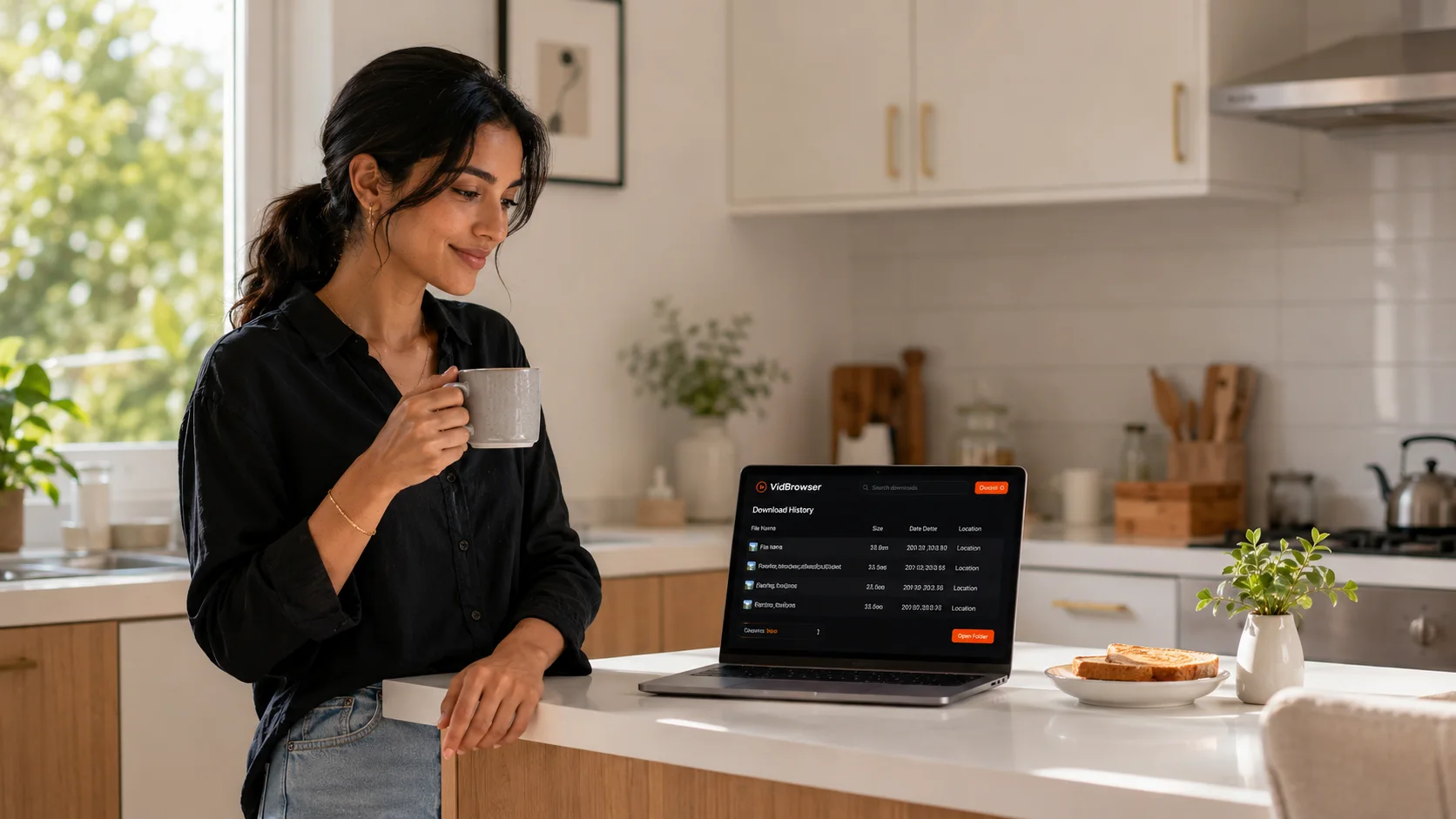
After recording, you can open the file from the folder you chose, or find it through VidBrowser's download history. Then watch it offline anytime with compatible players like VLC or QuickTime.
A Few Things to Keep in Mind While Recording
- Keep the video playing normally: recording saves what's currently playing — keep playback running for a complete recording.
- Set the playback quality first: you record what you see — for high-definition results, set playback quality to the highest first.
- Make sure you have local space: high-definition long videos produce large files — confirm enough disk space before you start.
- Pick the speed you need: use 4x to finish quickly when pressed for time, 1x for stability — the recording result is the same, only the waiting time differs.
Three Misconceptions to Avoid
- Is record-download the same as screen recording? No. Screen recording captures the screen at the system level and DRM content goes black; record-download saves the playing content inside the browser, so DRM content records fine.
- Does recording hurt quality a lot? Recording keeps the picture and sound of what's playing, matching what you see; speed (1x/2x/4x) only shortens the recording time, it doesn't affect the picture.
- Do I have to choose between direct download and recording? No. Use one-click download for ordinary content (faster) and record-download as the fallback for special content — the two complement each other.
FAQ
What's the difference between record-download and system screen recording?
Screen recording captures the screen at the system level, so DRM-protected content records as black; record-download saves the playing content inside the browser, bypassing the system recording interface, so DRM content records normally too.
Does recording lose quality?
Recording keeps the picture and sound of what's playing, matching what you see. The recording speed (1x/2x/4x) only affects how long recording takes, not the quality.
Does record-download require logging in?
Same as normal playback: public content needs no login; content that requires account access (member, private, region-restricted) can be recorded once it plays after login.