
The GUI video downloader you use may be a yt-dlp shell
Searching for ways to save videos, you keep seeing the same reply in the comments: just use yt-dlp. Follow that advice and there is no polished product page and no install wizard with download buttons lined up — what you find is a code repository and a screen full of commands. What is it, why do many GUI tools never mention it, and how does the downloader on your desktop relate to it? This piece sorts out the three kinds of relationship between the command-line downloader and GUI tools.
What yt-dlp is: a download engine behind a single command
yt-dlp is a free, open-source command-line audio and video downloader, and its official repository describes it as a feature-rich command-line download tool.It appeared after the older youtube-dl project stopped updating, is maintained by the community, and both its code and release files live on the official yt-dlp repository on GitHub, where it is still iterating at a fast pace. You do not need to type long commands into a black box to use it — the official release page provides standalone executables for Windows and macOS that run right after download, while on Linux the recommended route is running it with Python. It has no graphical interface; all of its capability is expressed through command arguments, which makes it a natural fit for repetitive tasks like batch, scheduled, or fixed-spec archiving.
Command line and GUI: not rivals, but three kinds of relationship
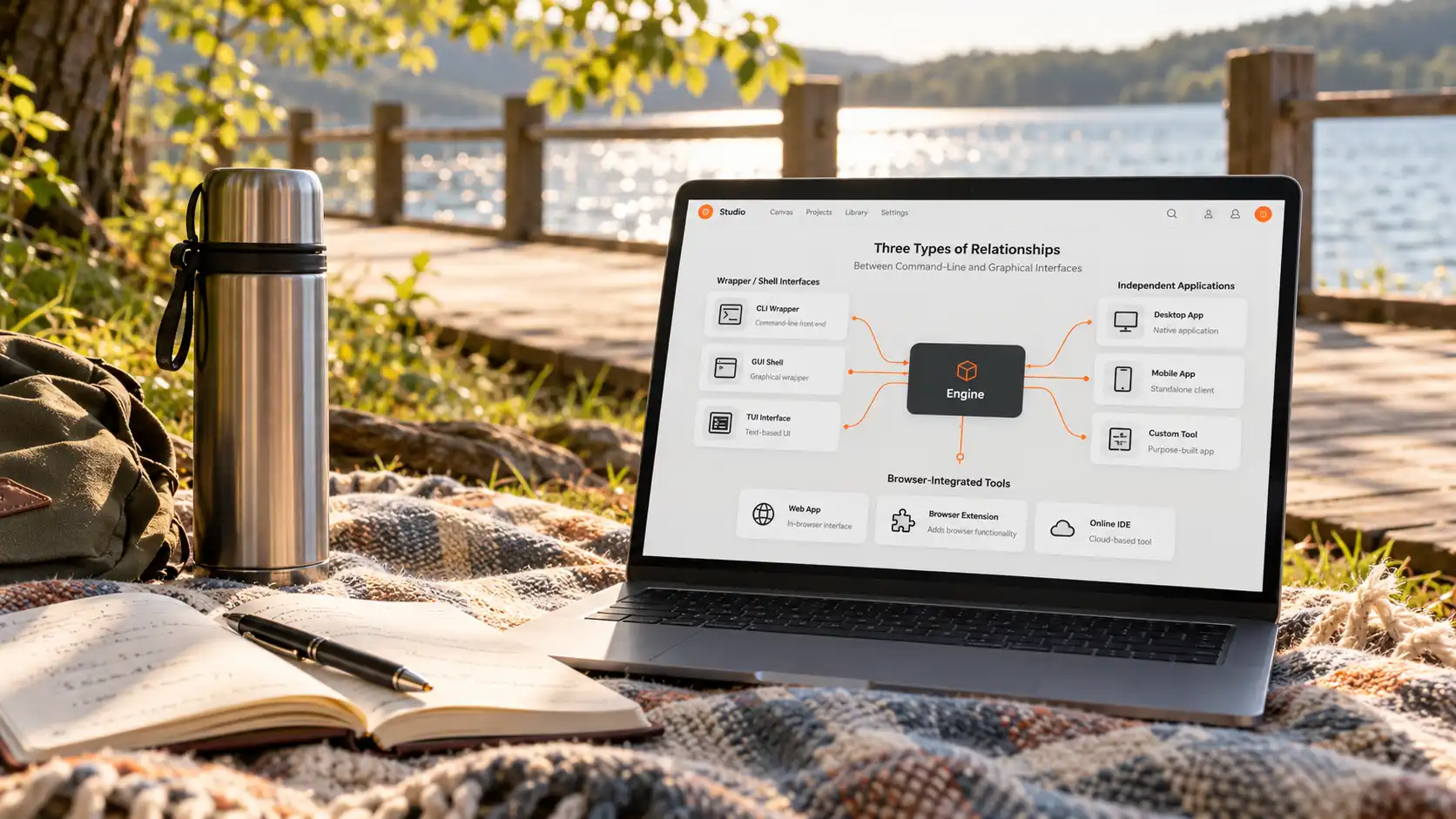
Between GUI tools and yt-dlp, the relationship usually falls into three categories.
First, the shell. Many desktop or mobile downloaders with an interface call yt-dlp underneath: you click a button, and the app assembles a command and runs it in the background. The interface spares you the arguments, the engine does the actual fetching.
Second, standalone tools with their own parsing. This kind of software implements video address parsing and downloading itself, has no code connection to yt-dlp, and its limits are decided by its own development team.
Third, the browser shape. Instead of asking you to copy a link first, it lets you open pages and play videos as usual, detects the resources during playback, and offers a save entry — the working style shifts from "feed it an address" to "follow what you are watching". The trade-offs between the three types were compared one by one in our desktop downloader review, so they are not repeated here.
Three checks to tell whether your GUI tool is a shell
Want to know whether a GUI downloader is a yt-dlp shell in disguise? Three places will tell you.
Open the settings page first: if it keeps path fields for yt-dlp or ffmpeg, the app almost certainly calls an external engine. Then read the changelog: shell-type tools often release updates that track yt-dlp version numbers and fix engine-side issues. Finally run a small test: paste a public video link and it downloads fine, but ask it to open a page that requires login to play and it can do nothing — a tool whose input is a link cannot see what is playing on your screen, and that is the clearest dividing line between shells and browser-shaped tools.
However strong the engine, there are places it cannot reach
The strengths and limits of yt-dlp both come from the link-pasting working style itself.For public sites it parses well, offers fine format options, and stays stable on batch jobs; if you want to save an entire public playlist in one go, the piece on batch-download strategies already covered how to use it. But a link only reaches addresses the page is willing to hand over directly: content that requires login to play, streams assembled during playback, and protected videos on subscription platforms cannot be parsed no matter how standard the command is. This is not a matter of typing the command correctly — such content never appears on the page as a complete file in the first place, a mechanism broken down in the piece on why downloaders fail to detect videos.
Skip the commands: keep downloading and recording in one window
If what you want is "see it, save it", browser-shaped tools turn that into an everyday action.VidBrowser belongs to the third kind: a built-in browser plus downloading and recording, with no links to copy and nothing to configure. The workflow takes four steps:
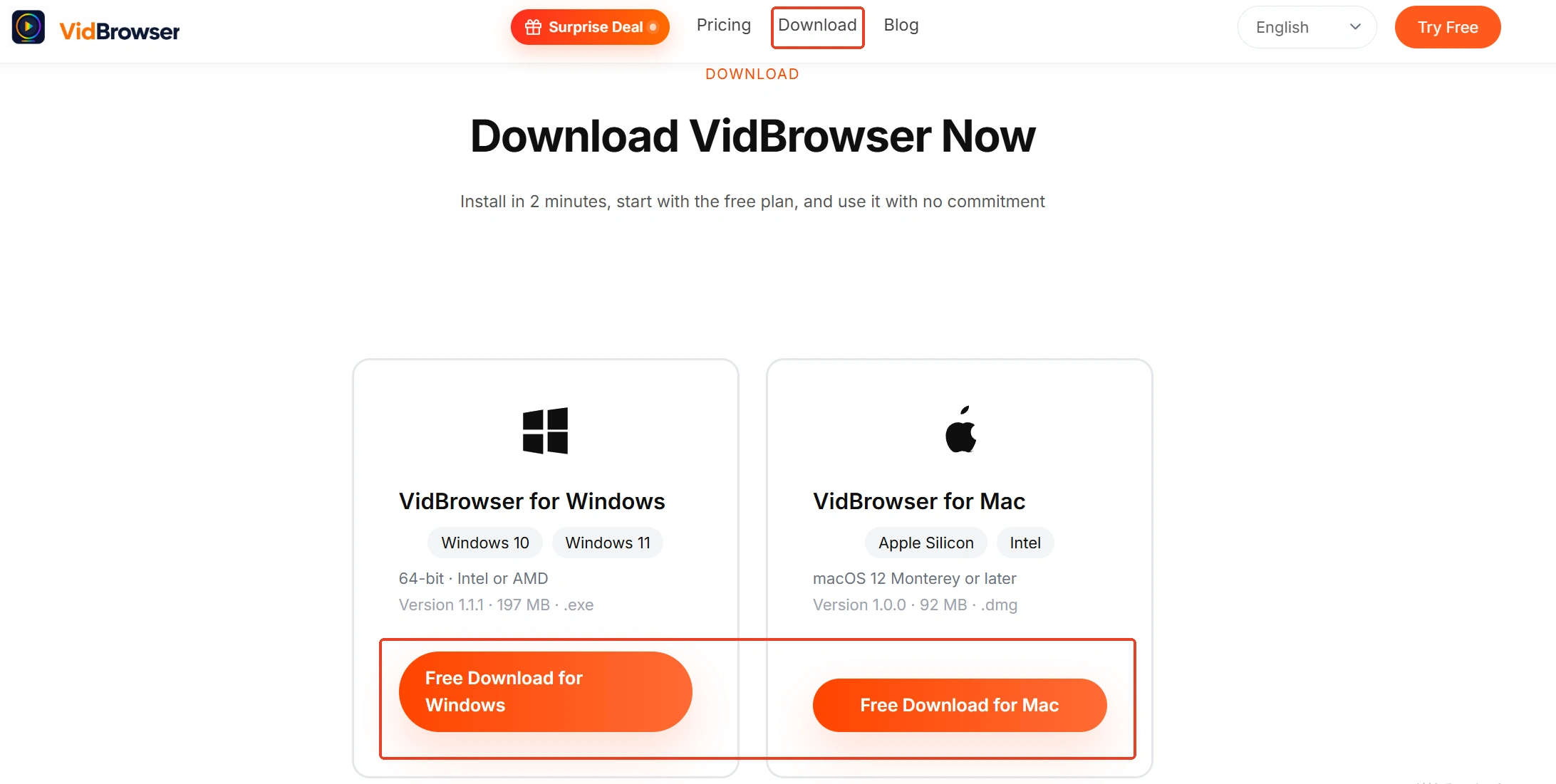
Step 1: Download and install VidBrowser
VidBrowser is a desktop video browser for Windows and Mac that watches and saves video, with downloading and recording built in.
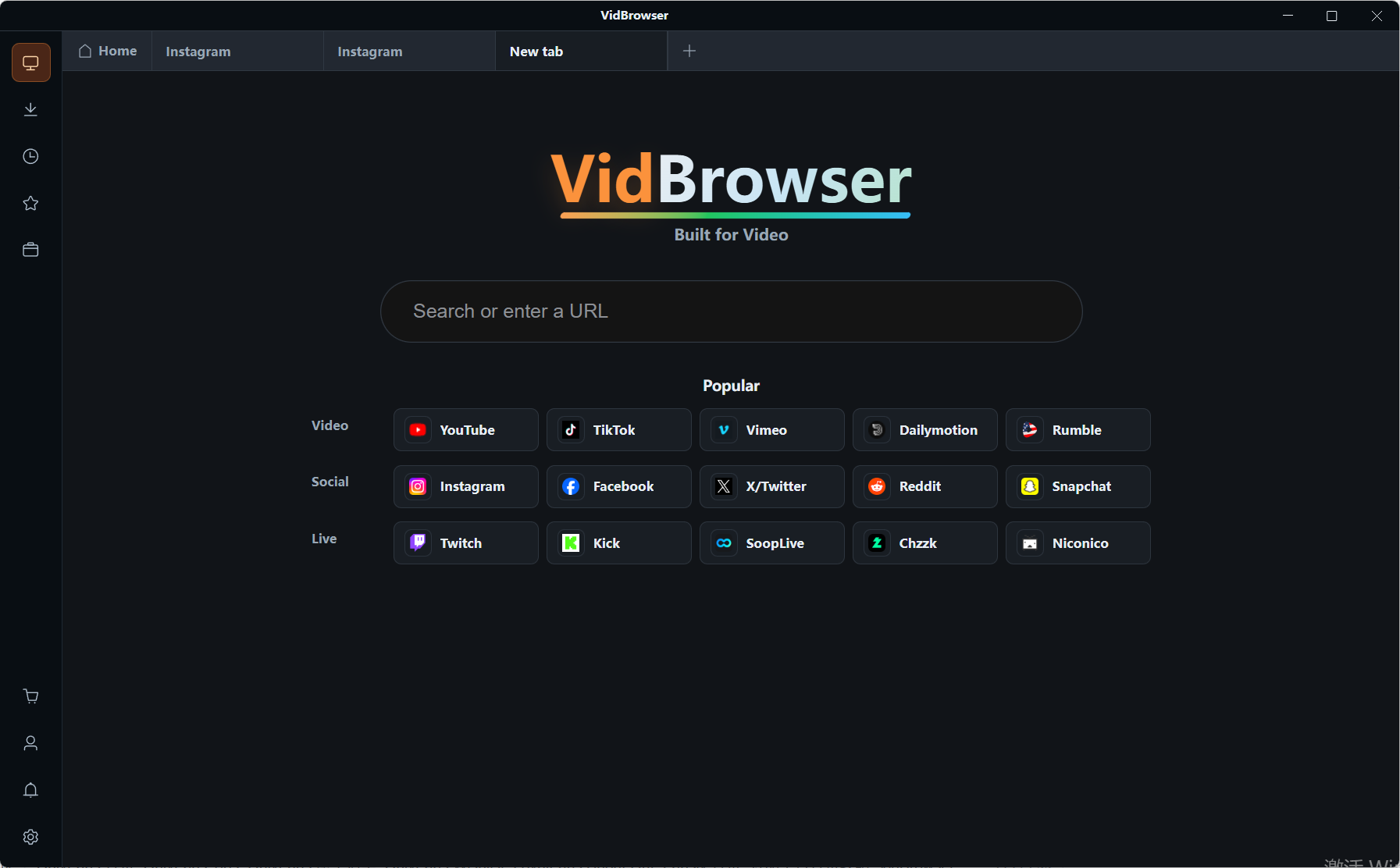
Step 2: Open the page you want to watch inside VidBrowser
The window has a browser built in; sign in and browse as usual, no different from everyday web use.
Step 3: For direct downloads, click the orange button to save
The "Video Media" panel on the right lists detected video resources, each with an orange "Download" button that saves it as MP4; you can also pick quality with the resolution filter before downloading. Download records stay in "Download History" on the left for checking any time.
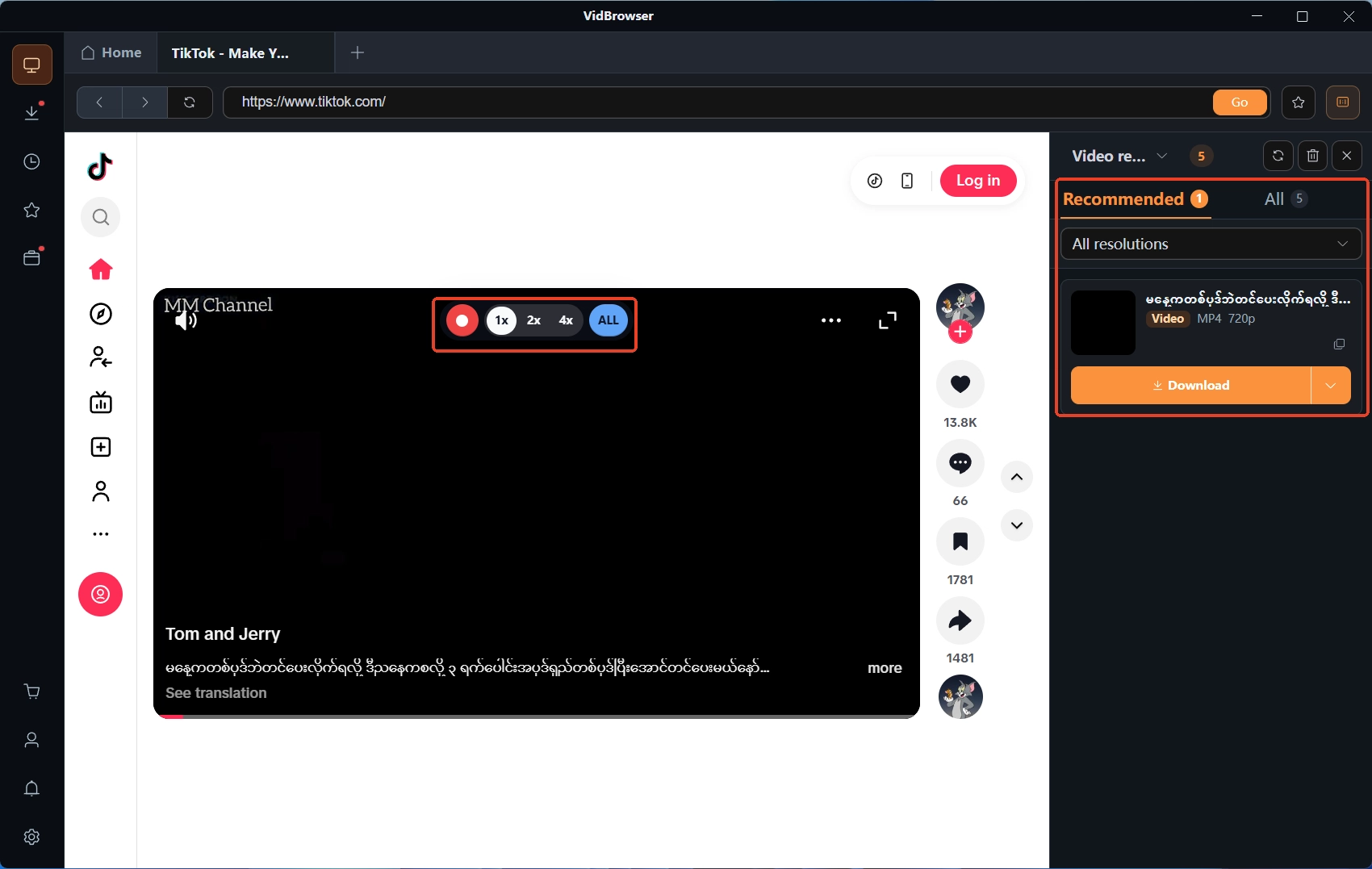
Step 4: What cannot be downloaded, save with recording
Protected content on subscription platforms mostly cannot be downloaded directly: move the mouse over the video and recording controls appear as an overlay — choose a recording speed (1x real time, or 2x and 4x to finish faster), click "Record All" to capture the whole video, and the record button on the left can pause at any moment. Content that plays on your screen can be captured by recording.
Frequently asked questions
Is yt-dlp free, and is it safe to use
yt-dlp itself is free and open source, its code is public in the official repository, and anyone can review it. What deserves attention is the install source: get executables from the official release page, and third-party repackaged installers are the main source of uncertainty.
Do you have to install Python before using yt-dlp
Not necessarily. The official release page provides standalone executables for Windows and macOS that work right after download; Python is another way to run it, and the one officially recommended on Linux. See the repository installation notes for details.
Why can it not download videos from certain platforms
Most public sites are within its reach; content that requires login, assembles during playback, or is protected by copyright cannot get past the parsing step. Changing your approach works better than changing arguments: browser-shaped tools follow playback, and recording is a more direct way to save such content.


