
One Video, Five Thumbnail Sizes: How to Grab Every YouTube Cover at Once
Running an end-of-year cover roundup, collecting design references for a new upload, or archiving every cover a channel used over a period — if you have tried any of these, you have probably hit the same wall first: YouTube has no export covers by page option. Saving them one right-click at a time is slow, and what you get is often not the largest tier anyway. In fact, every video cover thumbnail is a set of public image files; once you understand the size tiers, a whole channel's covers can be batch-saved as needed.
A YouTube thumbnail is not one image, it is a tiered set of public files
Every YouTube video ships with a set of thumbnails in different sizes; they are ordinary image files, entirely separate from the video stream.After a video is uploaded, the platform auto-generates several tiers, commonly five: maxresdefault 1280×720 (largest), sddefault 640×480, hqdefault 480×360, mqdefault 320×180, and default 120×90. The addresses follow a fixed pattern such as i.ytimg.com/vi/VIDEO-ID/maxresdefault.jpg. Once a custom cover is uploaded, each tier is replaced with a same-content version in its own size.
That is exactly why covers can be batch-grabbed: the video stream sits behind layers of protection, while thumbnails are static images sitting on the page, loaded with it. Which tier a page loads usually depends on placement — feed lists mostly use mid-tier small images, while the desktop homepage and embedded players use the 1280×720 largest tier. So any tool that inspects a page's image resources works on them too. Beyond covers, saving the video itself is a separate path, and subtitles have their own bulk download method.
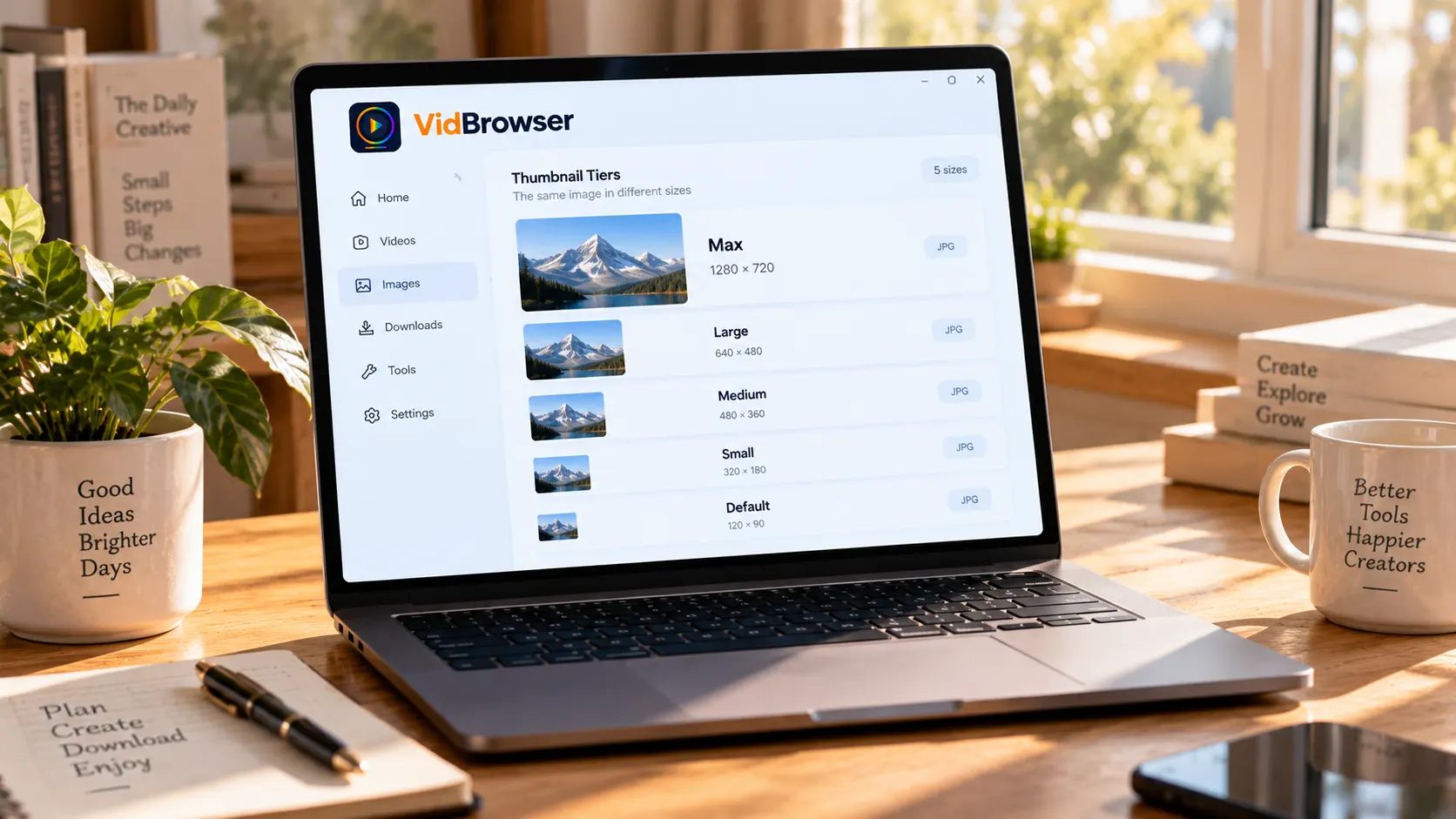
Know the size tiers before you grab, and do not mistake black-bar low tiers for HD covers
Two pitfalls dominate this tier system: the largest tier does not always exist, and mid/low tiers usually carry black bars.maxresdefault only exists when the uploader set a custom cover; early uploads or videos without one simply lack it and the request comes up empty. sddefault and hqdefault are 4:3, so 16:9 content gets black bars top and bottom — saved as a reference image, the framing is already distorted. mqdefault keeps the standard ratio but turns blurry at 320×180. The black bars are not a bug: mid/low tiers inherited the old 4:3 canvas, with widescreen content centered and padded, a legacy uniform canvas.
Checking the official spec saves you detours. According to the YouTube Help Center page "Add custom thumbnails on YouTube", the currently recommended cover resolution is 3840×2160 (Shorts: 2160×3840), shortest side 640 pixels, JPG or PNG, desktop upload limit 50MB and mobile 2MB, with account verification required; the older 1280×720 spec still qualifies. The practical takeaway for cover grabbers: check whether the image reaches 1280×720 — if even this tier is missing, the video basically has no usable HD version on covers.
Want a ten-second self-check for whether a video has the largest tier? Plug the video ID into the address pattern above and open maxresdefault directly in a browser. A clear large image means yes; a gray placeholder or a dead link means no — far faster than refreshing pages and hunting for answers.
Use image batch download to save covers from video pages and channel pages at once
On the tool side, cover grabbing is one image-sniff pass: hand the address to the tool, filter the list by size, then batch-save.A single video page suits grabbing one cover; a channel's videos list suits scanning a whole page at once. The full entry points and filter details are covered in the web image batch download guide; here is the YouTube version step by step:
Step 1: Download and install VidBrowser
VidBrowser is a desktop video browser for Windows and Mac for watching videos, trimming clips and saving them locally, with download and recording built in. Installation takes a few minutes.
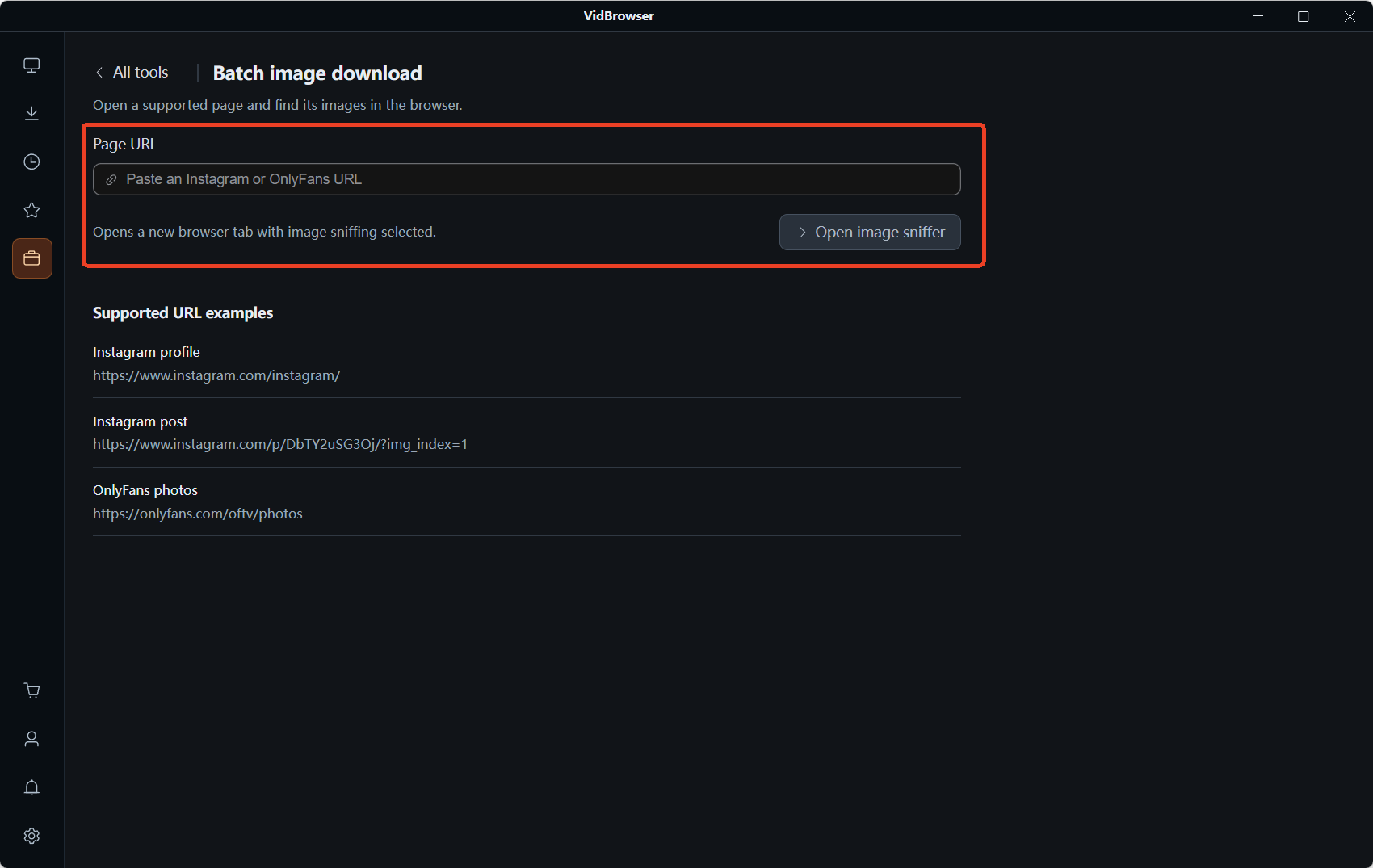
Step 2: Open Image Batch Download and paste a video page or channel page address
In VidBrowser, open the Tools page in the left sidebar and click Image Batch Download. Paste a single video's watch page or a channel's videos list URL into the address box — the former grabs one, the latter scans a batch.
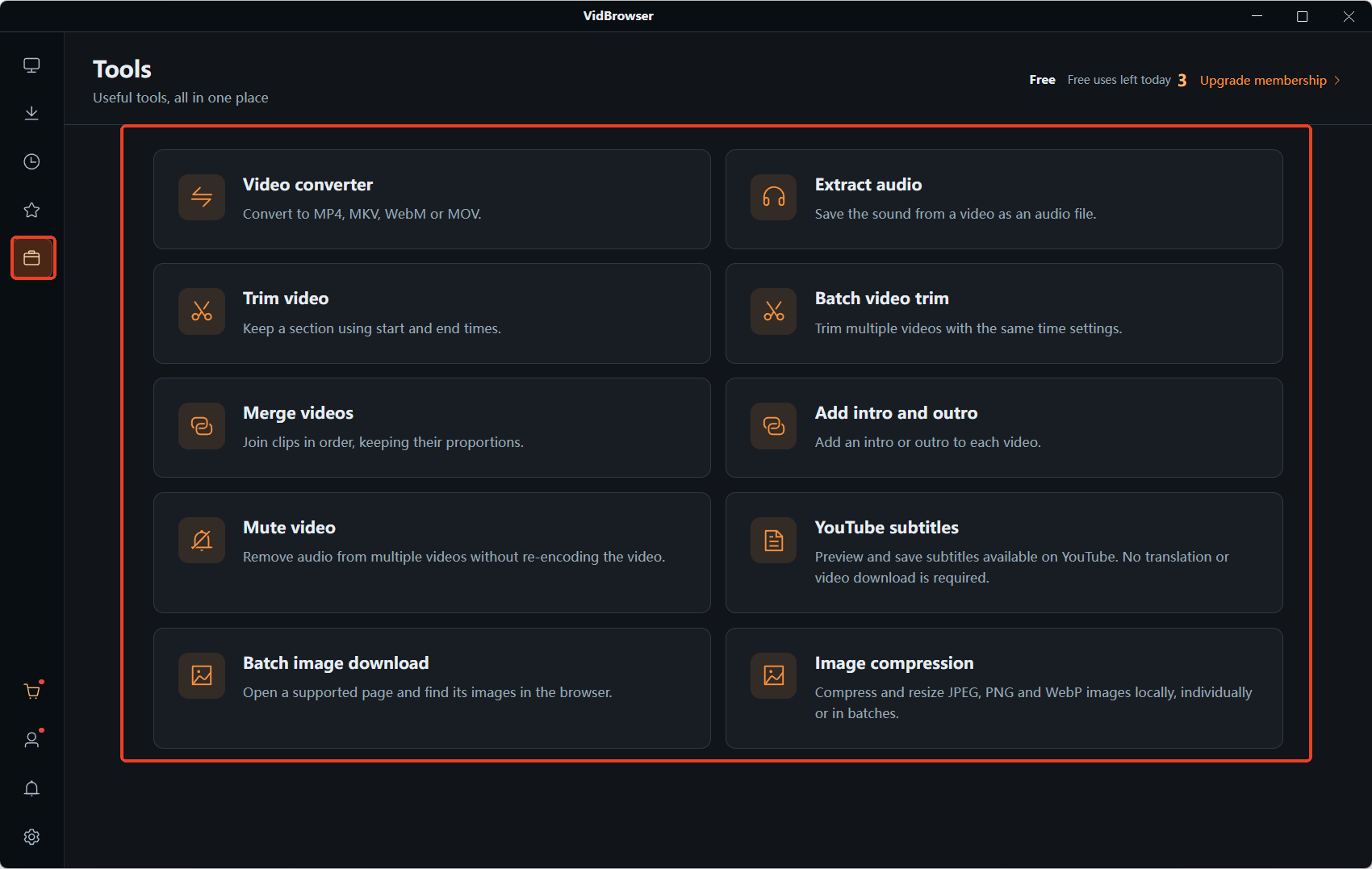
Step 3: Click Open Image Sniffer and identify covers in the list
The page opens in a new tab, and the Image Resources panel on the right shows how many images were captured. The Recommended view is a pre-filtered shortlist; the All view lists every resource on the page, each card labeled with size and format (for example 1280×720 JPG). Switch the All sizes dropdown to ≥800px or ≥1200px and low-tier small images plus page icons are filtered out — what remains is basically the largest-tier cover of each video.
Step 4: Select or select all, batch download, then verify by size
Tick target entries or hit Select All, then click batch Download. After saving, glance at the size labels: is it 16:9, any black bars, did width pass 640 pixels — and for design reference work, re-check 1280×720. If you plan to keep covers as a long-term reference library, add the video ID to the filename so tracing back to the source video stays easy. Saved covers are fine for personal reference, review or archiving; republishing or commercial use is a different matter, and the rights belong to the original author.
FAQ
Why can't I grab the largest tier for some videos?
maxresdefault only exists when the uploader set a custom cover; videos without one do not have this tier. Check the size labels on cards in the Image Resources panel — if no 1280×720 shows up, take the largest tier available instead of refreshing endlessly.
Can I use grabbed covers as my own video covers?
The images are public files, but copyright stays with the original author. Sizes can be checked against the official spec (3840×2160, shortest side 640 pixels, JPG or PNG) — when unsure, go back to the official help page above and verify. Content authorization is a separate layer; think it through before any secondary use.
How many covers can one channel page scan?
It depends on the image resources the page actually loads; results differ across pages and browsing positions, and the count in the Image Resources panel is the reference. If the list misses some, scroll or paginate and scan another batch. Subtitles can also be batch-grabbed — see the YouTube subtitle download guide.


