
YouTube subtitles can be saved on their own, with SRT and TXT paths ready
You want a transcript of a foreign-language interview, notes from a saved tutorial, or a quote from a creator for your edit — what you need is those lines of text, not the few-hundred-megabyte video. Downloading YouTube subtitles solves exactly this: take the subtitles as an independent file and leave the video untouched. First, the boundaries: which subtitles can be taken, what the player shows, and what to do once you have the file.
YouTube subtitles are a separate text track, stored on the server apart from the video
YouTube subtitles exist as an independent subtitle track that the player overlays on the picture line by line along the timeline. Open a video and a CC badge appears at the lower right of the player — that is the track. It is not part of the picture or the audio; it is a separate piece of data. Tracks come from two sources: hand-written subtitles uploaded by the creator, and auto-generated subtitles from speech recognition. The official help documentation covers subtitle upload and auto-generation, and the official blog notes that auto-captions have been around since 2009, are speech-recognition driven, and may contain errors, so creators are advised to review before publishing. These two sources decide whether the subtitles can be taken at all — the track must exist before downloading comes into play.
The transcript in the player can be viewed and copied, but there is no file to download
Open YouTube in a desktop browser and the player has a Show transcript panel — the official text outlet, and it produces no file. Click Show transcript below the video description and a full transcript with timestamps appears on the right, scrolling and highlighting as the video plays; you can select and copy the text. In the mobile app many videos show a transcript too, but you cannot select the text. Nowhere in this flow does YouTube give viewers a download button — to get a subtitle file with timestamps, either the creator exports it from the back end, or you use a tool that reads the subtitle track. That is the gap between visible and takeable, and it is exactly where subtitle download tools sit.
SRT vs TXT: timelines and plain text serve different purposes
SRT carries a timeline, TXT is plain text — the two formats serve different uses from the file structure up. An SRT file is made of numbered blocks, timecodes and text; players read it to know which line appears when, and editing software imports it as a subtitle layer. TXT strips all timing and structure, leaving a plain script for notes, quotes and translation drafts. A side note on the creator-side official route: the Subtitles page in YouTube Studio can export existing subtitles of your own channel as SRT, VTT or TXT — officially supported, but limited to your own videos. Viewers have no equivalent entry, which is the gap the tool below fills.
Four steps to get the file with the VidBrowser subtitle tool
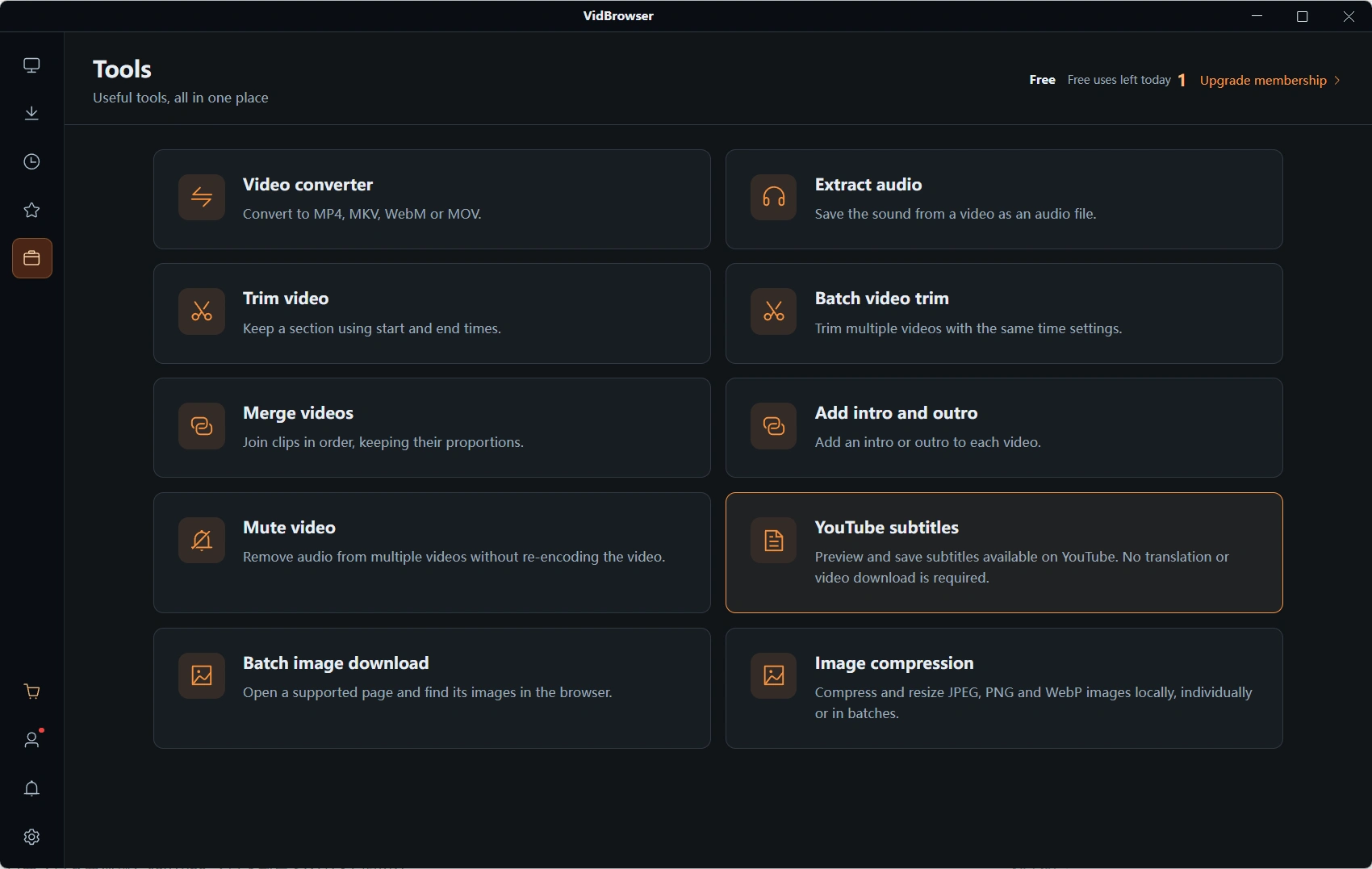
Use the YouTube Subtitles entry on the VidBrowser tool page to land subtitles as files. It comes from VidBrowser, a desktop video browser; after installing, switch to the Tools page in the left navigation to find the entry.
Step 1: Download and install VidBrowser
Windows and Mac are both supported; installation takes a few minutes.
Step 2: Open the subtitle tool and paste the video address
On the Tools page, open YouTube Subtitles and paste the link of the video whose subtitles you want.
Step 3: Fetch and preview the subtitles
The tool reads the subtitle track the video already has — the interface says it plainly: preview and save existing YouTube subtitles, no translation, no video download. It takes what is there; it does not translate or invent, and a video with no subtitle track yields nothing.
Step 4: Pick a format and save locally
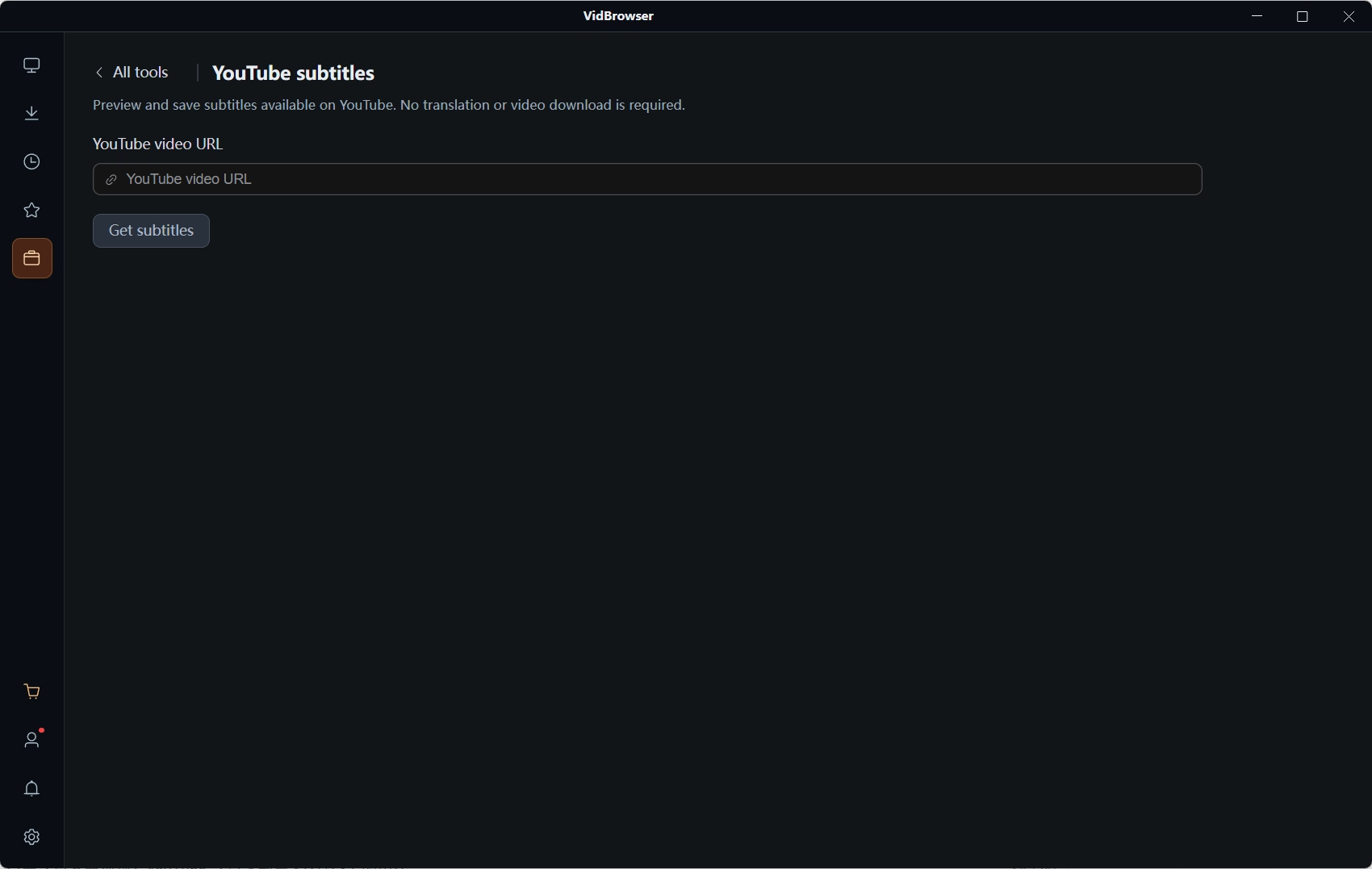
After previewing and confirming the content, save as needed — SRT to pair with the video, TXT for notes and quotes.
Videos without a subtitle track are out of reach for download tools too
The check is simple: look for the CC button at the lower right of the player. The official help states that the CC toggle appears only when a video has subtitles — no button means no track exists, no transcript panel either, and subtitle download tools come up empty for the same reason: they read existing subtitles rather than making them from audio. Also mind the limits of auto-captions: results carry an Auto tag, and proper nouns and heavily accented passages are where errors cluster — read through before quoting formally. How different downloaders handle subtitles is covered in the YouTube downloader comparison; the premise stands: no track, no subtitles, whatever the tool.
After the subtitles arrive: storage and pairing
Archive subtitle files separately from the video; pairing relies on matching names. Rename the SRT to match the video file and put them in the same folder, and mainstream players load it automatically along the timeline; the TXT goes into your notes. Full video downloading is covered in the YouTube video download guide, grabbing a whole playlist at once in the playlist download piece; if you have a video with embedded subtitles and want to convert formats, video format conversion explains the container side. Subtitles are the lightest content asset — a file of a few kilobytes that keeps the most quotable part of the whole video.
FAQ
Why is there no subtitle option on some videos?
Most often the creator did not upload subtitles, auto-captions are still generating, or the video language is outside speech-recognition coverage. Check the lower right of the player: no CC button, no track — transcript and subtitle download are both out of the question.
Can auto-generated subtitles be used as they are?
Auto-captions come from speech recognition and the official documentation notes they may contain errors; proper nouns, multi-speaker dialogue and heavily accented passages are the weak spots. Fine for notes and gist; for formal quotes or publication, read through the transcript first.
How do I play an SRT file together with the video?
Rename the SRT to match the video file exactly and keep both in the same folder; mainstream players load it automatically. If subtitles do not show, check whether the extension was altered and whether the player supports external subtitles; if the timing drifts, use a player with subtitle offset adjustment.


