
How to Save YouTube Gaming Stream Replays and Live Streams
Want to rewatch last week's ranked match? Open the channel's Videos tab and it is right there — and this is where YouTube beats other live platforms: when a stream ends, the whole thing becomes an ordinary video on the channel, instead of counting down to deletion by days the way Twitch does. But "saved by default" and "definitely saved" are two different things. Marathons past 12 hours may never be archived at all, and even a real archive can disappear through a copyright scan, a visibility change or a switch to members-only, with no warning beforehand. This article lays out the rules that decide whether a gaming stream replay survives, then covers how to save each of the three cases.
How to save YouTube Gaming stream replays: sort out the three cases first
YouTube stream replays fall into three cases, and each calls for a completely different action: a finished archive can be downloaded directly, a Premiere just needs to end before you download it, and a live stream still running can only be recorded.
One thing to clear up first: YouTube Gaming is no longer a standalone app. It launched a dedicated Gaming app in 2015 and shut it down in 2019 once usage stayed low, folding the features back into the main site. Today the way into gaming streams is youtube.com/gaming, the gaming destination page; on mobile it hides under the Explore tab, and the page carries live streams, auto-generated game pages and new uploads from channels you follow. So "saving a YouTube Gaming stream" really means saving the archive video sitting on the main site's channel.
Here is how the three cases differ:
- Streams that have already ended — the archive sits under the channel's Videos or Live tab and is an ordinary video, so download it directly.
- Premieres — the creator releases a pre-recorded video at a set time with a live chat window and a countdown that defaults to 2 minutes. It was never a real-time stream; when it ends it becomes a normal upload, so there is no scramble to record.
- Streams still running — a live stream has no downloadable file, so you record a copy yourself. See section four for why.
Auto-archiving is the default, but there is a 12-hour wall
YouTube is the only mainstream platform that archives by default: when a stream ends, the whole thing becomes a regular video on the channel without the creator changing a single setting. But the rule only covers streams under 12 hours — marathons, charity relays and long tournaments may never be saved at all.
The catch lands exactly on the content most worth rewatching: an eight-hour playthrough stays up reliably, while a 24-hour relay may leave nothing but a title. StreamRecorder, which tracks stream archives, puts it plainly in its hands-on report: 12 hours is the hard boundary for YouTube's automatic archiving, and recordings of extra-long streams may not be captured at all — anyone counting on watching a very long stream after the fact will usually be disappointed.
Five ways a replay disappears, and none of them announced
An archive existing is not the same as an archive lasting. At least five situations can make a replay vanish from view, and YouTube gives you no notice beforehand.
- Over 12 hours, no archive — an extra-long stream leaves only an empty shell on the channel.
- The creator switches auto-archiving off — there is a toggle in the channel's advanced settings, and with it off nothing remains once the stream ends.
- Deletion or a visibility change later on — a replay can be deleted at any time or set to unlisted or private, leaving the link alive but the video unplayable.
- Content ID scans — archives are scanned once the stream ends, and segments matching licensed audio may be muted, or blocked outright in certain regions. Worse than Twitch's VOD muting is that YouTube's match records can also affect monetisation and channel standing, so creators often prefer to delete the whole replay.
- A switch to members-only — since late 2025 a public stream can move to members-only mode mid-broadcast, and the replay can be set to members-only as well. Whoever was watching today may be locked out tomorrow.
Creators do get one rescue window: a mistakenly deleted archive can be filtered out under "Deleted videos" in YouTube Studio and restored within 30 days; after that it is gone for good. Viewers have no such button, so do not count on the platform keeping it around.
Archiving a live stream: DVR only rewinds four hours
While a stream is running, what the platform gives you is rewinding, not saving. YouTube's live DVR lets you scrub back at most four hours, and that window rolls — the longer the stream runs, the further the earliest part slips out of reach.
DVR comes with thresholds too: the channel needs 1,000 subscribers, an account in good standing and a stream of at least 10 minutes before the rewind bar even appears. It works only while the stream is live, and is replaced by the complete archive video the moment the stream ends.
So the only way to keep something currently broadcasting is to record it yourself. There is a common trap here: most people reach for a screen recorder first and run straight into YouTube's most typical headache — a black picture with sound but no image, a problem English searches have a name for: black screen youtube. When a page loads in a particular way, screen capture cannot get the picture, and however long you record, the file is useless.
VidBrowser records inside the browser itself rather than leaning on screen capture, so anything that plays normally can be recorded. It comes down to how streaming media loads, and we broke down the mechanism in why streaming videos resist downloading.
Four steps to get a stream replay onto your machine
The core rule fits in one sentence: download replays that have ended, record streams that are live, and one piece of software handles both.
Step 1: Download and install VidBrowser
VidBrowser is a desktop video browser for watching and saving video on Windows and Mac, with downloading and recording built in. Setup takes a few minutes.
Step 2: Open the channel in VidBrowser and find the stream you want
Finished streams live under the channel's Videos or Live tab; you can also reach gaming streams through the game page, which groups streams and replays of the same game in one place.
Step 3: Pick the saving method that matches the case
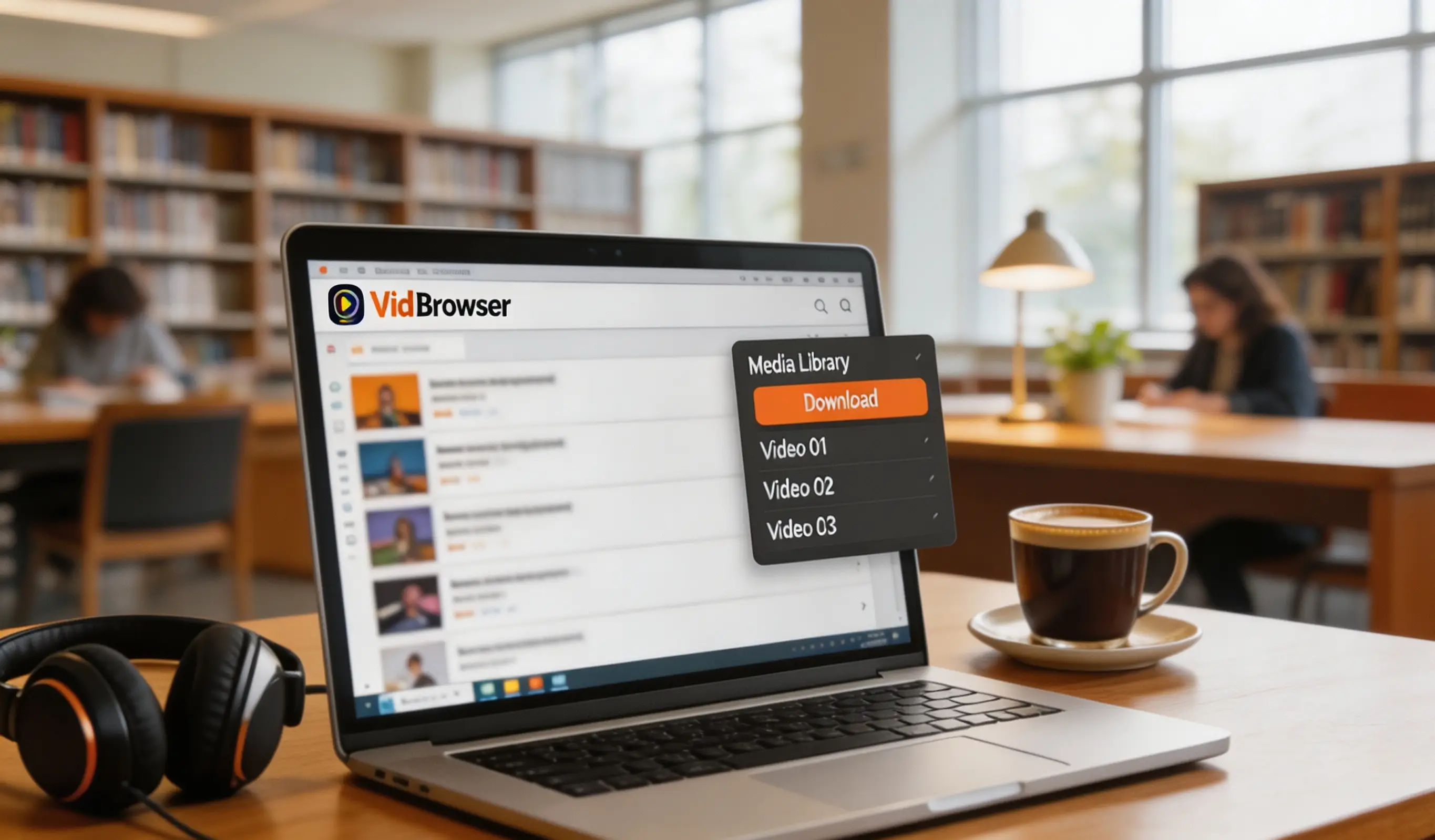
- Replays that have ended: the Video Library panel on the right lists entries with an orange Download button — one click saves an MP4. Long streams often come in several quality tiers, so pick your target in the resolution dropdown before downloading; saving YouTube video at high quality goes into the choice in more detail.
- Streams still running: hover over the picture and the recording controls appear on top — choose a recording speed (1x real time, 2x or 4x to finish faster), click Record All to capture the whole stream, and the record button on the left starts or pauses at any moment. Anything that plays can be recorded.
Step 4: Check the files in your download history
The clock icon in the left navigation lists every task's filename, progress, size, save location and status, so confirm the recording is complete before closing the page. A multi-hour stream can run to tens of gigabytes, so check your disk space first. To compare how other platforms treat replay expiry, our guide to Twitch VOD expiry sets out the differences.
FAQ
Do YouTube replays expire by days like Twitch?
No day counting. YouTube archives have no fixed retention period and can in theory stay on a channel indefinitely — provided the creator does not delete them, change visibility, or get caught by a copyright scan. Twitch deletes automatically once a VOD expires and not even support can recover it, so the two work on completely different logic.
Can I download a stream while it is still running?
No. A live stream is generated and pushed as it goes, with no complete file sitting there to download, and the platform's DVR only lets you rewind rather than export. To keep something currently broadcasting, you have to record it while you watch.
What quality can a saved replay have?
Whatever the highest tier the stream pushed at the time. 1080p is the most common live specification today, and some channels push 1440p or even 4K — you can save whichever tier the page offers.


