
Converted a Video and It Looks Softer? You Picked the Wrong Method
Format conversion is an action that is very easy to apply in the wrong place. Most of the time you think you need it, you do not; on the few occasions you genuinely do, it is easy to pick the wrong method and wash a layer off a picture that was perfectly sharp to begin with.
Before converting anything, separate "won't play" from "won't be accepted"
The first call to make is whether the file "won't play" or "won't be accepted" — the former almost always sits on the playback side and a player fixes it, while only the latter is where conversion genuinely earns its keep.
A double-click that does nothing, or a prompt saying the format is not supported, usually means your player is missing a codec rather than the file being at fault. How to work out whether the problem is the player or the file is something we took apart in sorting out video formats and playback compatibility, so we will not repeat it here.
"Won't be accepted" is a different layer: the file plays fine on your machine but falls over the moment it has to move — an upload is rejected, whoever you sent it to cannot open it, your editing software refuses it, a TV cannot read it. The common thread is that the file has to leave this computer.
The test is blunt: if it plays on your own computer, it does not need converting. Only when the file is heading out the door does it need a shell that more things accept.
Conversion comes in two kinds: one takes seconds, one eats the afternoon
There are really two kinds of conversion: remuxing swaps only the shell — lossless, done in seconds — while re-encoding presses the content down again — slow, and lossy. Not being able to tell them apart is the main reason converted files come out softer than the original.
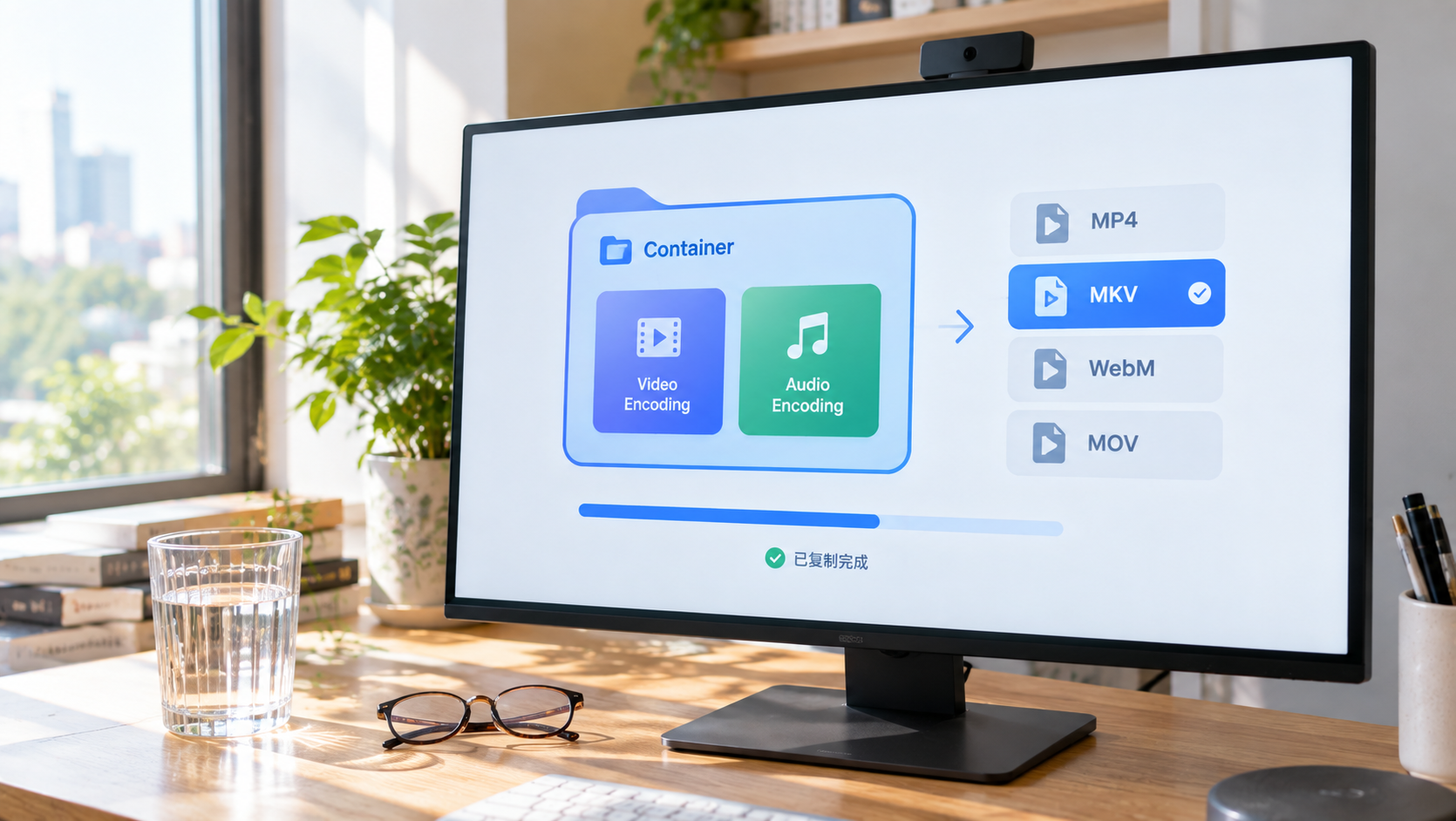
A video file is built in two layers: a container on the outside (MP4, MKV, WebM, MOV) and a codec on the inside (H.264, H.265, AV1). Which layer the conversion touches makes an enormous difference to the result:
- Swapping only the shell (remuxing): the original picture and sound are carried into the new box exactly as they were, not a byte changed — quality is identical, it finishes in seconds, and the file size barely moves
- Pressing the content down again (re-encoding): the picture is decoded first and then compressed once more under the new codec — time measured in minutes or even hours, and every pass costs you a layer of quality
Which one you need comes down to whether the target container can hold the original codec. An example: H.264 sitting inside an MKV, going to MP4 — MP4 holds H.264 perfectly well, so it is a shell swap and finishes in seconds; if the source is H.265 and the output has to be H.264, re-encoding is the only route and the clock starts running immediately.
The technical reference site Codecs for Dummies lists this among the classic beginner mistakes: running a full conversion when only the container needed changing — a dozen minutes wasted and a layer of quality given away for nothing.
Conversion itself does not damage quality; the re-encoding step is what softens the picture. Before you start, ask one question: do I only need to change the shell?
Choosing an output: MP4, MKV, WebM or MOV
The four output formats map to four purposes. None of them is better; they differ only in whether they suit the job in front of you.
- MP4: the box with the widest reach — phones, TVs, browsers, consoles and editing software all take it. Pick it when the file is going to someone else or being uploaded. The safe combination is MP4 with H.264 video and AAC audio; according to the summary at the technical reference site Reformatly, that pairing will play on essentially anything built in the past decade
- MKV: carries multiple audio tracks, subtitles and chapters, which makes it good for your own archive. The cost is that smart TVs and consoles often refuse the container outright
- MOV: the container used across Apple's ecosystem and by camera footage; comfortable to work with on a Mac and a natural fit when importing into professional editing tools
- WebM: an open format designed for playback in the browser, so web embeds stay smaller. Bear in mind that WebM cannot hold H.264 — if the source is H.264, going to WebM means re-encoding, which puts it in the quality-losing category
One line to remember: MP4 for other people, MKV for your own archive, MOV for an Apple workflow, WebM for the web.
Four cases where converting is actually worth it
The situations that truly call for conversion are few, and they share one trait: the file has to be used somewhere else.
- The platform or form only takes MP4: the wrong extension is rejected on the spot
- Whoever you send it to cannot open it: you can hardly expect them to install a player for one file, and MP4 is the least fuss
- Your editing software will not take it: some editing tools have limited support for containers like MKV and WebM, so converting to MP4 or MOV first makes the import much smoother
- Casting it, or reading it on a fixed device: TVs, cars and consoles have narrow support lists and MP4 is the passport. For the compatibility snags that turn up when you build an offline library for a phone, getting videos onto your phone walks through the diagnosis in more detail
Conversely, for watching on your own computer, installing VLC is enough.
Running a conversion inside VidBrowser
Format conversion is a newly added feature in the VidBrowser toolbox, so you no longer need a separate conversion app.
Step 1: Make sure the source file is already on your machine
Format conversion works on files you already have. If the video is still on a web page, save it in VidBrowser first: the "Video Library" panel on the right lists the resources it detects, and clicking the orange "Download" button writes it out as MP4 — you can pick a resolution first if you want. For protected content or live streams that will not download, record instead — moving the mouse over the picture brings up the recording controls, where you choose a speed (1x real time, or 2x / 4x to finish sooner), click "Record all" to capture the whole thing, and use the button on the left to start or pause whenever you like.
Step 2: Go to the toolbox and open "Video Format Conversion"
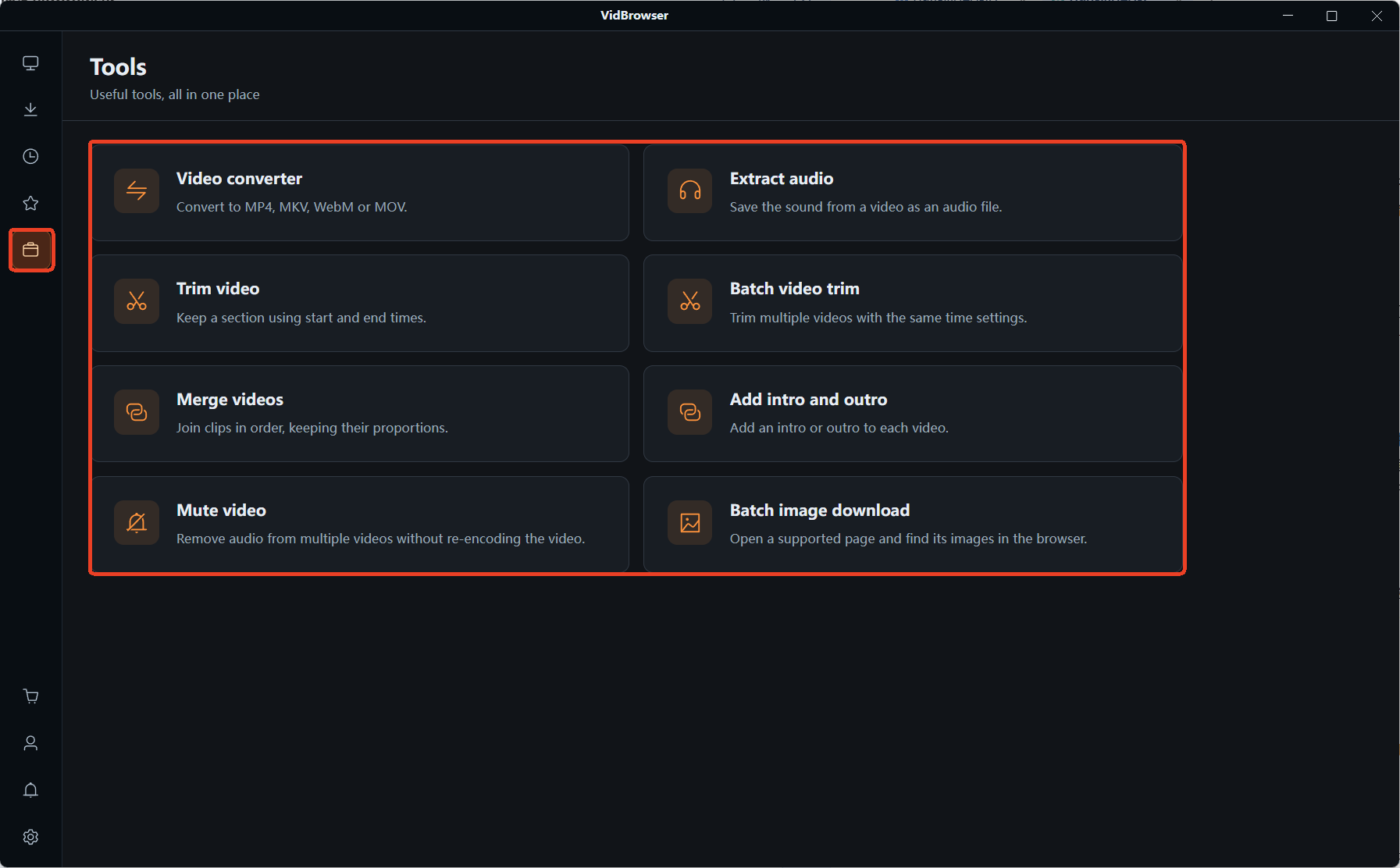
Switch the navigation on the left to the "Tools" page, where a row of small utilities lives. Beyond format conversion there are entries for trimming, merging, extracting audio and more. One other entry in the toolbox is worth using while you are there — downloading web images in bulk by format and size.
Step 3: Add files, then pick the output format and quality
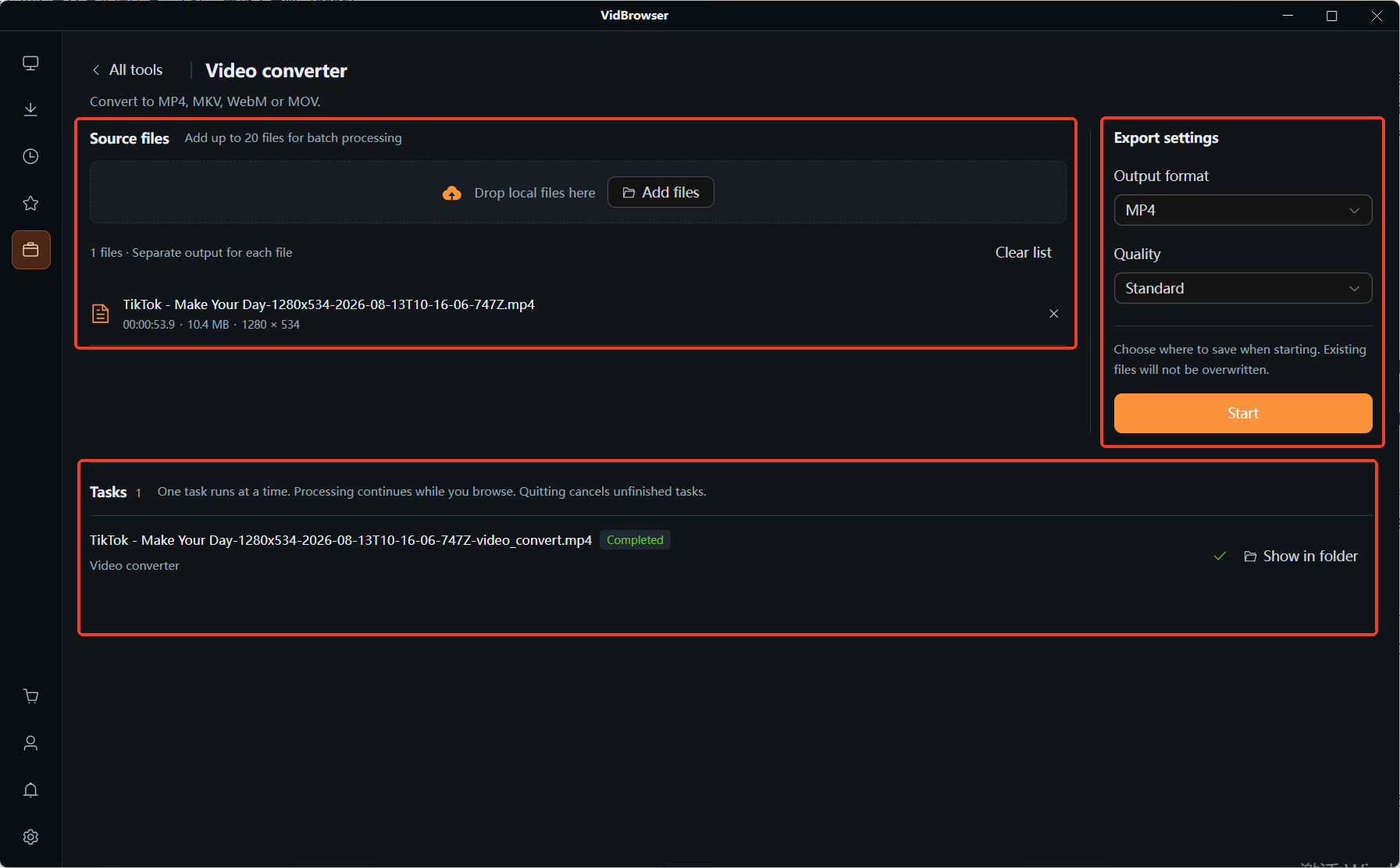
Drag one or more files into the dashed box, or click "Add files"; a single job takes up to 20 files and writes each one out separately. Under "Export settings" on the right, choose the output format from MP4, MKV, WebM or MOV; below that sit two quality tiers, Standard and High quality — the higher the tier, the closer the picture stays to the original and the larger the file. Pick according to the previous section's "what am I doing with it"; MP4 if it is going to someone else. Whether this run turns out to be a shell swap or a re-compress depends on the source codec and the target format, which is the same call over again.
Step 4: Click "Start" and let the job finish in the background
It asks where to save before starting, and an existing file of the same name will not be overwritten. Jobs run in order in the panel below, and switching to another page mid-run will not interrupt them; only quitting the app cancels whatever has not finished. When a job is done the entry is marked "Completed" and the button beside it opens the containing folder — double-click the file and let it play for a couple of seconds to confirm both picture and sound came through.
FAQ
Does converting a video make the quality worse?
It depends which layer you touch. Swapping only the container without touching the codec — MKV to MP4, say, still H.264 inside — gives you quality identical to the original in a few seconds; changing the codec is what forces a re-encode, and a re-encode costs a layer. The way to check: confirm what codec the source file holds and whether the new container can carry it.
The upload says the format is not supported. Will MP4 get it through?
Not necessarily. MP4 is only the shell, and what a platform actually checks is usually the codec inside — an MP4 holding H.265 can be turned away just the same. A safer output combination is MP4 with H.264 and AAC, which has the widest compatibility of any of them.
Should I convert my MKV, MOV and WebM files all to MP4 so everything matches?
There is no need to convert for tidiness alone. For watching yourself and for archiving, MKV's multi-track and subtitle support is actually more useful; it is only for sharing, uploading, importing into editing software and casting — the uses that take the file somewhere else — that it is worth doing. The basis is the purpose, not which format is better.


