
VPN on and downloads stall? Three common blocks explained
The video streams just fine, but the moment you hit download it fails, and retrying stalls at the same spot; or it worked last night, yet today with the VPN on nothing will come down. When the environment changes and downloads break, the first instinct is to blame the download tool, but the tool is rarely the cause — a VPN or proxy rewrites the download route itself. This piece breaks down the three most common blocks, each with a check you can run on the spot.
Streams play fine but downloads keep failing? Start with a 30-second triage
The fastest way to locate responsibility: turn off the VPN or switch the proxy to direct connection, then download the same video again. If it works, the environment is confirmed — match your case against the three blocks below. If it still fails, the cause lies elsewhere: no entry appears in the list at all, that is a detection-layer issue; an entry stuck at 0 means the request never settled, and the troubleshooting order is laid out in the download-stuck-at-0 guide; progress moving but slow is a speed problem, covered in how to troubleshoot slow downloads. The triage takes under half a minute and stops you tuning the wrong settings in the right tool.
Why does a VPN hurt downloads more than streaming?
Same VPN tunnel: streaming copes, downloading cannot — the difference is the fallback. Playback is a stream: data arrives and plays, missing pieces just buffer, and quality can drop on its own without the viewer noticing. A download is one complete file: every byte from first to last must arrive, one lost stretch ruins the whole file, and there is no reduced version to fall back on. The speed loss and jitter a VPN adds may cause an occasional spinner during playback, but on a download they mean timeouts and failures. The bigger the file, the longer the transfer runs and the more chances something goes wrong — which is why the same node that streams smoothly keeps stalling a two-GB download midway.
Do the page and the video travel the same route? The hidden split of tunneling modes
The most common block: split-tunneling rules send the login and the file down two different routes. Many proxy apps default to rule mode: the site itself goes through the proxy while media-file domains connect directly, or the reverse. The trouble is that many platforms keep video files on a separate file domain, so you log in from one IP and hold the permissions, yet the download request leaves from another IP. Platform risk control sees exactly that mismatch — the session comes from A, the file request from B — and blocks the media request; from your side it looks like a dead download button or an instant error. Switching nodes midway, or a VPN drop that reconnects onto a new address, counts the same as IP drift and cuts off running download tasks. One boundary worth drawing: if playback itself is the problem — endless spinner, black screen, nothing loads — that is a separate track, covered in what to do when a VPN affects playback; the causes and the fixes do not interchange.
Two more blocks: overloaded nodes and network content filtering
The node itself buckling is the second; the network actively blocking is the third. Free or popular nodes often overload at evening peak: latency drifts, packets drop, short requests squeeze through, but a download that must hold a connection for tens of minutes dies on one timeout. The third is stealthier — proxies on company and school networks exist to manage traffic in the first place. Cloudflare's explainer on proxy servers uses exactly that example: a school network enforces content-filtering rules through its proxy, deciding which requests pass and which get stopped. Large file downloads are precisely what such rules catch first. The check is simple: download the same video on a home network — if it goes through, the block lives in that network, not on the platform or in the tool.
How to tune the setup for stable downloads over a VPN
The core idea: keep the whole download on one route, and travel when the node has room. Adjustments that work right away:
- Fix one node for both browsing and downloading and do not switch midway; the buying guide covers how frequent node switching trips platform risk control, and downloads follow the same rule, with the full trade-offs in the OnlyFans VPN buying guide;
- Before downloading, switch the proxy app to global or direct mode so the login and the file take the same route, avoiding the split from the previous section;
- Keep big files away from evening peak and away from company or school networks with traffic management;
- Check the file size before you start and leave enough time for a long transfer — do not start a two-GB download five minutes before heading out.
With these in place, most environment-type failures disappear. If a direct connection still fails, return to the three-layer comparison in the first section — the troubleshooting paths there are ready to follow.
Once the environment is sorted, save the videos you want to keep
Once the network is stable, saving takes a few minutes:
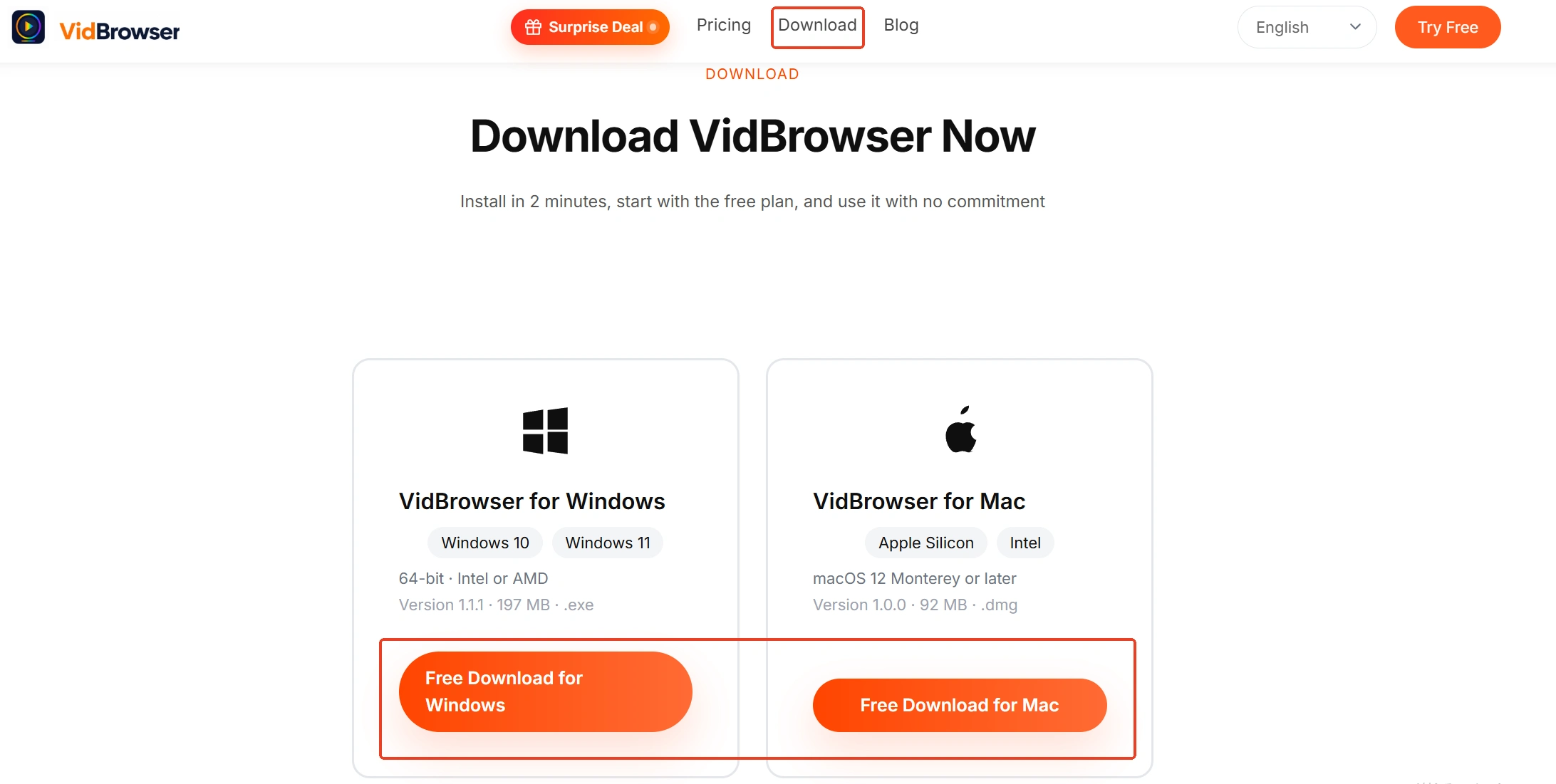
Step 1: Download and install VidBrowser
VidBrowser is a desktop video browser for Windows and Mac to watch videos, clip segments and save them locally, with downloading and recording built in; installation takes a few minutes.
Step 2: Open the platform and sign in
Open the platform you subscribe to inside VidBrowser and sign in; subscription status and content permissions work the same as in a regular browser.
Step 3: Download videos that allow downloading
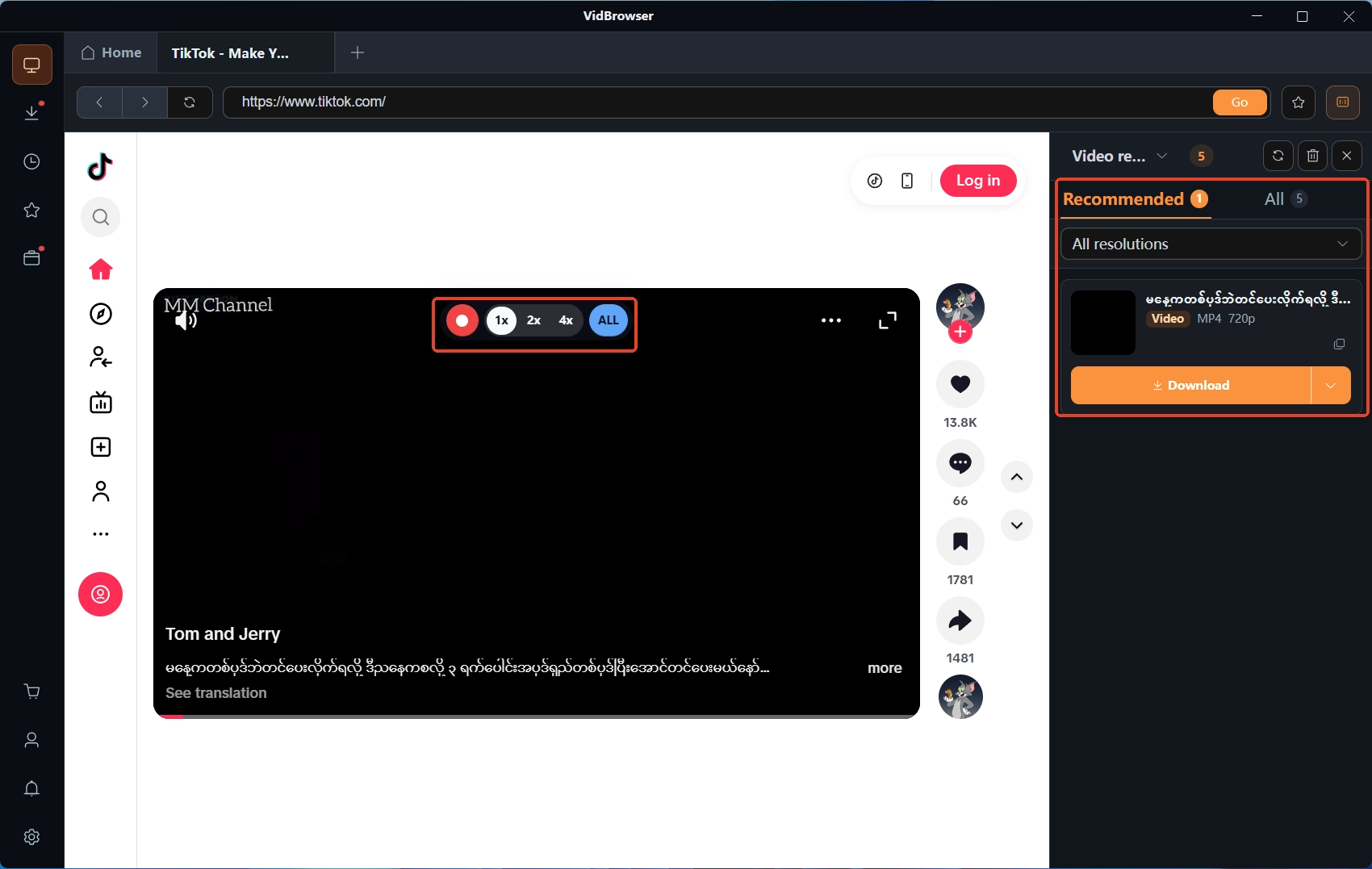
While playing, the video media library on the right lists the detected videos, each with an orange download button — one click saves it as MP4, and you can filter by resolution first to pick the spec. The clock icon on the left shows the progress, size and save location of every task.
Step 4: Recording as the fallback
For protected content without a download entry, use recording: hover the mouse over the picture and the recording controls appear, pick a speed (1x real time, 2x or 4x to finish faster), press record-all for the whole video, and the record button on the left pauses anytime — whatever plays can be recorded.
FAQ
Does turning off the VPN to download expose my privacy?
What changes is the access layer: without a VPN, the manager of your local network can see which platform you connected to. You are downloading content you already have permission for, and the file stays on your device — nothing is sent to a cloud. If privacy matters, schedule downloads on a fixed node at a fixed time, then go back to the VPN for browsing as usual.
Will switching to another node make downloads faster?
Moving to a lower-load node usually brings a clear improvement, but the idea is to settle on one stable node rather than switch back and forth mid-download — frequent switching is itself the source of IP drift and breaks tasks more often. Switch first, then start the download.
Does switching the proxy to global mode make downloads stable?
Global mode removes the route split, but it pushes all traffic into one tunnel, raising node load and speed loss. For large file downloads a direct connection is the better pick; when a proxy is required, pick an off-peak slot on a low-load node — that works better than switching modes alone.


