
Buying on ManyVids: files you keep versus access that expires
Open a ManyVids store page and the first thing you notice is usually not a subscribe button but the price tag on each video: two or three dollars for a short clip is common, and further down there are monthly bundle subscriptions and a site-wide membership. It works less like a feed-based subscription platform and more like a marketplace where every creator runs their own shop — how the money is spent, and whether you end up with a file or a window of access, depends on which option you pick.
This guide takes the ManyVids payment structure apart: how single-video purchases work, how Vid Bundle pricing and scope are set, where to find what you bought, and which route to choose when you want to keep videos on your own disk.
What is ManyVids? Three ways to pay: single purchase, bundle and membership
ManyVids is a creator-store platform launched in 2014, with three ways to pay: single-video purchases, Vid Bundle subscriptions and the site-wide Premium membership.
On ManyVids, creators price, list and discount each of their videos individually, and buyers pick exactly the clips they want without subscribing to anyone first. The platform also has live streams, a feed and custom content sections, but the shop-and-checkout single-purchase path remains the backbone.
- Single purchase: add the video card to the cart and check out in one go. The product page lists the resolution, file type, duration, and whether the video offers a download — a detail that matters later.
- Vid Bundle: a creator bundles some or all of their videos into one subscription; you pay for the term you pick and can watch everything inside the bundle while it stays active.
- Premium membership: the site-level membership. The official homepage sells thousands of videos, monthly additions and site features — a fit for browsing buyers who have not settled on specific creators yet.
The money means different things in each case: a single purchase buys that one video itself, while the other two buy access for a period of time. That difference shapes how you should approach saving content, and it is the main thread of this piece.
How does a Vid Bundle work? Terms, pricing and scope are set by the creator
The official definition of a Vid Bundle is "packaging some or all of a creator's videos into a single subscription service"; members pay per subscription term and access stays valid while payments continue.
The rules are written in the official help center: subscription terms come in four tiers — 1, 3, 6 or 12 months — with each tier priced by the creator between 39.99 and 999.99 US dollars, and a creator needs at least 5 videos on sale before they can open a bundle. The "$0.39 / Vid" fine print in the homepage bundle section is simply the bundle price spread across each video.
Bundle scope has three states, which is the biggest difference from a whole-store package: Included, inside the bundle; Excluded, left out and still sold separately; Exclusive, only available through the bundle. The same store can hold videos you can only see by subscribing and videos you must buy on their own, so read the scope before you order.
One more rule matters even more to buyers: access is tied to the subscription. The official wording is that access continues while the member keeps paying and billing runs automatically — the month you stop renewing, everything inside the bundle expires with the term. It feels like grabbing a batch at once, but mechanically it is closer to subscribing than owning. For what can happen when a platform side changes, what officially happens to content after a Patreon creator stops or deletes their account makes a useful reference.
How do you find and save the videos you bought?
Purchase records live in Purchase History; the official way back in is to open the three-dot menu on the right of an entry and choose Stream or Download as needed.
The buying path is straightforward: Add to Cart on the product page, Checkout in the cart at the top right, pick a payment method and complete the order — or top up MV Wallet first and spend the balance. Everything you buy lands in Purchase History, where the three-dot menu offers Stream (watch online), Download (save the file) and View Invoice (the receipt) — replaying, re-downloading and reconciling all happen in one place.
Whether a video can be downloaded is visible before you buy: the product page states whether a download is offered, and bundle videos set to Stream Only come with no download option either. When a download is available, use the platform's own Download first; for protected content where no download option appears in the interface, recording is the normal path if you want a personal offline copy.
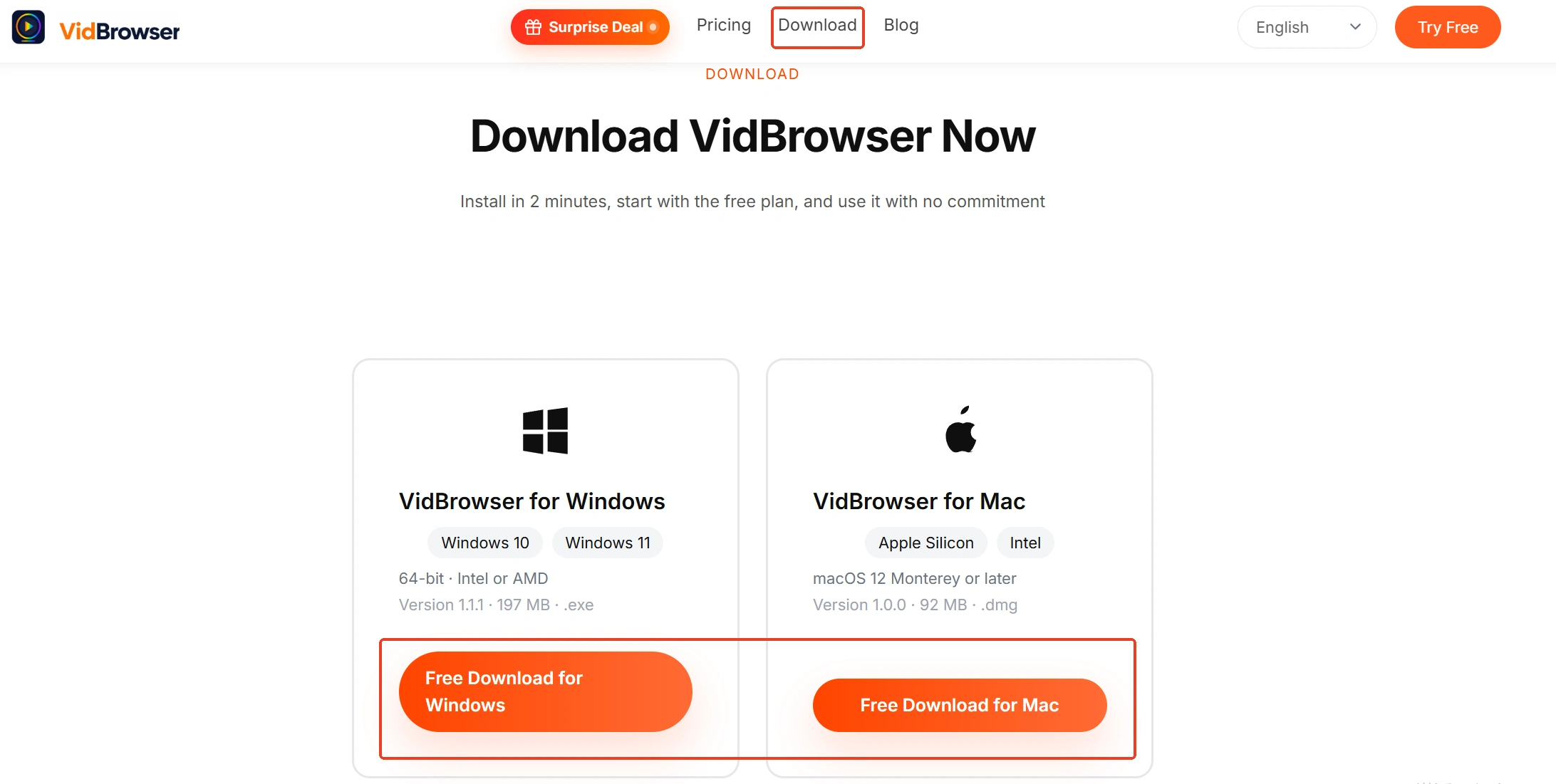
Step 1: Download and install VidBrowser
The installer is on the VidBrowser website, with Windows and Mac versions. VidBrowser is a desktop video browser with video download and recording built in.
Step 2: Log in to ManyVids and open the entry you want to keep from Purchase History
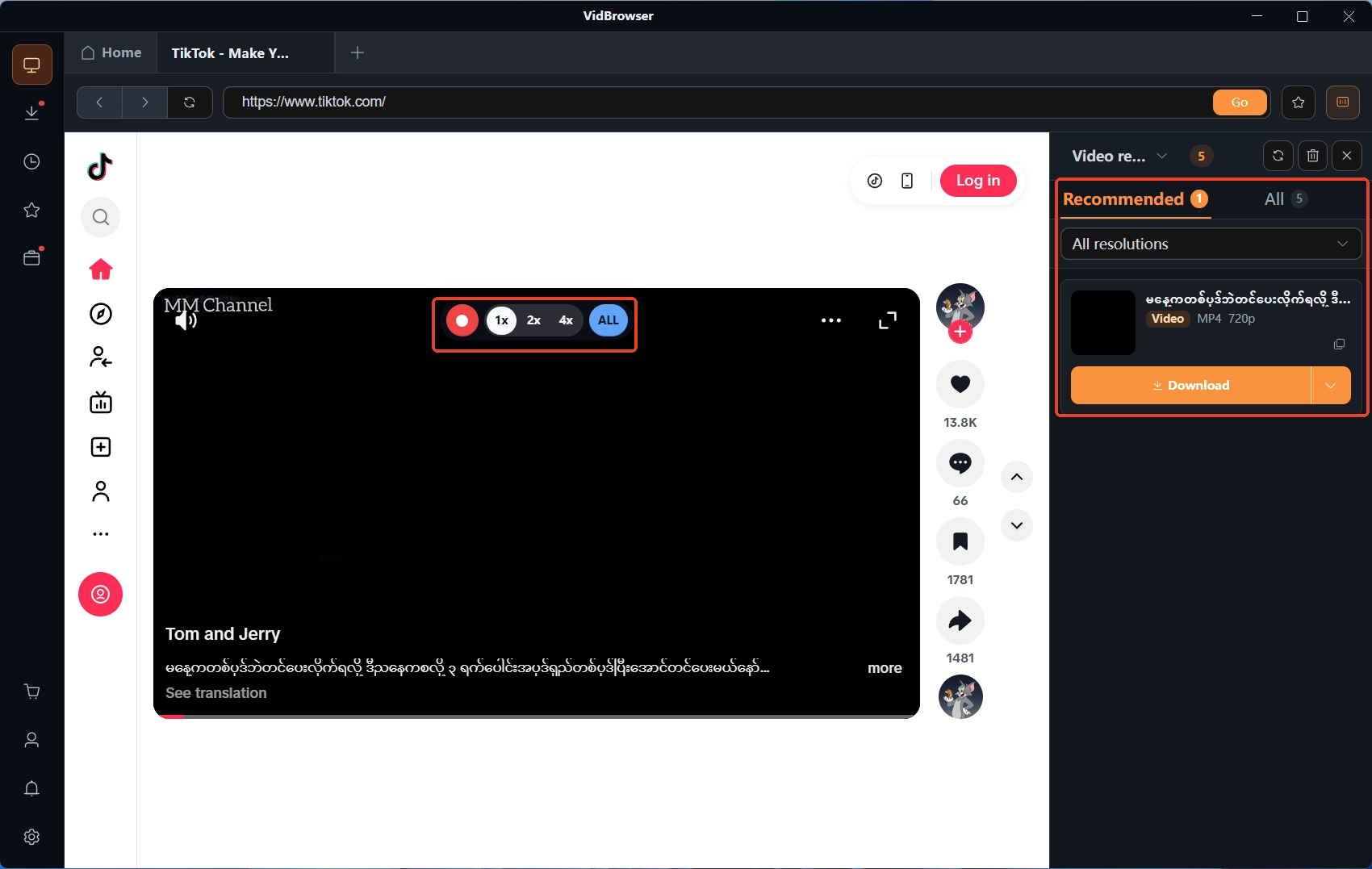
Click Stream to play the video inside the embedded browser and confirm the picture looks right before you save anything.
Step 3: Pick the saving method that matches the entry
When the video media library on the right detects the video, click the orange Download button to save it as MP4, choosing a resolution first if the dropdown offers one; for protected content with no download option, hovering over the picture brings up the recording controls — pick 1x for real time, or 2x and 4x to finish faster, Full recording to capture the whole video, with the record button on the left pausable at any time.
Step 4: Open the download history and check the results
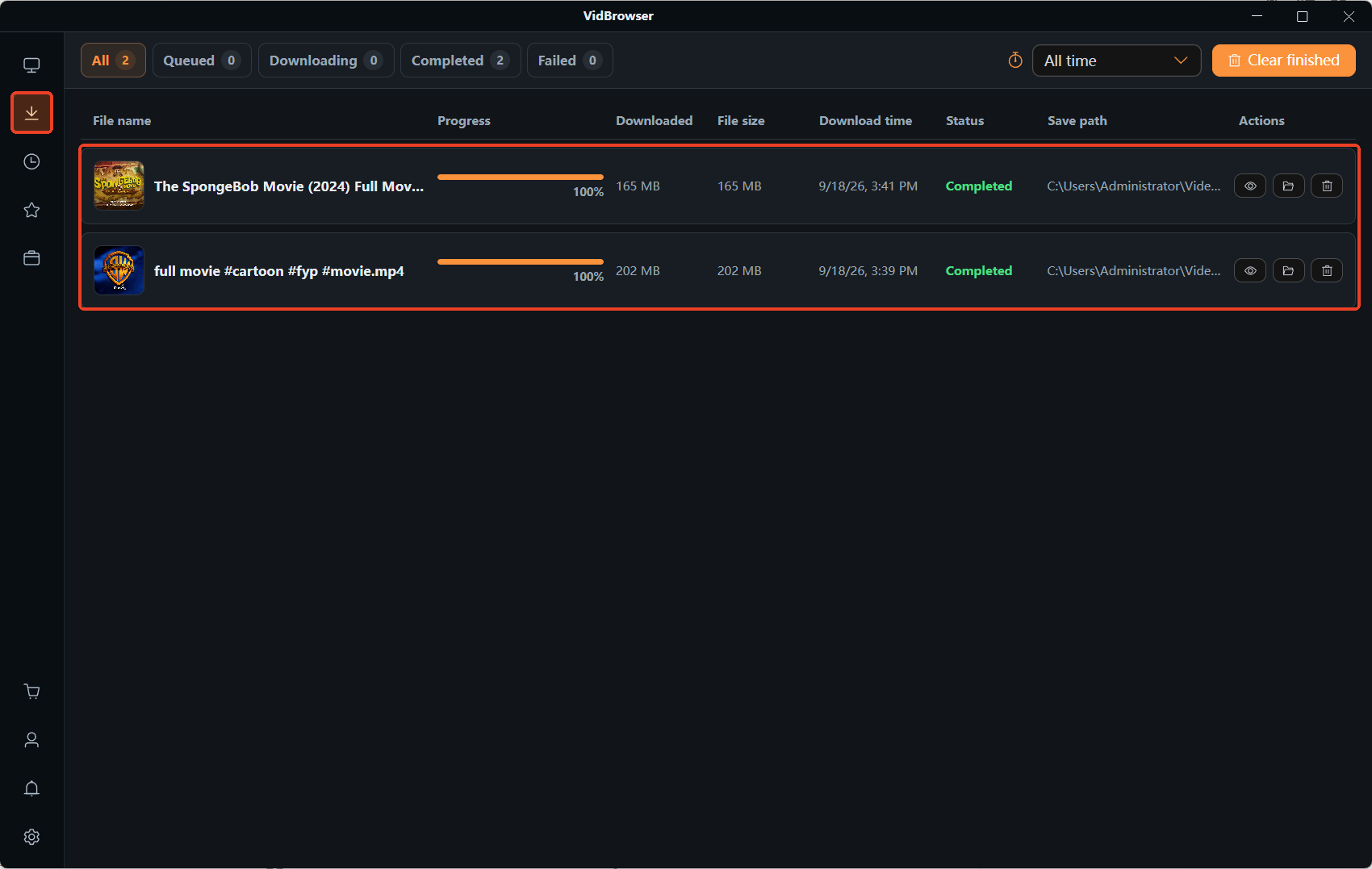
Click the clock icon in the left navigation: every task takes one row, scan the statuses first, then verify the save locations. The full row-by-row routine is covered in the download history guide.
Buyers who purchase Vid Bundles in batches have even more reason to build this habit: one subscription delivers many entries, and saving as you watch beats catching up after the term ends. For a step-by-step saving walkthrough, the site already has a how to download ManyVids videos guide to read next; this piece fills in the mechanics — how the money is spent and how access is counted. Get those two straight and you will not pick the wrong saving route.
Frequently asked questions
If a Vid Bundle is not renewed, can I still watch the videos inside?
No. Access is tied to the subscription, and the official wording is that access continues while payment continues; once the term ends, everything inside the bundle expires with it. Single purchases are unaffected and remain available in Purchase History.
How do I know before buying whether a video can be downloaded?
Check the product page listing: beyond resolution, file type and duration, it also states whether a download is offered. Videos inside a Vid Bundle set to Stream Only come without a download option too — read that line before you order and you will not be stuck after paying.
Do single purchases and a Vid Bundle mix in the same store?
Yes. Creators can set each video to Included, Excluded or Exclusive: some go into the bundle, some stay outside and keep selling separately, and some become bundle-only. An Exclusive tag means you cannot get that video without subscribing to the bundle; an Excluded tag means buying it on its own.


