Fansly Videos Not Playing? Fix It by Symptom in 5 Minutes (2026)
You subscribed to a creator you love, tapped the video, and it just keeps spinning, shows a black screen, or throws an error — do not blame your network yet. On Fansly, many "won’t play" cases are not faults at all: the content is simply locked. And the part that is a genuine playback fault can usually be diagnosed within minutes. This guide traces the cause back from the symptom you see, with only the checks that actually help.
Fansly Videos Not Playing: a Real Fault or Just Locked?
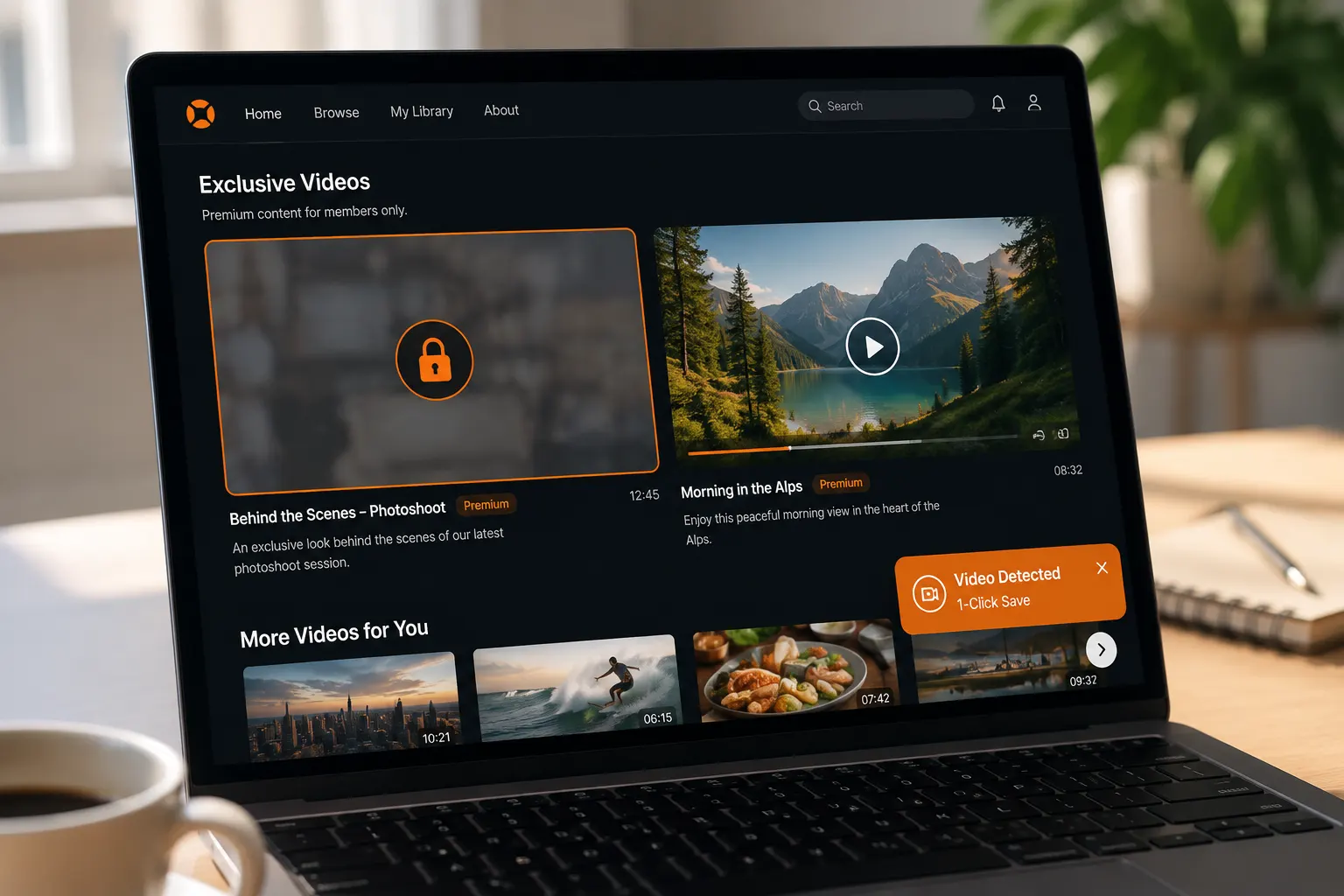
There is only one way to tell: look for a lock icon and a blurred overlay on the player — if they are there, nothing is broken; your access is just not in place. Under Fansly’s media permission system, creators can lock a video in five ways: pay-per-view (PPV), a specific subscription tier, followers-only, a specific fans list, or limited-time access. If any one of them is not satisfied, the video will not play.
On the page this shows up as three typical states, each handled differently:
- Blurred preview: many creators attach a free teaser to a locked video, and the blur is just a preview feature. To watch the full version, unlock it as prompted
- Lock icon: tap the lock and Fansly will tell you exactly what this content needs — a PPV purchase, a tier upgrade, or something else
- "No content published yet": this is the creator’s side status, not your problem — just wait for updates
Watch out for one common trap: a subscription does not unlock everything. Creators set their own tier prices (the highest documented in Fansly’s official docs is US$499.99), and higher-tier-exclusive videos and PPV content all cost extra — those "won’t play" cases are normal business logic. Telling them apart saves you most of the wasted troubleshooting.
Four Playback Symptoms, Four Causes
Once access is ruled out and it still won’t play, match your symptom below instead of trying every method one by one.
- Endless spinning: most likely a network path issue. First force-refresh with Ctrl+F5 (Command+Shift+R on Mac) to bypass the local cache and reload; if that fails, test another network — for example your phone’s hotspot. If it plays on the hotspot, your broadband or router is the culprit, and switching to a public DNS (1.1.1.1 or 8.8.8.8) usually fixes it
- Black screen with sound, or a greenish picture: a classic hardware acceleration symptom — an outdated GPU driver or a conflict with the browser version corrupts the decoded picture. Search "hardware acceleration" in the browser settings, turn it off, fully restart the browser, and in most cases it recovers on the spot
- Stops after a few seconds: buffering can’t keep up. Close background downloads, pause videos on other devices, or drop the quality to 720p; if it happens often, check whether a proxy or security software is filtering video traffic
- Direct error message: memorize the exact error text, then open the same video in a different browser — if it plays there, the original browser is at fault (an extension, cache, or corrupted profile, see the next section); if it still errors, suspect your account or the platform
By the way, how ad blockers and VPNs interfere is covered in detail in our LoyalFans fix guide — the mechanics are the same, so we won’t repeat them here.
Two Obscure Culprits: System Clock Drift and a Corrupted Browser Profile
If everything above has been checked and it still won’t play, two little-known causes deserve a look.
The first is an inaccurate system clock. Fansly’s login state relies on time-stamped credentials; if your computer’s clock is a few minutes fast or slow, credential validation can fail — pages load but all video requests get rejected. Check that the system time syncs automatically and the time zone is correct, then log in again.
The second is a corrupted browser profile. A long-used profile is full of leftover configurations and extensions, and a single corrupted setting can break just one site. The test is simple: create a clean browser profile (or log in in an incognito window). If everything works there, migrate your bookmarks over, reinstall extensions selectively, and stop trying to repair the old profile.
Billing-Side Checks: Expired Subscriptions, Wallet Balance and PPV Purchases Not Taking Effect
Once you have ruled out playback faults, remember that Fansly’s billing mechanics themselves can also make content "unwatchable".
- Subscription expiry: canceling on Fansly cancels "auto-renewal" — access is kept until the end of the current billing cycle, and the page shows a Sub Expire Date rather than cutting you off immediately. You may think you are still subscribed when you have actually expired — the safest check is the Subscriptions page
- Insufficient wallet balance: the Fansly wallet is prepaid, and small PPV purchases are auto-charged to it; when the balance is short the purchase never takes effect, so the content stays locked. Top up, then tap unlock again
- PPV purchased but not unlocked: payment delays happen occasionally — log out and back in first; if it is still locked, contact support through the on-site Help button with the transaction ID from your Transaction History
We cover these billing details and how to choose payment methods more fully in our Fansly beginner’s guide.
Once Playback Works, Save the Fansly Videos Worth Keeping
Playing is only step one — when your subscription expires, that content disappears along with your access, so archive the keepers now.
It only takes a few steps:
Step 1: Download and install VidBrowser
VidBrowser is a desktop video browser with built-in download and recording features, available for Windows and Mac; installation takes only a few minutes.
Step 2: Open Fansly in VidBrowser and log in
Open the Fansly website like in any regular browser, log in to your account, and go to the creator page with the video you want to save.
Step 3: Play the video you want to save normally
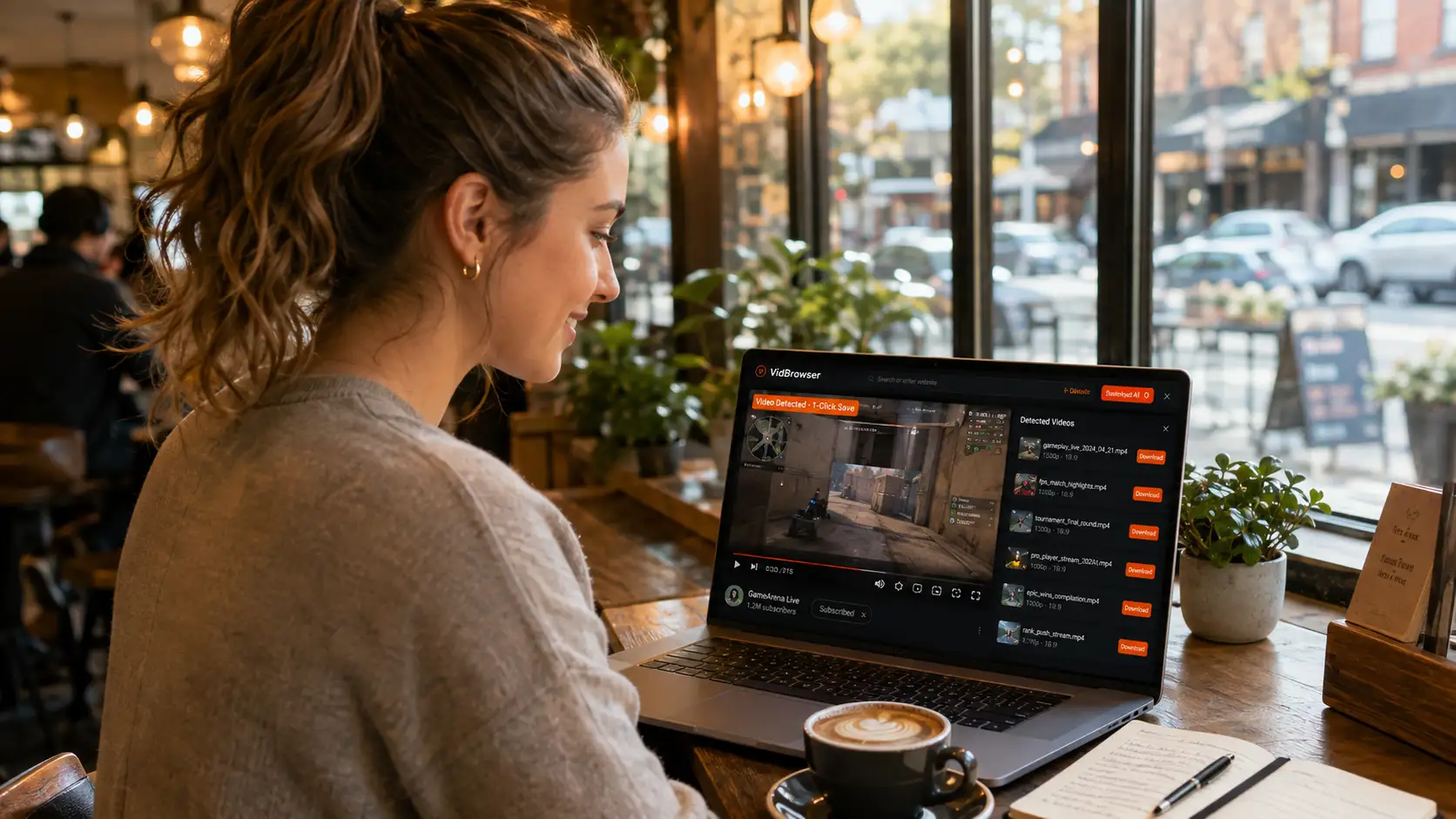
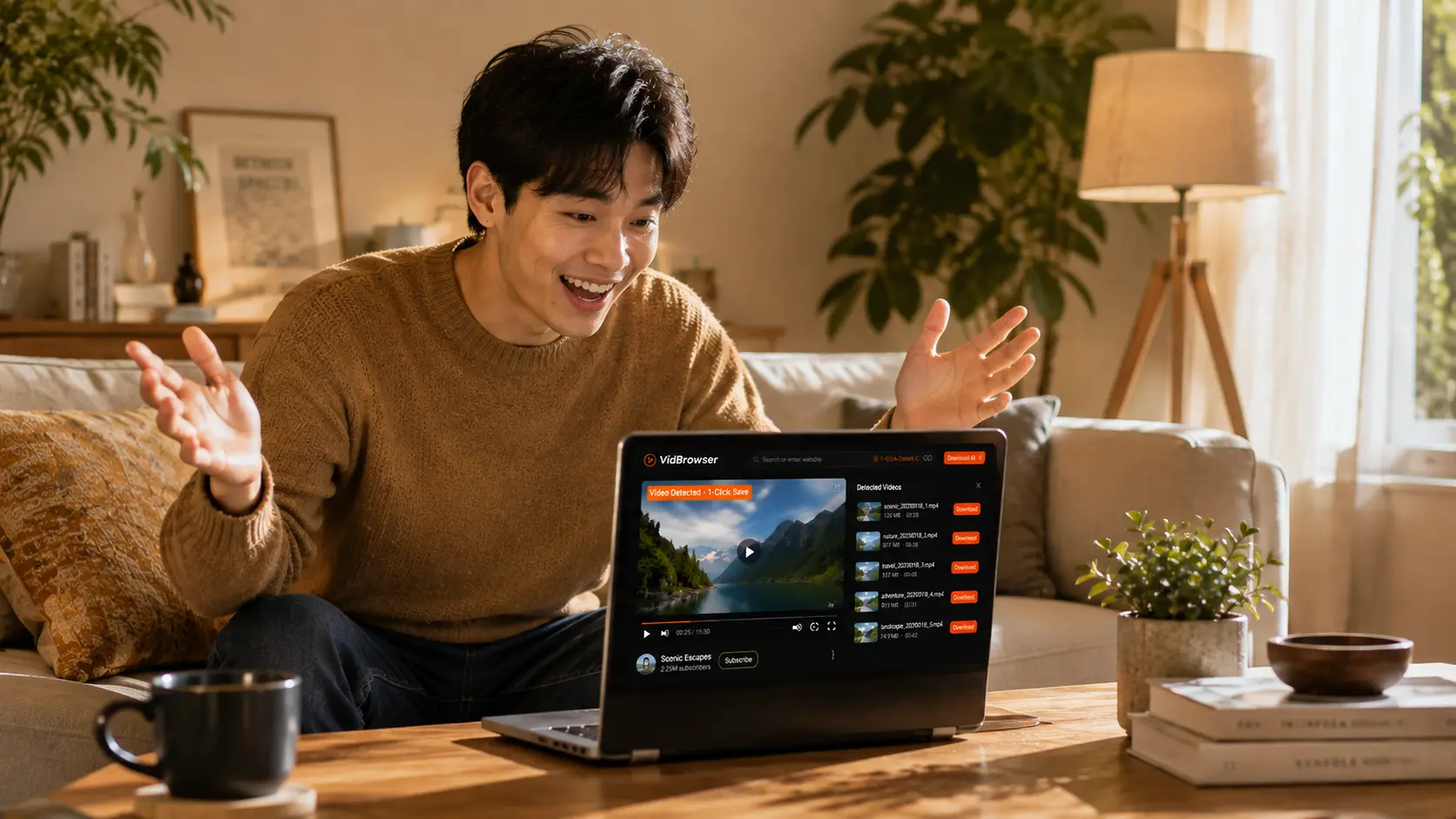
Open the video and let it start playing — VidBrowser automatically detects the video resources on the page in the background.
Step 4: Use the recording feature (the first choice for protected content)
Videos on subscription platforms like Fansly are mostly copyright-protected and out of reach for ordinary download tools, so VidBrowser’s recording feature is the most reliable way to save them: move your mouse over the video and recording controls appear as an overlay — pick a recording speed (1x real time, or 2x/4x to finish faster), hit "Record All" to capture the entire video, and the record button on the left can start or pause at any time; anything that plays can be recorded. If the video can be downloaded directly, the "Video Library" panel on the right also lists entries with an orange "Download" button — one click saves it as MP4 (you can pick a resolution first).
Step 5: Check the file in download history
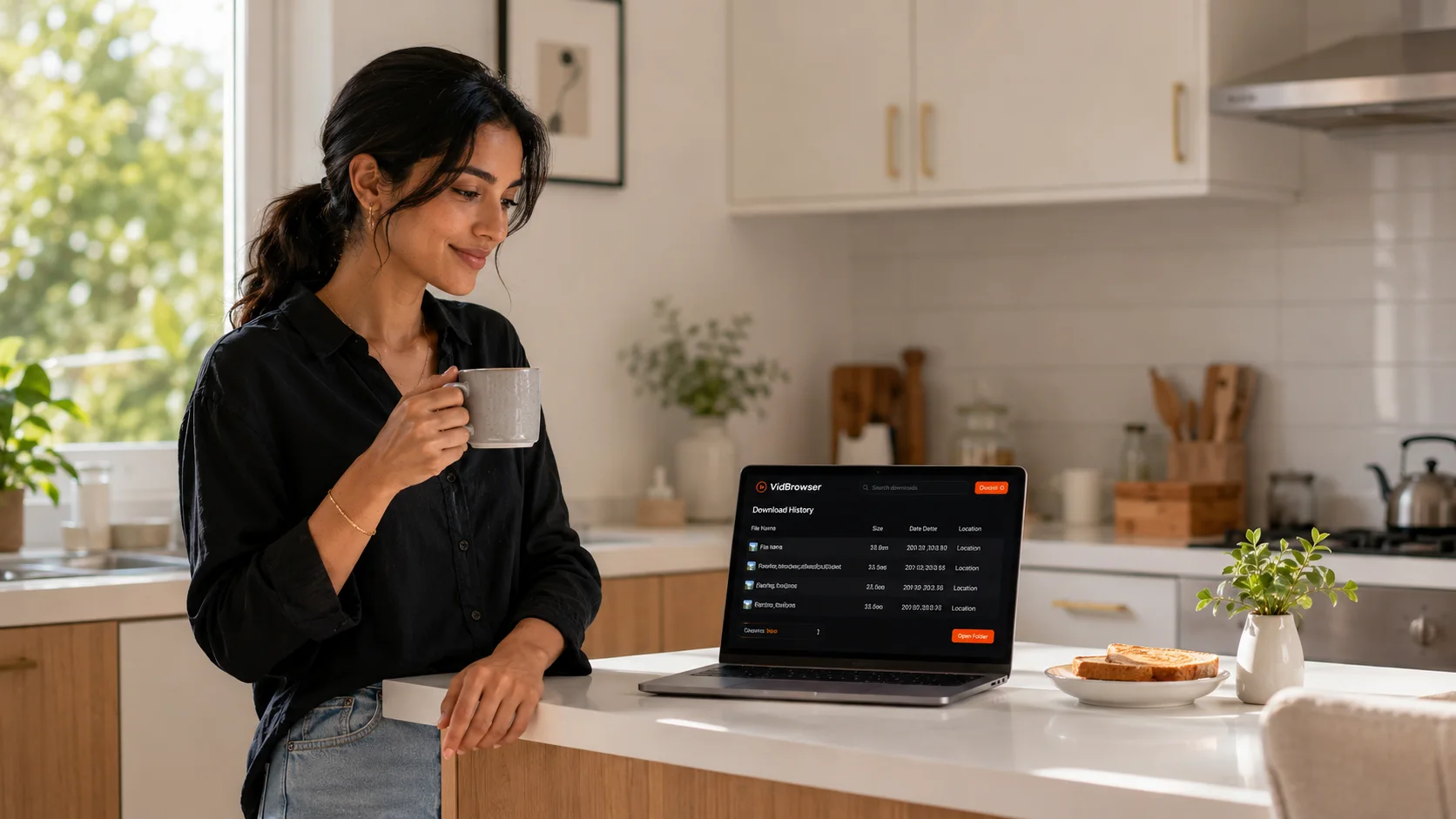
The clock icon in the left navigation shows all download and recording records, including file name, progress, size and save location — once the file is complete, you can watch it offline.
For more saving methods, see our Fansly video download guide.
FAQ
Can switching browsers fix a Fansly video black screen?
Sometimes, but checking hardware acceleration first is more efficient. A black screen with sound or a greenish picture is almost always a GPU decoding issue — turn off hardware acceleration and restart. Switching browsers suits "error-message" cases: if it plays in the new browser, the old one’s configuration or extensions are at fault. Also note the difference: this is about online playback — if what is black is a file already downloaded and saved locally, that is a different problem; see our downloaded video black screen fix.
Why can’t I watch a video even though I’m subscribed?
A subscription tier only unlocks the content the creator placed in that tier. PPV-only, higher-tier-exclusive and limited-time videos are not included — tap the lock icon on the video to see exactly which condition is missing. When the subscription expires you lose all access as well.
I’ve tried everything and it still won’t play. What now?
First check whether it is a temporary platform-side fault — wait half an hour and retry, or check social media to see whether other users are affected too. Once it is clearly just you, submit a ticket through the on-site Help button with the exact error text, your browser version and the video link, so support can verify your permissions and transactions.