
How to Manage OnlyFans, Fansly, LoyalFans Subscriptions on a Budget (2026 Guide)
Two creators on OnlyFans, one on Fansly, one each on LoyalFans and JustForFans — at the end of the month your bank statement shows seven or eight charges stacked together, adding up to double what you expected. Almost anyone subscribed to multiple platforms runs into this: each subscription looks cheap on its own, but together they become a serious monthly expense — and you often pay twice for the same content. This guide lays out how to manage multi-platform subscription budgets so you can follow it in 2026 and spend only where it truly counts.
Why Real Multi-Platform Subscription Costs Always Blow the Budget
Bottom line: multi-platform overspending comes from three core causes — stacked auto-renewals, paying twice for duplicate content, and budgeting only subscription fees while ignoring extras — and when all three combine, real spending often reaches twice the estimate. Look at a realistic combined bill first:
- OnlyFans, 2 creators: $12 + $15 = $27
- Fansly, 1 creator (mid-tier): $20
- LoyalFans, 1 creator: $10
- JustForFans, 1 creator: $12
- Occasional PPV and tips across platforms: $25
Total 40. According to common subscription behavior data, users subscribed to 3+ platforms routinely overspend by 50%-100%. Overspending is not simply "too many subscriptions" — it is the result of three structural causes stacking up:
- Stacked auto-renewals: every platform renews automatically by default, so 5 platforms mean 5 charges on different dates. Each line looks small, but together they run out of control.
- Paying twice for the same content: many creators post on multiple platforms at once. Subscribe to the same creator on OF and Fansly and you are paying twice for the same content — the most hidden and most wasteful item.
- Budgeting only subscription fees: you plan for the subscription price and forget PPV, tips, and paid DMs — according to industry data, extra spending averages 40%-50% of total spending for subscription platform users.
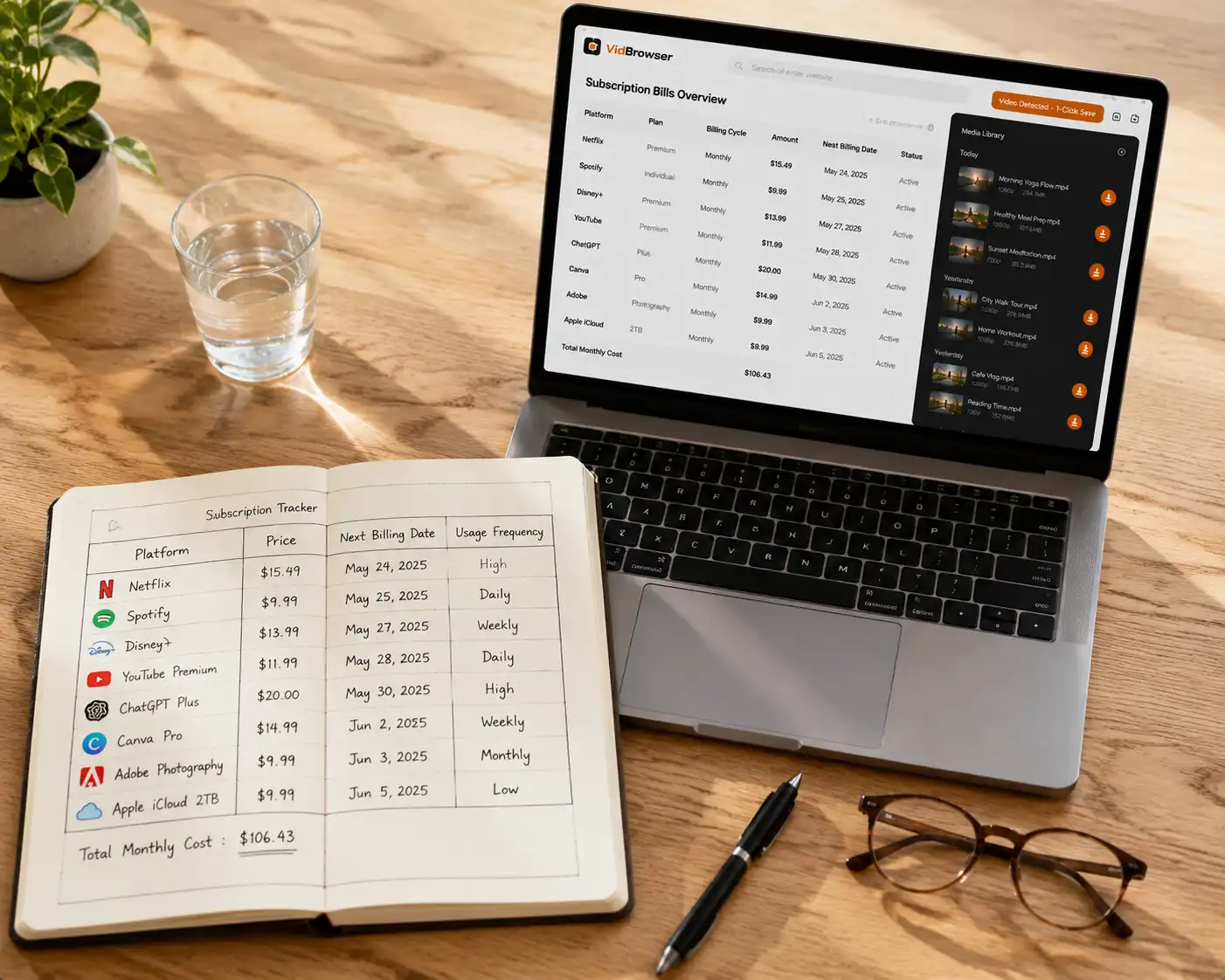
Multi-Platform Budget Management: Build a Ledger First, Then Set a Cap
The core method has two steps: build a "subscription ledger" that records every payment, then set an overall monthly cap to control the total. The ledger is the foundation, with three must-fill columns:
- Platform + creator + price: what each subscription belongs to and what it costs (for example "OF - creator name - $15/month").
- Renewal date + auto-renewal status: each platform charges on a different day; write it down so you know which charge hits when.
- Usage in the last 30 days: how many times you opened it and how much you watched — the only objective basis for deciding whether to keep it.
Once the ledger is ready, set the cap: decide "the most I'll spend per month across all platforms" (for example 20 / Fansly 15). When the budget is used up, a new subscription only gets in if an old one is cancelled — the cap controls the total, the ledger controls the details, and only together do they keep multi-platform subscriptions in check. (For a single-platform breakdown, see our guide to OnlyFans real monthly cost; multi-platform works the same way applied to every platform.)
Content Overlap Is the Hidden Waste: How to Avoid Paying Twice for the Same Creator
The biggest waste in multi-platform subscriptions is not the number of subscriptions — it is paying twice because one creator reposts the same content on several platforms. According to a creator economy study, over 60% of creators ran 2+ subscription platforms in 2025 — which means "3 subscriptions on 3 platforms" may really be "the same person posting on 3 platforms".
Three ways to avoid paying twice:
- Find the home platform before subscribing: creators usually have one main platform (most frequent updates, most content, most fan interaction), and the others are just mirrors or funnel pages. Find the home platform and subscribe there only — the test is simple: whichever platform updates most often and has the most history is the home.
- Compare content across platforms: if a creator posts on both OF and Fansly, check both feeds before subscribing — if content is basically the same, subscribe to the cheaper one; if each has exclusive content, then both are justified (for tier and content structure differences, see our 5-platform comparison).
- Test with free posts first: follow the free account or free feed before subscribing to confirm that "this platform's version of this content" is worth paying for separately before committing on multiple platforms.
Multi-Platform Saving Strategy: Rotation and Monthly Reviews
You don't have to subscribe to everything at once — rotating subscriptions plus a monthly review covers far more content with the same budget. Combine the two strategies:
- Rotate subscriptions: a subscription buys "access for a period", not "ownership forever". When the creators you want to follow are concentrated on platform A, put your budget there; when your interest moves to platform B next month, cancel A and subscribe to B — the same $50 budget, rotated across 6-8 creators, beats subscribing to 5 platforms at once. (For the cancellation steps, see our how to cancel an OnlyFans subscription; other platforms work the same way.)
- Monthly review: pick one fixed day each month, open the ledger and go through every line — "Did I watch this month? Do I still want it next month?" Cancel anything with two "no"s; if in doubt, cancel first (you can always resubscribe). One review typically cuts 20%-30% of dead subscriptions.
- Use discounts and trials: multi-platform users especially should grab free trials and limited-time discounts — try before you subscribe and save a lot of trial-and-error cost (see our OnlyFans saving guide and Fansly discounts and free trials).
In one sentence: the core of multi-platform saving is not "subscribe less" but "stagger and clean up regularly" — keep every subscription in a "being used" state.
Save Content Across Platforms in One Place: Don't Lose What You Paid For
Money saved by budgeting matters, but more importantly: no matter how many platforms you subscribe to, don't let paid content disappear. Most subscription platform content is copyright-protected, so ordinary download tools can't grab it; creators delete posts, close accounts, and subscriptions expire — you subscribe across so many platforms that your content is scattered across 5 of them, multiplying the risk of loss by 5, so the sooner you save everything in one place, the safer it is.
VidBrowser handles content from all platforms in one place:
Step 1: Download and install VidBrowser
VidBrowser is a desktop video browser for Windows and Mac — watch videos, capture clips, and save them locally, with both downloading and recording built in. Installation takes a few minutes.
Step 2: Open the platform in VidBrowser and log in
Launch VidBrowser, visit your subscribed platforms (onlyfans.com, fansly.com, loyalfans.com, justfor.fans, mym.fans and more) and log in with your own account. Subscriptions and permissions work exactly as in a normal browser.
Step 3: Play the video you want to save
Open the videos you want to keep on each platform and play them for a few seconds. VidBrowser automatically detects video resources on the page in the background; once it recognizes a saveable stream, it lists it in the "video library" panel on the right.
Step 4: Save with the recording feature (first choice for protected content)
Most videos on these subscription platforms are copyright-protected and ordinary download tools can't grab them; VidBrowser's recording feature is the most reliable way: move the mouse over the video and recording controls appear as an overlay — pick a speed (1x real-time, or 2x/4x to finish faster), click "Record All" to capture the whole video, and the record button on the left starts or pauses at any time. Anything that plays can be recorded.
If the video can be downloaded directly, the right-side "video library" panel also lists entries with an orange "Download" button — one click saves it as MP4 (you can pick the resolution first).
Step 5: Manage everything in the library
After saving or recording, videos from every platform land in VidBrowser's library and download history — content from multiple platforms is managed in one local library, no more hunting across 5 platforms. Play them offline anytime with VLC, QuickTime, or any player, independent of any platform account or subscription status.
FAQ
How many platforms should I subscribe to at once?
There is no fixed number — it depends on your budget and how much you actually use them. Track one real month with the ledger first: how often you open each platform and how much you watch. Cancel low-usage platforms decisively and concentrate the budget on 2-3 high-usage ones — far better value than "one subscription everywhere".
How do I tell if subscribing to the same creator on multiple platforms is worth it?
First find the home platform — the one with the most updates and history; then compare content across platforms: subscribe to the cheaper one when content is basically the same, and only pay for multiple when there is exclusive content. Decide after testing with free posts.
How do I stop auto-renewals from stacking out of control across platforms?
Three things: ① keep a ledger with each platform's charge date; ② check auto-renewal status right after subscribing on every platform and turn off anything you don't need immediately; ③ pick one fixed day a month for a subscription review and cancel what you don't use. Make every charge a conscious decision.
Isn't saving content from multiple platforms a hassle?
No. VidBrowser detects and saves videos while you play on all major subscription platforms, and everything lands in one local library — manage once, watch offline anytime, no jumping between platforms.


