Antivirus flags your downloader: most times it is not a virus
You finally find a video downloader that works, a blue warning screen pops up during installation, a few days later the installer file gets quarantined, and saving videos to the Videos folder triggers a block notice. Three incidents in one day, and it is tempting to suspect a virus.
Most of the time nothing is infected: it is Windows's three layers of security stopping "things they do not recognize," and once you identify the right layer, fixing it takes minutes. To be clear first: if your media library shows no entries, that is a detection issue — the piece on a downloader that cannot detect videos covered it. This piece handles the stretch after the file is in hand, when security software intercepts it.
Antivirus flags your video downloader: identify which layer is doing the stopping
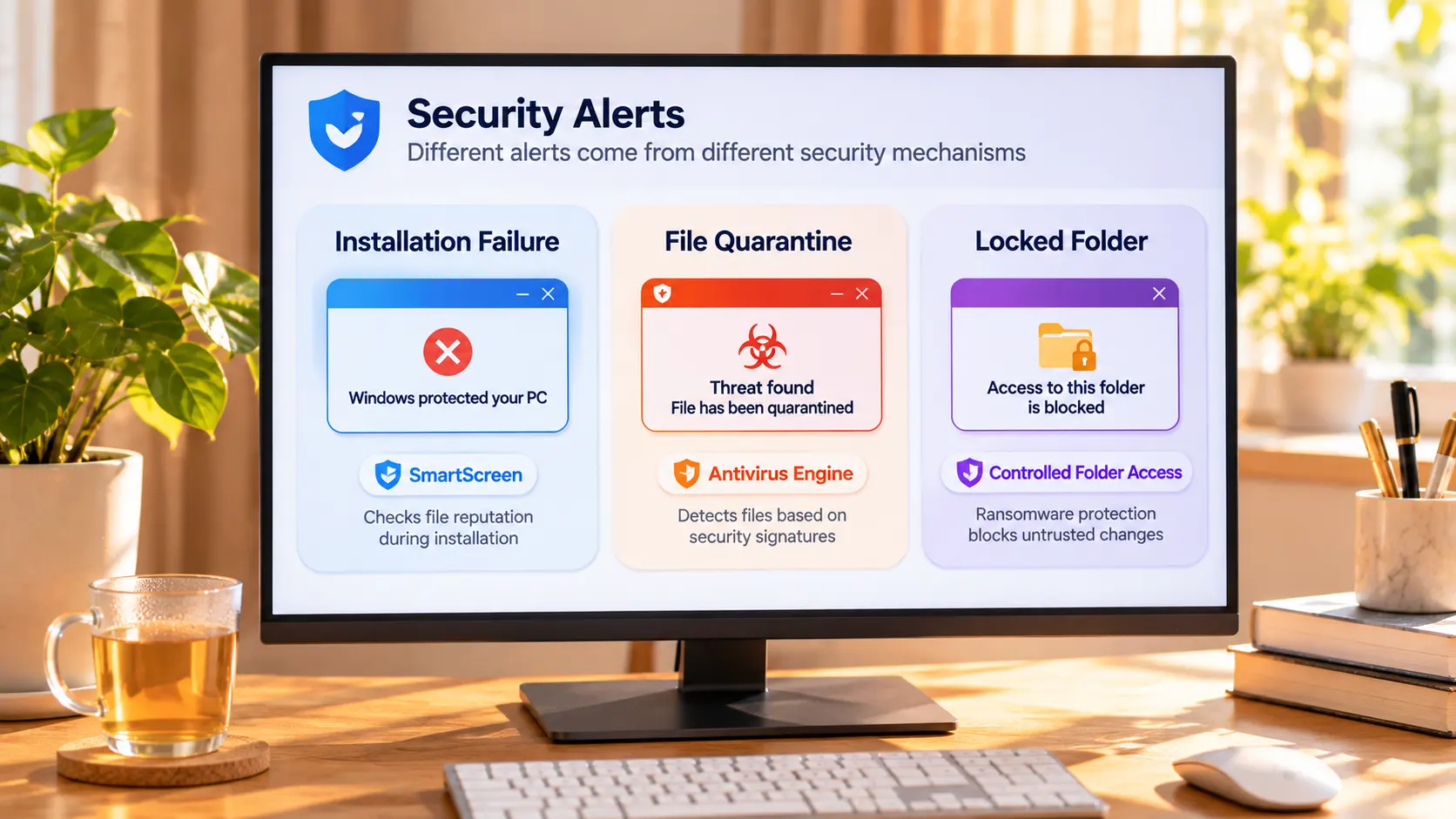
The three prompts map onto three separate mechanisms.The blue warning screen during installation comes from SmartScreen, which checks file reputation. Quarantine comes from the antivirus engine's signature comparison. A blocked save into the Videos folder comes from Controlled folder access under ransomware protection. All three stop "programs with insufficient or untrusted reputation," which is not the same as "an actual virus," and brand-new software tends to trip all three at once.
The earlier piece on downloads stuck at zero percent covered the network side, where a firewall blocks the connection itself. The interception here happens before the file lands on disk or runs; the symptoms look alike but the troubleshooting locations differ, so the route from the piece on a download stuck at 0% does not apply.
Will not install: "Windows protected your PC" stops files without reputation
SmartScreen checks reputation, not virus signatures.Per Microsoft's official documentation, it weighs two signals: publisher reputation (is the file signed, is the certificate trusted) and file hash reputation (has this file been involved in incidents). An unsigned program rebuilds its reputation from zero with every new version, which is why a freshly updated installer is the easiest to get blocked.
If you confirmed the installer comes from the official site, click "More info" on the warning page and choose "Run anyway." If the source is a reposted archive from a forum, that warning deserves to be taken seriously.
Quarantined: check Protection History first, then decide restore or appeal
Quarantine is not deletion — the file is still sitting in the quarantine zone.Open Windows Security, go to "Virus & threat protection" and open "Protection history": every record shows when it stopped which file. If the software is trustworthy, restore it from the record and add it to the allowed list; if you are unsure, re-downloading from the official site is the steadier move.
There is an extra reason download tools draw attention: Microsoft classifies "bundleware" as a potentially unwanted application, which gets stopped without being a virus. If the downloader you installed stuffed in browser extensions during setup, it had that coming. If you are confident it is a false positive, submit the file through Microsoft's file submission portal and the block gets lifted after review.
Be restrained with exclusions: whitelisting an entire folder exempts every future file that lands there, a bigger risk than the one install you are trying to rescue.
Folder locked: Controlled folder access decides who may write by reputation
What is stopping you is not a virus scan but Controlled folder access under "Ransomware protection."The official description is blunt: documents, pictures, videos, music and the desktop are protected by default, writes are allowed by app reputation, and untrusted apps get blocked with a notification.
The official remedy is concrete too: save the file somewhere else first, then open the "Ransomware protection" page, choose "Allow an app through Controlled folder access," and pick the app from "Recently blocked apps" — no need to dig through the disk for a path.
One self-check move: the line in Protection History is the answer
The stopping message tells you which layer fired — one look at the record settles it.Open Protection History and read the latest entry's wording: "prevented an unrecognized app from starting" sits on the SmartScreen reputation layer; a named virus signature sits on the signature layer, so do not rush to allow it and check the source first; "Controlled folder access blocked an app from making changes" sits on the folder-write layer. With all three layers on, the timeline even shows which one fired first.
Look at that layer before you act — far more reliable than switching protection off on a hunch; the three layers each cover one stretch, and turning one off leaves the other two still in the way.
Download and save the videos you want to watch, without being intercepted halfway
Once allowed through, saving works normally. On the desktop, browsing, downloading and recording all live in one window, and one walkthrough is enough to remember it.
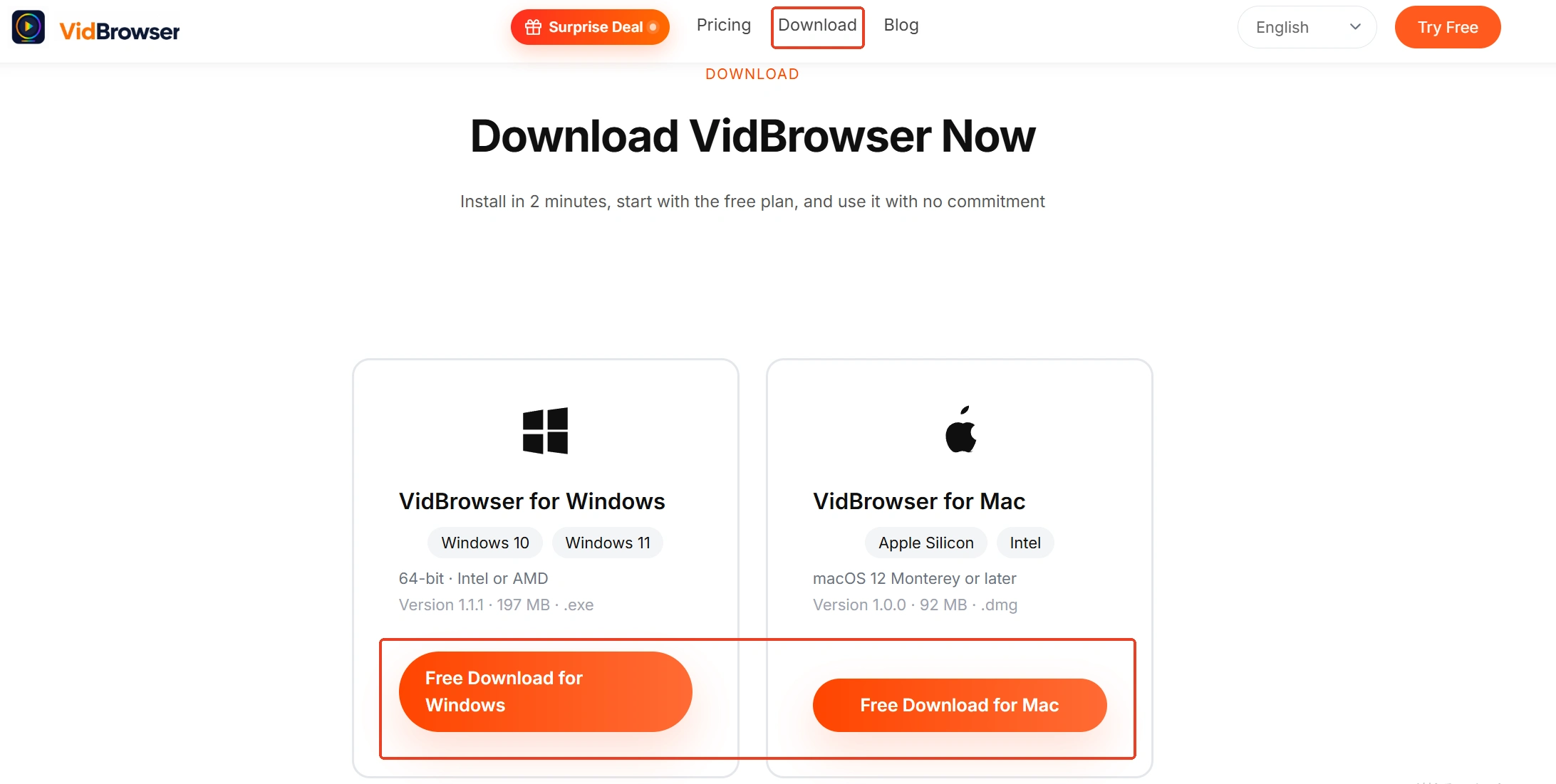
Step 1: Download and install VidBrowser
The app you just allowed through, VidBrowser, is a desktop video browser for watching videos, capturing segments and saving them locally on Windows and Mac, with download and recording built in.
Step 2: Open the platform page in VidBrowser and sign in
In the built-in browser, enter the video platform you want and browse normally after signing in.
Step 3: Play the video and wait for the media library to list it
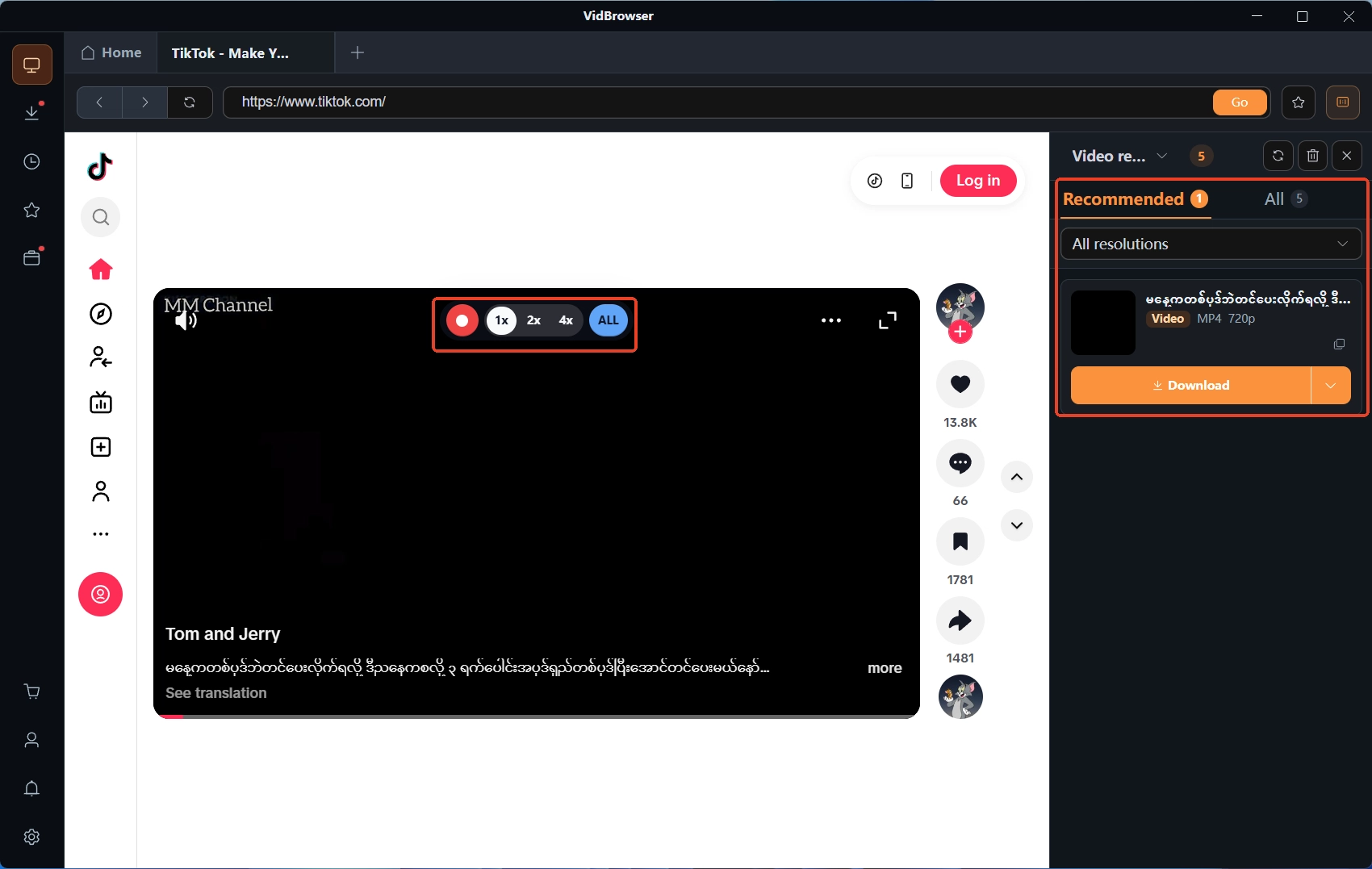
Once playback starts, the "video media library" panel on the right lists detected videos, each with an orange download button, and you can pick a resolution before saving.
Step 4: Save with the recording feature (first choice for protected content)
Videos on subscription platforms are mostly copyright protected and the download route often fails; recording is the fallback: move the mouse over the video and the recording controls overlay on the picture, set a recording speed first (1x real time, 2x or 4x to finish faster), then press "record all" to capture the whole video, and the recording button on the left can start or pause at any moment — anything that plays can be saved this way.
Step 5: Verify results in the download history
The clock icon on the left lists every download task's status and save location. For organizing your library in detail, the piece on the download history goes deeper.
Summary
Three closing sentences: if it will not install and the source is reliable, pick "More info" then "Run anyway" on the warning page; if it is quarantined, check Protection History before choosing restore or appeal; if a folder is locked, open the Ransomware protection page and allow the app from "Recently blocked apps." Warnings from unknown sources deserve to be taken seriously, reliable sources get allowed layer by layer, and switching protection off entirely solves nothing.
FAQ
Why do video download tools get flagged by antivirus so often
Three reasons stack up: this kind of software updates frequently, so unsigned new versions rebuild reputation from zero; some installers bundle extra software and get classed as potentially unwanted; and the way they capture streams easily triggers heuristic judgments. Check the source before allowing anything.
Is it safe to restore a quarantined file
Read the record's wording first. A named virus signature means delete it and re-download from the official site; a notice that only says unrecognized or low reputation can be restored after you confirm the source. When in doubt, re-downloading costs less than gambling on a restore.
Should I temporarily disable antivirus to install
Not recommended. The three layers each cover one stretch, and turning off the antivirus does not affect the other two, so the install can still get blocked. Allowing a single file layer by layer is easier, and protection stays on afterwards.