
Before you post that video, check what location data the file carries
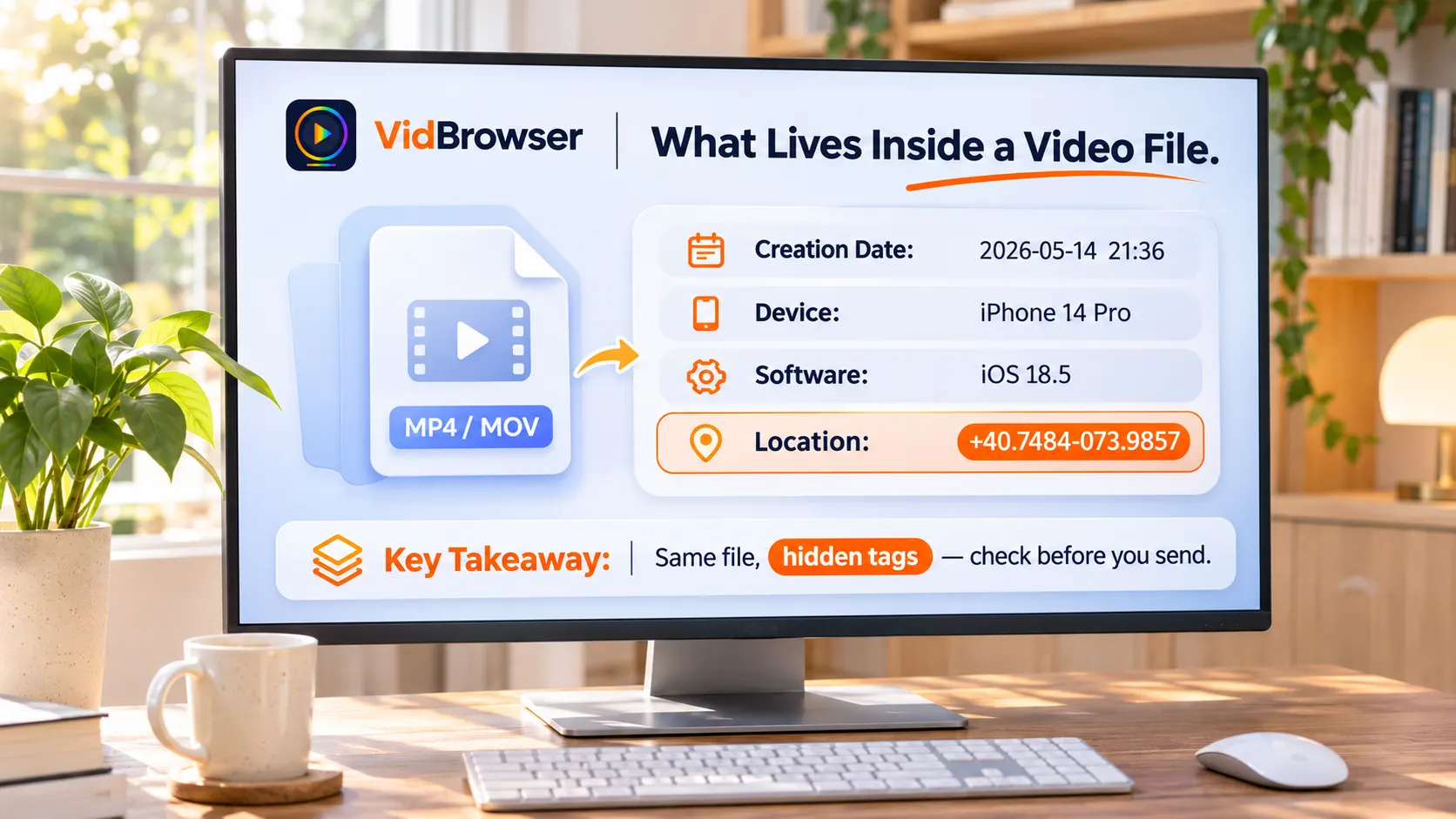
Most people know photos can leak location. Video files talk just as much. Shooting time, device brand and model, software version, and — with camera location on — coordinates precise enough to point at a single building all travel with the file. Video does not store this in the EXIF block photos use; it hides in the container header, where many photo-checking tools cannot reach. This piece covers three things: what the file actually holds, which sending routes carry it along, and how to check and clean it before posting.
What video metadata holds: time, device, and building-level coordinates
Phone videos commonly record shooting time, device brand and model, and software version; when the camera's location permission is on, the coordinates of the shooting spot are written into the file as well. EXIF is a standard made for photos, and video does not use it: MP4 and MOV pack similar information into a string of tags in the container header — iPhone writes them into QuickTime keys, while many Android phones use another location tag in the same ISO 6709 coordinate format, a latitude-longitude string like +40.7484-073.9857, precise enough to single out one building.
- Action cameras and drones: GPS-equipped action cameras store the whole track of position and speed, and drones may also write flight data into a separate file next to the video.
- Screen recordings: usually carry date and software info; location tags are rare.
- Apple's official wording: Apple's camera and privacy page states that photos and videos taken by the camera "may contain information such as the location and time of shooting", and gives two ways to turn it off — switch off location for Camera in Settings, or turn off Location in the options menu when sharing.
Which sending routes carry metadata, and which do not
The test is whether the other side receives the original file: platform uploads re-encode, and anything sent as a file keeps everything. Upload a video to Instagram, TikTok or YouTube and the server transcodes it — what viewers get is no longer the file in your hand, so the location tag most likely drops out in transcoding; email attachments, cloud share links, AirDrop and the "send as file" option in chat apps all deliver the original, tags intact.
One caution: platform behavior is not a promise. Re-encoding is common practice among large platforms, but the rules change, and no single sending route should be treated as insurance. When unsure, assume it travels.
Converting format or shrinking size does not make location disappear
"One conversion and it is clean" is a widespread misconception. A technical team ran real tests: after stamping a test video with location, device model and date tags and running it through ffmpeg transcoding, the MP4 output copied the location tag as-is, and switching to the WebM container even kept the device model; default transcoding pipelines do not drop tags, and some muxers write the coordinates back into their own location box.
Compression is the same. Video compression works on bitrate and resolution; tags live on another layer. For the trade-off between quality and size, the video compression guide already covers it. Compression solves "it will not send"; clearing tags solves "what happens after it sends" — two separate jobs.
How to check before sending: a one-minute self-review
The whole check takes under a minute, and the result speaks for itself. On iPhone, open the video in Photos and swipe up or tap the "i" — a map means the location info is in the file; on Android, look in the same spot under details in Google Photos. Note that the location shown in the album may come from the album library's own records, not necessarily from the copy you send out.
To see every field, run the free MediaInfo on a computer — date, device and location tags listed in one pass.
Four steps to clear metadata and keep a clean copy
Step 1: Download and install VidBrowser
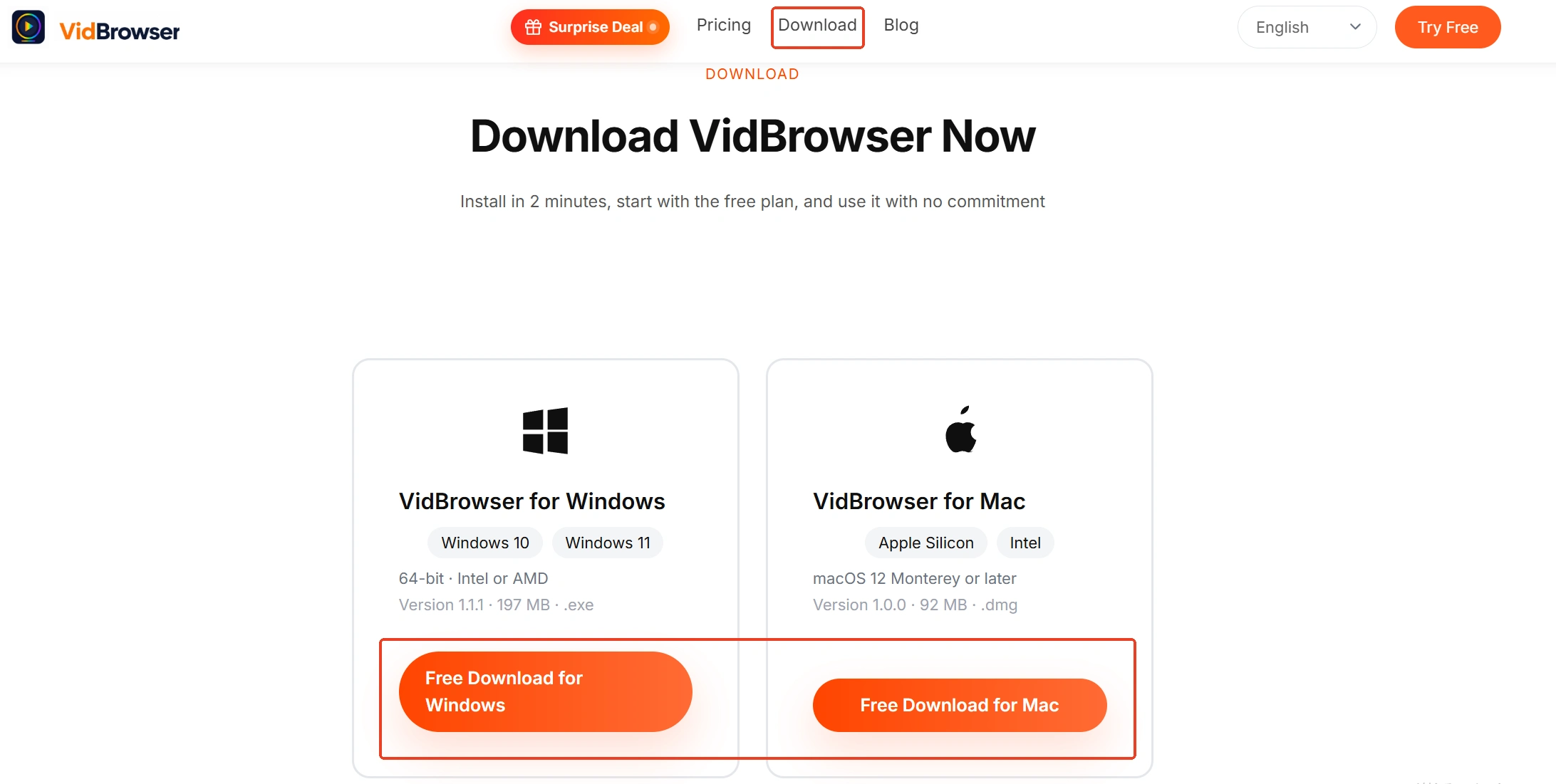
The install entry is on the VidBrowser video downloader page. It is a desktop video browser for Windows and Mac that watches videos, grabs clips and saves them locally, with download and recording built in.
Step 2: Open the metadata cleaning tool
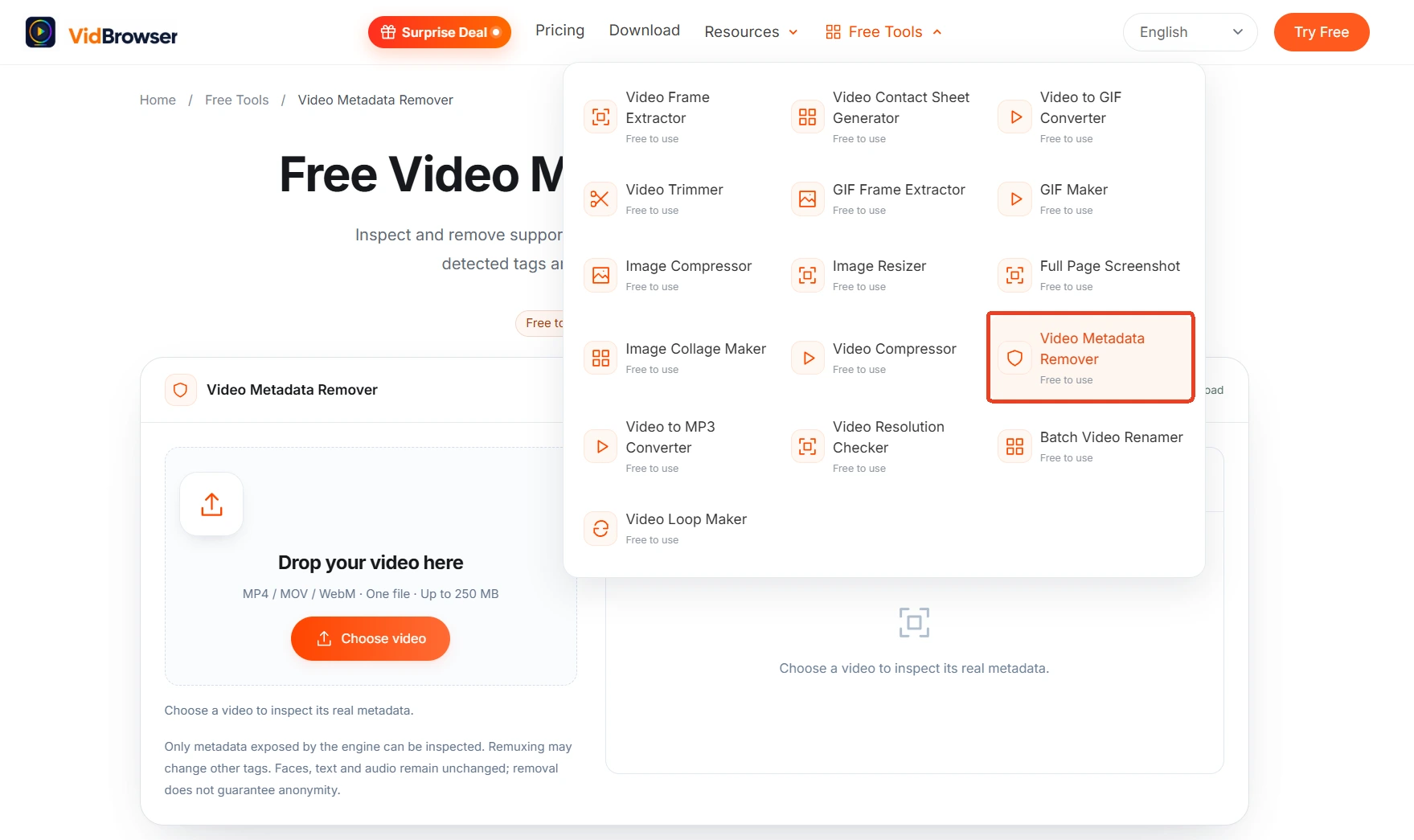
Go to the "Tools" page in the left navigation, find the metadata cleaning entry, or open the free video metadata remover page directly.
Step 3: Drop in the file, review and pick the tags to clear
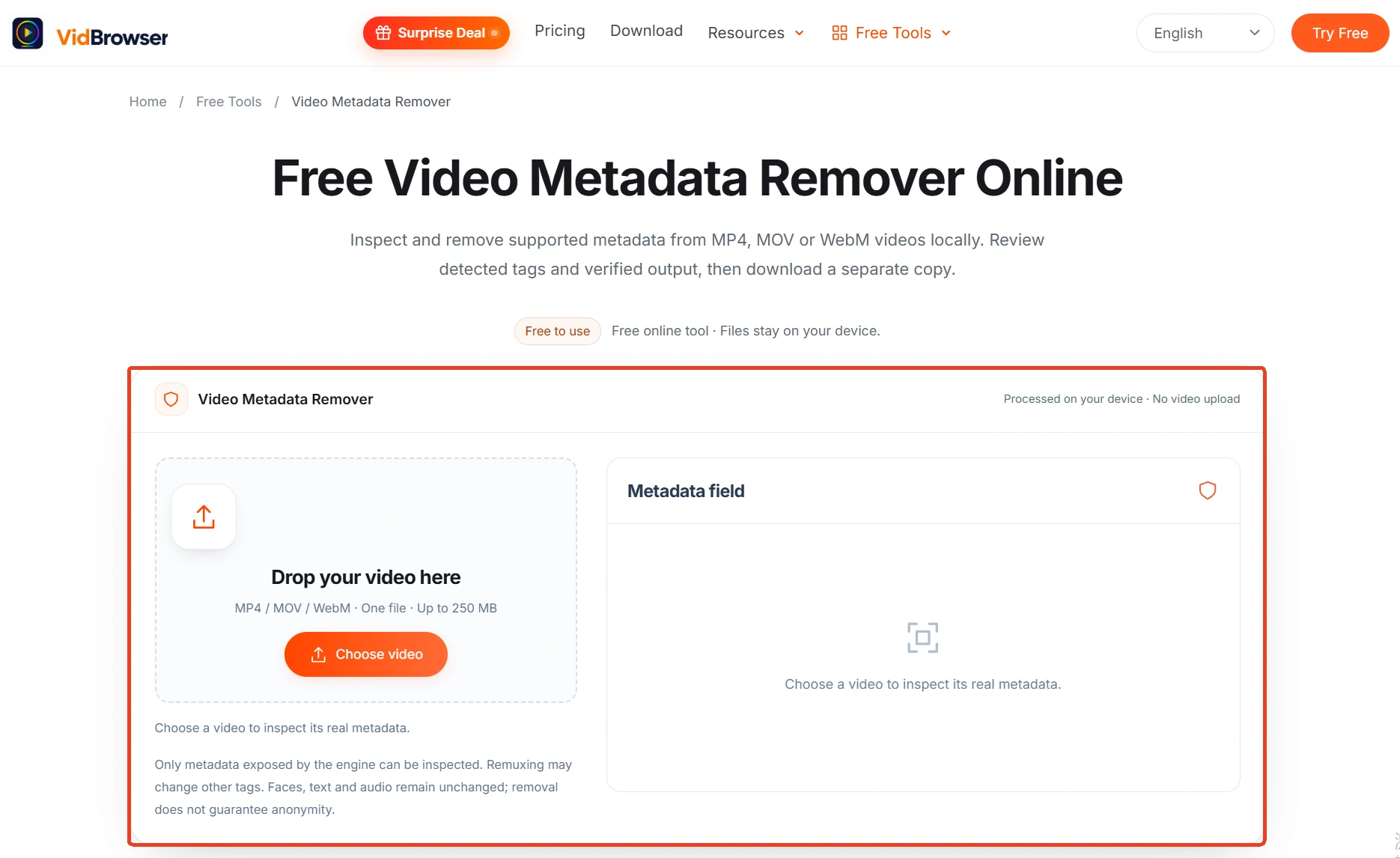
Drag the video onto the "Drop your video here" area; MP4, MOV and WebM are supported, up to 250 MB per file. After dropping it in, pick a cleaning mode first: the default "Identified personal privacy tags" clears only identity-related tags, "Supported metadata" clears every supported field, and "Custom selection" lets you tick items one by one. Below, counts are grouped by date and time, device info, location info, descriptive metadata and other tags; the "Metadata fields" panel on the right previews, in before and after columns, whether each tag gets cleared or kept. Confirm, then click "Clean video metadata".
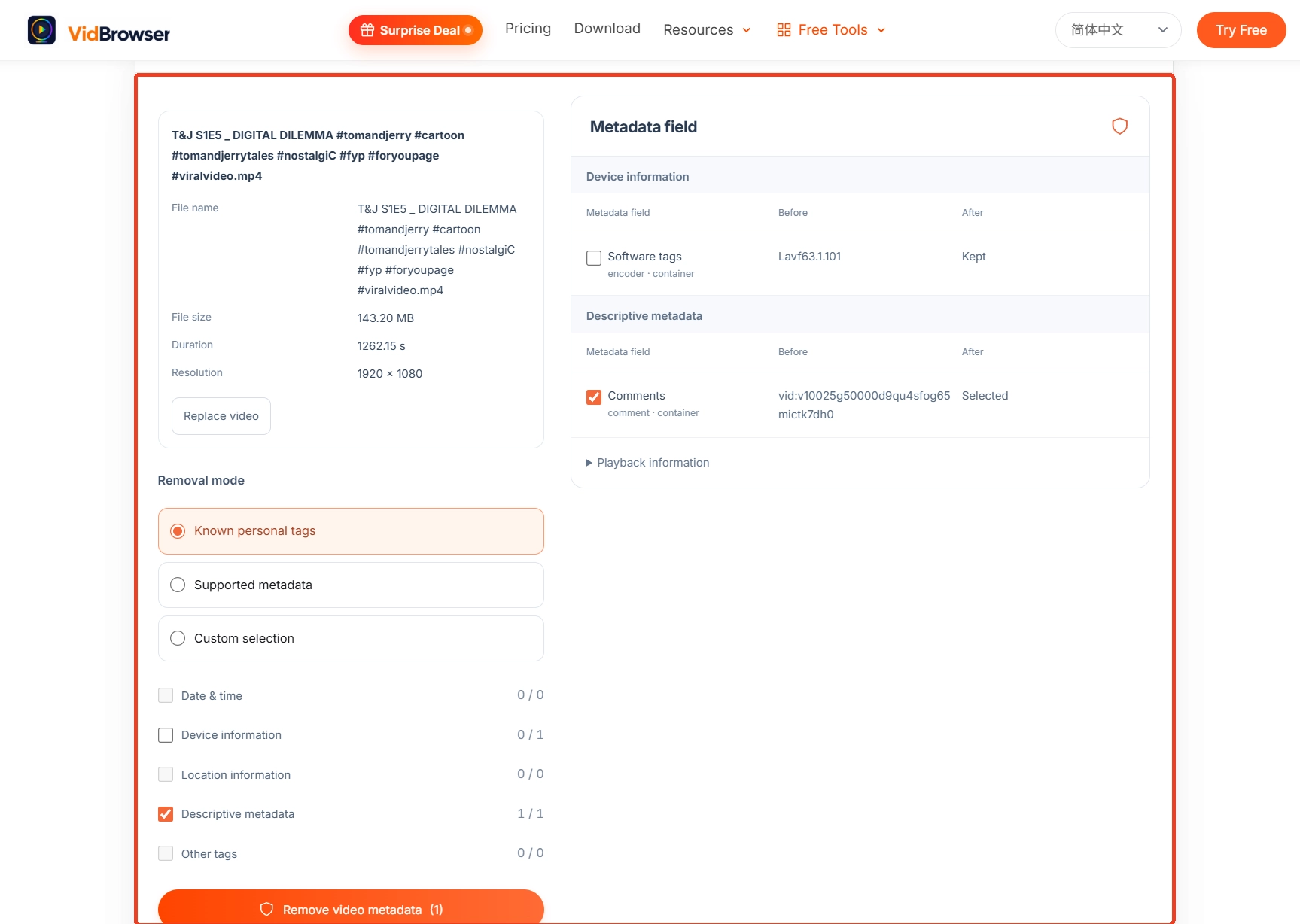
Step 4: Confirm the output and download an independent copy
Compatible audio and video streams are copied without re-encoding, so picture and sound stay as they were; after reviewing the result, save the new file to your device and the original stays put. The tool page also states the boundary: tags the engine cannot recognize may remain, and faces, text and sound in the picture stay unchanged.
Two switches at the source are worth remembering: on iPhone, set Camera to "Never" under Settings > Privacy & Security > Location Services, and newly recorded videos no longer carry location; for an occasional single share, tap "Options" at the top of the share sheet and switch off "Location" — the copy you send carries no coordinates, the approach Apple puts in its official privacy notes.
Summary
Two habits are enough. Before sending an original file — email attachment, cloud link, send-as-file — check the tags once, and clear them first when unsure; transcoding and compression will not delete tags for you, so do not count on "one conversion makes it clean". Subscription platforms carry another layer of privacy beyond the file itself; the OnlyFans billing privacy guide covers how payment and billing records leave traces, and the two layers are best read together.
FAQ
Does clearing metadata reduce quality?
Compatible audio and video streams are copied without re-encoding, so picture and sound stay as they were. Remuxing may change container tags — review the output once and keep the original file for now.
Am I anonymous once metadata is cleared?
No. The tool page says it plainly: cleaning does not guarantee anonymity. Faces, street signs, door numbers and sound are still in the picture, and copies already shared are unaffected. Beyond metadata, the picture content itself deserves another look.
Is the video uploaded to a server? Which formats are supported?
The file is read and processed locally in the browser and never reaches a server. MP4, MOV and WebM are supported, up to 250 MB per file.