Fansly arranges your home page in four layers: posts, Walls, media sets and your own Collections
You spot a post on your home feed, open the creator's profile and cannot find it anywhere; or the blurry preview in an album does not match the full version inside the post. Longtime Fansly users run into this constantly. It is not your imagination: the content does not live on one single layer.
Fansly keeps content on four layers: posts, Walls, media sets and your own Collections
Posts, Walls, media sets and the Collections inside your account have similar names but each handles one slice. The post is the smallest unit, holding photos, videos and text. Walls are the column tabs on a creator's profile that decide how content is sorted out. Media sets (Collections) are public albums a creator curates to group related media. And the Collections inside your account menu hold what you saved and bought. The official help center explains this separately too, in its Walls guide and its album guide. Once the four layers are clear, most of the confusion disappears on the spot.
The post is the unit, and visibility is decided by media permissions
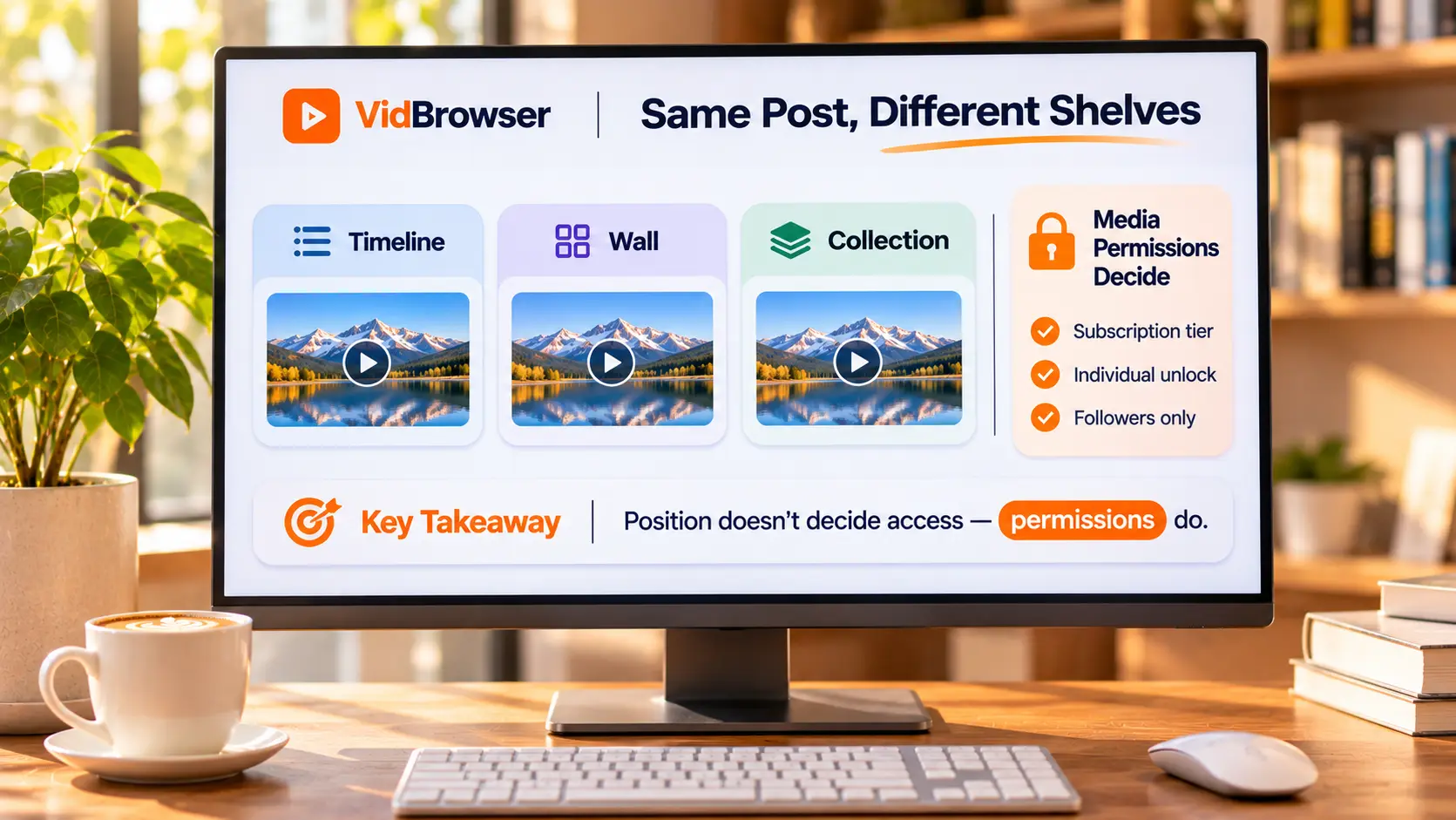
Where a post appears does not matter; what matters is whether its media permissions let you in. The same post can sit on your timeline and inside a Wall or an album at once. The location shifts, but whether you can open it is decided by the permissions attached to the post itself: subscription tier, separate unlock, followers only. How tiers map to content is covered in our guide to picking a tier, so we will not repeat it here. The official album guide contains one key line: media inside an album inherits the original media's permissions, and when the creator changes the original, the album copy follows automatically. In other words, you are looking at one piece of content projected onto different shelves, not several copies.
Walls handle placement, not access, and the FYP is the biggest exception
A Wall decides how content is split into columns, but the Wall itself does not lock anything. A few points from the official guide: every profile must have one Main Wall, and it feeds the feed your fans see first. What shows when the profile opens is the first public Wall in the list, and creators can reorder it to change the default view. Besides public Walls there are private ones: posts placed there stay off the profile and out of the fans' feed, working like a creator's private shelf. Pinning is also per Wall, so pinning one post on two Walls takes two operations. The structural exception worth remembering is the FYP: a post promoted to the recommendations page ignores which Wall it sits on, and even a post from a private Wall can be liked and saved there. How the recommendation side works is laid out in our discovery guide; the takeaway is enough here: when a post shows up on your feed but not on the profile, this is the usual reason. The content is not gone, it just is not on the layer you were browsing.
What you see first in a media set is often a free preview
Creators use media sets as display cabinets, and display cabinets usually hold samples. The official guide suggests grouping similar content into albums, themed photo sets or series for example, and pointing fans there. While browsing an album, a fan can see the free preview of each media and only sees the full version once the unlock condition is met. So when the album image does not match the post, your permissions are fine; the preview mechanism simply works this way. One easily missed setting: creators can give exclusive posts an expiry date, after which they come down automatically. When a post that was there yesterday is gone today, it may have expired rather than been deleted.
Saved items and purchases both live in your account's Collections
The fan-side entry point is concentrated in one place: the Collections item in the site menu. The official navigation note is direct: this menu item is for accessing and organizing the content you saved and bought. Purchased media goes into your Media Collection automatically, and the official wording says it is kept long term; details are in our purchased content guide, so we will leave it there. One name worth separating: on the creator side there is also a Media Vault, their private material library, invisible to fans. Do not confuse it with your own Collections.
Once the structure is clear, save what matters before it disappears
With the structure mapped, saving becomes a routine step. Videos on subscription platforms like Fansly are usually copyright protected, so ordinary download tools cannot grab them. Here is the walk-through:
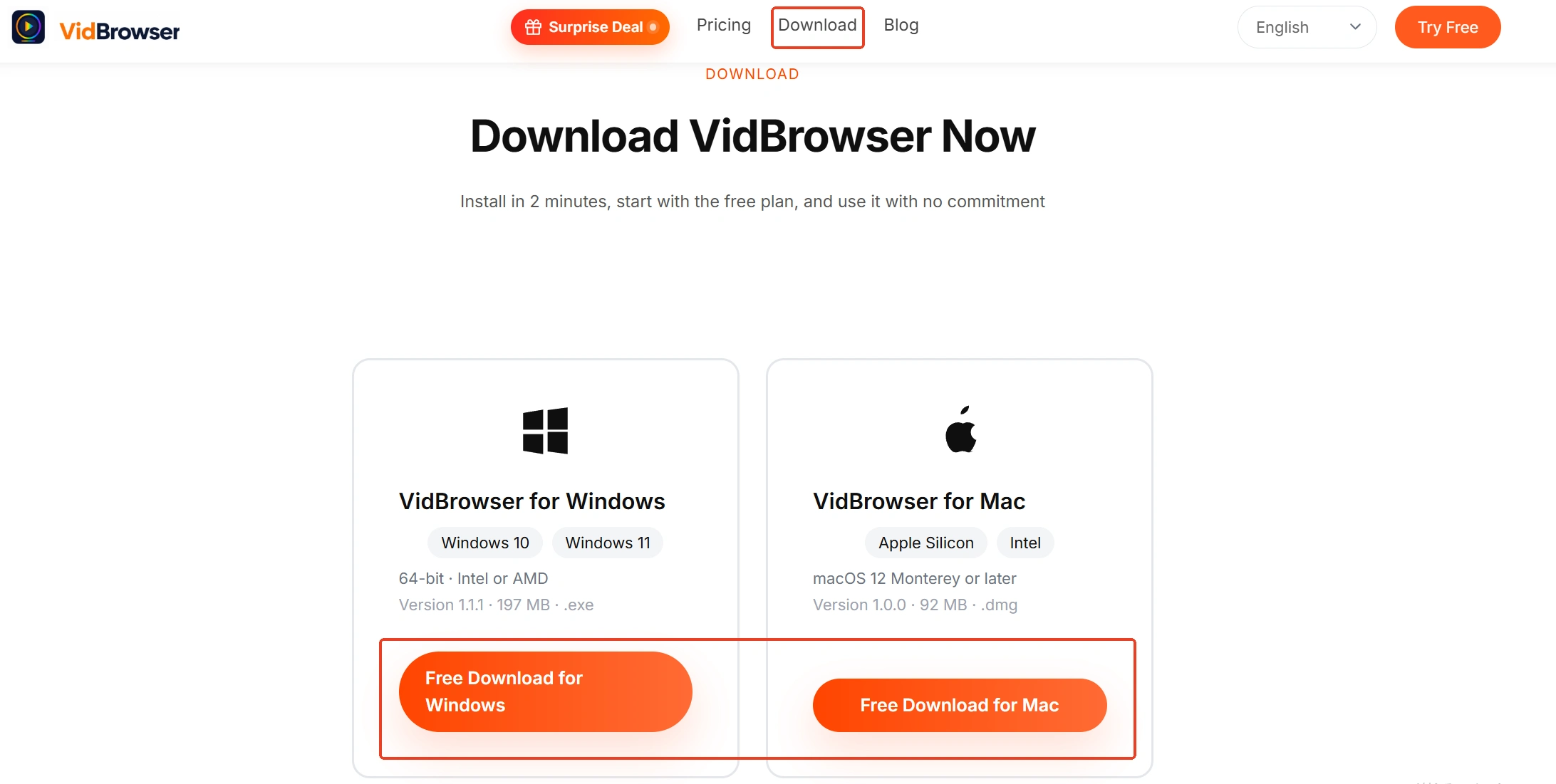
Step 1: Download and install VidBrowser
VidBrowser is a desktop video browser for Windows and Mac that watches videos, clips segments and saves them locally; the installer is one click away on the video downloader page.
Step 2: Open Fansly inside VidBrowser and log in
Type fansly.com into the address bar and log in; the recommendations page, every Wall and every album open as usual.
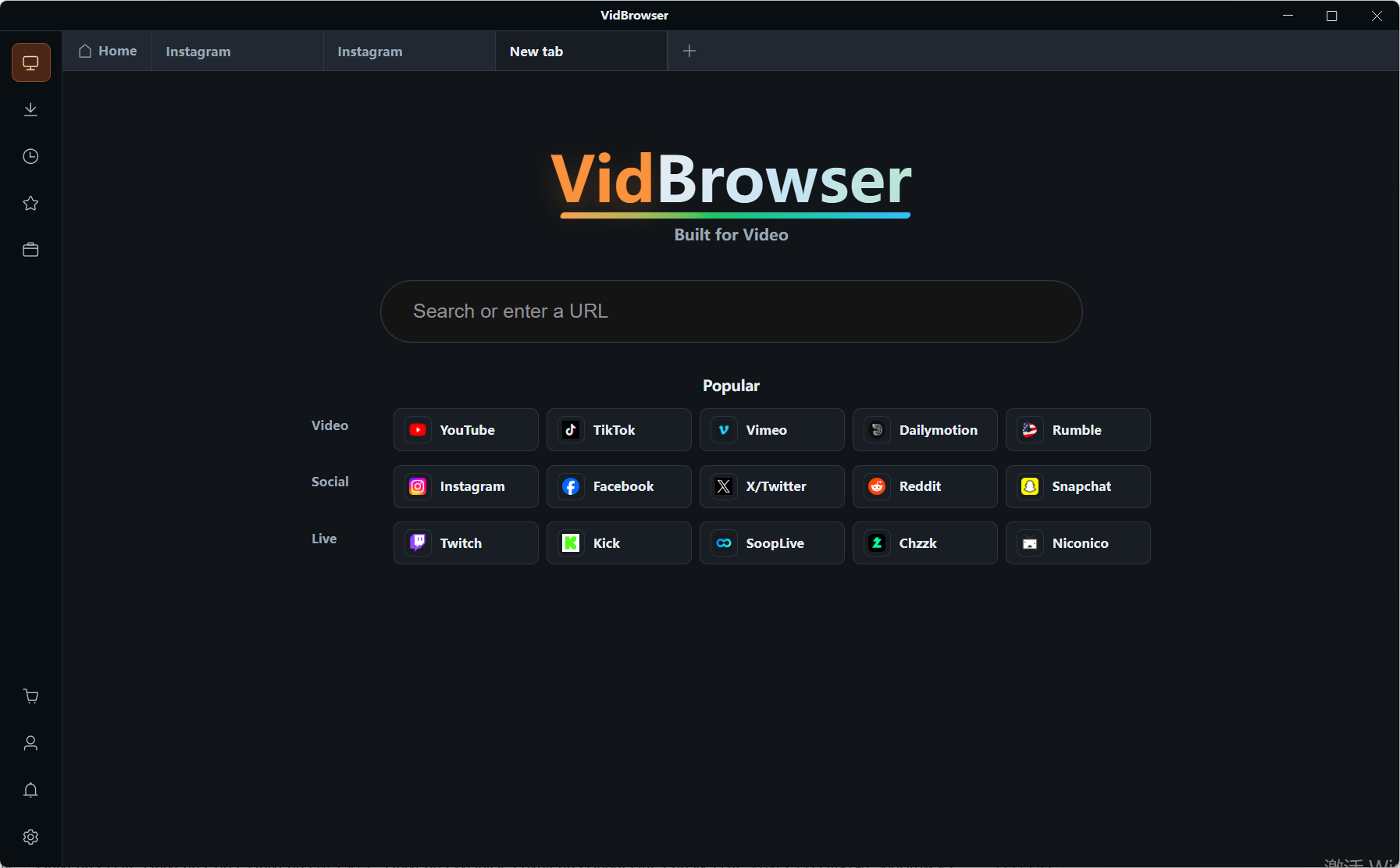
Step 3: Locate the target content by layer
For catch-up viewing start with the Walls, for similar content go into the albums, and for a single post use on-site search plus the timeline.
Step 4: Save with the record function (first choice for protected content)
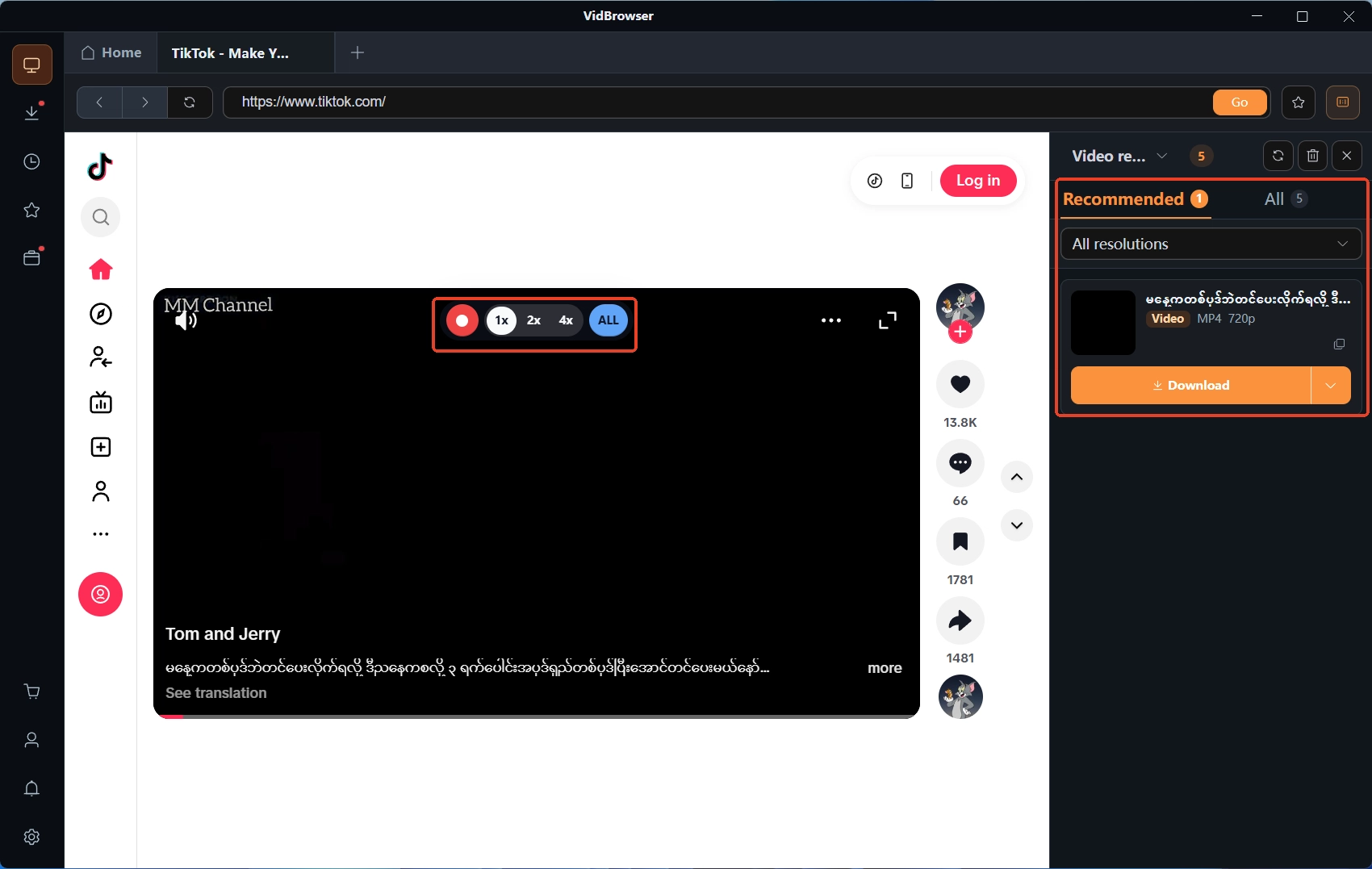
Move the mouse over the video and the record controls float up: pick a rate among 1x real time, 2x and 4x, the faster the sooner it wraps, press record all to capture from the start of the whole clip, and the record key on the left handles pause and resume.
Step 5: Use the media library for direct downloads, and check the log
If a video can be downloaded directly, the video library panel on the right lists it with an orange download button; one press saves it as MP4, and the download history in the left navigation is there whenever you want to double-check.
Summary
Fansly's content organization boils down to two lines: location does not decide visibility, permissions do; the four layers each handle one slice, so when something is missing, first work out which layer it belongs to. Once Walls, media sets and your own Collections are sorted out, browsing gets easier, and saving the parts you want to keep becomes far more realistic before expiry or deletion.
FAQ
The images in a media set look blurry. Is my access level too low?
Most of the time that is the free preview. Media in an album inherits the original post's permissions, and the official note says fans can browse albums and view free previews until the unlock condition is met; once unlocked, what you see matches the post.
A post from my feed is nowhere on the profile. Why?
Two common explanations: a post promoted to the FYP is not bound by its Wall, so even private-Wall content can appear on the recommendations page; or the creator set an expiry date on the post and it was taken down automatically.
Will saved or purchased content ever be cleared?
Purchased media enters the Media Collection automatically, and the official wording is long-term retention; saved posts follow the original, so if the original post is deleted or expires, its entry disappears from your saved list as well.