A full page screenshot has three traps: lazy load, sticky navs and pages that never end
A full page screenshot differs from a regular screenshot in that it captures the page, while a regular screenshot points at the screen. Screen captures are limited by the viewport: the image is only as tall as your window. A long screenshot walks down the page and folds everything below the scrollbar into one image. In practice, many long screenshots come out incomplete - empty sections, a navigation bar repeated three or four times, pages that never seem to end. None of this is magic; it is page construction colliding with how screenshot tools work. Understand the causes first, then start capturing.
A full page screenshot captures the whole page; a regular screenshot covers one screen
What decides the completeness of a long screenshot is the viewport: the window a browser uses to show a page, while a full page capture has to go past it and take all vertical content. Press Print Screen or use a system screenshot tool and you get exactly what the viewport shows. A product page can easily run seven or eight screens deep; capturing screen by screen and stitching by hand is slow and prone to misalignment. To get everything in one go, let a tool do the scroll-to-bottom-and-stitch work for you. The Chrome DevTools documentation includes an official command, Capture full size screenshot, and states that it captures content "including content not visible in the viewport". The VidBrowser full page screenshot tool follows the same idea and swaps the command line for a single URL field.
Where long screenshots go wrong: blank blocks, repeated navs and pages without an end
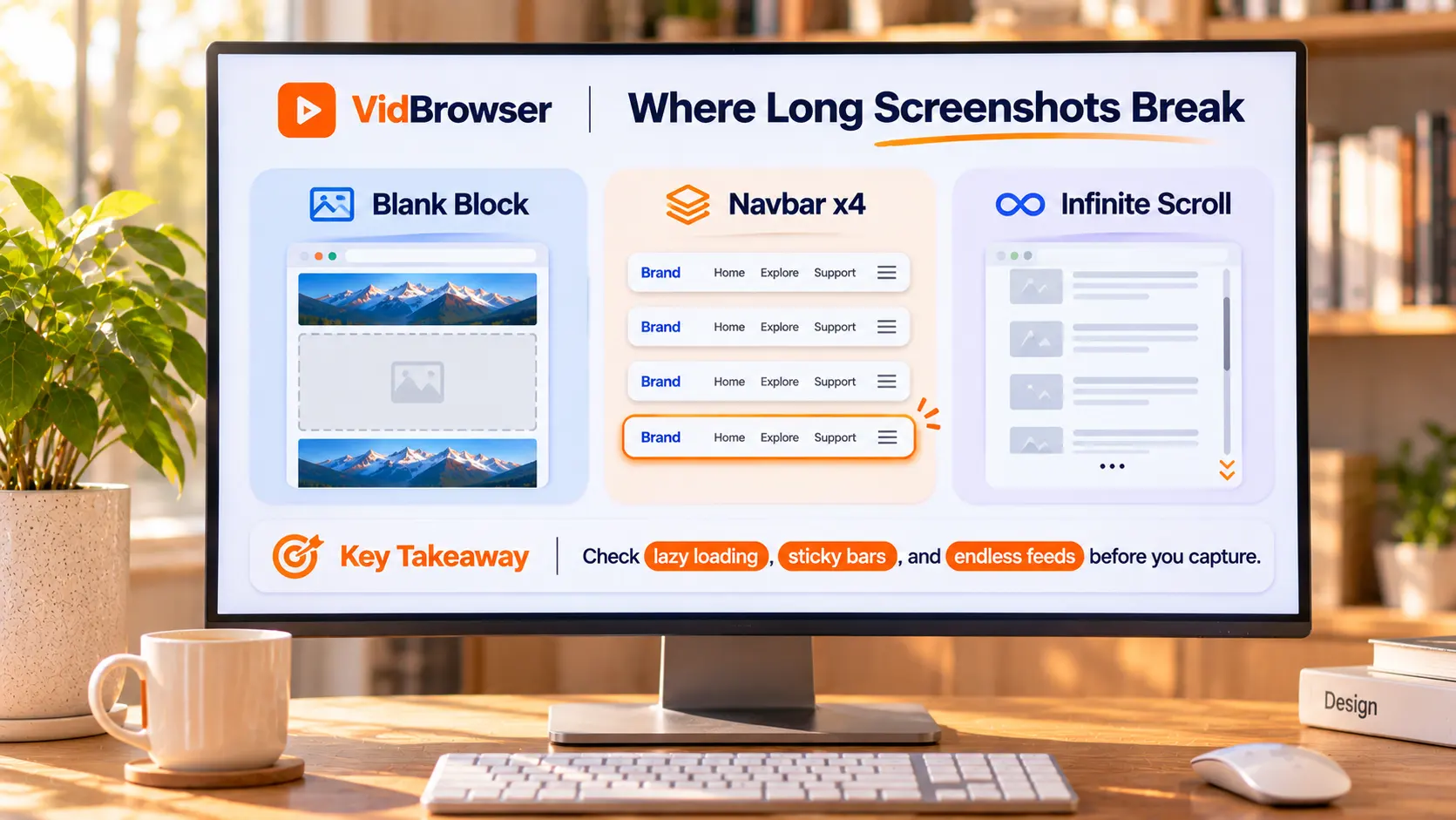
Almost every incomplete long screenshot traces back to these three causes. Each one comes from how the page itself is built; knowing them keeps you from misreading a tool failure:
- Blank blocks: many pages use lazy loading, so images are only requested as they scroll into view. A screenshot tool sweeps top to bottom, and anything never triggered stays blank.
- Repeated navigation: sticky navbars and floating chat buttons are pinned to the viewport, so every stitched segment can carry a copy, and one long image ends up with the same bar three or four times.
- Pages without an end: infinite-scroll feeds have no bottom, so the tool has no idea where to stop; extremely long pages also run into image height, memory and output format limits.
The device viewport decides what your long screenshot looks like: desktop, tablet and mobile
The same URL renders as a different image under a different device viewport. Pages switch responsive layouts by viewport width: desktop gives wide multi-column layouts, mobile gives a narrow single column. Want the page as a desktop user sees it? Pick desktop. Curious what mobile visitors get? Pick the mobile preset. This is a layout choice, not a quality option - decide which one you want before you capture.
Four steps to save an entire web page as one long image
The entry point lives in the VidBrowser toolbox, four steps in total:
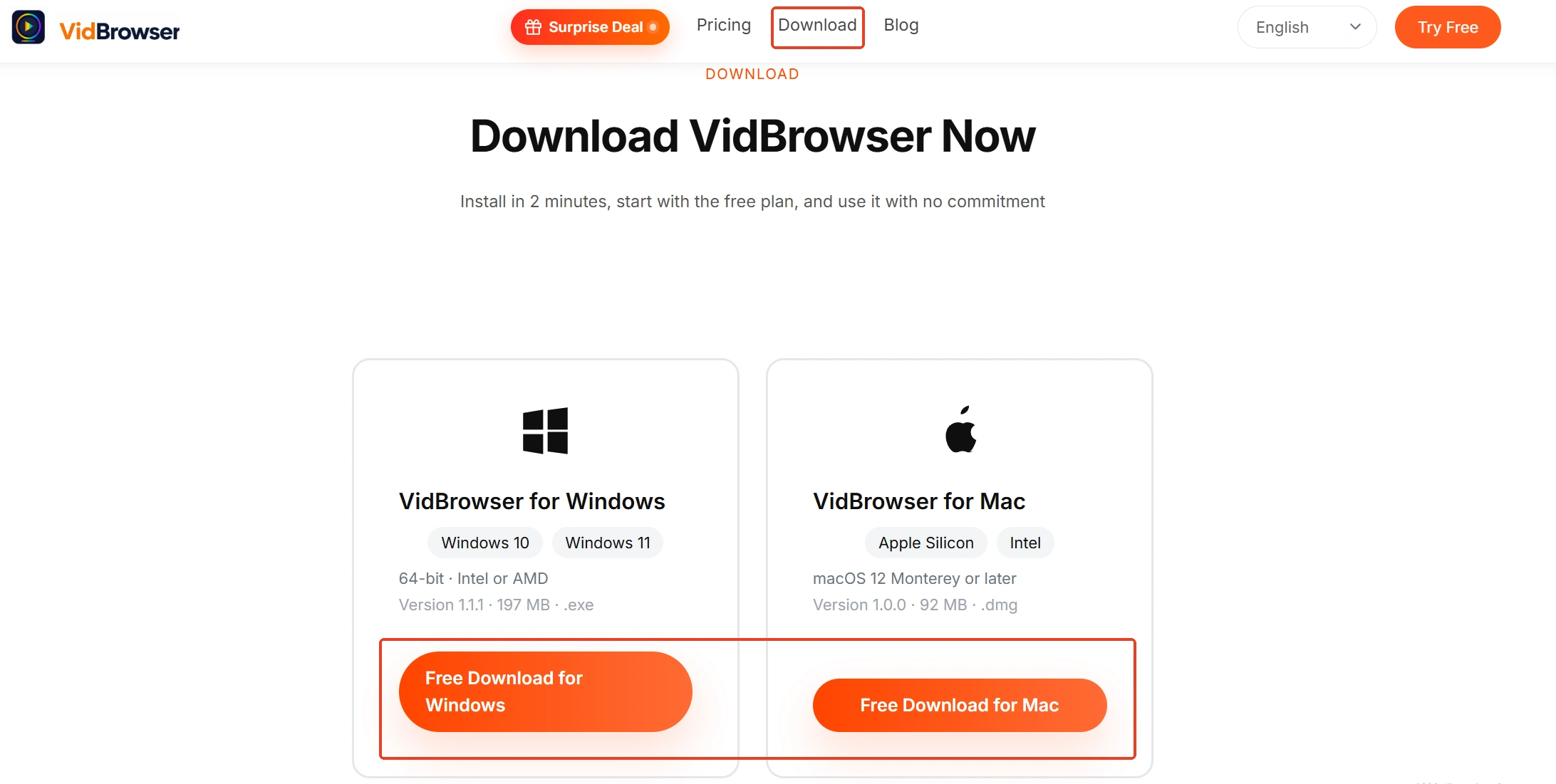
Step 1: Download and install VidBrowser
The install entry is on the VidBrowser video downloader page. It is a desktop video browser for Windows and Mac that watches videos, grabs clips and saves them locally, with download and recording built in.
Step 2: Open the full page screenshot tool
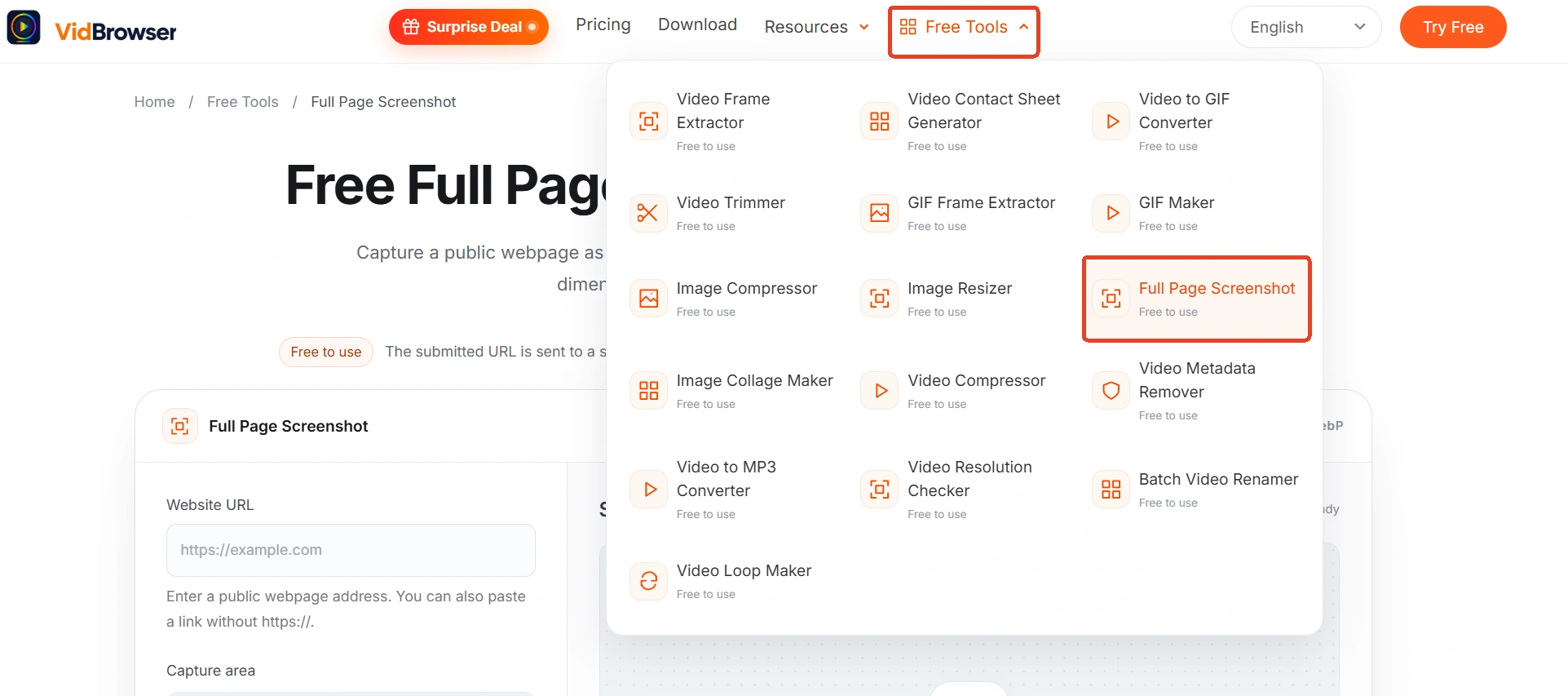
Open Tools in the left navigation, find the full page screenshot entry, or go straight to the full page screenshot tool page.
Step 3: Enter the URL and choose screenshot settings
Paste the address of a public page you are allowed to capture, then pick a device viewport (desktop, tablet, mobile), a range (full page or visible area) and an output format (PNG, JPG, WebP).
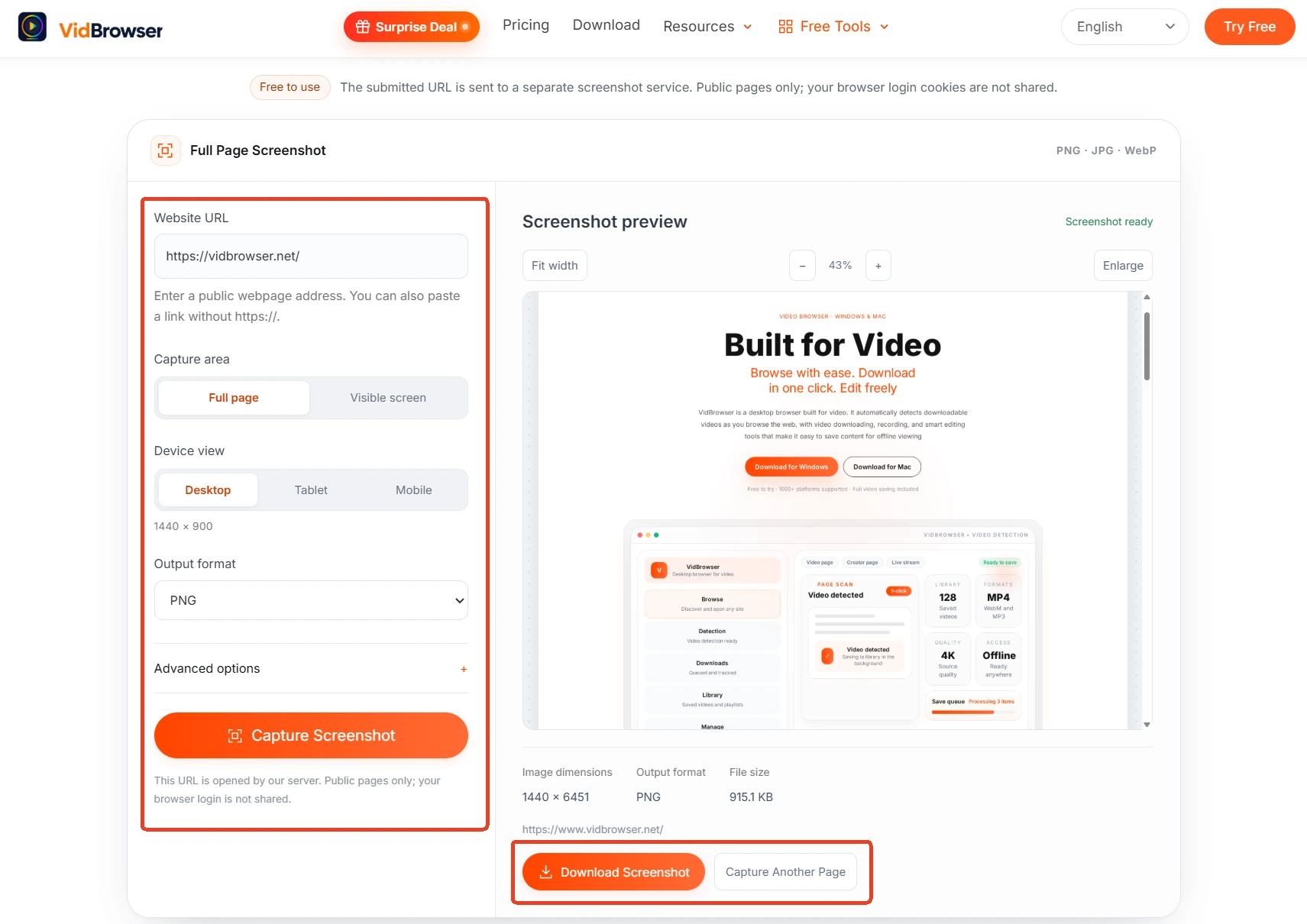
Step 4: Generate and download
Check the result and download it to your device. The tool targets public pages: it does not read your browser login cookies and does not get past logins, paywalls or access restrictions.
Three kinds of content worth capturing as a long image: conversations, product pages and profile snapshots
The real value of a long screenshot is pinning a page that changes or disappears into a version that does not. Three scenarios come up most often:
- Support chats and order confirmations: conversation pages rarely have a download button. A long image keeps the full exchange in chronological order - far clearer evidence than scattered single-screen shots.
- Product pages for price checks and archives: prices, specs and stock shift constantly. A long image preserves the layout together with the numbers, so later comparisons have something to stand on.
- Profile and homepage snapshots: social profiles update and delete. Capture one regularly and changes become obvious; a full page capture also doubles as ready-made reference material for web design work.
Saving and organizing long screenshots: format, size and the other road
Long screenshots are long and heavy by nature; two quick chores after saving pay off later. On format: PNG is lossless and best for text and UI detail, JPG is smaller and suits photo-heavy pages, WebP is smaller still but older software may not open it - if that happens, convert it once with the WebP to JPG guide. On size: very long pages easily start at several MB, and if an email attachment gets rejected, compress it first - the image compression guide covers the quality-versus-size tradeoffs. Also, if what you actually want from the page is a set of images rather than the whole layout, skip the giant long shot and use batch image download to take the originals directly - the long image keeps the full view, batch download gets the originals, and each road handles its own job.
Summary
The completeness of a long screenshot is decided before you capture: first choose the device viewport, then check the page for lazy loading, sticky navs and infinite scroll. Public pages take four steps; after capturing, pick a format by use, and compress when the file runs large. For support chats, product pages and profile snapshots, one long image is the easiest copy to keep.
FAQ
Can blank blocks in a long screenshot be filled in later?
Only by changing the order. Blank blocks mean the images were never requested. Scroll the page from top to bottom once so every image loads, then capture again. The screenshot tool will not trigger page loading for you; blank sections cannot be recovered.
Can I capture pages that require a login?
No. The tool targets public pages: it does not read your browser login cookies and does not get past logins, paywalls or access restrictions. Content visible only after signing in is outside its scope - that is a tool boundary, not a settings problem.
Why does the navigation bar appear several times in my long screenshot?
Sticky navbars and floating buttons are pinned to the viewport, so every stitched segment carries them. Check the page for such elements before capturing; if they exist, repeats in the long image are normal. On some pages, turning off the sticky style and recapturing gives a cleaner result.