A TikTok LIVE leaves nothing behind: catch it while it is playing
The streamer you follow goes live, the game is at its best moment or the chat is finally heating up, and you think "I will rewatch this later." Then the stream ends and the LIVE list is clean — no replay on the profile, no trace of the session anywhere. Regular videos can be saved with a tap, so why does a live stream not even offer a save button?
The short answer: a live stream and a regular video are two different kinds of content from the source, and the saving paths split at the root. Hosts get a replay they can download, but the window is limited; viewers who want to keep a LIVE have to act while it is still broadcasting.
A TikTok LIVE and a regular video are not the same kind of content at the source
A regular video is a stored file; a live stream is a real-time transmission that vanishes when it ends. The saving paths diverge right there.The dances, tutorials and skits you scroll past on the feed all have a finished file sitting on TikTok's servers, ready to fetch at any time. A LIVE is different: the host's feed is captured, distributed and played simultaneously, and no ready-made file ever waits for you on the page.
How regular videos get saved was covered thoroughly in the earlier piece on watermark-free TikTok downloads, so it will not be repeated here. On the live side, two markers tell you what you are looking at: a red LIVE badge pinned to the top-left corner, with content moving as it plays; and comments plus gift effects drifting by in real time, both signs of something "in progress." The moment the host ends the stream, the session exits the LIVE list — it does not move into some archive section, it simply disappears from the viewer's side.
The host side: LIVE recordings can be downloaded as MP4, but do not gamble on the deadline
TikTok keeps a replay for hosts and leaves viewers with next to nothing.After a stream ends, the host can open the LIVE section of TikTok Studio, find LIVE recordings, rewatch each session, cut highlights for publishing, or download it directly as an MP4 file. This is the official saving path, and a practical walkthrough from October 2026 confirms the route still works.
The catch is the retention period. The numbers floating around disagree: some say 90 days, several 2026 sources write 30 days, and the wording on the official help pages has shifted across versions. The disagreement itself is the message — the deadline is not under your control, so do not bet on it. If a stream is worth keeping as material, download it early; wait until "next month" and the recordings page may already be empty.
Why viewers cannot find a save button for a LIVE
The missing save button is not a missing feature — it follows from what a live stream is: there is no finished file on the page to download.Paste a link to a stream that is currently airing into a parsing tool and you will usually get nothing: a real-time stream arrives in fragments, and each fragment is destroyed once played. That mechanism was taken apart in the piece on why streaming videos cannot be downloaded, so it will not be expanded here.
Whether a viewer can rewatch a stream depends entirely on the host. Some hosts post the replay or highlight clips as regular videos on their profile after the session — that content has become a file, and the regular saving method applies. If the host posts nothing, the stream is over for good on the viewer's side; there is no platform-level entrance for digging up old sessions. Twitch at least gives viewers a replay area, even if those replays also expire and get deleted — why that happens was covered in the piece on deleted Twitch VODs. TikTok does not even extend that layer to its viewers.
To keep a LIVE: record it while it is broadcasting
Recording is the way to turn a real-time stream into a file, and the action has to happen during the broadcast — once it ends, that door is closed:if no file exists, make the playing screen itself become the file.
The built-in screen recorder on a phone works, but the shortcomings are practical: long recordings eat storage and drain the battery fast, overheating forces a slowdown or a dead battery mid-session; and if you are not in front of the screen, nothing gets recorded — a stream that starts in the middle of your night is simply missed. On a computer the whole thing is more relaxed: a bigger screen, and storage and cooling are in a different league from a phone, so a two- or three-hour LIVE records without strain.
One more thing worth keeping in mind: do not treat "I can find it later" as the default. Every platform's attitude toward replays and VODs keeps shifting — deletions, expirations and takedowns are nothing new, as the piece on why Twitch replays get deleted described. With live content, miss the broadcast window and the options afterwards are thin.
Watching and saving TikTok LIVE with VidBrowser
On the desktop, watching a LIVE and recording it is one continuous flow:
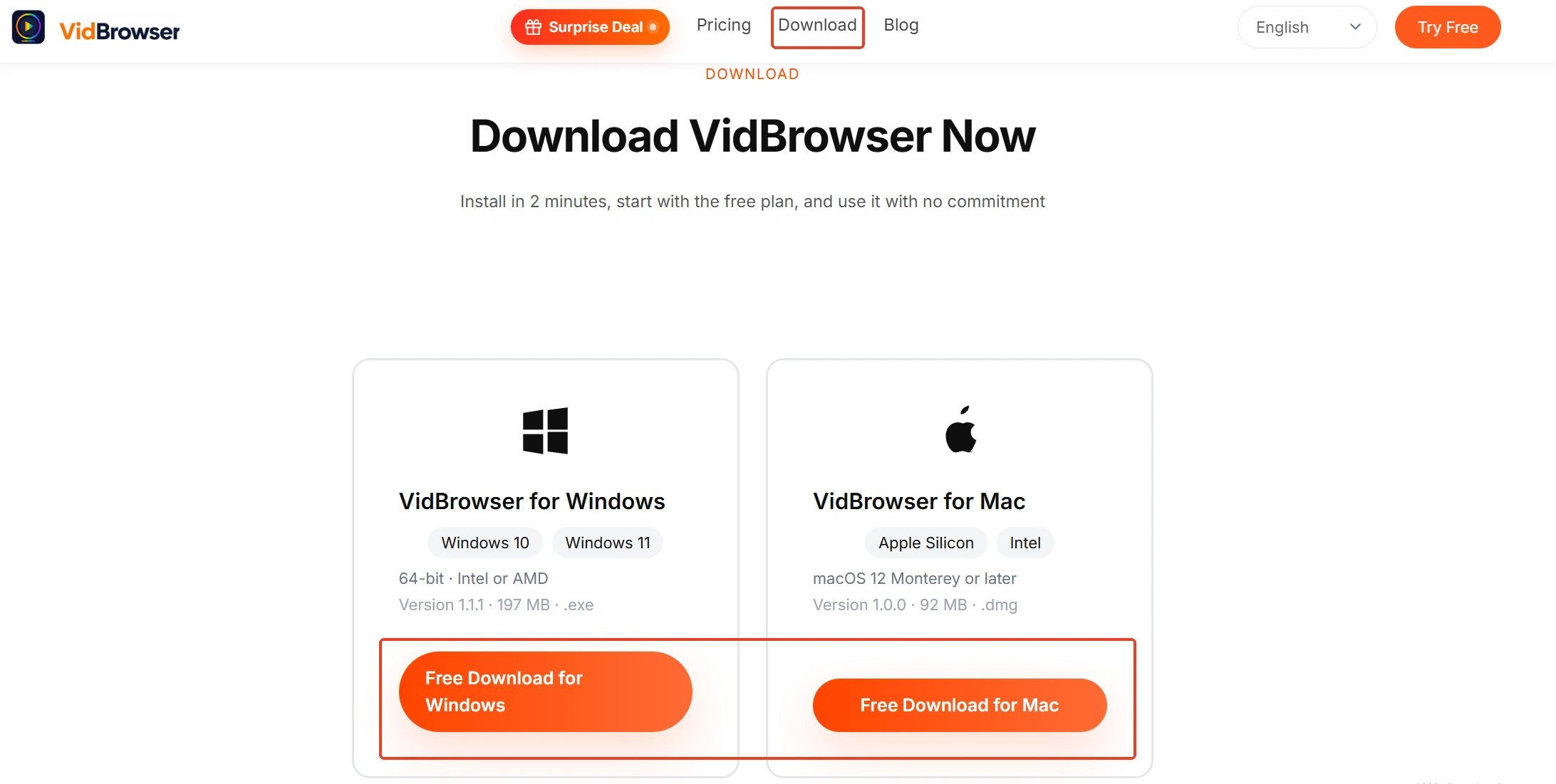
Step 1: Download and install VidBrowser
VidBrowser is a desktop video browser for Windows and Mac that watches videos, captures segments and saves them locally, with download and recording built in; the official site has the installer, and setup takes a few minutes.
Step 2: Open the TikTok live page in VidBrowser and sign in
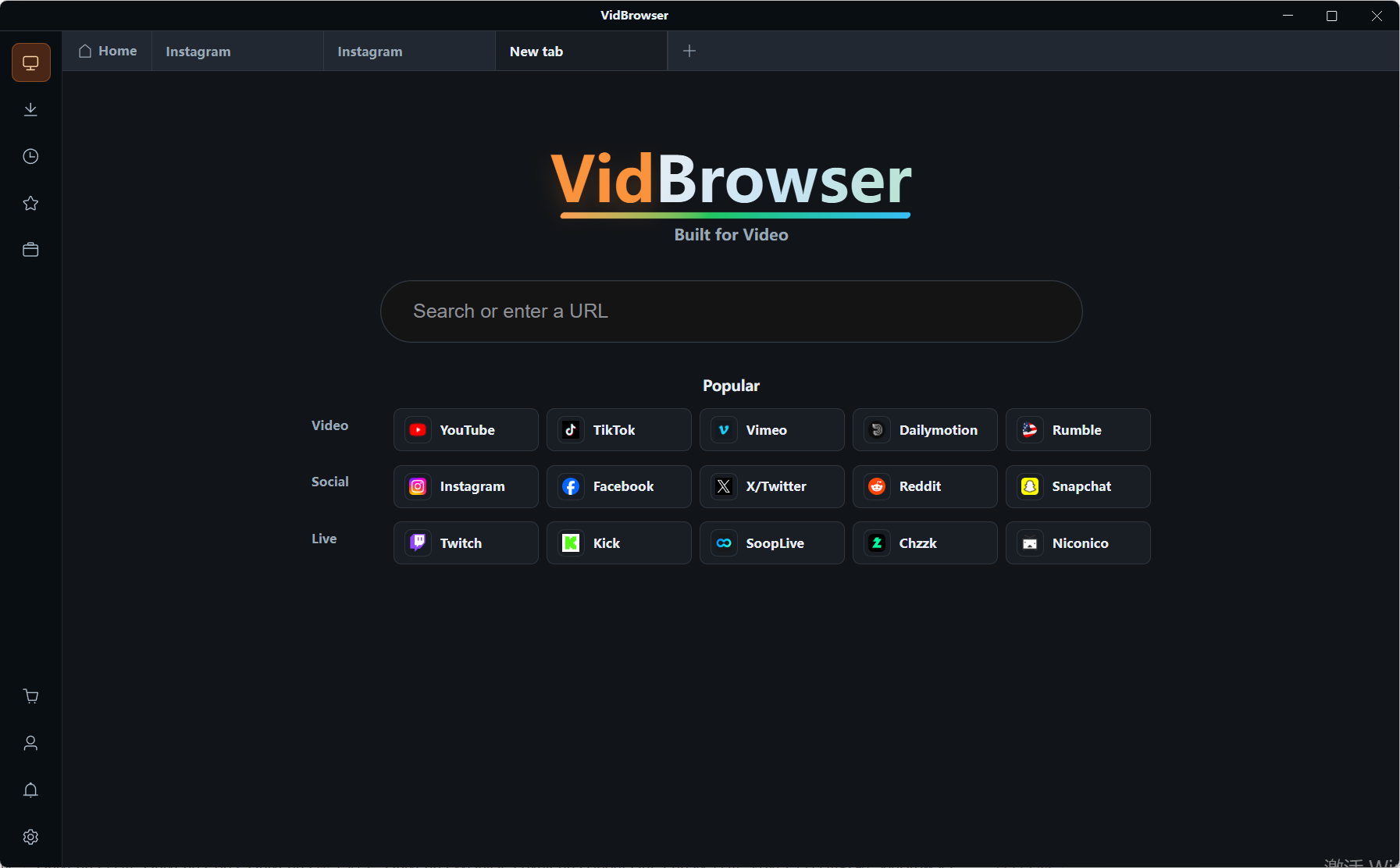
Launch VidBrowser and visit tiktok.com/live, which aggregates the streams currently on air; you can also go straight to a host's profile at an address like "@username/live". Sign in with your account so comments and gifts work as usual.
Step 3: Pick a LIVE that is currently broadcasting
Open the stream that interests you and watch it full screen — picture, comments and gift effects all render on the big display, far more comfortable than holding a phone upright through a long stream.
Step 4: Save the stream with the recording feature
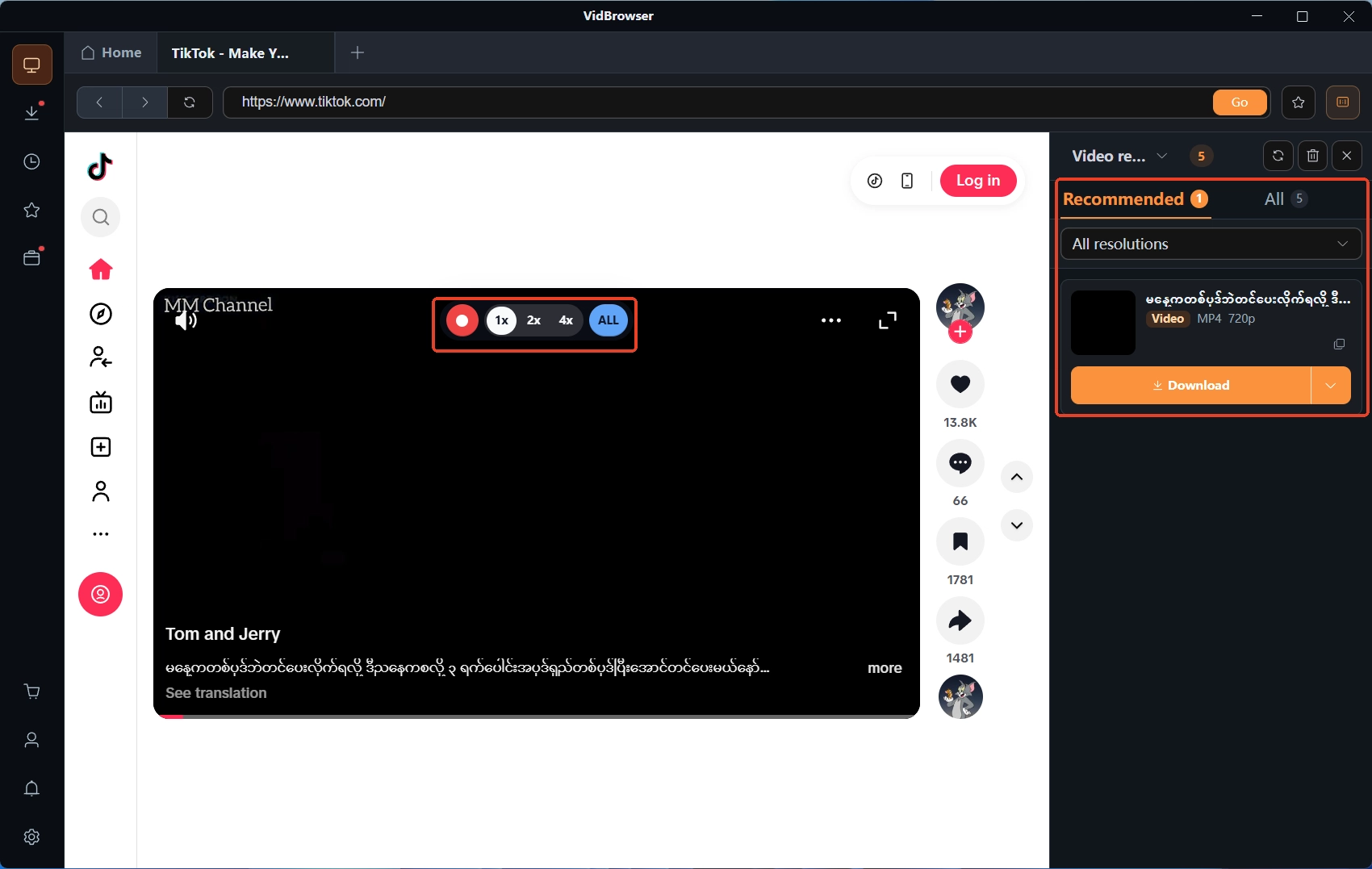
Move the mouse over the video and the recording controls overlay appears: choose a recording speed (1x real time, 2x or 4x to finish faster), press "record all" to capture the session from the current point, and the recording button on the left pauses at any moment. The stream plays, the file grows.
Step 5: For replays and clips the host posts, use download
When the host publishes the replay or highlight cuts as regular videos after the session, that content downloads directly: the "video media library" panel on the right lists the detected videos, each with an orange download button — one click saves it as MP4, and the download history keeps everything findable.
Wrap-up: both saving routes live inside a time window
The saving logic of TikTok LIVE condenses into two sentences. If you are the host, download the replay from the recordings section of TikTok Studio and do not sit on the retention period. If you are a viewer, record the stream of whoever you want to keep while they are live — after the session ends, the platform leaves no door open. Regular videos can keep using the download route; do not carry the urgency of live content over to them.
FAQ
How long can a TikTok LIVE replay be watched?
Two layers: on the viewer side there is no replay entrance by default — if the host posts no replay or clips, there is nothing to watch; on the host side the retention period is quoted as either 30 days or 90 days, and the deadline shown on the LIVE recordings page in the app is the one that counts. If you want it, download early.
Will the host be notified if I record a TikTok LIVE?
No. TikTok has no notification mechanism for watching or recording, and a local recording happens on your own device without sending any record back to the platform or the host.
Can a LIVE still be downloaded after it ends?
Parsing the stream link directly does not work — a real-time stream has no finished file. What remains is the chance that the host posts the replay or clips as regular videos afterwards; then the regular download method applies.