
Twitch Errors 2000, 3000 and 4000: Fix Each Code by Its Cause
You open Twitch to watch a stream, and the player throws up error codes 2000, 3000, or 4000 — refreshing does nothing. Before reinstalling your browser, know that each code points to one clear layer of cause: 2000 relates to the network connection, 3000 means the device cannot render the video, and 4000 is a media-resource-side problem. Read the code first, then fix by section.
An error code means playback fails outright; a choppy picture you can still watch is buffering lag — that fix order is covered in the Twitch lag troubleshooting guide, so do not mix the two up.
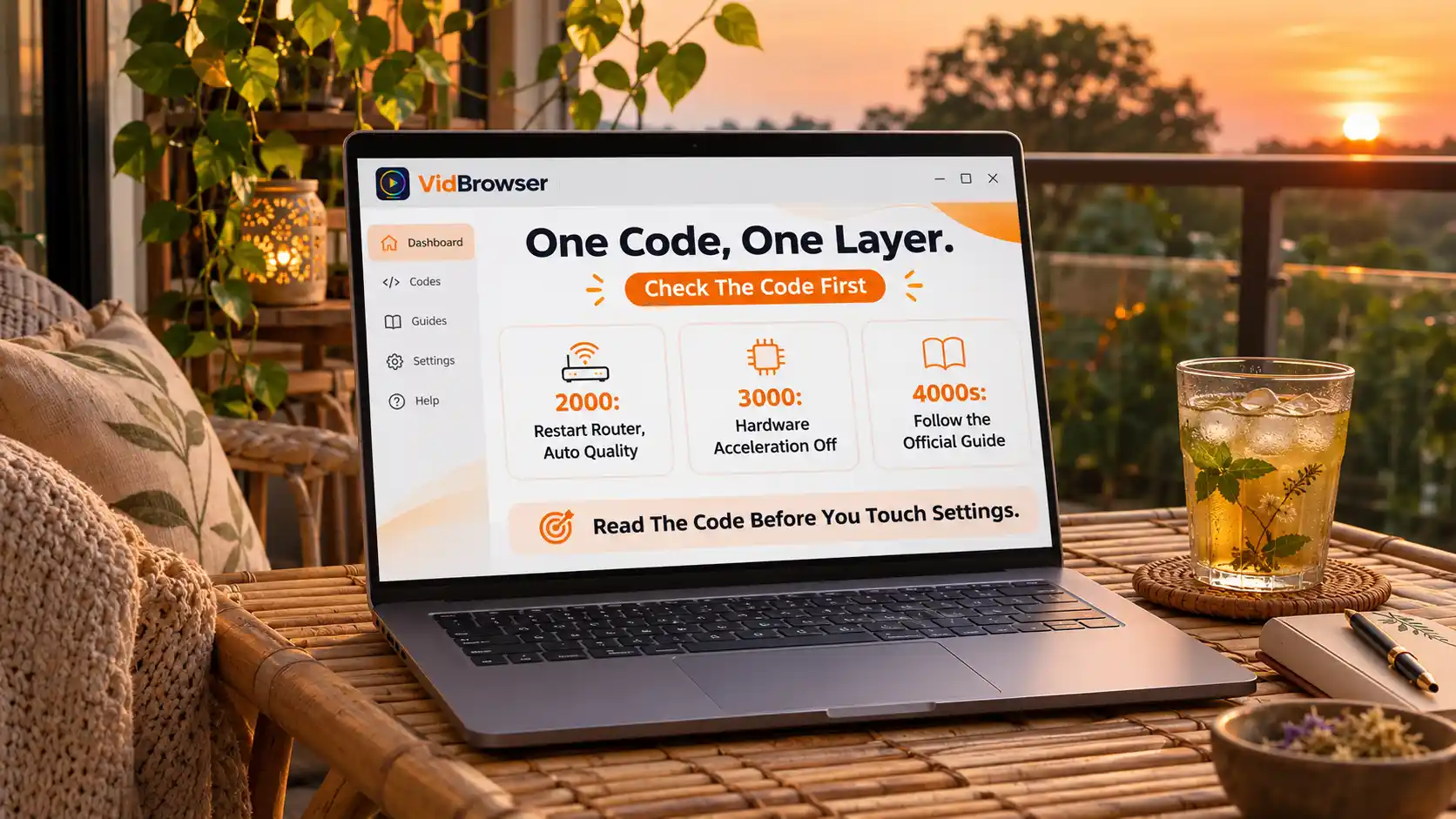
How to Fix Twitch Error Code 2000?
Error code 2000 is usually related to the network connection, and the message typically reads Network Error. Troubleshoot in this order:
1. Check your network connection
First open other websites to see whether they load; if none do, the problem is your local network. If other sites work fine, move closer to the router or switch to a cable, pause bandwidth-heavy downloads, or test with a phone hotspot.
2. Restart your router
Routers get unstable after running a long time. Unplug the router and modem, wait about 30 seconds, power them back on, then try the stream again.
3. Set quality to Auto
When your speed fluctuates, manually locking 1080p actually makes playback harder. Click the settings icon at the bottom right of the player and change "Quality" to "Auto" so the player adapts to your connection.
4. Temporarily disable extensions and VPN
Ad-blocking extensions may block resources the player needs — disable them and refresh. Twitch also blocks some VPN IP ranges, so disconnect and retry. If nothing changes, check status.twitch.tv first; a platform-side outage just needs time.
How to Fix Twitch Error Code 3000?
Error code 3000 usually means the browser or device cannot decode the video properly — it can appear even when the network is fine, so focus on these two checks.
1. Update your browser
Older versions may not support Twitch playback. In Chrome: three-dot menu → "Help" → "About Google Chrome", install any update and restart; bring Firefox and Edge up to date the same way.
2. Turn off hardware acceleration
Hardware acceleration lets the browser use the GPU for video, and some devices or drivers are incompatible with it. In Chrome: "Settings → System" and turn off "Use graphics acceleration"; in Firefox: "Settings → General → Performance" and untick hardware acceleration, then restart. Test both ways: if turning it off fails, switch it back on — keep whichever side plays.
3. Update your graphics driver
An outdated driver also affects decoding. Open "Windows Update", check optional updates, install graphics-related items, then restart and test.
What About Twitch Error Code 4000?
The official troubleshooting table does not list a separate cause or fix for 4000; third-party sources commonly point to the media-resource side — the stream URL is unreachable or the format is unsupported. Follow the official Twitch playback troubleshooting page for the latest guidance instead of old tutorials.
Things to try first: refresh the page; compare with another stream; update the browser; disable extensions temporarily; switch from Wi-Fi to a phone hotspot. If one stream alone errors while others play, it is most likely a streamer-side broadcast issue — wait and retry.
What If the Twitch Player Is Black or Keeps Spinning?
For black screens, endless spinners, or audio without picture with no code shown, follow the order below.
Step one: refresh the page. Reload the stream page; on mobile, close the app fully and reopen it instead of switching back.
Step two: try another stream. If other channels play fine, the problem is the current one — come back later.
Step three: check browser extensions. Disable ad-blocking extensions and refresh, or retest in an incognito (private) window, which carries no extension cache.
Step four: update the browser. Upgrade the old version first, then play again.
Step five: switch network or device. Open the same stream on a phone hotspot or another device; if it plays there, the issue lies with the original network or device.
Playback Is Back — How Do You Keep the Stream?
A fixed stream only restores viewing; Twitch VODs have a retention window, and once expired they are gone. The deletion and muting mechanics are covered in the Twitch VOD disappearance guide; to keep a copy locally, VidBrowser does it in a few steps — watching and saving live in one app, no tool-switching (supported scope per its video downloader page):
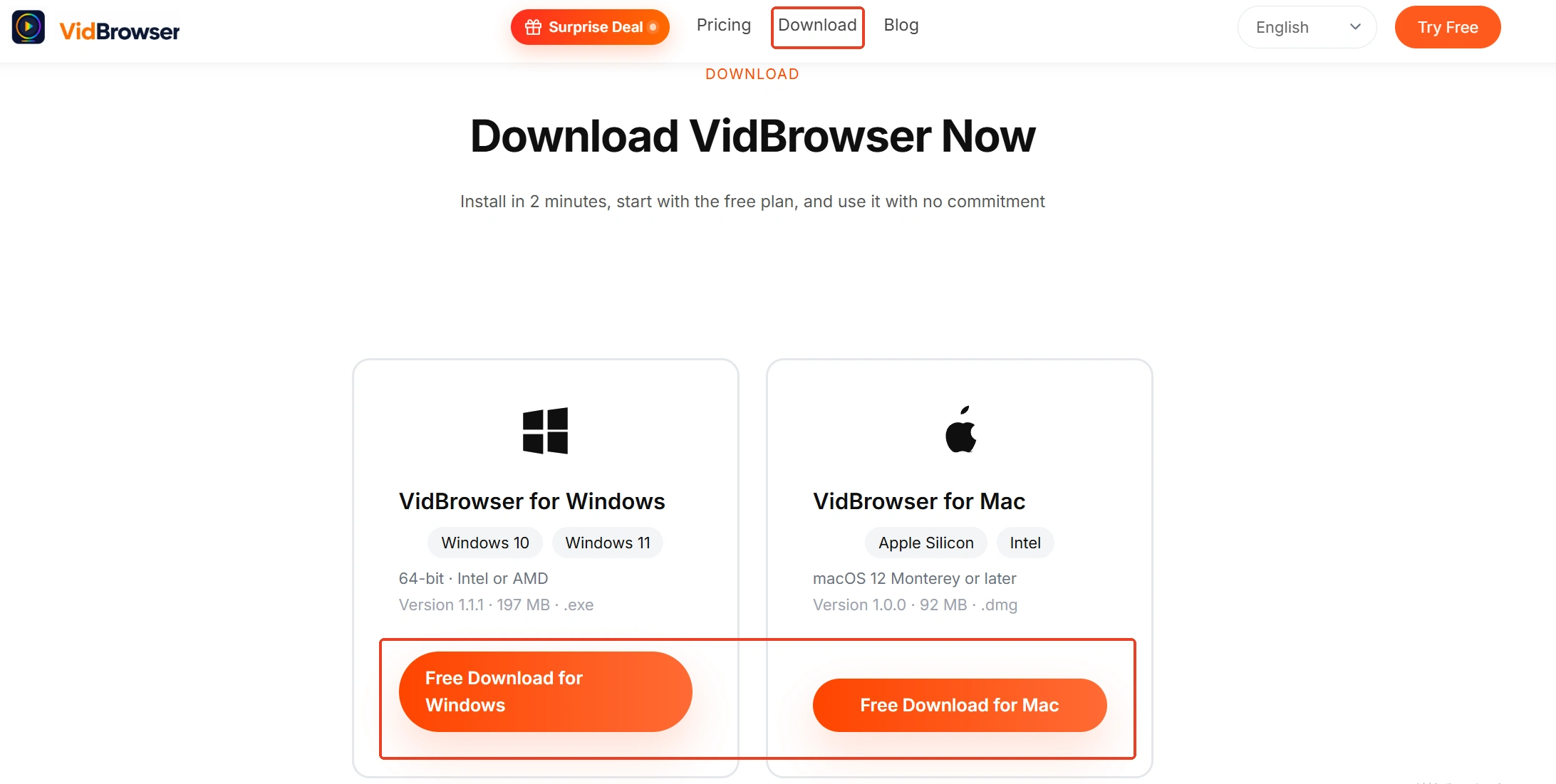
Step 1: Download and install VidBrowser
VidBrowser is a desktop video browser for watching streams on Windows and Mac, clipping segments and saving them locally, with downloading and recording built in.
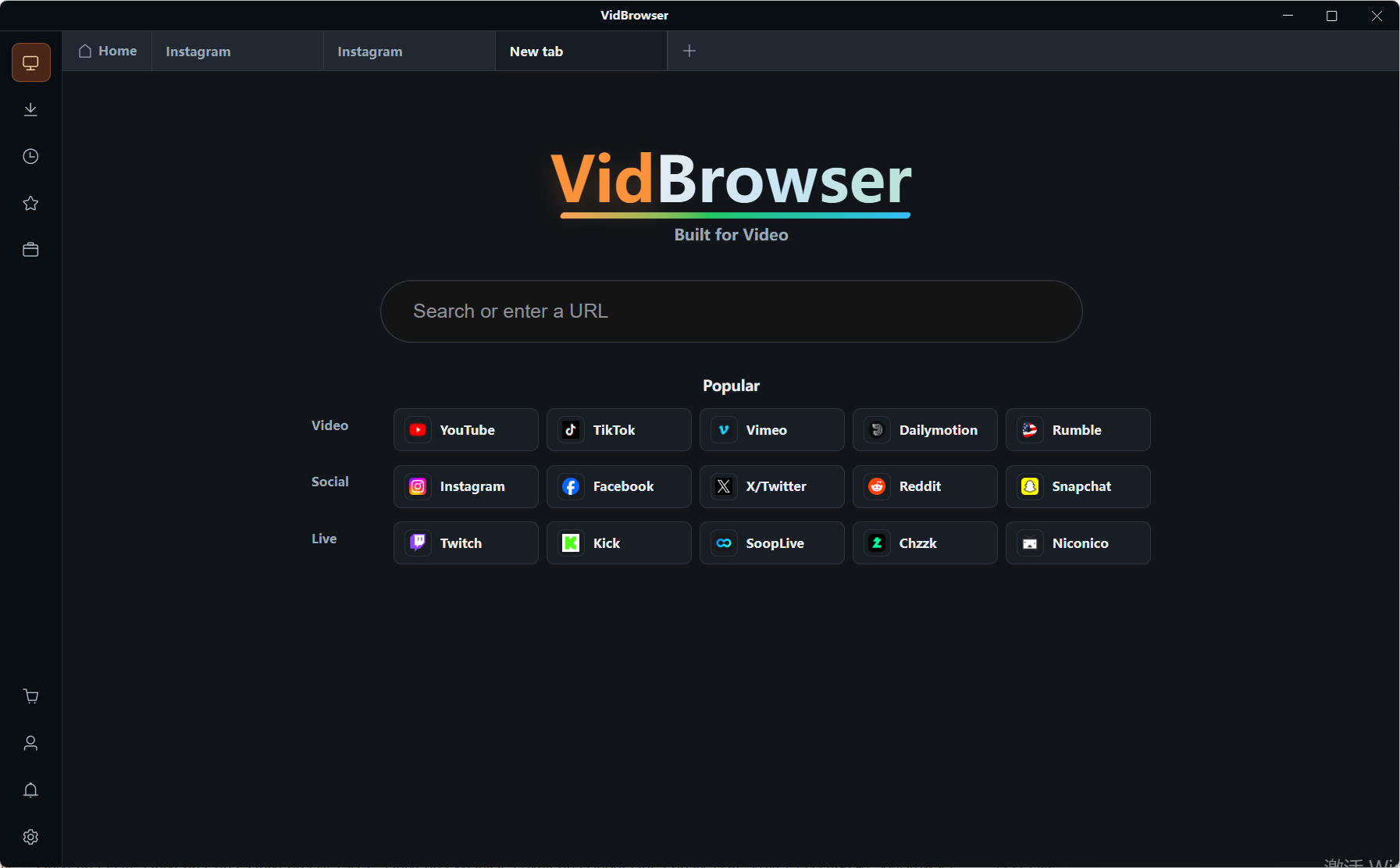
Step 2: Open Twitch in VidBrowser and sign in
Use the built-in browser to visit twitch.tv, sign in, open the channel you want to keep — the browser auto-detects video resources as you watch.
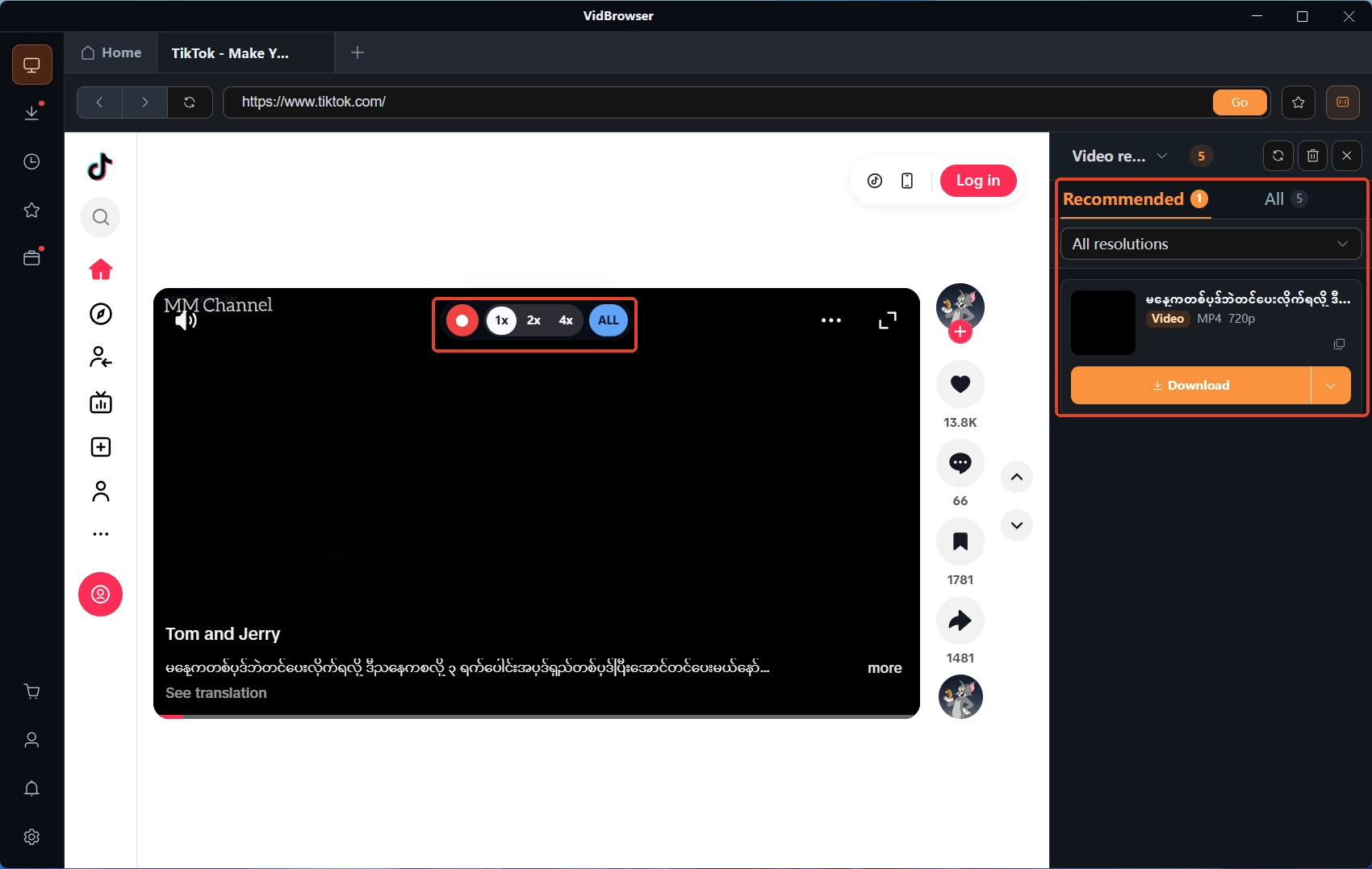
Step 3: Download VODs, record live streams
For a finished VOD: the video library panel on the right lists detected entries — click the orange "Download" button to save as MP4 directly, or filter by resolution first. For a live stream: hovering over the video overlays the recording controls; pick a recording speed (1x real-time, 2x or 4x to finish faster), click "Record All" to capture the whole video, and the record button on the left pauses anytime.
Step 4: Confirm the file in download history
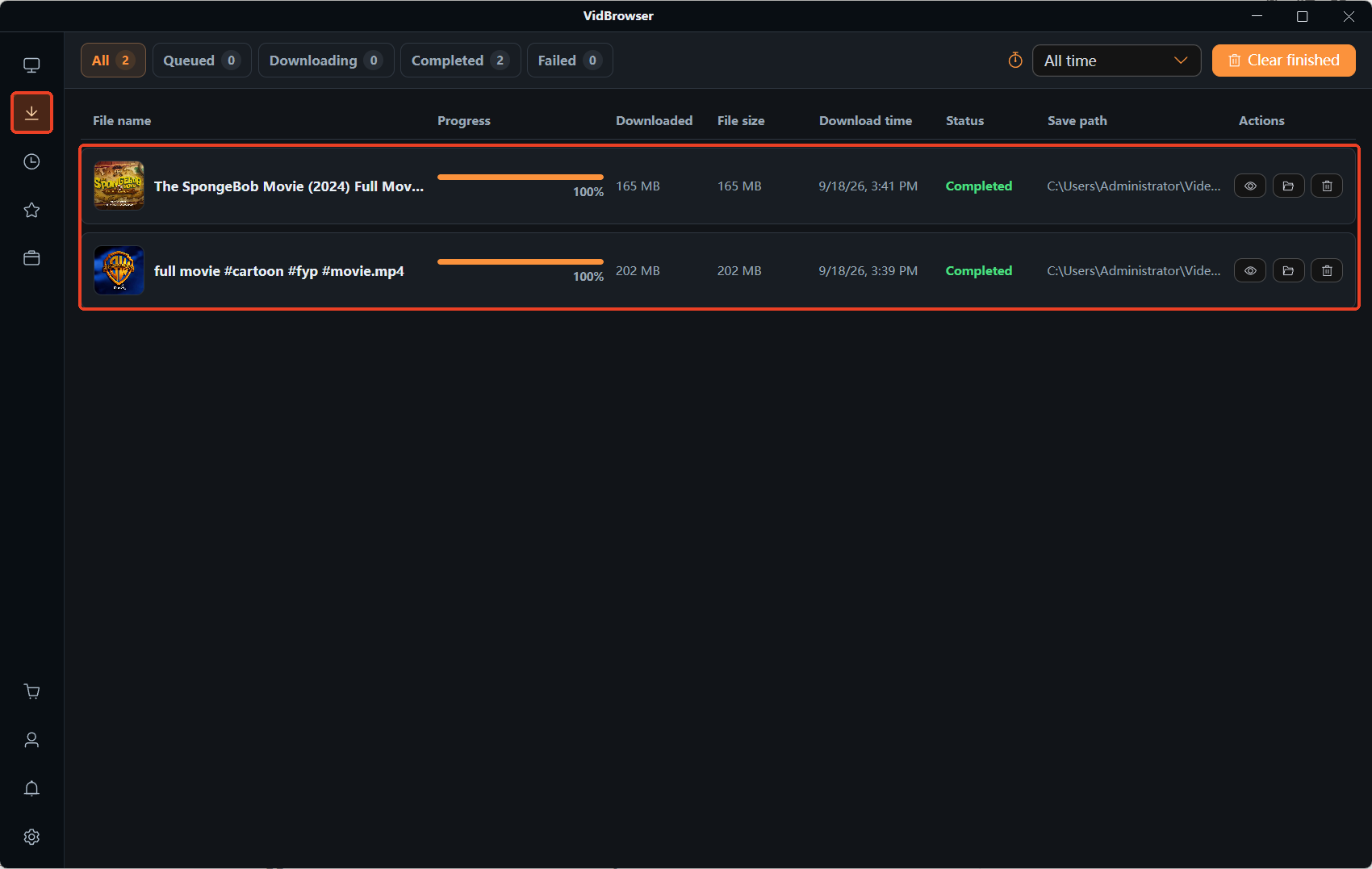
The clock icon in the left sidebar opens the download history — file name, size, status and save location are all listed for a one-by-one check.
Conclusion
Error codes are location tags: 2000 — fix the network (test speed, swap cables, restart the router, set Auto quality, disable extensions and VPN); 3000 — fix browser and hardware (update the browser, turn off hardware acceleration, update the graphics driver); 4000 — follow the official troubleshooting page; black screens follow the five steps. Read the code first, and skip the settings roulette.
FAQ
What if error code 2000 keeps coming back?
A one-off just needs a refresh; repeated occurrences point to a network-path problem — restart the router, switch to public DNS (such as 8.8.8.8), disconnect the VPN and test one by one. If other devices on the same network also error out, the issue is likely the router or the ISP.
Hardware acceleration is off but 3000 persists — now what?
Turn acceleration back on and retest, then update the browser and graphics driver and cross-check in another browser. If nothing works, contact Twitch support with the error code and device info.
Missed the stream because of the error — can I watch it later?
It depends on whether the streamer enabled VODs and how long they are kept; VODs expire and get deleted. To stay free of the time limit, saving a local copy while the VOD is still up is the safest bet.