
Saved 1080p looks blurry? The problem is rarely the downloader
You download a video, the file name says 1080p, and full-screen playback looks mushy. A file passes through several hands from upload to your disk, and the blur may sit at any link of that chain, or that 1080p label may have been wrong from the start. A resolution check settles the case in thirty seconds; first, take the concepts apart.
Resolution and quality are two things: 1080p describes size, not a detail promise
1080p describes how many pixel cells the picture is made of, and it promises nothing about how much detail each cell holds.1920 × 1080 is a grid of about 2.07 million pixels; whether the cells carry clear texture or mushy color blobs is beyond that number, decided by encoding and bitrate — the same 1080p file can differ several times in data size, an account already settled in the video compression article, not repeated here. The official line on the tool page says it more directly: resolution does not equal actual visual quality. Also note one multiplier: 4K UHD is twice the width and height of 1080p and four times the pixels — four times the cells, filled with four times the detail, is what real 4K means.
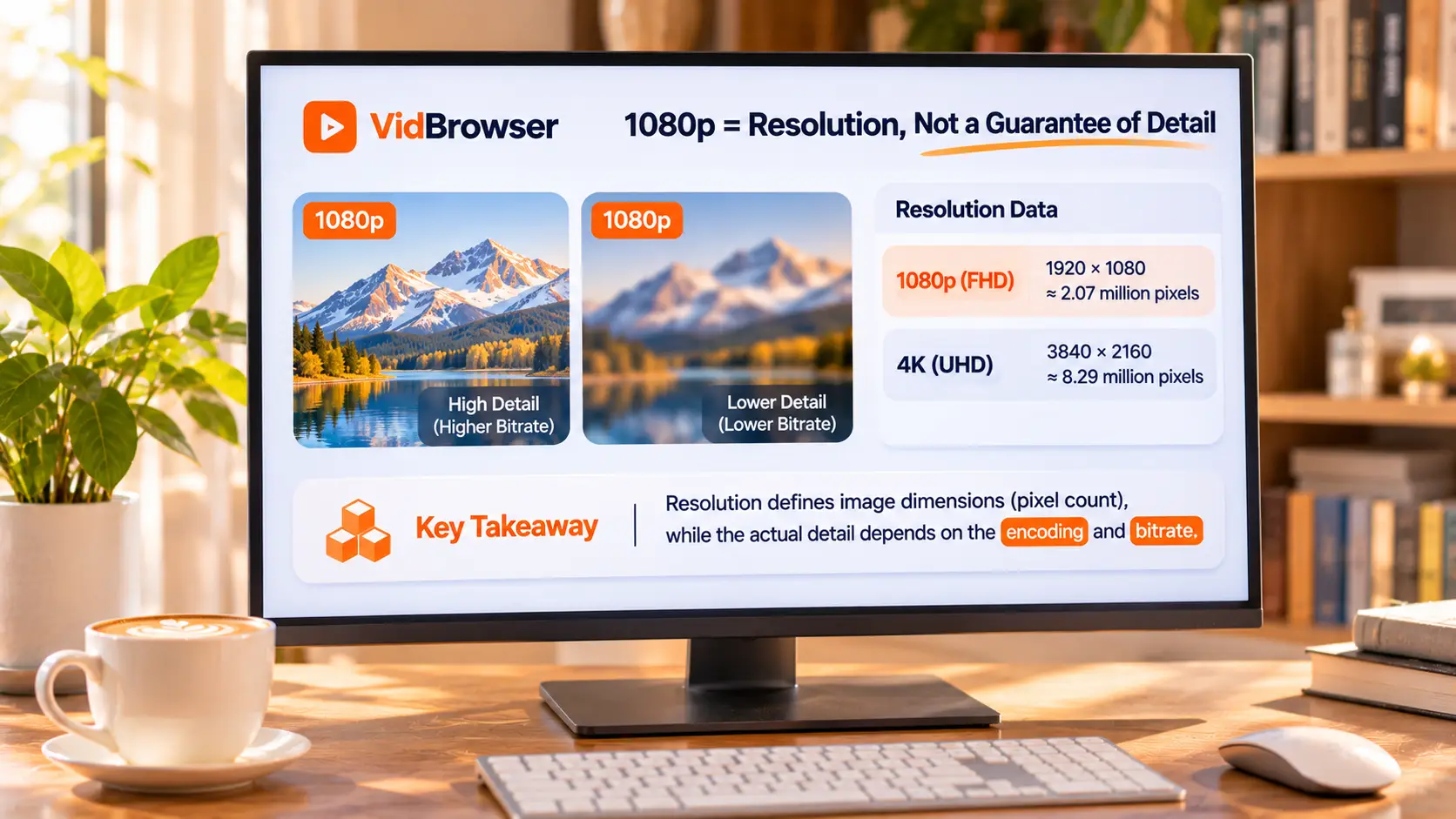
Labeled 1080p yet blurry: four situations cover most cases
Blur is not mysticism; run through the four situations and almost every case fits one.
- The source is low-res to begin with. The uploader delivered at this level, and platform transcoding will not invent detail. Put the same creator's early and recent videos side by side and the gap shows at once; the finer judgment steps are broken down in the OnlyFans quality guide, not repeated here.
- Low-res got a high-res shell. Stretch 720p material to 1080p size: the label changed, not a frame of information was added; interpolated pixels pad the count, detail does not come back. The official note on the tool page says exactly this: upscaling low-quality material to 4K does not restore real detail.
- You got the low tier. Platforms usually keep several quality tiers of the same title; what download or recording delivers is the stream handed to you at play time, not always the top one.
- The screen is magnifying too much. Sharpness fine on a six-inch phone falls apart on a living-room panel; the perceived gap is created by screen size alone.
Three widespread myths, each more expensive than the last
The most common misunderstandings all come from taking the label as truth; take them apart one by one.
- Trusting HD or 4K in the file name. A label is written on; width and height are measured; anyone can name a file 4K.
- Treating resolution as quality itself. The official tool page is clear: bitrate affects compression detail, frame rate affects motion smoothness. Two 1080p files side by side can differ by a class.
- Treating a check as a repair. The check tells you the real size of the file in hand, it does not make it sharper. To truly improve, go back to the source for a higher tier; the checker cannot help there.
720p, 1080p, 1440p, 4K: one table of numbers at once
Width, height and names of the four common tiers, in one place:
- 1280 × 720, usually called HD;
- 1920 × 1080, that is 1080p, also Full HD; for the origin of the name see the 1080p entry on Wikipedia;
- 2560 × 1440, usually written QHD or 1440p;
- 3840 × 2160, that is 4K UHD.
Two footnotes that save money. "2K" means different things in different contexts and should not be equated with 1440p on faith; measured width and height beat marketing names when buying. A vertical 1080 × 1920 holds the same pixel count as a horizontal 1920 × 1080 — portrait alone does not make it low-res. For a true 4K tier, the YouTube 4K download article covers picking the highest version.
Four steps to close the case on the spot
The check runs locally in the browser, the video never leaves your machine, results in thirty seconds.The entry is the VidBrowser video resolution checker page, four steps:
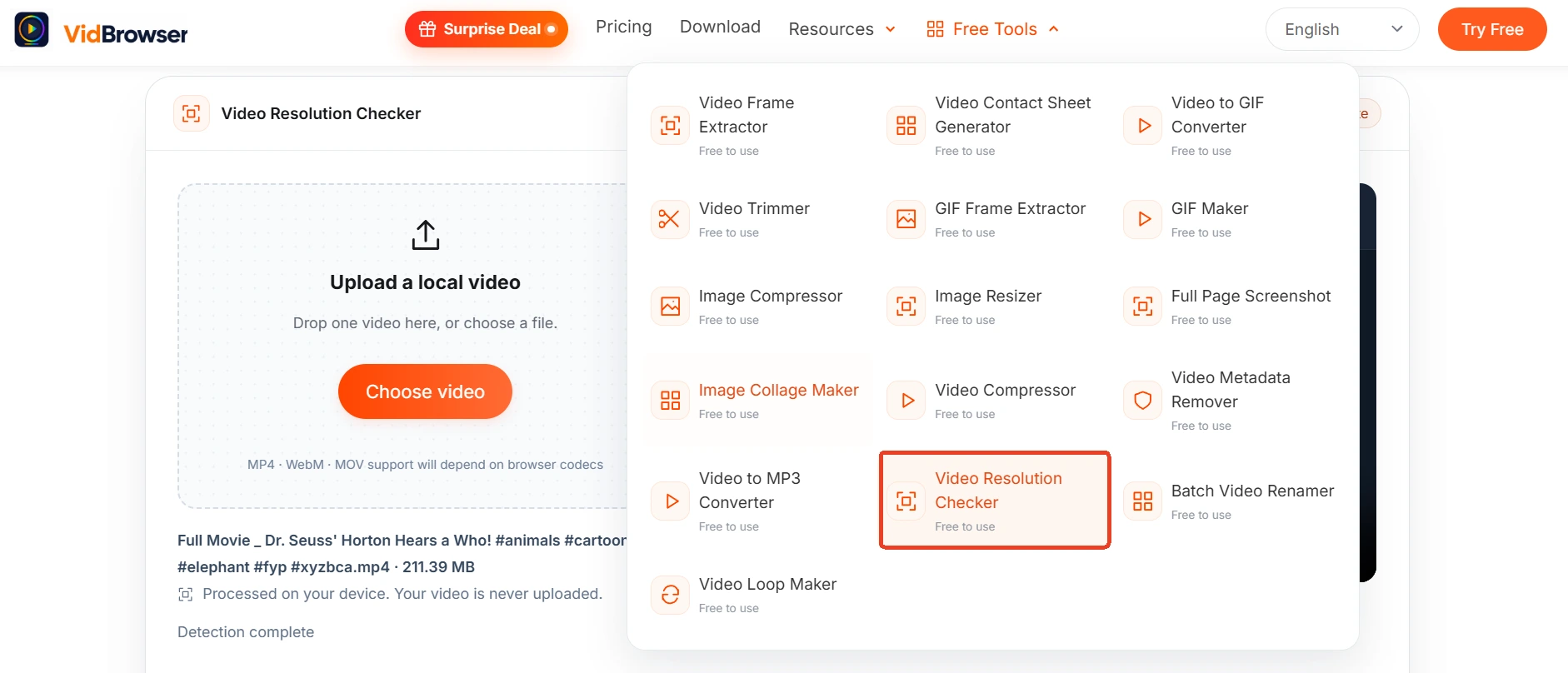
Step 1: Open the tool page and drop the video in
MP4, WebM and MOV are supported (subject to browser support), or pick a file from local storage; the file stays on your machine.
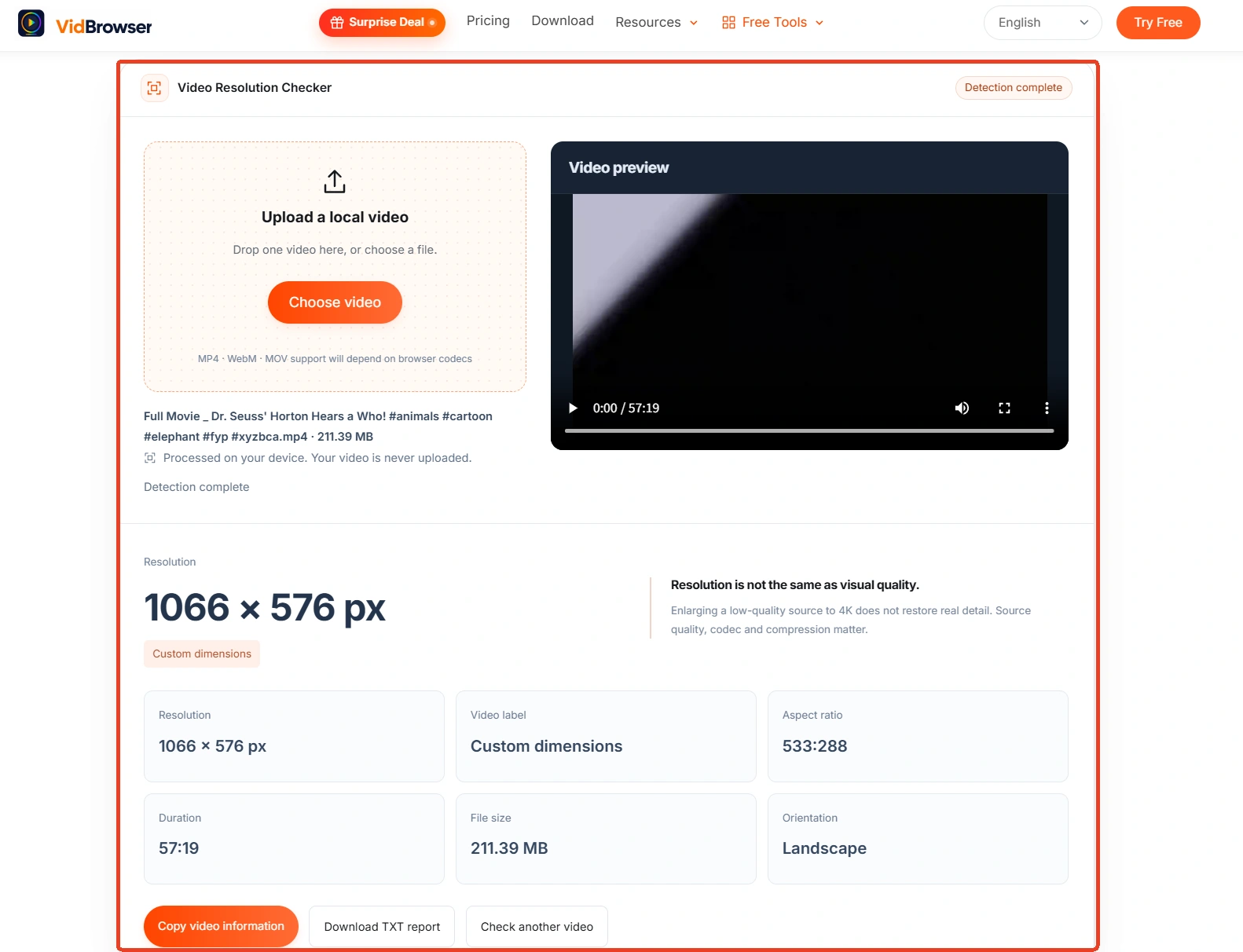
Step 2: Read the preview and orientation
Portrait or landscape is obvious in the preview, and orientation is listed as its own item.
Step 3: Read the four metrics
Resolution (width × height), clarity tier (which of HD, Full HD or 4K), aspect ratio, plus duration and file size, all in one pass.
Step 4: Copy the video info or download a TXT report
Export a report to keep evidence, or hit check another video to run the next file.
Pick the right tier before downloading, cheaper than fixing afterwards
Filter the low tiers at the download step instead of verifying after the fact.VidBrowser is a desktop video browser for watching videos, clipping moments and saving them on Windows and Mac, with download and recording built in; the official site leads to the installer. For public videos the media library panel on the right lists detected items, each with an orange download button; the resolution filter defaults to all resolutions, and once set, matching tiers unfold next to the button — pick the highest label. For protected content on subscription platforms ordinary downloaders cannot reach; recording is the surer way: move the mouse over the video and the record controls stack onto the picture, pick a rate (1x follows real time, 2x and 4x wrap up sooner), press record all and the whole video is handed to it, while the record key on the left stops it whenever needed. After saving, run the checker once to verify the real width and height, and re-save at a higher tier while you still have access.
Summary
1080p remains a size label; account for blur from four ends: source, stretch, tier, screen. Filter the low tiers before downloading, verify the real width and height after saving, and it beats guessing from file names. Labels can lie; pixel counts cannot.
Frequently asked questions
Is a 4K file always sharper than 1080p?
Not necessarily. The official tool page answers directly: upscaling low-quality material to 4K does not restore real detail, and the original material, encoding and compression settings all matter. Measure width and height first, then judge by eye, not by number.
Can it detect bitrate and frame rate?
No. The browser video interface cannot reliably provide full encoding, frame rate and bitrate info, and the tool page notes advanced fields are not analyzed; dividing file size by duration is equally unreliable, that is not the real stream bitrate.
The check says it really is low-res. Can it be made sharp?
The checker does not repair. What works is going back to the source: if a higher tier exists, re-pick and re-save while you still have access; if the source is low-res, no tool can bring back detail the camera never recorded.