Plenty of KeepStreams alternatives exist, but few match your actual workflow
Search for a KeepStreams alternative and most people hit the same wall: a long list of tools, still no idea which one to install. The problem is rarely a shortage of options - it is a missing step before the comparison: figure out what kind of workflow KeepStreams One actually is, then decide whether you need the same kind.
Choosing a KeepStreams alternative: first see what kind of workflow it really is
KeepStreams One is a bundled desktop downloader: open the app, pick the content you want in its built-in browser, and the software analyzes and outputs files.The official positioning is All-in-One: one app covering more than three thousand sites, output in MP4 or MKV, with builds for both Windows and macOS. Its predecessor was KeepVid, an online download service started in 2018, which pivoted to desktop and rebranded in 2021 - a different kind of product by now; in 2024 it added KeepBeats for music. Many people still picture it as the old paste-a-link online site.
Fairness first: a bundled desktop downloader saves heavy multi-platform users real effort - one app, one queue, subtitle and audio-track options gathered in one place. Updates are frequent too; version 2.0.4.2 shipped on October 13, 2026, and third-party reviews likewise credit its output and batch capability. What this comparison covers is the shape of the tool and its usage flow, not any company's content policies or pricing.
Before picking an alternative, decide which workflow you need
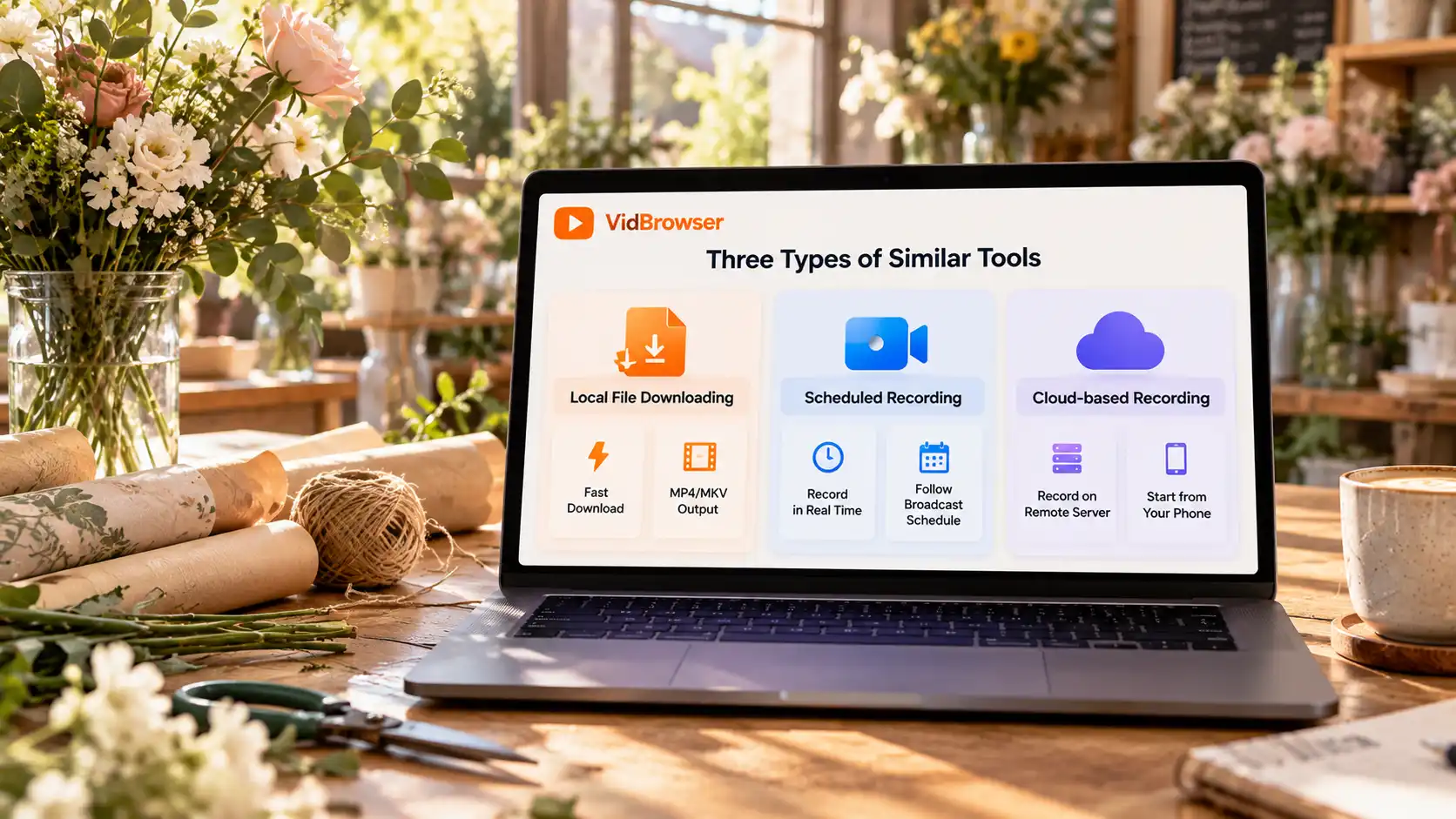
KeepStreams' own comparison articles sort similar tools into three groups by workflow: direct file download, scheduled recording, and cloud recording.That split is more useful than a feature checklist: it decides what your time and your machine each carry.
What the three look like:
- Direct file download: the software asks the server for the file. Fast, output in MP4/MKV, but the most dependent on platform changes: update logs and third-party reviews both note that when a platform adjusts, "analysis failed" appears and you wait for the fix.
- Scheduled recording: the software works like a recorder, capturing shows by their broadcast schedule. Recording runs in real time - a two-hour program takes two hours - but no platform change can touch this path.
- Cloud recording: the recording runs on remote servers - start it from your phone, the cloud finishes the job, a fit for people without an always-on computer.
If you want "open it and save, no waiting for a broadcast timetable", only the first two are candidates; the principle and limits of universal downloading are taken apart in a separate piece.
Two official details to check before installing
The first is the install channel.On the KeepStreams homepage there is one easy-to-miss line: due to review and licensing issues, the Microsoft Store channel is temporarily unavailable, and during this period installers come from the official site. The value of that line is the reminder for everyone: get the installer from the developer's own channel - third-party repackaged versions cannot be verified. Whichever tool you settle on, find its official download page first.
The second is the maintenance cadence.Streaming platforms change interfaces often, and a tool's fix speed decides how long "analysis failed" lasts. When sizing up an alternative, check two things in passing: the latest date in the changelog, and whether the version number has moved within half a year. A tool untouched for six months has most likely fallen behind on compatibility.
Matching needs to tools: who fits which of the four types
Write your needs as three lines - what you save, how often, on which machine - then match; it beats reading spec sheets.
- Many platforms, frequent downloads, batch queues wanted: a bundled desktop downloader is the smoothest fit; KeepStreams One and its peers belong here.
- Browser-first, saving a few links in passing: extensions are lighter, but the streams they can grab are decided by the page - the ceiling is set the day you install; the boundaries are broken down in the extension alternatives piece.
- An occasional save, no software installs: online parsers take a link and go; the cost is that whatever the parser cannot fetch, they cannot either - the difference between the two was compared in the parser alternatives piece.
- Want "watching" and "saving" in one window: that is another route, expanded below.
The other path without switching software: save while you watch
If you would rather not keep another background downloader resident, there is a type of tool that builds the browser and the saving capability together - VidBrowser belongs to this type: a desktop video browser where the page plays and the content stays.The download entry sits next to the player, links do not get shuffled around, and whatever parsing cannot grab, recording catches. Walk through it:
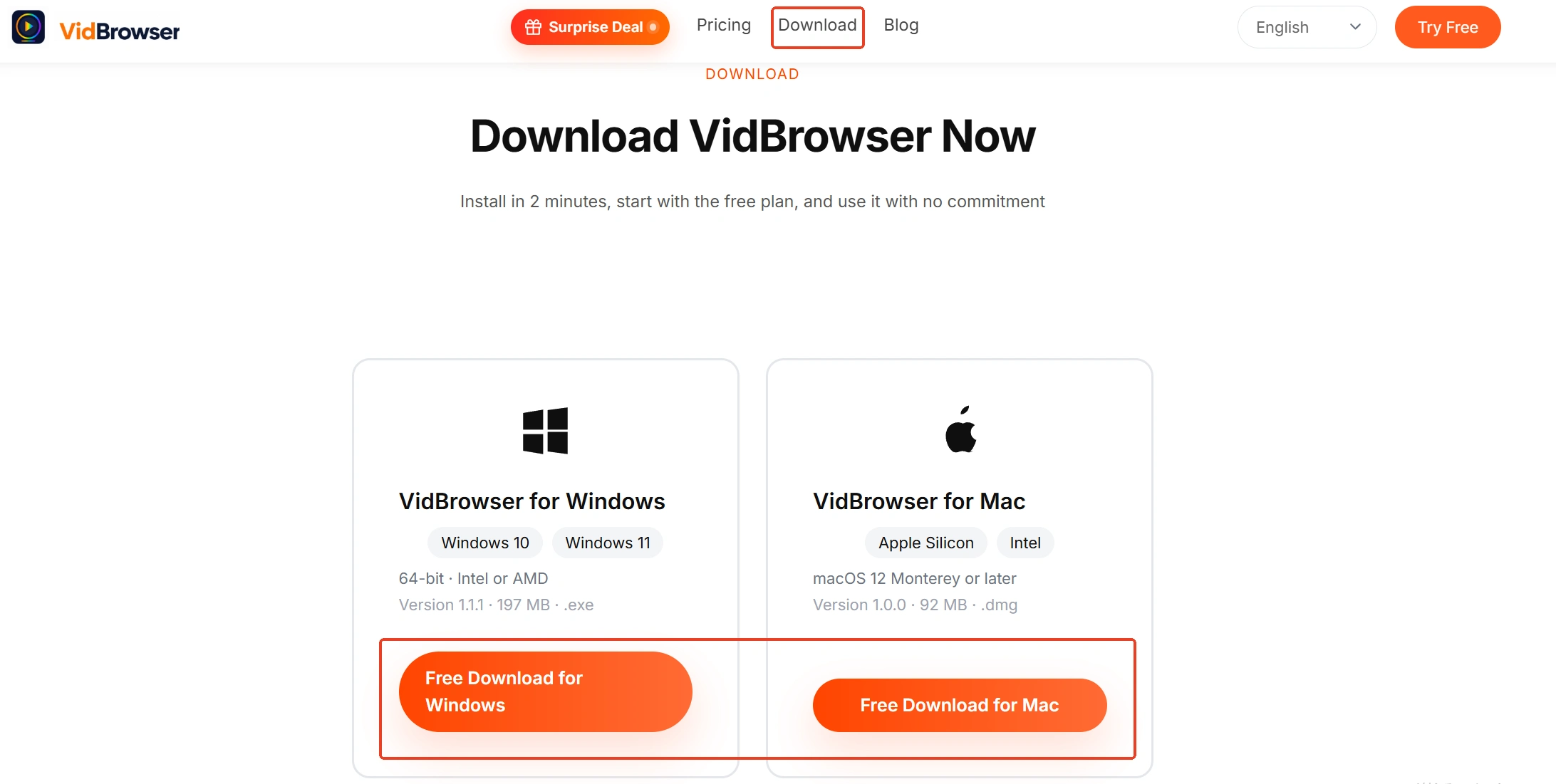
Step 1: Download and install VidBrowser
VidBrowser is a desktop video browser for watching videos, clipping segments and saving them locally on Windows and Mac, with downloading and recording built in. Installation takes a few minutes.
Step 2: Open the video page in VidBrowser
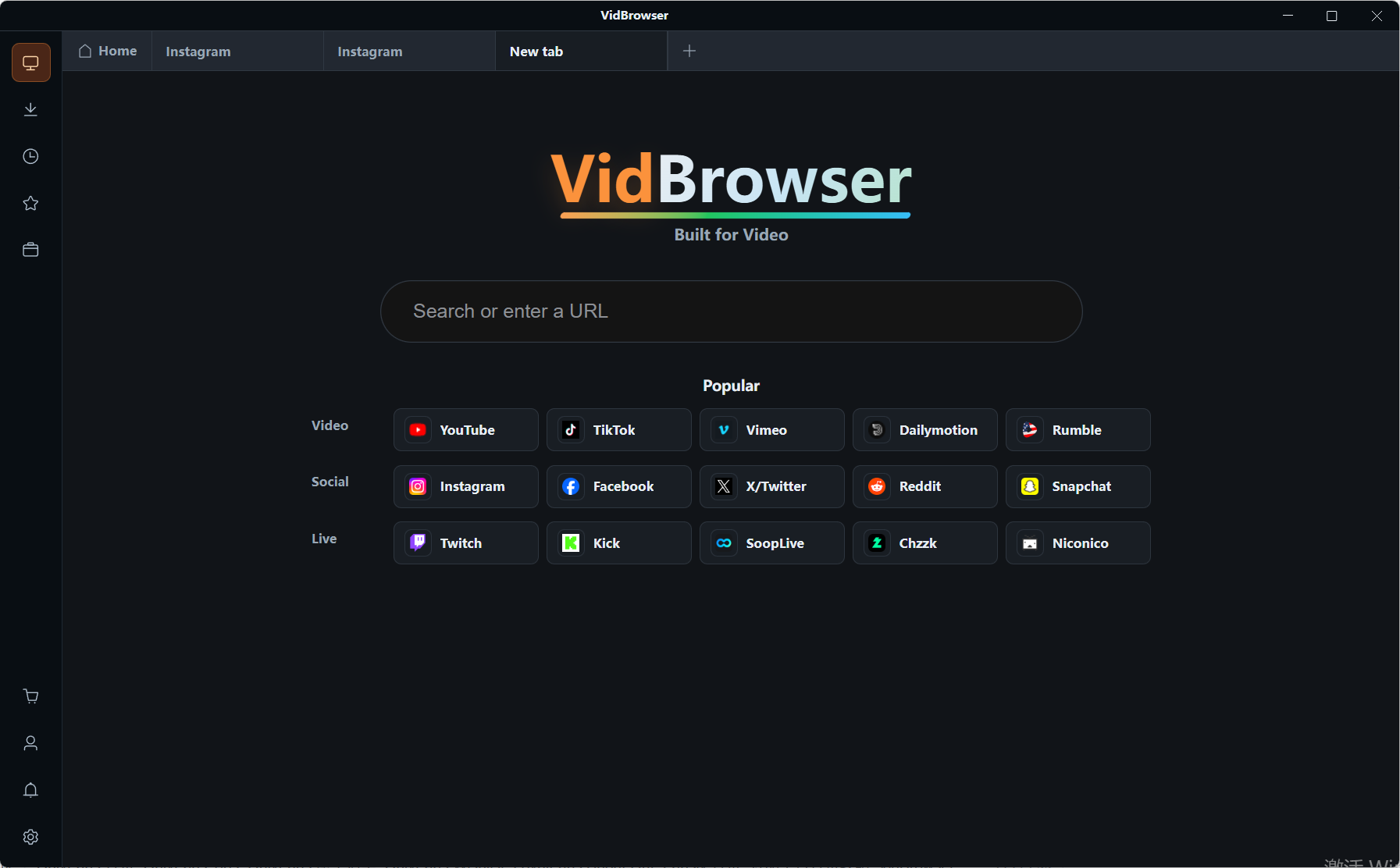
Use the built-in browser to open the target page and log in, find the video as usual, and the detected resources appear on the right.
Step 3: For direct downloads, hit the orange button
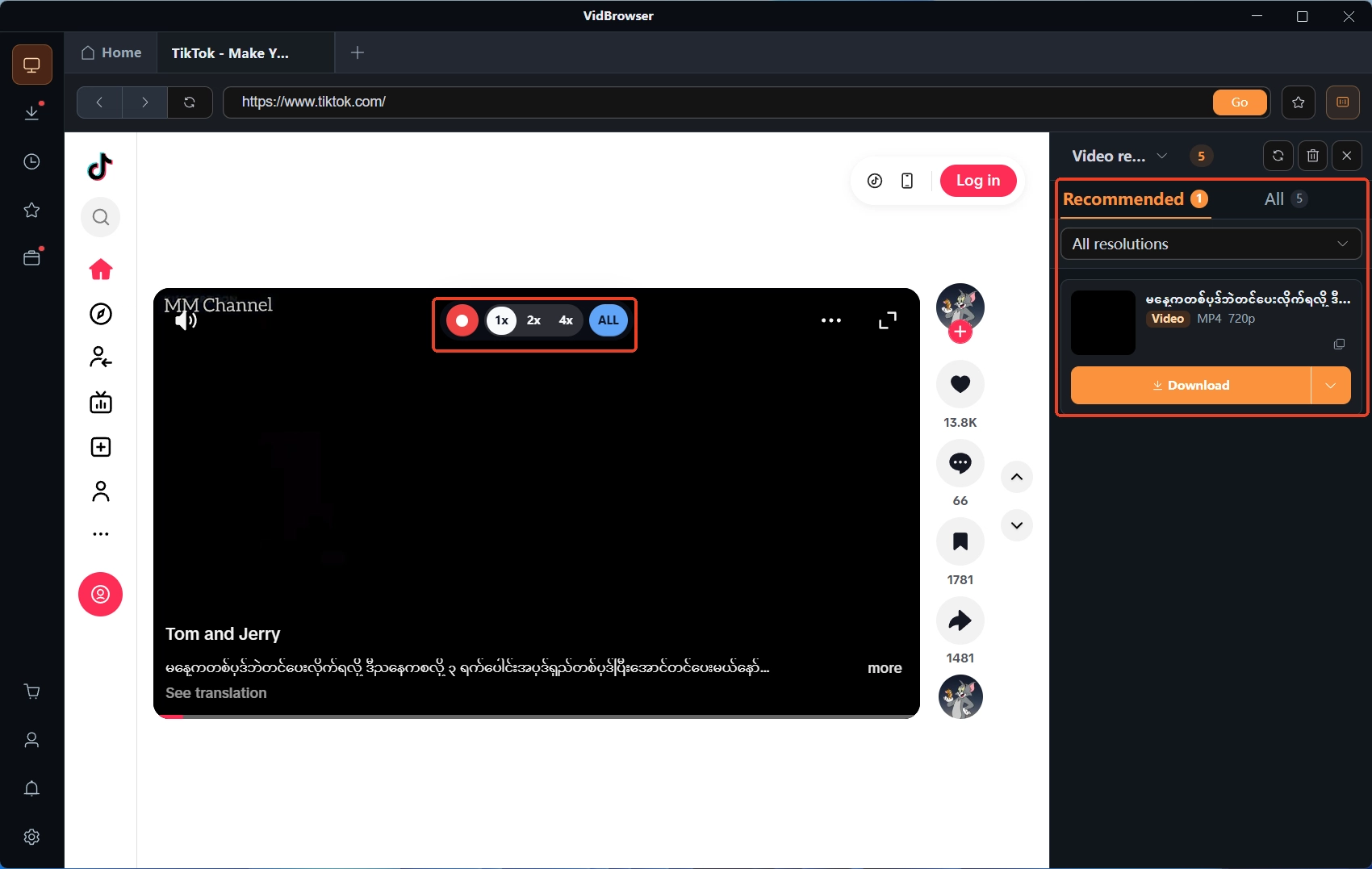
The "video media library" panel on the right lists detected items, each with an orange "download" button; one click saves it as MP4, and you can filter by resolution first. Saved files can be checked for size and location in the "download history" on the left.
Step 4: When downloading fails, record instead
Some platforms serve protected video that a plain download cannot capture in full; the recording overlay steps in here: move the mouse over the video and the controls appear, pick a recording speed (1x real time, 2x or 4x to finish sooner), press "record full video" to capture the whole thing, with the left buttons to start or pause anytime - protected content gets saved in full too. The full picture of the download route is on VidBrowser's video downloader page.
Wrapping up
Choosing a KeepStreams alternative comes down to two lines: match by workflow first - direct download, scheduled recording and cloud recording are three different roads, and your output decides the direction; then run two checks before installing - is the installer from the official site, and how recent is the changelog. Direction settled, the rest is simply trying it on a video you watch often.
FAQ
Is KeepStreams still working normally
The product is actively maintained: the official changelog shows version 2.0.4.2 released on October 13, 2026, with updates focused on service compatibility. The old problem remains: when a platform changes, "analysis failed" can pop up and usually waits on the vendor's fix - if that bothers you, keep the recording route as a backup.
Before switching alternatives, what should the free trial test
Do not test with random content. Take one video you actually watch and walk the full chain: does login hold, are quality and audio-track options complete, are subtitles muxed or external, and does the saved file open on the device you play on. A trial verifies the whole pipeline, not a single spec.
Can videos in a browser be kept without a downloader
Yes - that is exactly the route VidBrowser sits on: browser and saving in one app, an orange button when a download works, and the recording overlay when parsing cannot. If you would rather not install another downloader per platform, this path removes the cost of switching between tools.