OBS makes the content, built-in browser recording keeps the video
The same video you want to keep: some people reach for OBS first, others hit record right in the browser. Both routes end up with a video file, but the gap in process and result is much bigger than a question of which one is easier: one records everything that happens on your screen, the other aims at the video that is actually playing. Before you start, get clear on what each route covers — picking the wrong tool costs you far more than image quality.
OBS and built-in browser recording record different things at the root
OBS records the composed whole-screen picture, while built-in browser recording aims at the video that is playing.OBS Studio is free, open-source recording and streaming software with official builds for Windows, Mac and Linux, a steady update rhythm and a current version of 33.0.1 on its official page. Its core mechanism is scenes plus sources: create a scene, add window capture, images, text, a browser window, a webcam or a capture card as sources, switch scenes freely with no limit on their number, and the audio mixer lets you attach noise gates and other filters per source. In other words, OBS cares about what picture your screen has been composed into.
Built-in browser recording builds no scenes. The controls sit directly on top of the video picture, you hit start and it records, and you never have to decide in advance which display to capture — its target is clear from the very beginning: the video playing right now.
The strength of OBS is making content — three things it does better than the browser
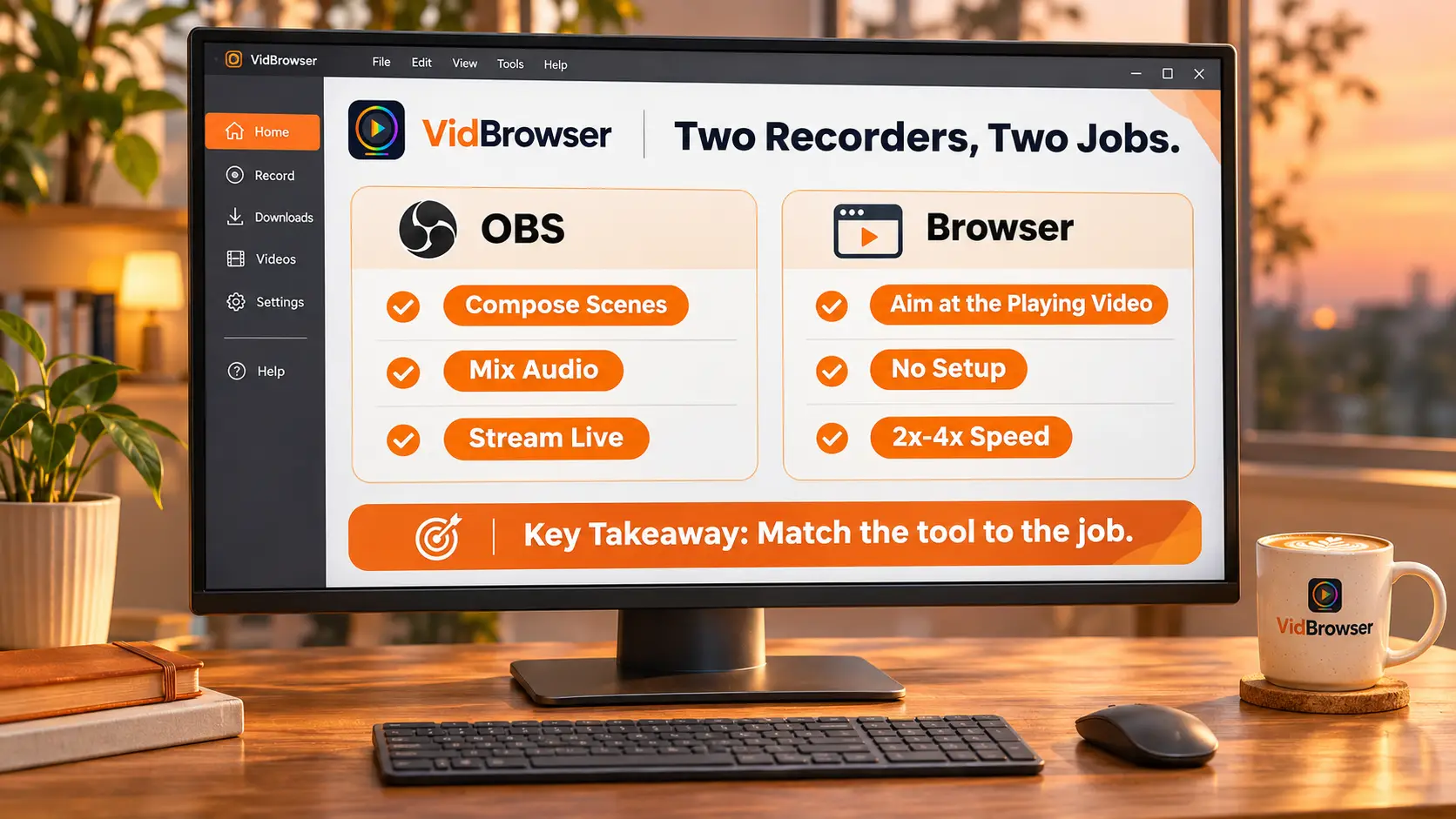
Let us be fair first: OBS has no capability problem, its home turf is production.Going by the feature list on its official pages, its strengths cluster in three areas:
1. Live streaming: it supports mainstream streaming platforms, and Studio Mode lets you preview a scene before it goes out;
2. Multi-source compositing: webcam picture, game windows, caption bars and image assets go into one scene — tutorials and commentary depend on this layer;
3. Audio tuning: each audio source takes its own filters, so mic hum, voice and game sound can be processed separately.
Going live, recording a narrated demo, compositing several pictures into one video — the built-in browser recording cannot do these jobs, so install OBS when you need them.
Recording a web video with OBS costs you three extra bills
Swap the goal to "save one web video" and the OBS rig gets heavy.Each of the three bills is more practical than the last:
1. Setup cost: installing is not the end of it — new scene, add sources, pick an encoder, set resolution and frame rate, every step configured by hand; on the browser side, move the mouse onto the video and the controls are already there.
2. Post cost: what lands is the whole screen — desktop, taskbar, pop-up windows all in frame, and you still have to crop it down to the video itself.
3. Black-screen cost: protected content treats every screen recorder the same; OBS, Bandicam and QuickTime all hit the same wall and record a black frame. The why and the countermeasures are broken down in the black-screen fix guide, so we will not repeat them here.
Pay all three bills and you may still not have what you wanted. That is not OBS doing a bad job — it was never designed for this task.
Ask one question first: do you want a screen, or that video file
One question separates the two routes: do you want "a piece of screen picture", or "that video file".The answer lands on four common scenarios:
1. Streaming, commentary, multi-source compositing — go to OBS; its scene system was built for exactly this;
2. Saving web videos locally — built-in browser recording; the VidBrowser video downloader page puts the entry points and save paths in one place;
3. Content on protected platforms — the recording controls in the browser, built for the part plain downloads cannot reach;
4. Full-screen software demos with microphone narration — OBS again; mixing and picture composition fit right in.
The overall split among plain download, system screen recording and record-to-download is laid out in a table in the recording and download guide; this piece fills in the OBS part — it is the strong one inside the system-recording camp, and its strength is not saving web videos.
To save a web video locally, VidBrowser finishes it in four steps
Judging done, doing takes four steps.
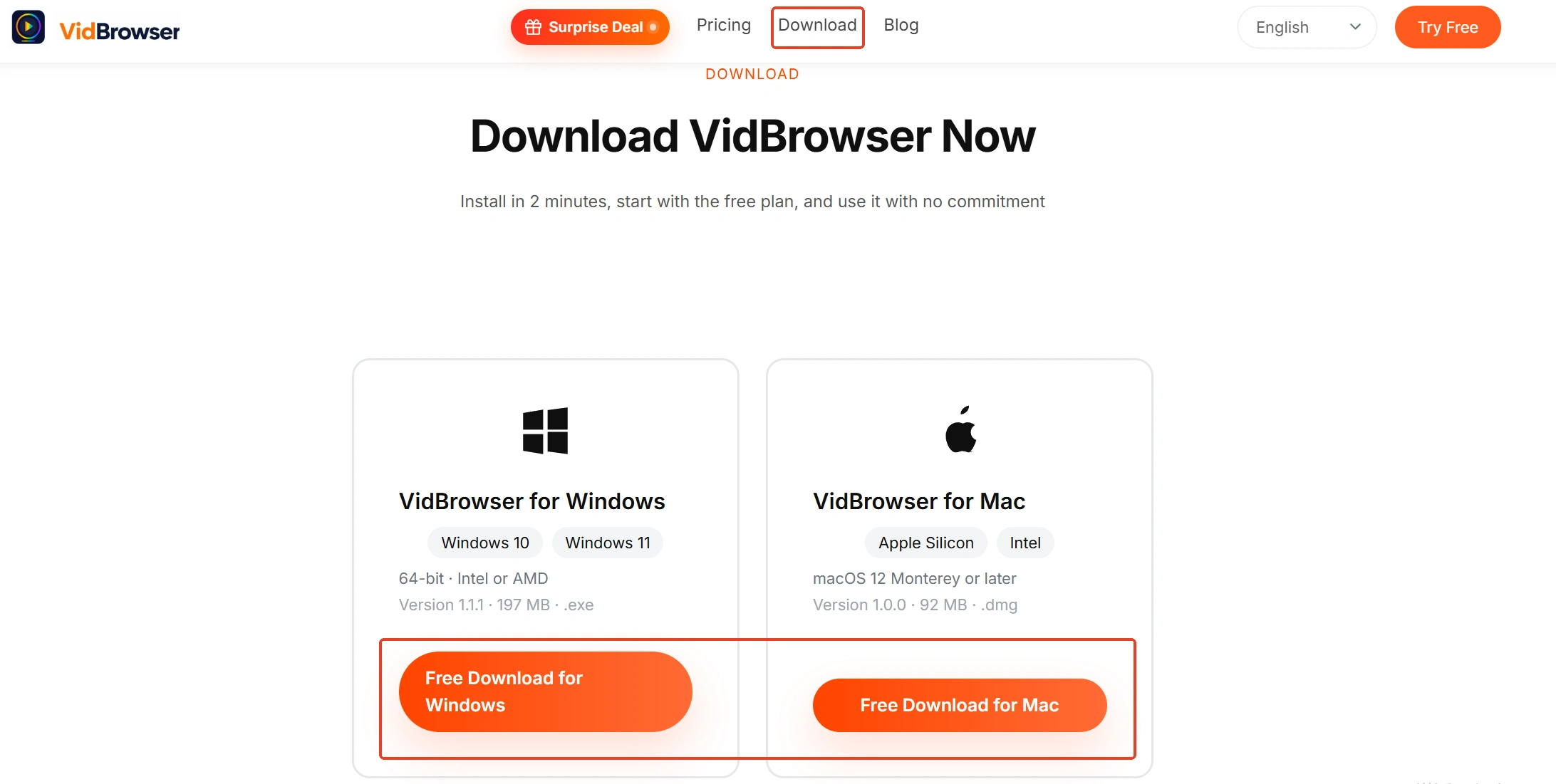
Step 1: download and install VidBrowser
VidBrowser is a desktop video browser for watching videos on Windows and Mac, clipping segments and saving them locally, with download and recording built in as its two core functions. Installation takes a few minutes.
Step 2: open the video you want to keep and play it
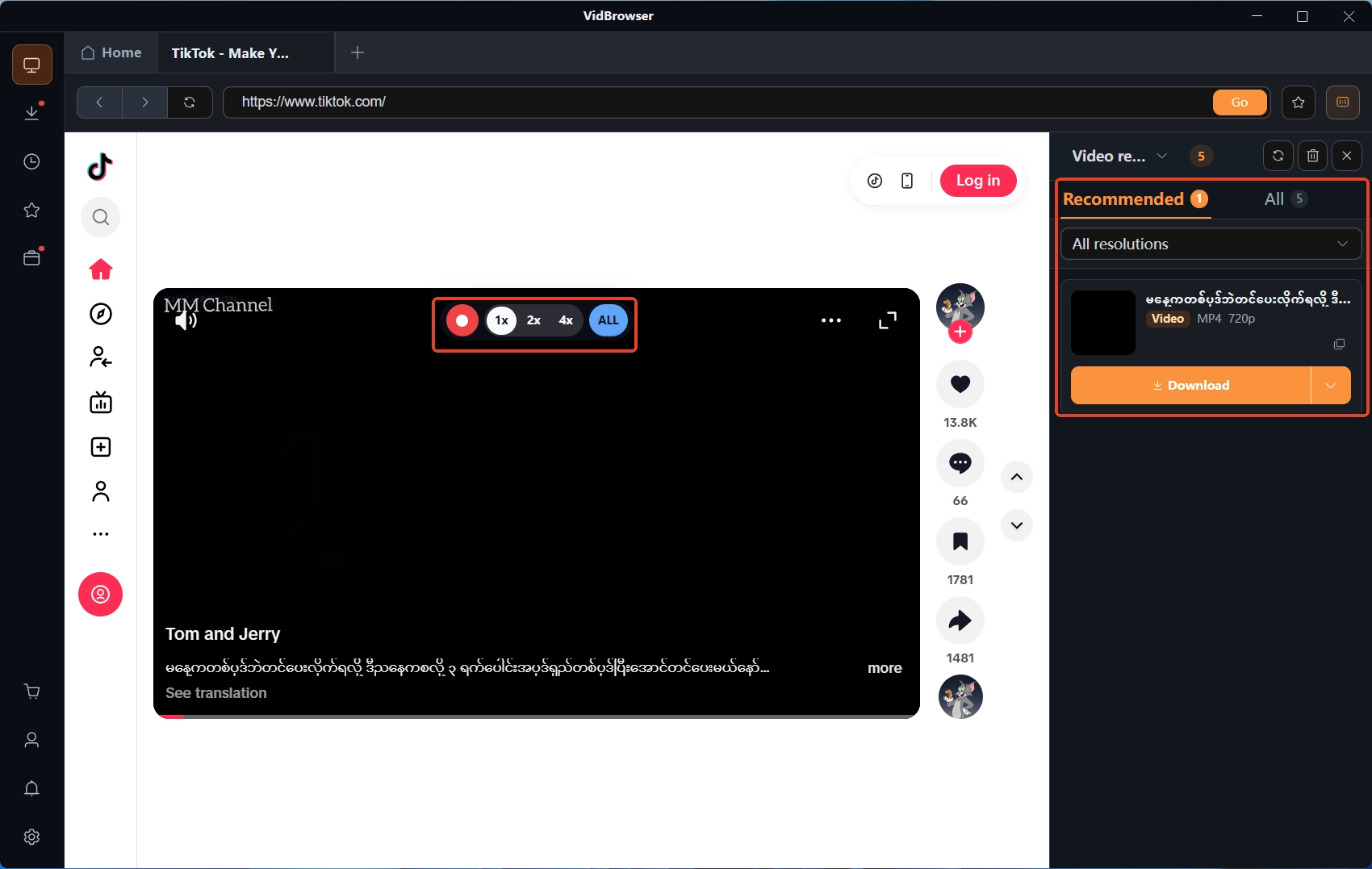
Open the video page in VidBrowser and play it normally; the video library panel on the right lists the detected video entries.
Step 3: download what can be downloaded, record what cannot
Entries with an orange download button save as MP4 with one click, and you can filter by resolution first to pick quality. For protected content that plain download cannot reach, use recording: move the mouse over the video picture and the recording controls appear, pick a recording speed (1x realtime, 2x, or 4x to finish faster), hit record-all to capture the whole video, and the record button on the left can start or pause at any time.
Step 4: check the file in download history
The clock icon in the left navigation opens download history, where filename, size, status and save location all sit in one list for a quick check.
Summary
Each route covers its own stretch: OBS handles production — live streaming, scene compositing, audio tuning, and it earns its install for content makers; built-in browser recording handles saving — web videos, protected content, faster-than-realtime long videos, recorded directly with no configuration. Before your next session, ask whether you want the screen or the file; when the answer differs, the tool should too. On a strained machine, close the heavy background apps before recording; the recording lag fix guide has the full routine for frame drops.
FAQ
Is OBS free?
OBS Studio is free and open source, with downloads for Windows, Mac and Linux on the official site. The barrier is not the price but the setup: scenes, sources and encoders all need to be built by hand — and once built, its capability is genuinely strong.
Can built-in browser recording replace OBS for streaming?
No. It does no scene compositing, no streaming-out, no audio mixing; its job is to keep what is playing. Live streaming and content production remain OBS territory.
OBS records a black screen — is some setting wrong?
In most cases no setting is at fault: the protection on such content targets the very output pipeline screen recorders depend on, and no capture mode gets around it. For that kind of content, changing the path works better than changing settings.