OnlyFans Age Verification Not Working? Check Your Account, Browser, and ID
If OnlyFans age verification is not working, first look at where the process stops. The page may not open, the camera may stay black, the selfie may restart, the ID may be rejected, or the account may remain under review. Each problem needs a different fix.
Start with the message or symptom on your screen. A browser fix cannot repair an expired ID, and uploading the same ID again will not help when the camera is blocked.
Quick answer: If the camera never starts, check browser and operating-system permissions first. If the selfie works but the ID is rejected, inspect the document image and account details. If the status says pending or under review, stop resubmitting and wait for the stated review period before contacting OnlyFans.
Start with the Symptom, Not a Random Fix
When OnlyFans verification is stuck, use this table to find the right starting point. The wording on your screen matters more than a generic list of “verification fixes.”
| What you see | Most likely area | Start with |
|---|---|---|
| The verification page will not load | Browser session, extensions, cookies, or network | Step 3 |
| The camera box is black or no permission prompt appears | Browser or operating-system camera permission | Step 3 |
| The selfie finishes, then the process returns to the beginning | Expired session, blocked site data, or failed face check | Steps 3 and 4 |
| “Document rejected” or “ID not accepted” | Document type, validity, image quality, or account mismatch | Step 5 |
| “Pending” or “under review” | The submission has not received a final decision | Step 6 |
| Verification passed, but creator features remain unavailable | Account-side review or unmatched creator details | Step 8 |
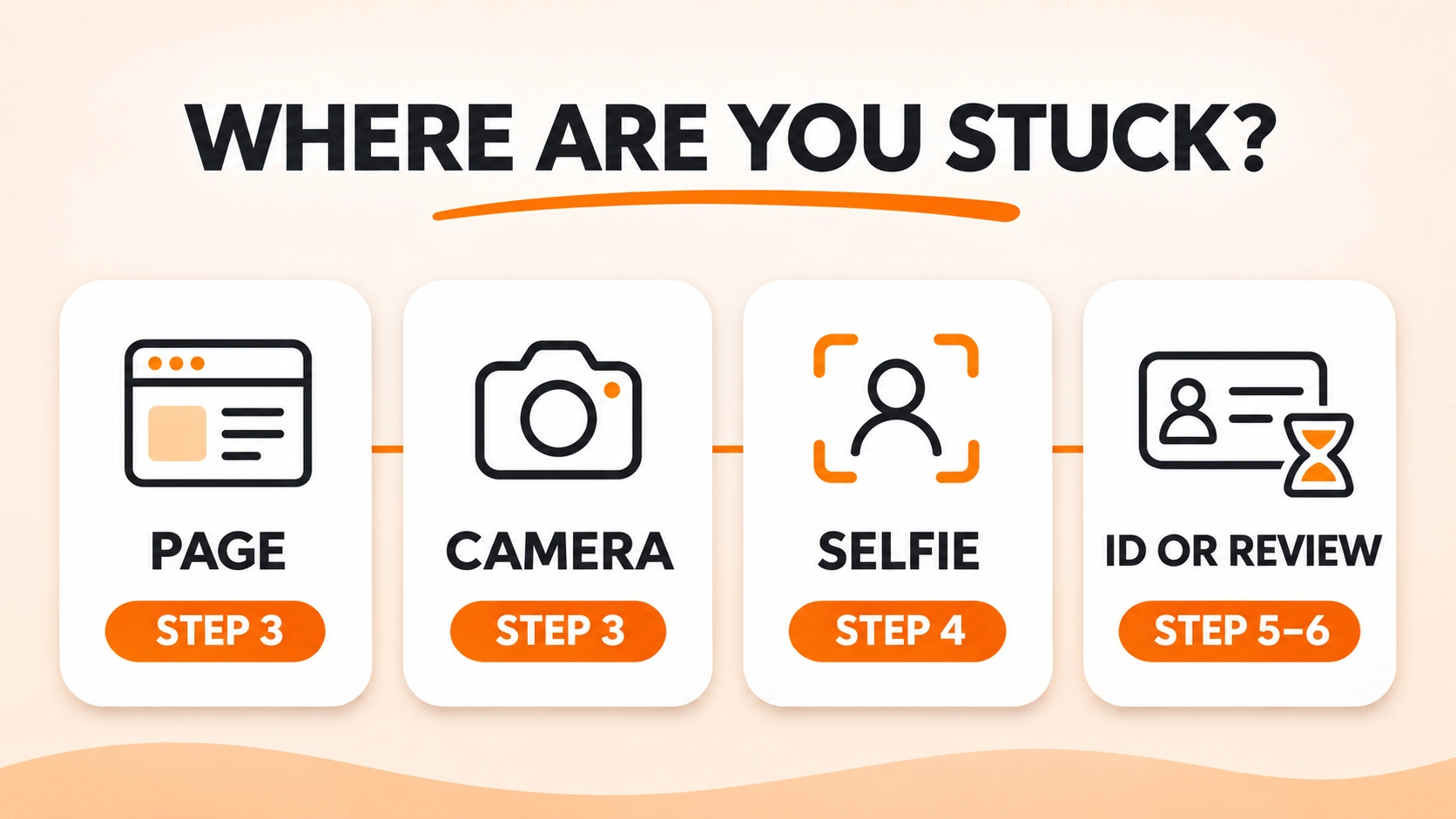
Match the problem on your screen to the step shown above, then stop when verification works.
This guide covers both fan age checks and creator verification. For the background behind these checks, read OnlyFans and Fansly age verification explained.
1. Confirm Which Verification You Are Completing
First, check which process you are completing. Fans may only need to confirm that they are adults, while creators usually need to confirm their identity before they can publish content and receive payouts.
The OECD's 2025 review says OnlyFans may use a selfie age estimate, an ID check, or both for fans. Creator checks can also include personal and payout details.
Some fan checks show Yoti, a service that estimates age from a selfie. OnlyFans uses it in certain locations, including the UK, according to Yoti's OnlyFans case study. If the Yoti camera or selfie is not working, go to Steps 3 and 4.
For a creator account, check whether the message names the ID, selfie, personal details, social information, or payout setup. Fix the item it names instead of restarting the whole application.
2. Read the Exact Message Before Retrying
Copy the error text or take a screenshot, but hide your ID number, address, date of birth, and face. Check your email and spam folder as well, because OnlyFans may explain the problem more clearly there.
The words failed, rejected, and pending mean different things. A technical error usually means your photo or ID was not uploaded successfully. Rejected means the submitted information was not accepted, while pending means it is still waiting for review. Fix the problem named in the message before trying again.
If OnlyFans itself will not load or you cannot stay signed in long enough to reach the verification screen, use the separate guide to OnlyFans site and login problems. That is an access problem, not an ID-quality problem.
3. Repair a Stuck Verification Page or Black Camera
Allow camera access in the browser and operating system
When the preview remains black, close video-call, virtual-camera, screen-recording, and remote-desktop applications that may be using the camera, then reload the page.
Next, check the website permission. In Chrome, select the site-information icon beside the address, open Site settings, and allow the camera; Google explains how to change permissions for a specific site. Firefox users can clear a previous blocked choice from the permissions panel, following Mozilla's camera guide. On a Mac, also check System Settings → Privacy & Security → Camera and, for Safari, Safari → Settings → Websites → Camera; Apple documents both controls.
After changing a permission, restart the browser. If the camera works elsewhere but not on the verification page, continue with the site-data check.
Remove only the site data that may be broken
An interrupted check can leave an old session in the browser. Sign out, close duplicate OnlyFans tabs, and remove the stored data for onlyfans.com rather than every cookie on your computer. Google explains how to delete data for one website.
Sign in again and make one fresh attempt. Do not start with Incognito mode, because Chrome blocks third-party cookies there by default and the verification page may lose your progress. Use a normal window with clean OnlyFans site data instead.
Test extensions, network settings, and another current browser
Temporarily pause ad blockers, script blockers, strict privacy extensions, and antivirus browser shields for the verification page. If it works, re-enable them one at a time to find the conflict.
Keep one stable network during the capture and turn off a VPN or proxy for the test. If the page still loops, try one other current browser or another device you control. When the same document receives the same message in two clean browsers, stop treating it as a browser fault and move to the ID checks.
4. Retake the Selfie Without Creating a New Problem
A live facial check needs a clear, current view of one person. Clean the lens, face even light, use a plain background, and keep your full face inside the on-screen guide. Remove sunglasses, a hat, a mask, filters, and beauty effects, then follow the prompts at their normal pace.
If the preview is dark or grainy, move toward a window or lamp rather than using digital zoom. A phone may produce a clearer image than an older webcam, but use only the device path offered by the verification screen and never photograph a selfie displayed on another screen.
After one careful retry, read the new message before taking more photos. If the process returns to the first page, the browser session may still be broken. If it says face does not match, focus on the selfie and ID photo.
5. Check the ID and Account Details Together
Use an original, unexpired government photo ID that appears in the document list on the verification page. Not every official card or temporary document is accepted, so follow the list shown for your country.
Place the document on a flat surface with all four corners visible. Its text and portrait should be sharp, without glare, fingers, shadows, cropping, screenshot borders, or edits. If two sides are requested, submit both through the fields provided.
For creator verification, make sure the legal name, date of birth, country, address, and payout details match the ID. Your public username can be different, but your private account details still need to match your documents.
Do not use another person's ID, alter a document, or pay someone who promises to “bypass” verification. Those actions do not repair the account and expose sensitive information to impersonation or theft.
6. Know the Difference Between Pending and Rejected
If the account says pending, submitted, or under review, your verification has been submitted and is waiting for review. Do not upload it again. Check your email and wait for the time shown on the verification page; review times can vary by account and country.
Contact support when the displayed review window has passed, when no estimate is shown and the status remains unchanged for several business days, or when an email requests information that the account provides no way to submit.
If the account says rejected, fix the problem it names before submitting once more. A clearer photo can help when the document was unreadable, but it cannot fix an expired ID or a different legal name. If the same rejection appears again, save the message and contact support.
7. Use VidBrowser to Test Whether the Browser Is the Problem
When the page freezes before showing a result, VidBrowser gives you another desktop browser to test. It cannot approve an account or bypass an age check, but if verification works there, the problem is probably in your usual browser.
-
Install VidBrowser. Choose the Windows or Mac version from the official download page and complete the normal installation.
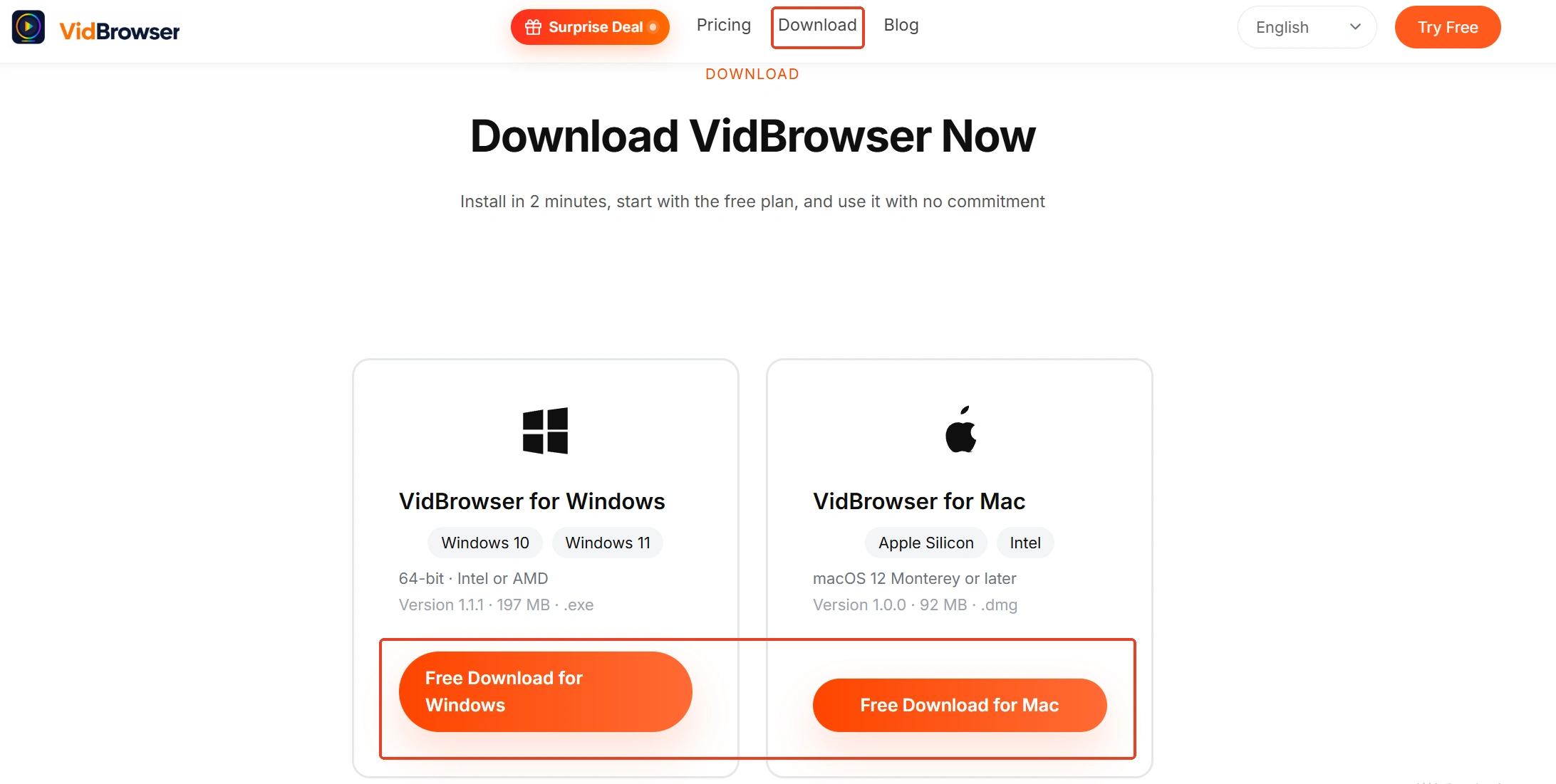
VidBrowser is available for Windows and macOS. Use it here as a clean browser comparison, not as a way around the verification decision.
-
Open OnlyFans inside VidBrowser. Enter
onlyfans.comin the address bar, sign in through the normal route, and return to the verification prompt. If the operating system asks whether VidBrowser may use the camera, allow access for this attempt.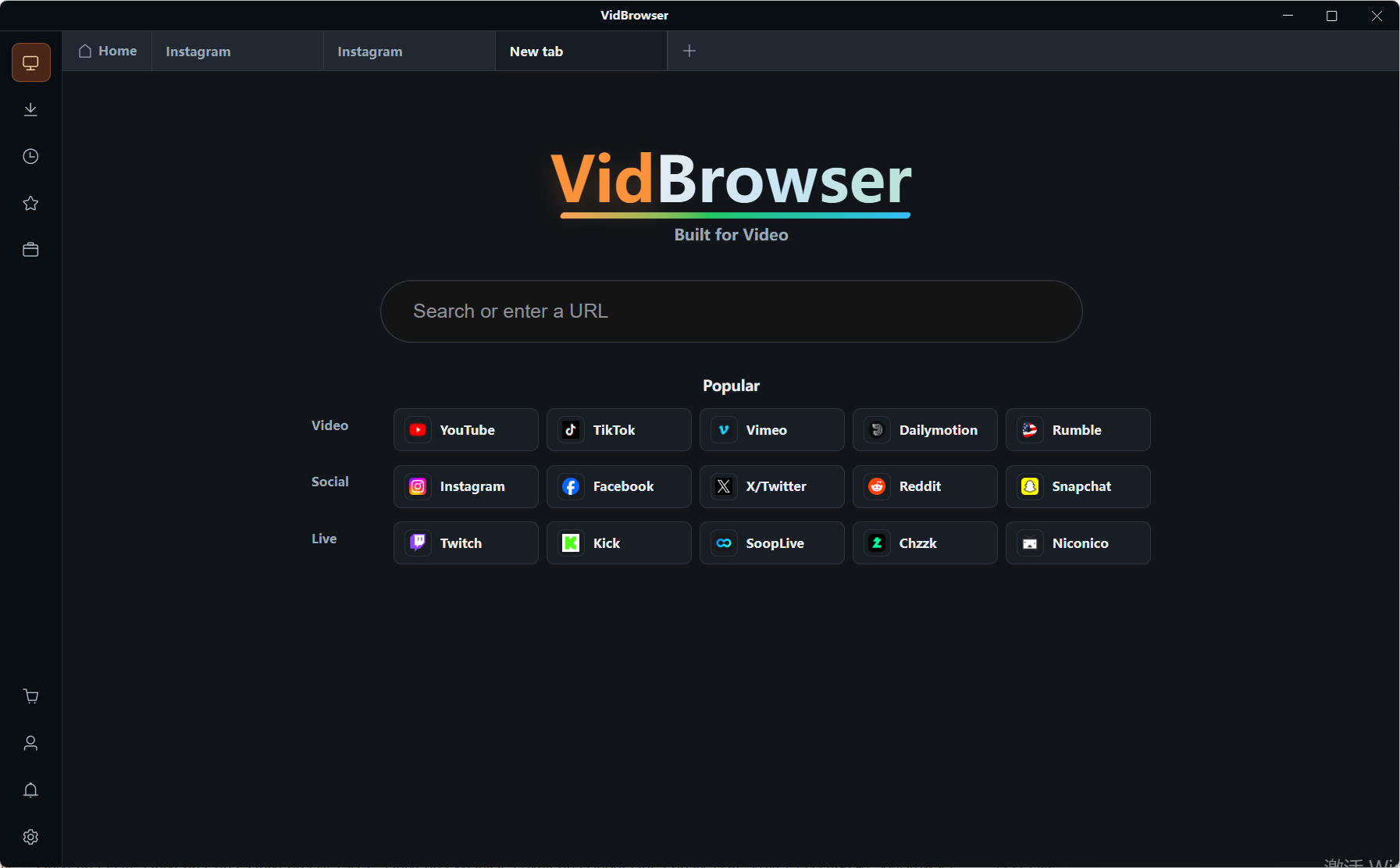
-
Use the result to choose the next step. If the camera and upload work in VidBrowser, repair the permissions, site data, or extensions in your usual browser. If the same ID receives the same rejection, return to the document and account checks or contact OnlyFans support.
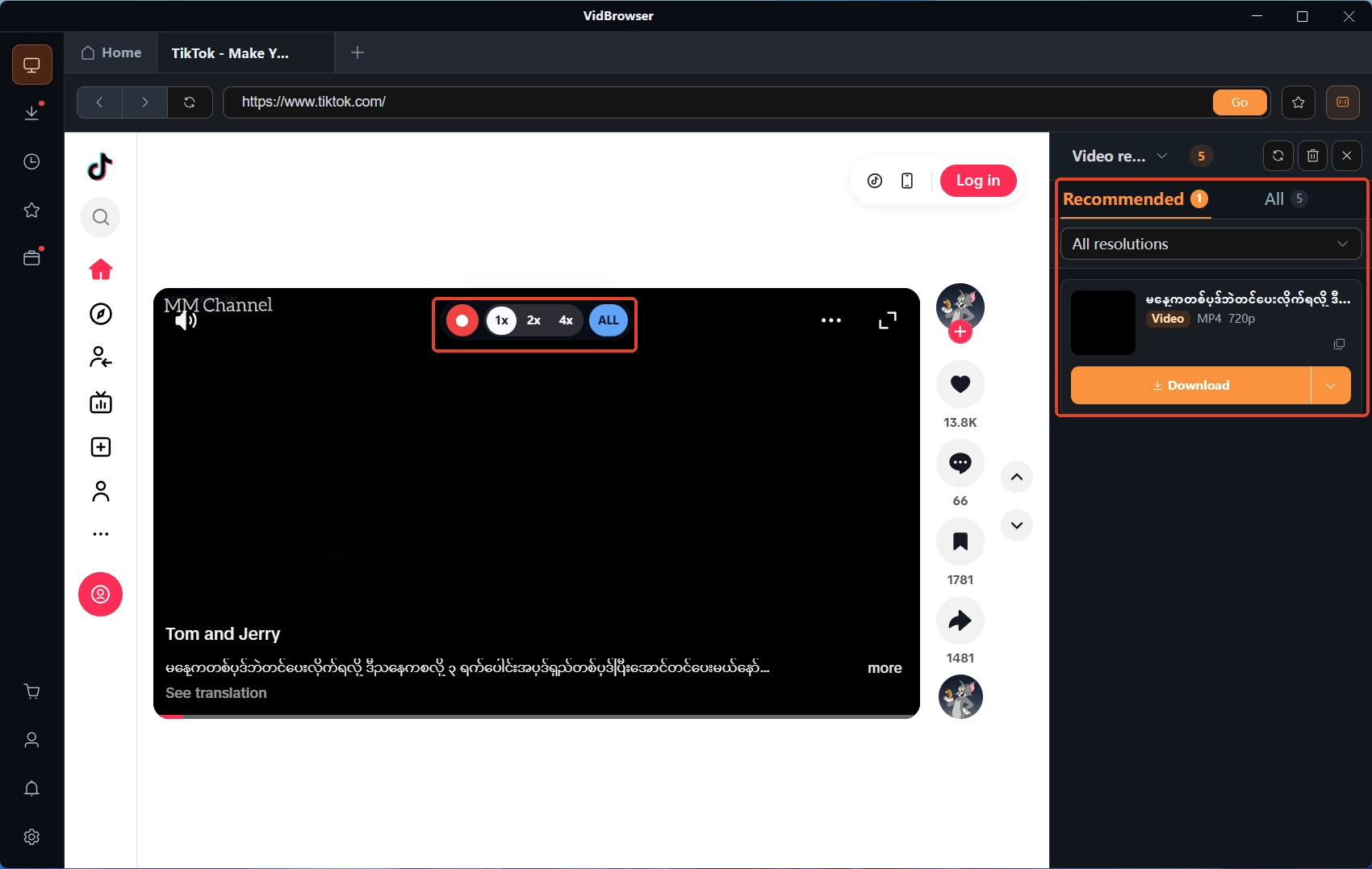
Once access is restored, VidBrowser can list supported media in the Video Media Library, offer available resolutions through the orange Download button, and provide recording controls when direct downloading is unavailable. Use these features only for content you may lawfully save. If a verified account still cannot play a video, use the separate OnlyFans playback troubleshooting guide.
8. Send OnlyFans Support a Useful Verification Report
If OnlyFans age verification is not working after two careful attempts, use OnlyFans Help or the support option in your account. You should also contact support when the review time has passed or the account still asks for verification after you completed it.
A useful request should include:
- your username and the email attached to the account;
- whether this is a fan age check or creator verification;
- the exact error or status, copied word for word;
- the date, time, and time zone of the latest attempt;
- the device, operating system, and browser version;
- the troubleshooting steps already completed; and
- a screenshot of the error with personal document details redacted.
Do not put your password, verification code, complete ID number, or an unredacted document image in the first message. Upload sensitive material only if the official support flow explicitly requests it through a secure method. Ignore social-media accounts, messaging contacts, or paid “agents” offering to approve the account outside OnlyFans.
Frequently Asked Questions
How long does OnlyFans verification take?
Review times vary. Follow the estimate shown on the verification page and check your email. If no estimate appears and the status has not changed after several business days, ask OnlyFans support to check it.
Why is OnlyFans not accepting my ID?
Common areas to inspect are the document type, expiry date, missing corners, glare, blur, an unreadable portrait, and details that do not match the account. Use only a document offered in the live accepted-document list, submit the original image without edits, and make sure creator identity and payout fields use the same legal information.
What should I do if the OnlyFans verification camera is black?
Close other apps using the camera, allow camera access for the website and browser at both the browser and operating-system level, and restart the browser. If the camera works elsewhere but not on the verification page, clear the site's saved permission and OnlyFans site data, then allow the prompt again.
Should I use Incognito mode for OnlyFans verification?
Not as the first fix. Chrome blocks third-party cookies in Incognito by default, which may interrupt the verification page. A normal window with clean OnlyFans site data is a better test.
What if OnlyFans Yoti age verification is not working?
Yoti estimates age from a selfie in some OnlyFans fan checks. If its camera will not open, follow Step 3. If it takes the selfie but cannot finish, improve the lighting, remove filters or face coverings, and retry once. Contact OnlyFans support if the same problem continues in two browsers.
Can VidBrowser bypass OnlyFans age verification?
No. VidBrowser can show whether your usual browser is causing the page or camera problem, but it cannot change an OnlyFans decision. Fix an account or document rejection through the requested steps or OnlyFans support.