The video you recorded stutters, and most of the time you do not need a new computer
You finish a video, drag the progress bar halfway, and the picture starts stuttering - frames are genuinely being dropped. Before you rush to replace your computer or your software: recording stutter splits into two sides. One side is playback that was already choppy; the other is smooth playback where only the recording stutters, and the two call for completely different fixes. This article separates the diagnosis from the troubleshooting on each side.
Recording stutter comes in two kinds: playback was lagging, or only the recording is
The diagnosis is simple: do not hit record, play the video through as-is, and watch whether it flows. Best of all, replay the segment where the problem showed up last time - reproducing it at the same spot makes the call reliable. If playback itself stutters, the problem sits on the viewing side; if playback is smooth and only the recorded file stutters, the problem is on the recording path. What gets saved is exactly what was playing, and frames the playback side already dropped cannot be recovered by the recorder. To see it in numbers, the YouTube official help center describes the Stats for nerds panel, which works as supporting evidence: right-click the player on the video page to open it, and if the dropped frames counter keeps climbing, the loss is happening during playback.
If playback lags, hand it to the viewing side
Stutter on the viewing side is a separate troubleshooting line, not covered here. Clearing cache, disabling hardware acceleration and lowering quality all target the watching process; the Twitch lag guide (how to fix stream lag and frame drops) breaks that down layer by layer with data panels. A slow download is yet another matter - the slow-download guide (what to check when video downloads crawl) handles that side. Once you rule the viewing side out, the remaining recording-side problems get easier.
If only recording stutters, your machine is probably doing other work at the same time
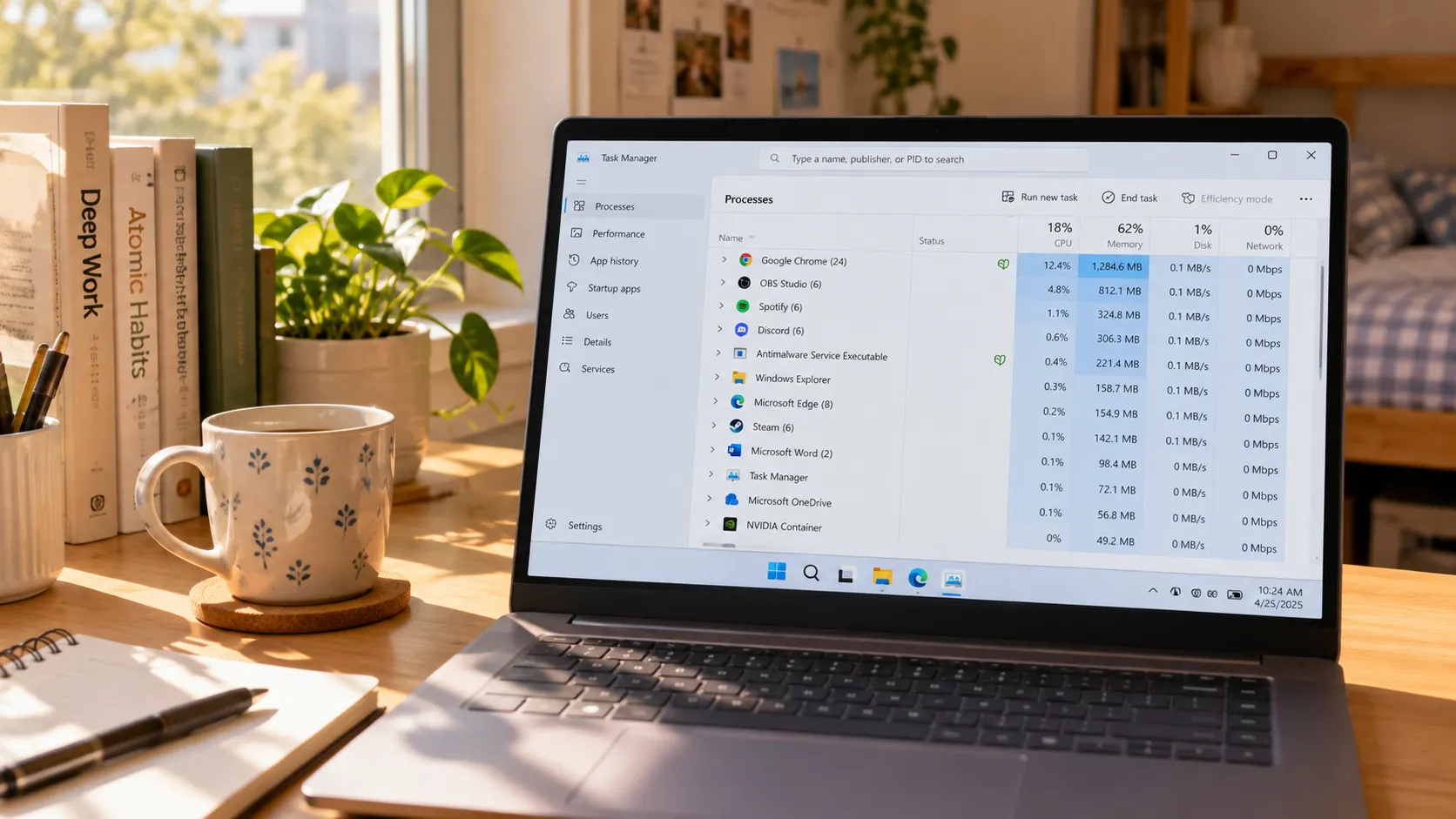
Recording has to tidy and save the playing picture in real time, a process that consumes processor and disk writes; when other programs grab those resources, the output drops frames. Official troubleshooting manuals for comparable recording software put this first: the OBS performance troubleshooting guide states that when other programs heavily use the GPU, recording output stutters, and recommends closing the heavy users first. On your own machine: open Task Manager and check the usage ranking - background batch downloads, video rendering, dozens of open tabs - close them before recording. The more tabs open at once, the fewer resources playback gets, and the more likely the recorded file stutters. Laptop users should also watch power: on battery or power-saver mode the processor deliberately downclocks, and sustained loads like recording suffer most - plug in and switch the power plan to performance before recording a long video; that beats re-recording again and again.
Speed, quality and disk: three burdens you can lighten yourself
None of these three needs new hardware; changing one setting takes load off the recording. Speed: 4x finishes faster, but the page has to keep up with loading - on an unstable network a high speed just adds mid-recording waits, so for troubleshooting record a short clip at 1x first and compare; for stability use 1x. Quality: yes, raise playback quality to the max for a sharp result, but when the machine cannot keep up, dropping quality one notch often brings smoothness back first - a small sharpness loss beats dropped frames. Disk: checking free space before you start is covered in the notes of the recording-and-download guide (the complete recording and download guide); if space is ample and it still stutters, look at the write-speed layer - a hard drive under sustained heavy writes is a common source of dropped frames.
After one round of checks, re-record with VidBrowser and save the smooth version
Walk the four steps below and land the fixed result as a file.
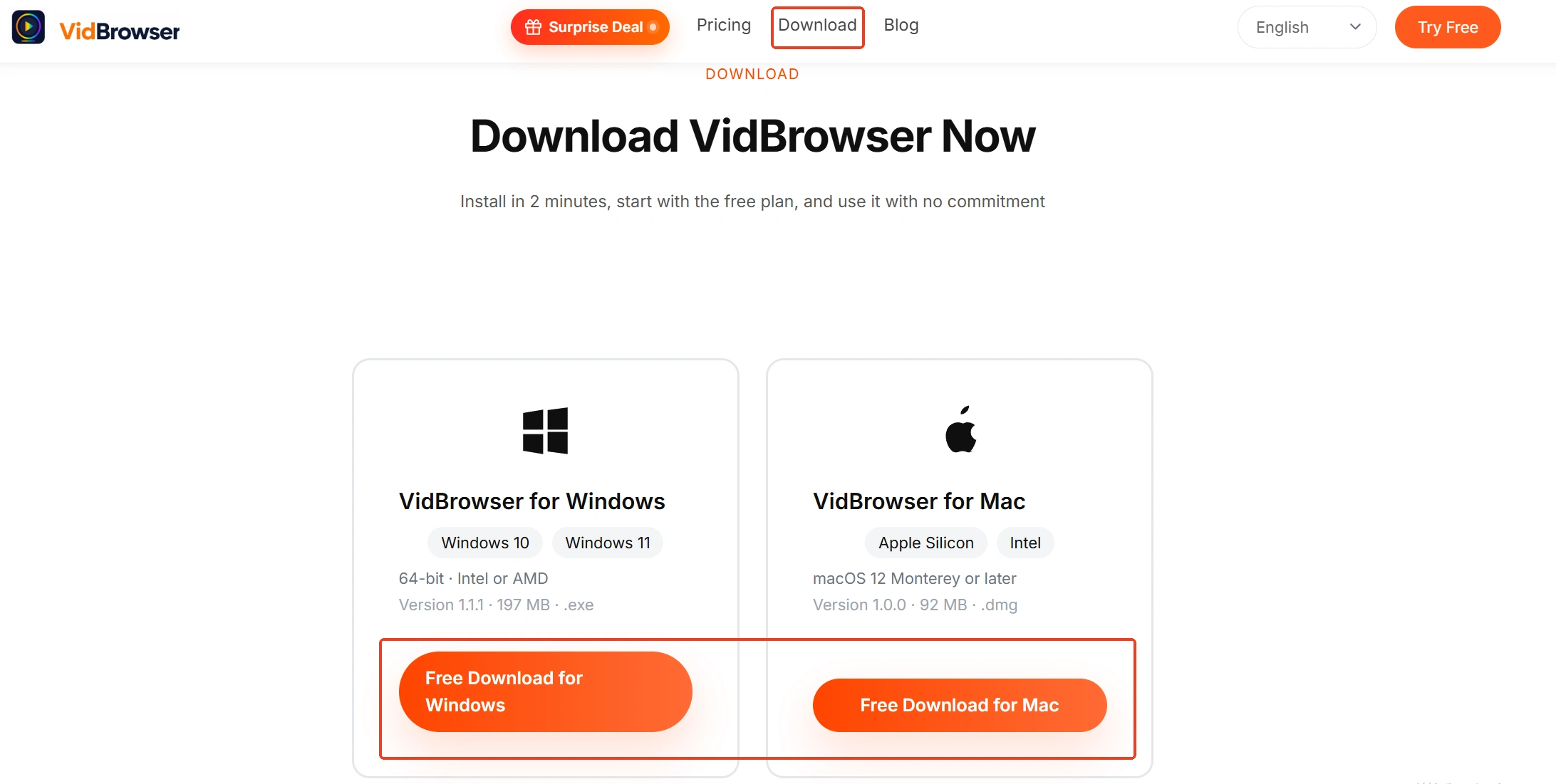
Step 1: Download and install VidBrowser
VidBrowser is a desktop video browser for watching videos on Windows and Mac, clipping segments and saving them locally, with download and recording built in - it installs in minutes.
Step 2: Open the video and let it play normally
Get the picture playing smoothly before you act - the recording saves exactly this playback.
Step 3: Pick the recording speed and start recording
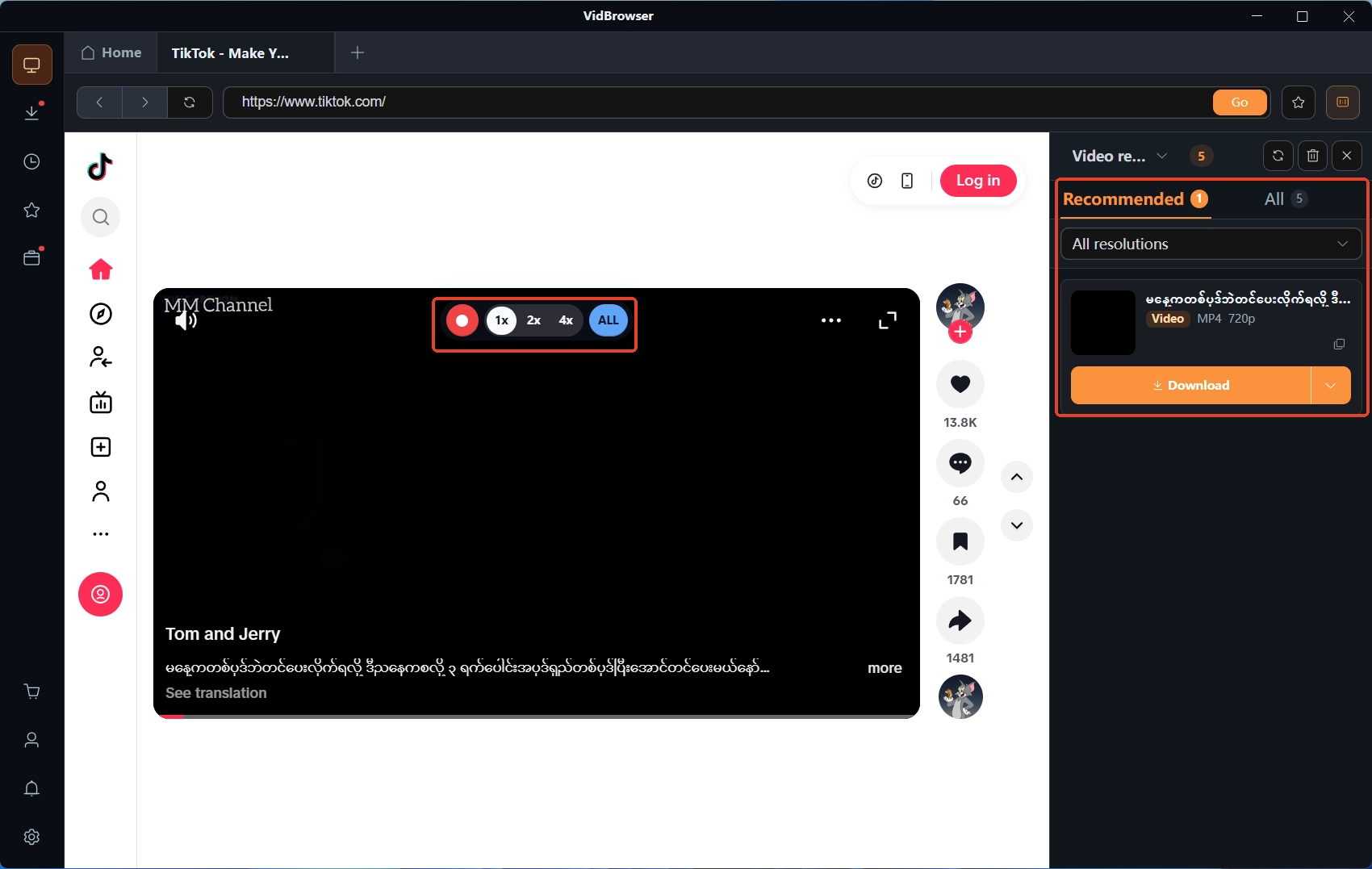
Move the mouse over the video and the recording controls appear; choose the recording speed (1x real time, or 2x and 4x to finish faster), click record-all to capture the whole video, and the button on the left can start or pause at any time.
Step 4: Supplement with downloads and verify by replay
In the video library panel on the right, detected items carry an orange download button - anything downloadable saves in one click; protected content still goes through the recording path above. Saved files sit in the download history on the left, where you check file size and save location, then replay once to confirm the picture is smooth - only then is this recording done.
The short version
When a screen recording stutters, first do one plain playback test: if playback lags too, the fix is on the viewing side; if playback is smooth and only the recording stutters, close resource-hungry programs, retest at 1x and check disk writes - most of the time no new computer is needed. After fixing, record and save again with the recording feature; only a smooth saved version counts.
Frequently asked questions
My computer lags badly while recording - is the software broken?
Most of the time other programs are hogging resources and the encoder cannot keep up, which shows up as dropped frames. Close background downloads, rendering and extra tabs, then record again - the programs near the top of the Task Manager usage ranking are the ones to move aside first.
Does 4x speed make the picture worse?
Speed only changes waiting time; picture quality stays the same as 1x. But 4x needs the page to keep up with loading, and on an unstable network you get mid-recording waits. If you suspect the speed setting, record a short clip at 1x and compare.
The recorded file stutters in some players - is the file corrupted?
Not necessarily. High-bitrate files demand more from a player; drag the file into another player or onto an editing timeline: if it plays smoothly there, the file is fine - the original player simply could not keep up.