StreamFab Video Downloader for Browser: Features, Pricing & Alternatives
If you have visited the StreamFab website recently, you may have spotted a new entry: StreamFab Video Downloader for Browser. If you already own the desktop version, three questions come up fast: what is this browser version for, does it really download videos through a small extension, and can your existing membership carry over?
The short answer: the browser version is not the desktop app with a new face. It pairs a browser extension with a desktop helper program, and both the setup steps and the license rules are its own — the money does not transfer, so buying the desktop version does not unlock the browser version. Below we cover how it works, how it differs from the desktop app, its limits, and how to pick among download tools.
How Does StreamFab Video Downloader for Browser Work?
Two things to install: first add the extension to your browser (Chrome or Edge both work), pin it to the toolbar and sign in; then install a desktop helper program called CoApp, which handles the download tasks — clicking Install CoApp in the extension brings up the installer.
Day-to-day use is simple: open the video page and play it normally, the extension detects the video and offers a download, and one click saves it to your computer. The official %s notes it is Windows only for now, so Mac users cannot install it yet.
StreamFab Browser vs Desktop: What Is the Difference?
The most common question is whether you need to buy it again if you already own the desktop version. First, the side-by-side:
| Item | Browser version | Desktop version |
|---|---|---|
| What you install | Browser extension + desktop helper program | One desktop application |
| What it does | Downloads web videos, with quality and format options | Officially lists 1000+ sites, including dedicated routes for subscription platforms |
| Membership | Not interchangeable with the desktop version | Not interchangeable with the browser version |
| Best for | Occasional saves of ordinary web videos | Frequent downloaders, including subscription platform content |
In short, the money does not transfer: the official wording says the two should not be treated as one license — features and licensing are counted separately, and buying one does not unlock the other.
StreamFab Browser: Free Plan, Limitations and Compatibility
Three pitfalls to know before installing:
The store version and the official-site version differ. Under Chrome Web Store policy, the version installed from the store cannot download YouTube videos; only the version installed directly from the official site has full features. If you want YouTube, install from the official site.
The free tier has quantity and quality limits. Official figures: free YouTube downloads cap at 720p, the 30-day trial allows 3 videos per site, and the trial does not require a card.
Do not assume login-only videos will work. The official guide points out that subscription platform content is usually handled better by the desktop VIP Services route — if your main need is saving videos behind a login, do not fixate on the number of supported sites; first confirm whether the specific platform, video type and version are supported. Desktop features and pricing are laid out in full in our %s.
Browser Extension vs Desktop Downloader vs Built-in Browser
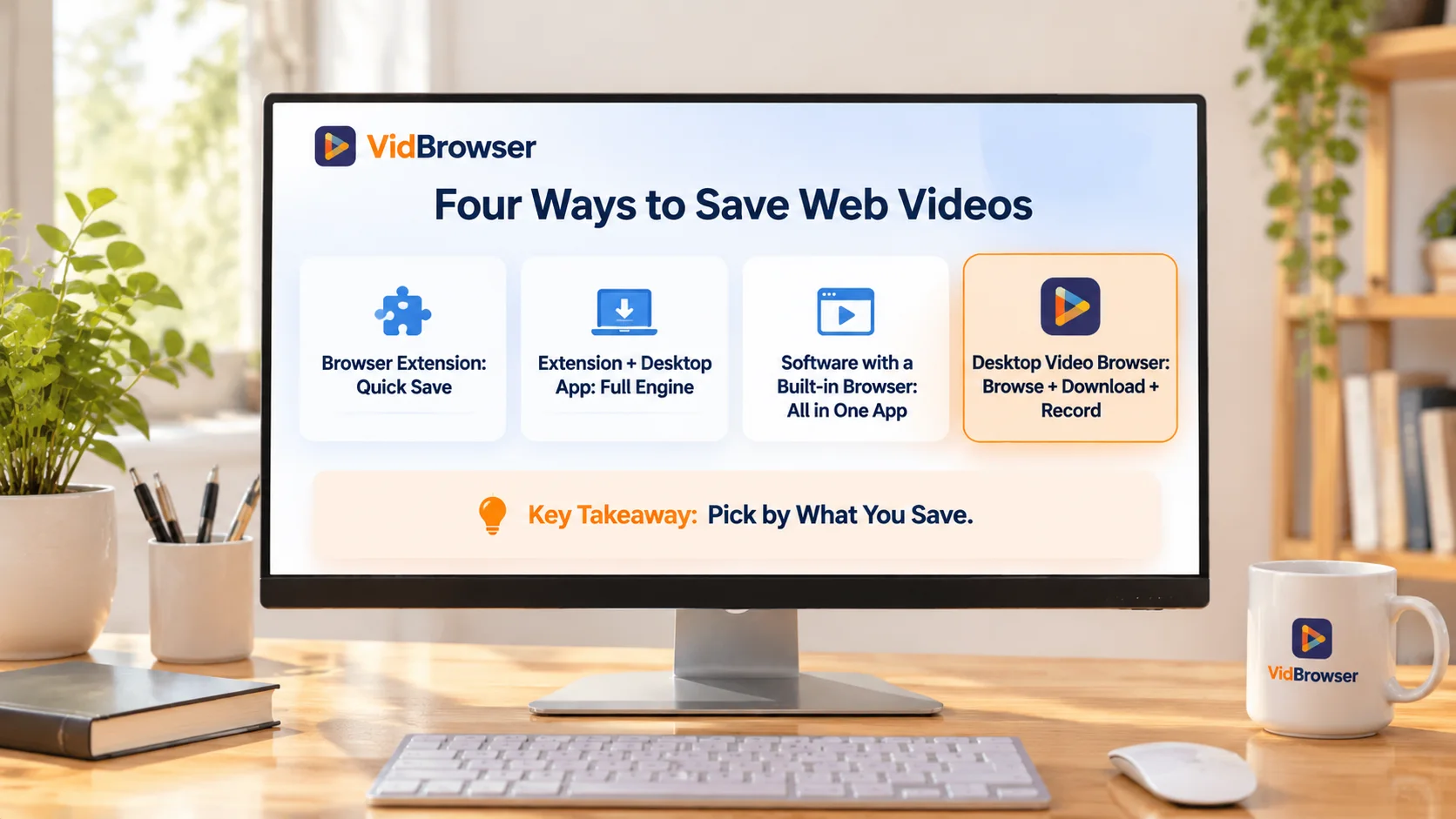
Video saving tools on the market fall into four broad types:
| Tool type | Typical products | How it works | Key traits |
|---|---|---|---|
| Pure browser extension | CocoCut | Install an extension and go | Quick to start, good for occasional saves |
| Extension + desktop software | StreamFab browser version, Video DownloadHelper | Extension finds videos, software saves them | Desktop-grade download capability |
| App with built-in browser | 4K Video Downloader Plus | Browse, sign in and download inside the app | Browsing and downloading in one application |
| Desktop video browser | VidBrowser | The software itself is a browser | Browsing, saving and recording in one window |
Each type fits a different scenario: for an occasional ordinary web video, an extension is enough; for desktop-grade downloading, look at the extension-plus-software pairing; if you want browsing and downloading in one application, look at the last two types.
One point worth clearing up: even within the extension-plus-software pairing, the StreamFab browser version and Video DownloadHelper differ in supported sites and sign-in capability — check each before choosing. The division of labor, extension finds and software saves, is covered in more detail in our %s.
Looking for a Browser with Built-in Video Downloading and Recording?
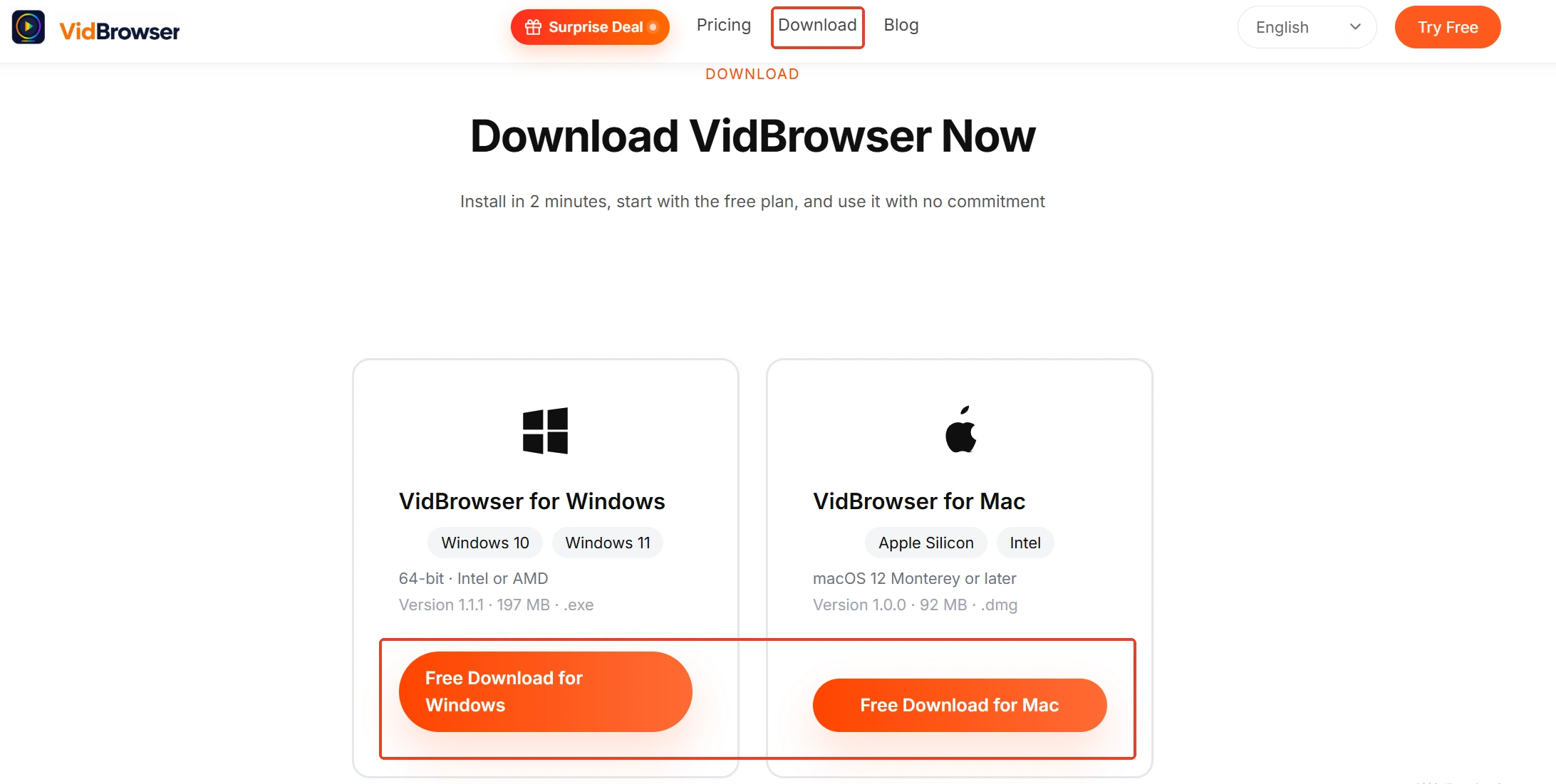
VidBrowser is a desktop video browser for Windows and Mac that puts web browsing, video detection, downloading and recording in one application, so you do not have to juggle browser extensions and several download programs (the %s has the full introduction).
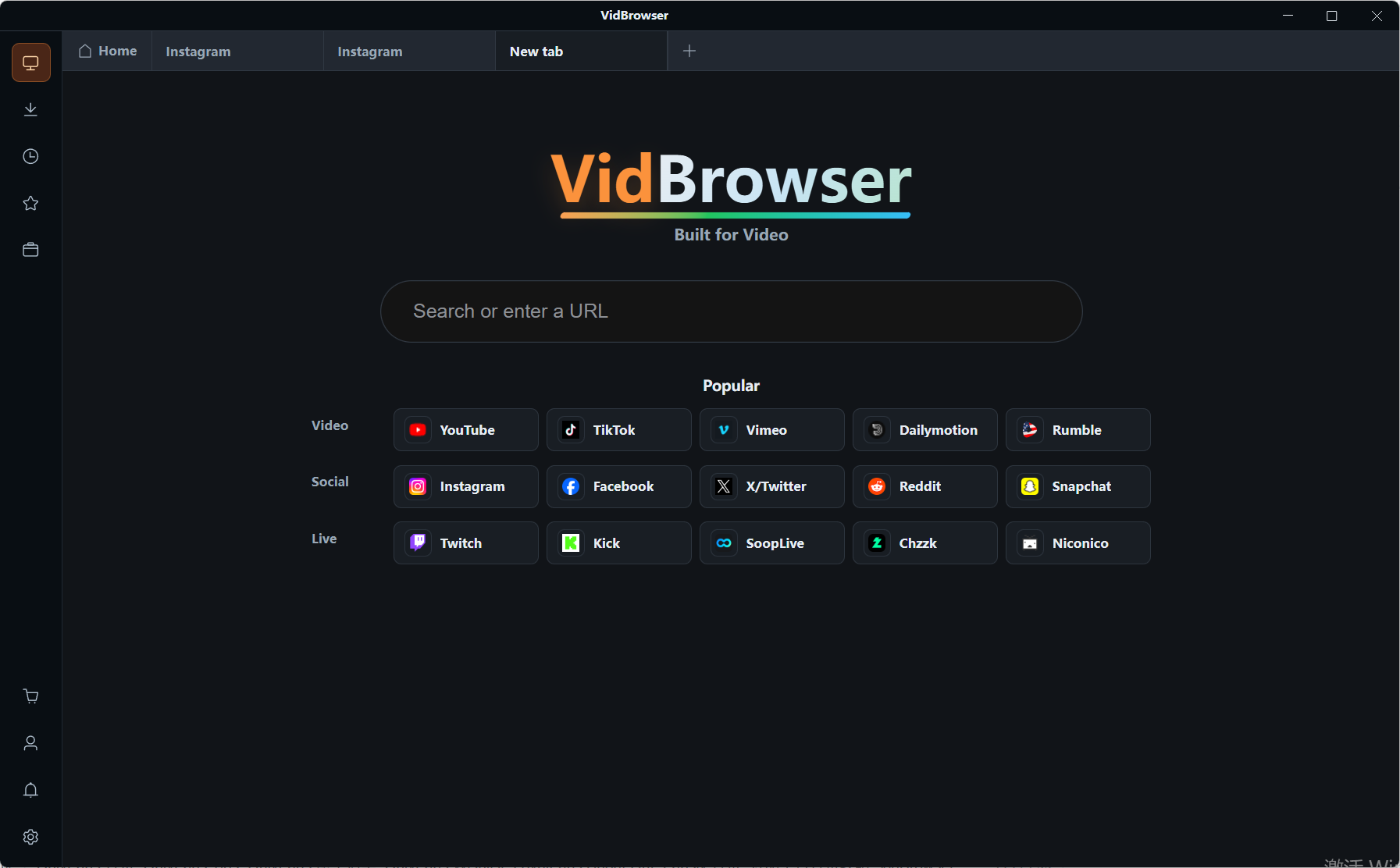
Step 1: Open VidBrowser and go to the site with the video
Use the built-in browser to visit the page, sign in and play the video as usual.
Step 2: Check the detected videos
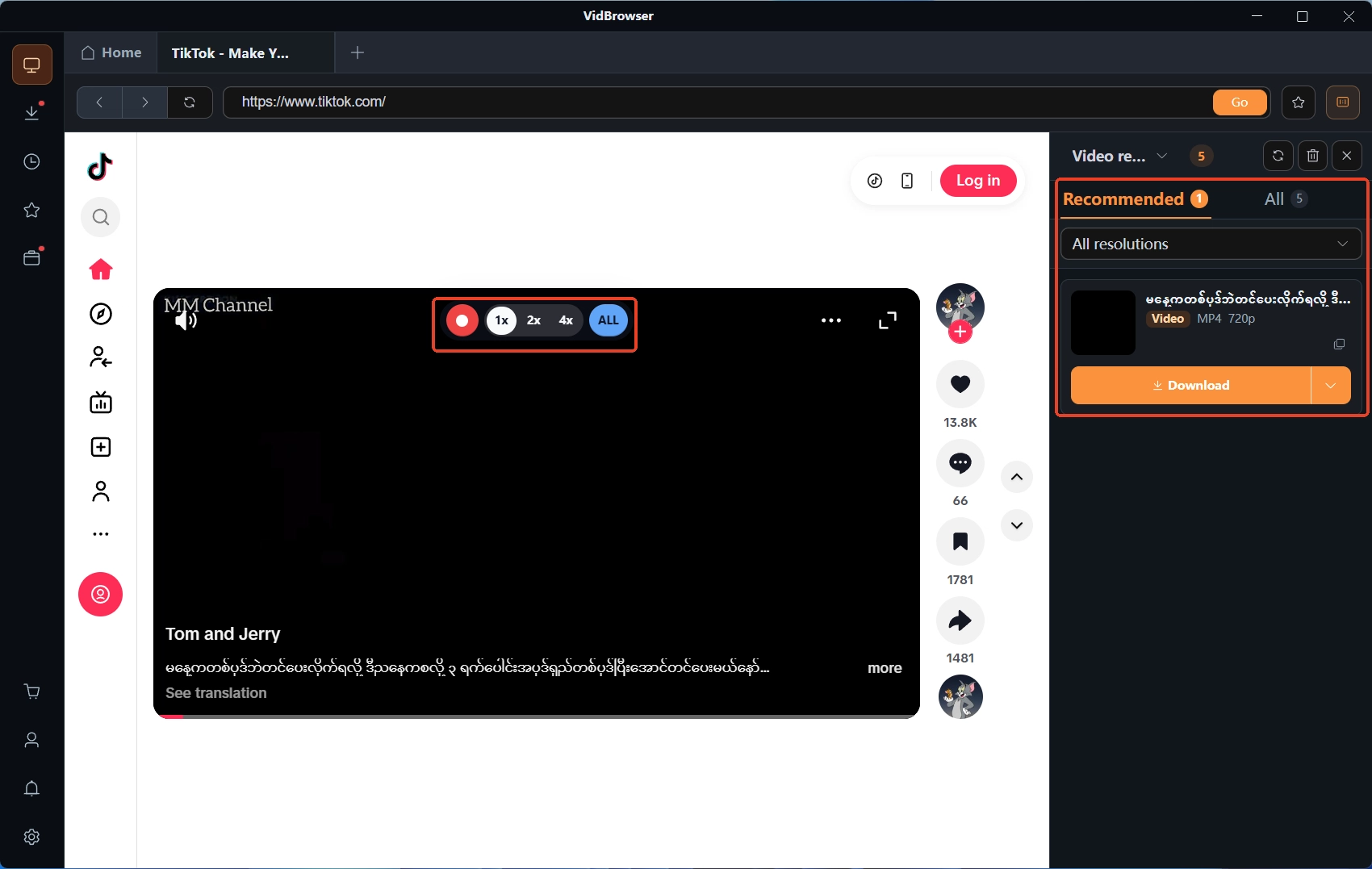
Videos the page can hand over directly show up in the Video Library panel on the right; pick the entry and resolution, click the orange Download button, and it saves as MP4.
Step 3: Use recording for videos that cannot be downloaded
For pages where the video file cannot be fetched, and within the bounds of platform rules and content licensing, use the built-in recording: move the mouse over the video and the recording controls appear on top, with 1x, 2x and 4x speeds and pause support.
Step 4: Manage files in download history
After recording or downloading, check file names, sizes and save locations in the download history, so sorting files later does not mean digging through folders.
Final Thoughts: Pick the Download Tool by What You Save
Before picking a tool, ask what you save: for an occasional ordinary web video, a browser extension is enough; for stronger downloading power, look at extension-plus-desktop-software pairings; if you want browsing, saving and file management in one application, a desktop video browser is the simplest. As for the StreamFab browser version, remember two things — the money does not transfer from the desktop version, and it is Windows only for now. Think about which videos you mainly save, check the supported sites before buying, and you will rarely pick wrong.
Frequently Asked Questions
Is StreamFab Video Downloader for Browser Free?
There is a free tier: YouTube downloads at 720p, 3 videos per site within the 30-day trial, no card required. Lifting the limits means upgrading to the browser version plans.
Does the StreamFab Desktop License Work with the Browser Version?
Depends on your needs. The official wording says the two should not be treated as one license — owning the desktop version does not unlock the browser version; features and licensing are counted separately.
What Is the Difference Between Downloading and Recording?
Downloading is the web page handing over the video file directly — fast, with quality matching playback; recording saves the picture and sound as they play, slower, suited to videos whose files cannot be fetched. In both cases, use them within platform rules and content licensing.