
How to download multi-episode videos without missing or repeating any
Trying to save a forty-episode show, or a playlist with dozens of videos, often starts the same way: open the first episode, hit download, and end up halfway through with a mess — some episodes saved twice, some never saved at all, and a folder full of file names that tell you nothing. When you save multi-episode content with a desktop video browser like VidBrowser, the efficiency does not come from a batch button; it comes from knowing, for every single episode, whether it has been detected, whether it has been saved, and where the file ended up.
Let us set the capability boundary first: the video media library lists the videos detected on the current page, downloads are clicked one item at a time, there is no select-all button, and a whole playlist cannot be imported in one go.So this article is not about batch features. It is about handling multi-episode content item by item with fewer gaps, fewer duplicates, and less searching around.
Missing and duplicate episodes usually come down to task tracking
When the number of episodes grows, the problem is usually not that a single video refuses to save — it is that task tracking and file management cannot keep up.While you download item by item, which ones finished, which ones are still running, and which ones failed all need to be written down somewhere. Without that record, two things happen: you look for an episode one day and realize it was never saved, or the same episode got saved twice and is now wasting disk space. On top of that, dozens of files sit in one folder with default download names that are often a meaningless string of characters, so finding one episode means opening files one by one. That is how the mess builds up.
One more form difference to know before you start: episodes from the same series may come from different sources. Some episodes show up as detectable entries and can be downloaded directly, while others show no entry at all and have to go through recording. Work out which category each episode belongs to before you act, and every later step gets easier.

Handling multi-episode videos in VidBrowser, in four steps
The order is: learn the form of every episode first, save them one by one, then close out with a check against the download history.The workflow goes like this:
Step 1: Download and install VidBrowser
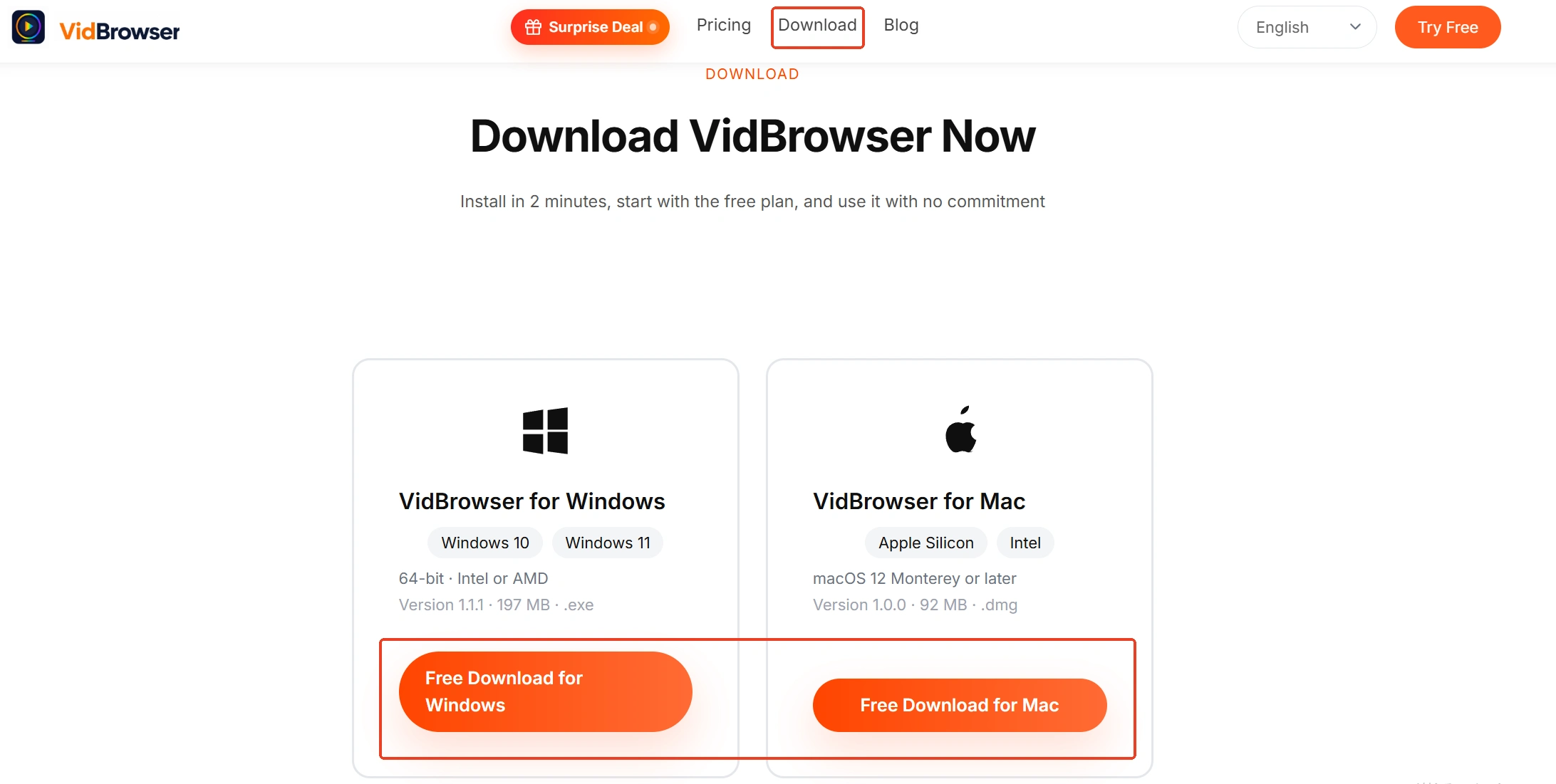
Visit the VidBrowser website, download the version for Windows or Mac, and finish the installation in a few minutes.
Step 2: Open episodes one by one and check what gets detected
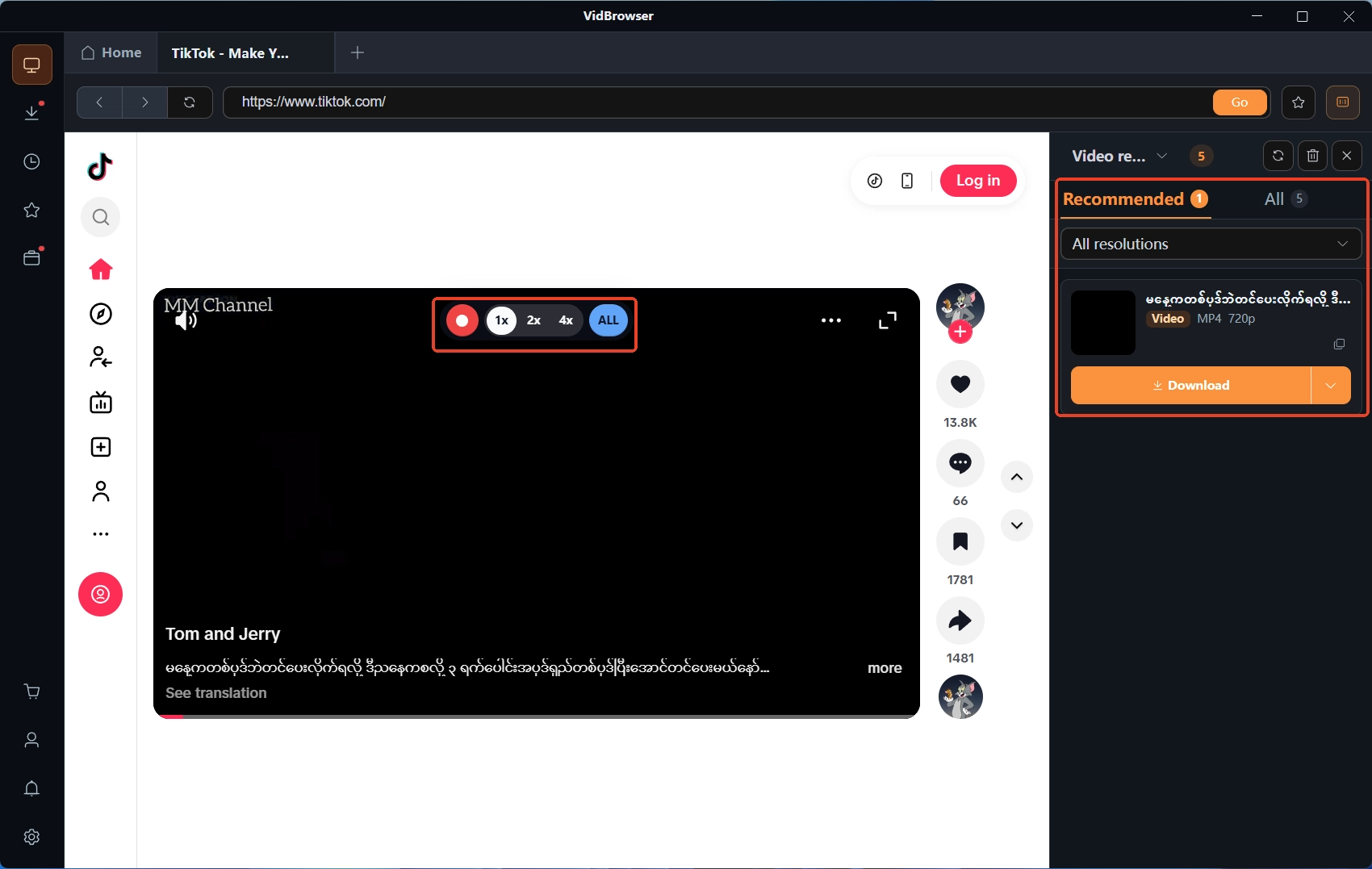
Open the series page in the built-in browser and click into the episodes one at a time, watching whether the video media library on the right lists an entry. Do not rush to download anything yet. Note which episodes have entries and which come up empty, so you know the whole picture up front instead of guessing as you go.
Step 3: Download item by item; switch to recording when nothing is detected
Go back to the episodes that have entries and save them one by one with the orange download button; if picture quality matters, pick a level in the resolution filter first. For episodes with no detected entry, move the mouse over the playing video and the recording controls appear — choose a recording speed (1x real time, or 2x and 4x to finish faster), click record-all to capture the whole episode, and the button on the left lets you start or pause at any time.
Step 4: Check and fill the gaps with the download history
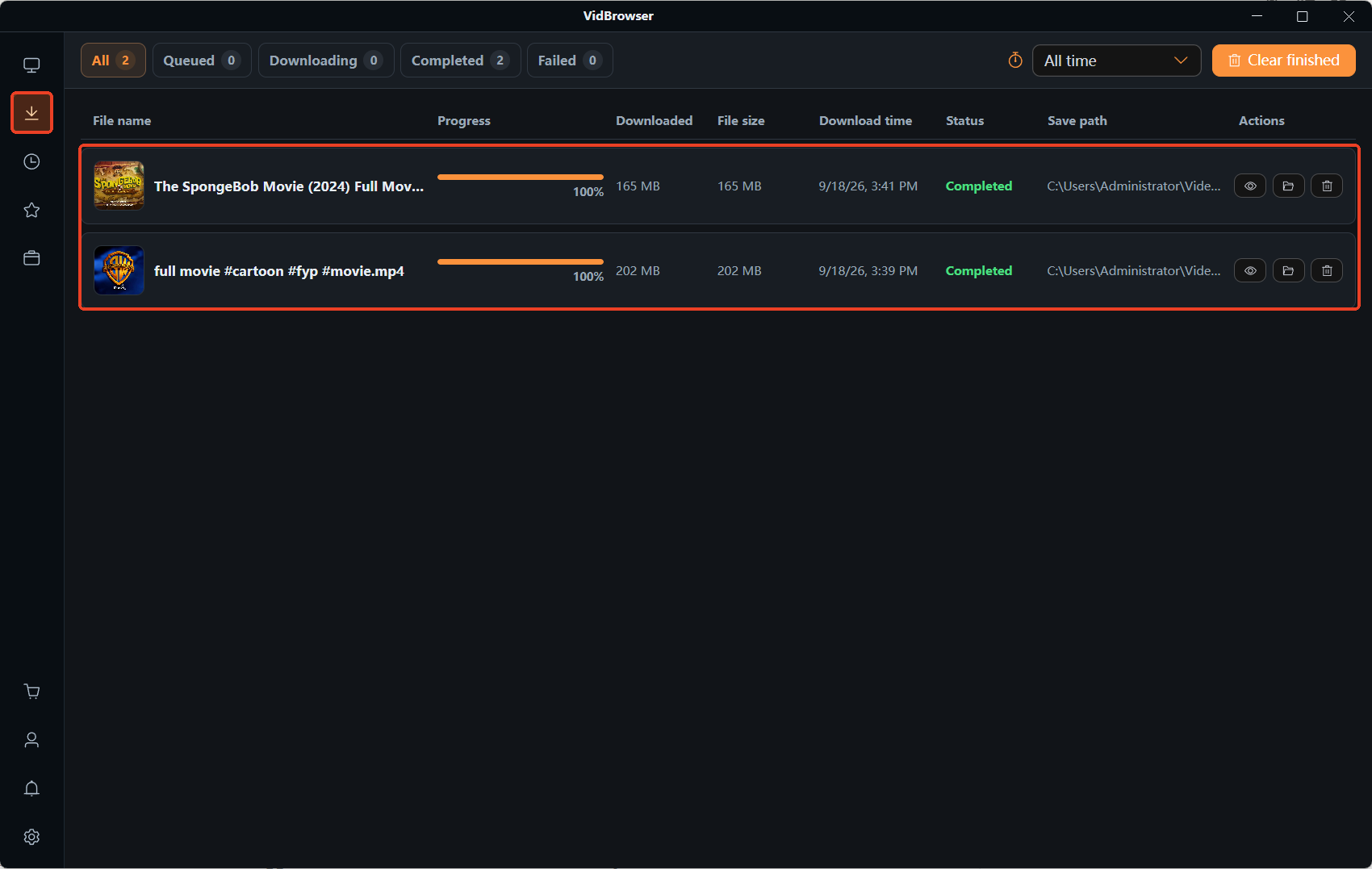
Click the clock icon in the left navigation to open the download history, and sort the whole set by file name and download time: which episode is missing and which task failed will be obvious, and you can simply download those again. The download history guide on this site covers the details; when you are reconciling a multi-episode set, it works as a ready-made task list.
Once these four steps are done, even a show with dozens of episodes stays verifiable at every stage, and the second half of the run never turns into a bookkeeping disaster.
Download everything at once or in batches? Look at these four things
What decides the pace is disk space, the number of tasks, network stability, and how you will need to find the files later — not the tool.Saving everything at once suits content that might be taken down or edited, a subscription that is about to expire, or a trip with no internet ahead — in those cases it is worth spending extra time to complete the full set. Batching suits large files, tight disk space, or the watch-as-you-download habit, where filling the drive in one evening buys you nothing.
Whichever pace you pick, it pays to organize files right away: create folders by show name or season, replace the default file names, and put the episode number into each name. These little steps cost a dozen seconds per episode and buy you instant lookup later, instead of opening files in a player one by one to confirm what they are.
Some background is also worth knowing: even on official paths, offline content is not a permanent local file. Take YouTube as an example — the official help pages state that offline downloads have an expiry period and require periodic reconnection to verify, as the official help page puts it. If you truly want an entire playlist as resident local files, that is a different technical route, covered fully in the YouTube playlist download article; as for queueing and resuming in transit, that is the home turf of traditional download managers and a separate matter from getting the videos, broken down in the download manager article.
FAQ
Can VidBrowser download videos in batch?
There is no select-all button in the video media library; downloads are clicked one item at a time. The Image Batch Download tool in the toolbox does support select-all, but it is built for images. The efficiency of multi-episode content comes from moving through the steps and checking as you go, not from some batch button.
How do I find episodes I missed?
Open the download history and go through it by file name and download time: completed tasks carry their status and save location, so any episode that does not match can be re-downloaded from the page. Glancing at the history after each episode is far easier than digging through everything at the end.
What if some videos are not detected?
First confirm the episode plays normally and any required sign-in is done. If there is still no entry, that episode is not suited to direct downloading — switch to the recording path: move the mouse over the video and use the recording controls to capture the whole episode. Both forms coexisting within one series is common, which is exactly why Step 2 starts with a survey.