You hit download and it sits at 0% — where that silence actually goes
You click download, the bar sets off from 0% — and then nothing happens. Ten minutes later it still reads 0%, and a different page changes nothing. The instinct is to test your connection or restart the router, but that aims at the wrong target from the start: this "stuck" and "slow" are two different things. Slow means the file is coming, just at a low speed; stuck at 0% means not even the first byte has arrived. Below, we split the two stages that come before 0%, then give a one-swap test that assigns the blame.
A download stuck at 0% is stuck before the actual transfer starts
0% is not a speed problem — the bar has not reached the "transfer" stretch yet. A download crosses two "agree-to-start" gates first: the tool sends the request, and the server on the other side accepts and acknowledges it. Only after both sides settle does the moving of bytes begin. Neither step produces a percentage, so on screen nothing moves at all.
As MDN's take on HTTP connection management puts it, every request is preceded by a handshake, and those round trips themselves carry no content. What is worth checking is which half of the handshake is stuck: the request never left, or it left and the other side did not pick up.
Bar not moving? First tell apart "request never left" and "they did not take it"
The same 0% can come from a block on your side or a refusal on theirs. The way to tell them apart is direct: check whether the request actually left your computer.
- It never left: stopped at the door by local security software, firewall rules, or the policy of the network you are on;
- It left but was not accepted: the other side sees nothing in the request that says who you are, and treats it as a stranger.
One more case to rule out first: if the video library on the right has no entry at all, that belongs to an earlier layer — the one covered in when the downloader cannot detect a video. This piece is about entries that are listed, clicked, and then refuse to move.
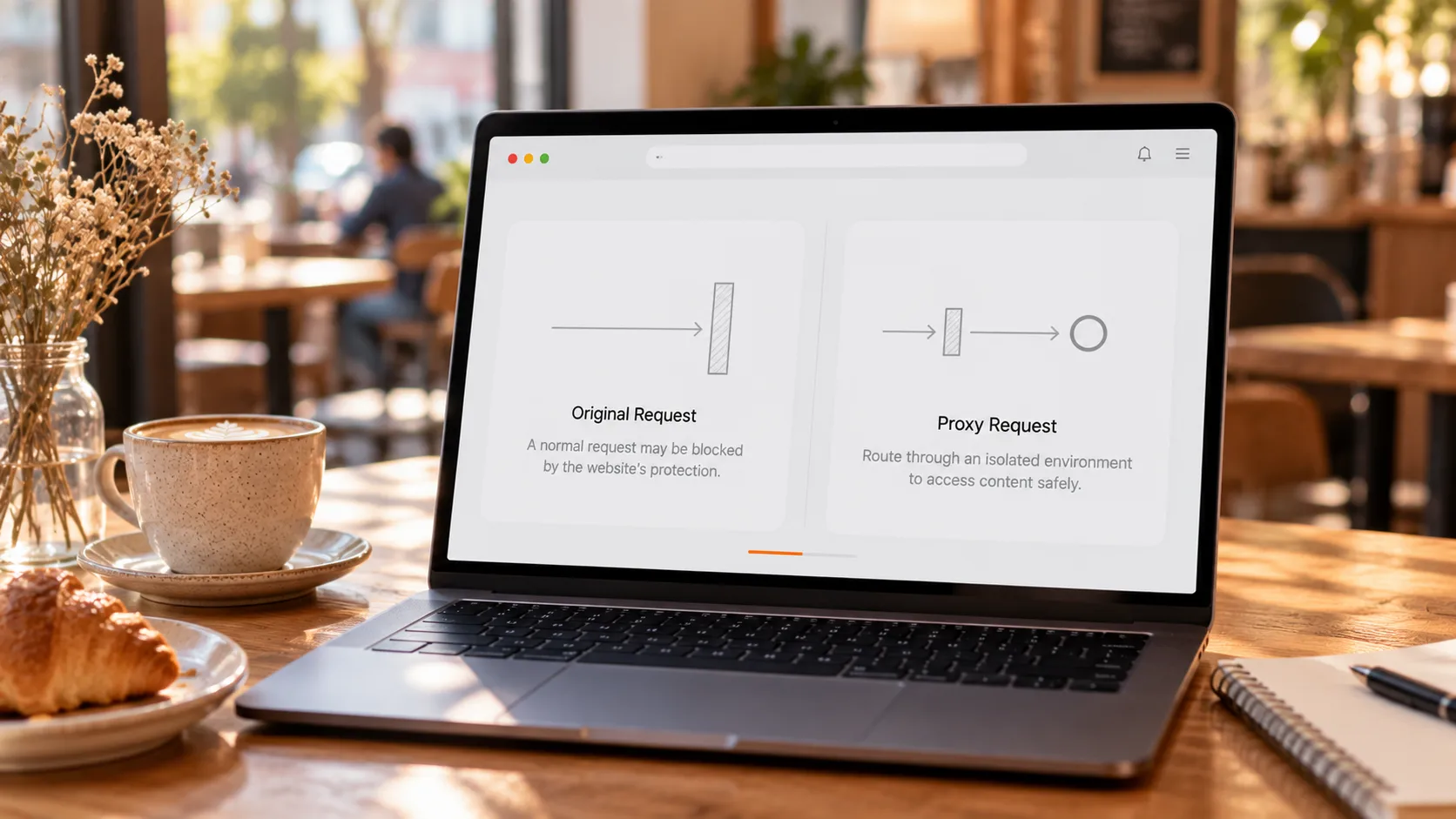
An invisible outbound rule on your machine can block the tool's network call
When the request never leaves, the usual suspect is security software or network policy blocking the connection at the door. A firewall decides which traffic passes and which gets stopped, and outbound traffic is judged too (Cloudflare's primer on firewalls); office and campus networks stack another layer of policy on top.
The block on this side has a few easy-to-spot traits:
- The video plays fine in the browser, yet the download step sits frozen;
- On the office or dormitory network it fails every time, and the same machine recovers as soon as you get home;
- When the security software was installed, it either popped a prompt the first time this tool went online, or silently stopped it with no prompt at all.
To confirm it is this side, you do not need to dig through every setting of the security software. Move the machine to another network — a phone hotspot, say — and download the same video again. If it completes, the old outbound rule was the blocker; if it is still 0%, only then does the other side come under suspicion.
The address is in your hand, and the server still may not take it
Even when the request gets out, the other side may still refuse it. Whether an address is accepted depends on what identity it carries: the player inside the page fetches data with your login state attached, while a bare address handed to the download channel looks like a stranger to the server.
That is also why the same link plays in the browser but freezes in a download tool — the difference is not bandwidth, it is identity. Addresses also go stale; why streaming videos refuse to download breaks down the mechanism: one kind carries its own expiry and dies a while after you get it, the other points at a playlist rather than a video file.
Stuck on this side, switching tools changes nothing.
One swap assigns the blame: retry with a public video
Whether the block sits on your side or theirs, one replacement settles it. Pick an unrelated public video and download it again — same tool, same machine, same stretch of time.
- It completes normally: the tool and the environment are fine; the block is on the content or the site, the two cases from the last section;
- Still 0%: the block is on your machine; go back to the outbound-rule section and work down from there;
- It only works on the phone hotspot: the old network policy was the blocker, not the tool.
One more boundary to draw while we are here: this method targets downloads that never got started. If the bar is already moving, just slowly, or stalls near 99%, that is the transfer and finishing stretch, covered in when a download is slow instead of stuck.
To keep saving content, take the road that skips this wait entirely
Recording never asks the server for a file, so it needs no nod from the other side. If the picture plays normally, the page's channel has already been agreed and is working; recording just writes down what is already being played, without firing another file-sized request. Both gates before 0% simply do not exist on this road.
Saving with VidBrowser takes four steps:
Step 1: Download and install VidBrowser
VidBrowser is a desktop video browser for Windows and Mac with downloading and recording built in; installation takes a few minutes.
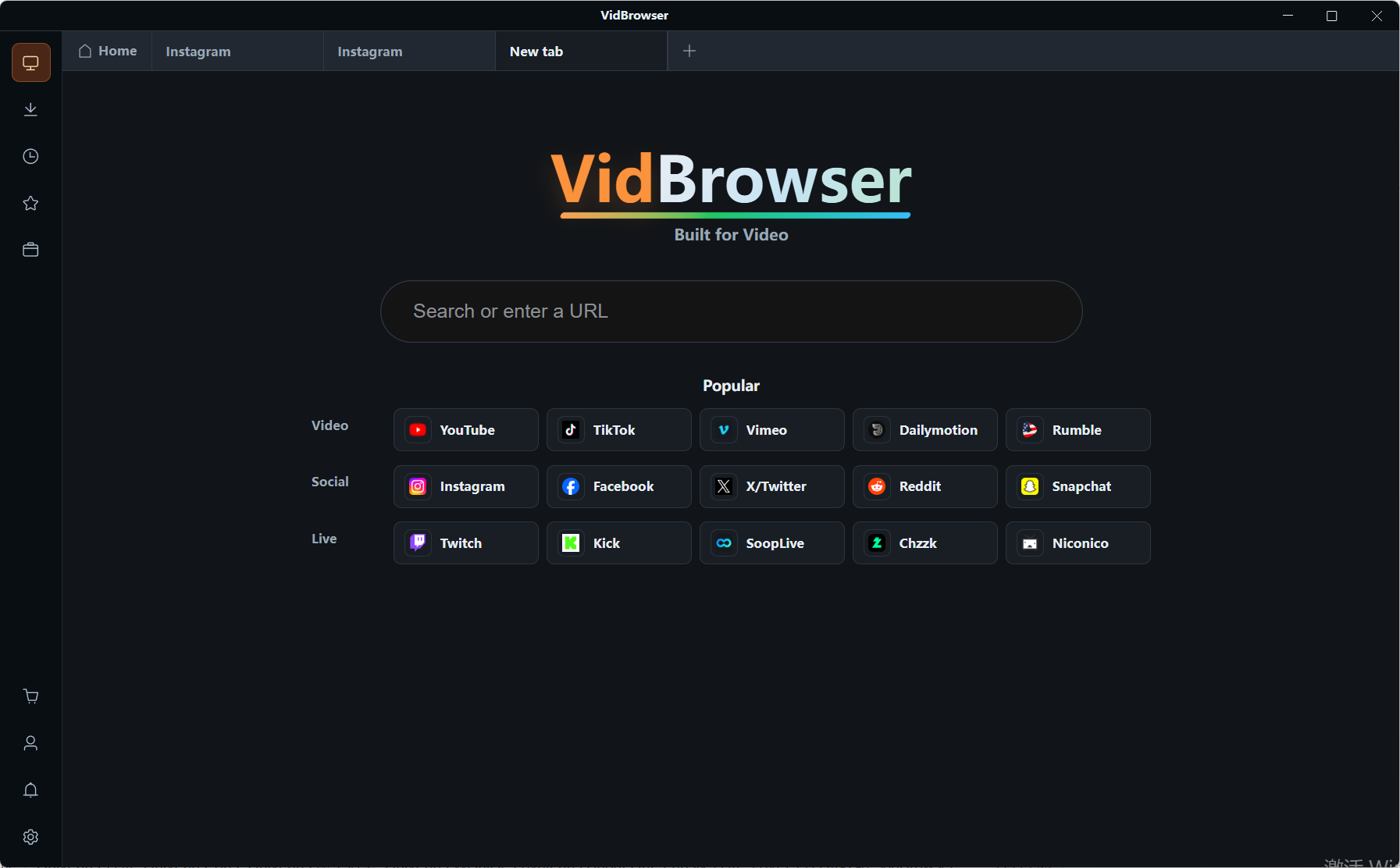
Step 2: Open the page inside VidBrowser and sign in with your own account
No need to touch the security software's settings, and no address to copy.
Step 3: When the library lists an entry, pick a resolution and click the orange Download
The video library on the right lists detected videos, each with an orange Download button and a resolution dropdown in front — one click saves it as an MP4. If this step sits at 0% for a long time, move straight to the next one instead of retrying.
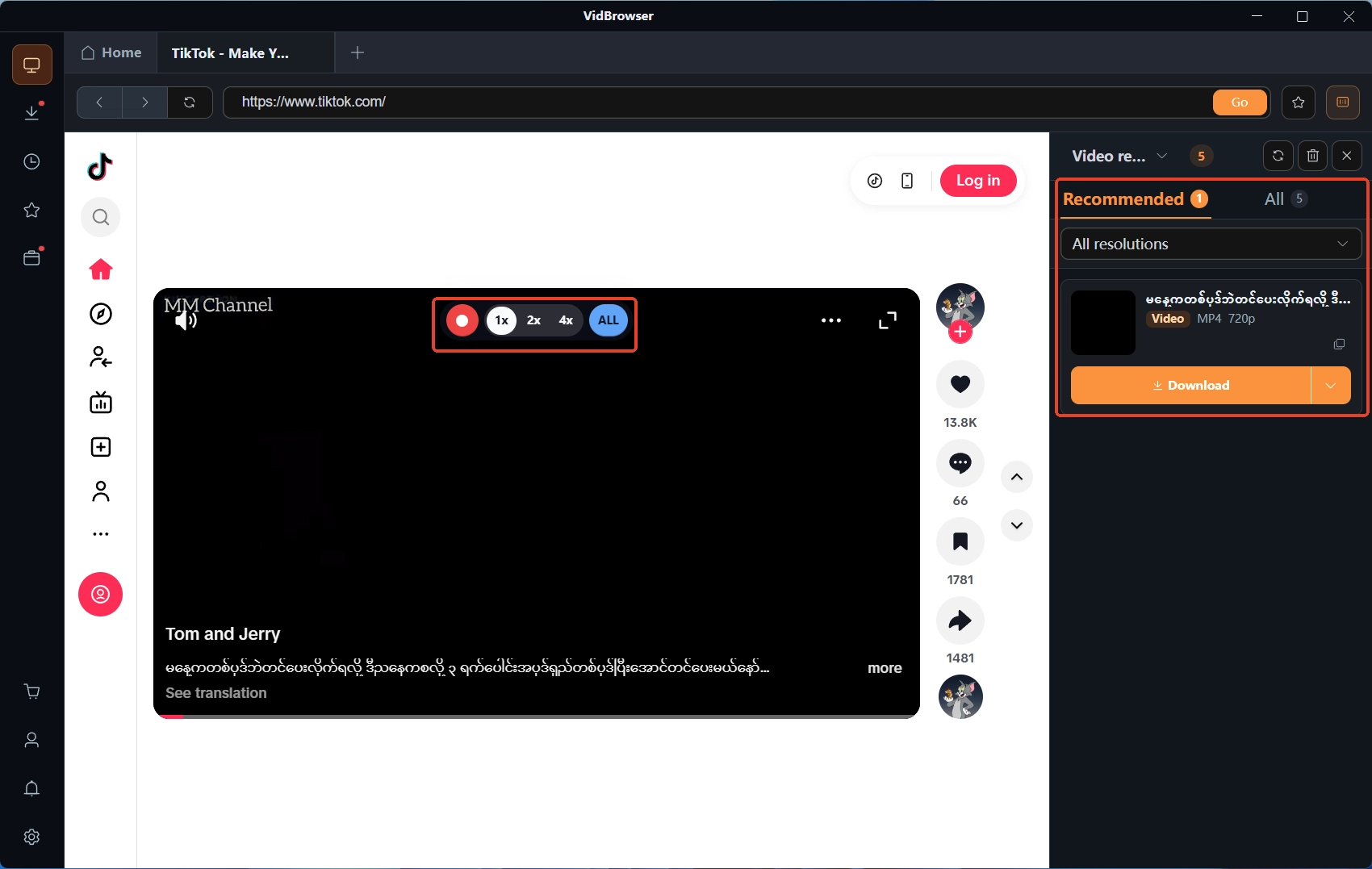
Step 4: Switch to recording and keep what is playing
Move the mouse over the picture and the recording controls overlay appears: pick a speed (1x real time, or 2x and 4x to finish faster), hit Record all for the whole run, and the record button on the left starts or pauses anytime. Protected content, playlist-style content, and everything blocked at the door above all land here; finished files can be found in the download history on the left.
FAQ
Stuck at 0% for a long time — keep waiting or cancel and retry?
Check the clock first. If the handshake stage passes a minute or two with no bytes coming in, it rarely fixes itself; canceling and retrying usually costs less than waiting. Before retrying, confirm the tool still works with a public video, so you are not re-testing inside an already broken environment.
Same computer, other downloads all fine — why does this one sit at 0%?
Ordinary downloads use the most common domains and ports, long since allowed through; to security software this tool's network call is a new program with no history, easy to single out. One detour — a phone hotspot — tells you whether it is local policy or network policy.
The one stuck at 0% — will a different download tool get it?
Depends on which side the block is on. If it is on the content side — the address needs a login, carries an expiry, or is only a playlist — every tool fails the same way, and changing how you save beats changing tools. If the block is your machine's outbound rule, no tool gets around it either; clear that rule first.