FansOne Videos Not Playing? Check Your Browser, Account and Access
“FansOne videos not playing” can describe several different symptoms: the player may remain black, keep loading without starting or display a purchase prompt even though you have already paid.
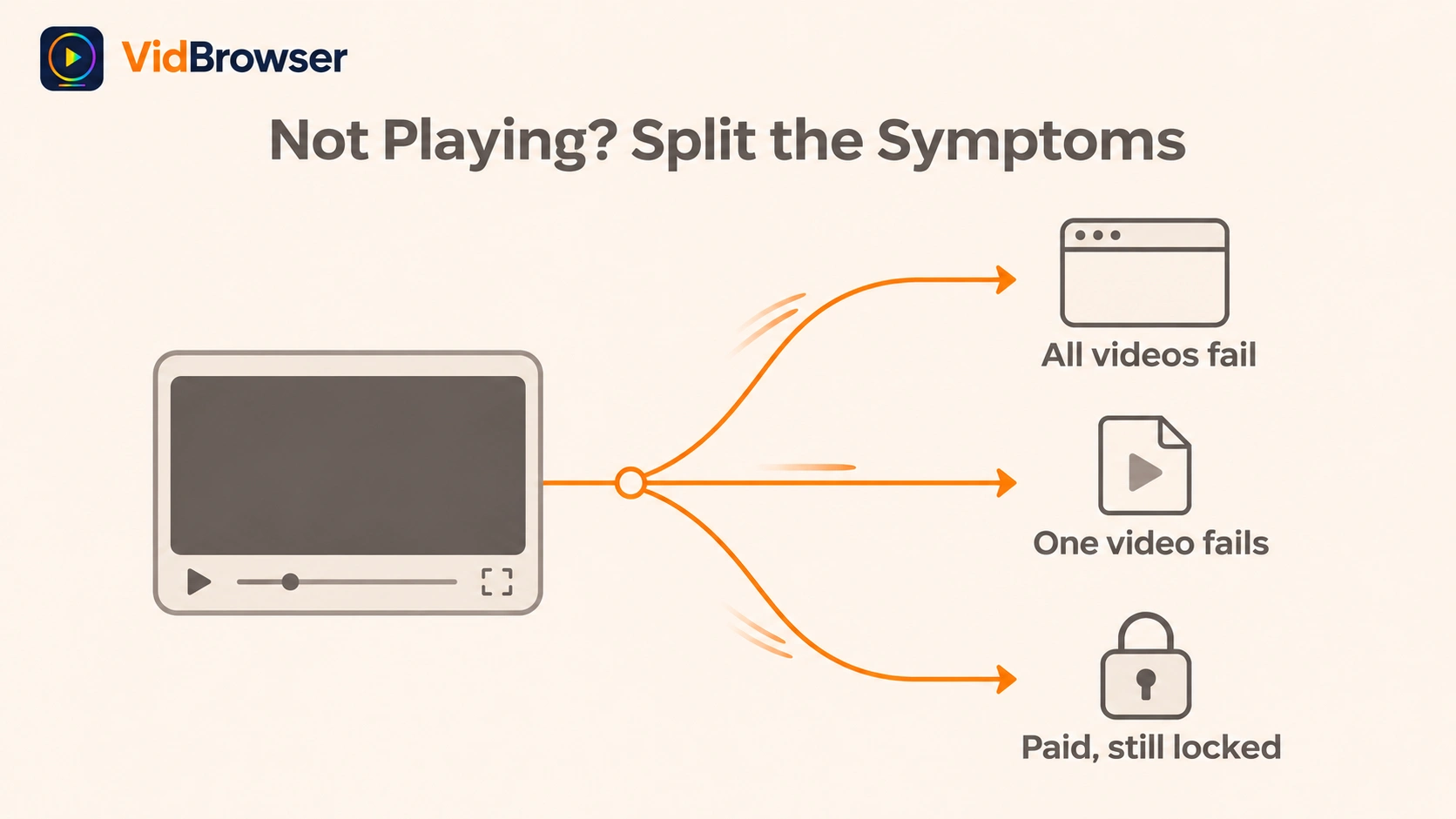
Before clearing browser data or reinstalling anything, determine whether the problem affects every video, one specific video or only content that appears locked. That distinction will help you reach the relevant fix without changing settings that were already working.
Check the address first: FansOne and FansOnly are not the same product. The official FansOne creator platform is available at fansone.co; “FansOnly” should not be treated as an alternative name or spelling.
Find the Problem Before Changing Anything
Use the symptom on the screen to choose your starting point.
| What happens | Most likely cause | Start here |
|---|---|---|
| Every FansOne video fails | Unsupported browser, site data, extension or network | Browser checks |
| Only one video fails | Individual upload, conversion or post permission | Single-video checks |
| A purchased video remains locked | Payment delay, wrong account or creator permission | Account and payment checks |
| Videos work on one device but not another | Browser or operating-system compatibility | Supported-browser table |
| The video plays but VidBrowser detects nothing | The stream has not started or no supported media resource is exposed | Detection checks |
Test another post from the same creator, followed by a post from a different creator. If every video fails, concentrate on the browser and account; if only one post fails, changing your entire browser configuration is unlikely to solve it.
1. Use a Browser That FansOne Supports
FansOne provides specific browser recommendations for different devices. Using one of these browsers should be the first check when FansOne videos are not playing.
| Device | Recommended browser |
|---|---|
| Windows computer | Google Chrome |
| Mac | Google Chrome; try Safari if playback fails |
| iPhone or iPad | Built-in Safari |
| Android phone or tablet | Firefox |
The Android recommendation is particularly important because a FansOne video that keeps loading in Chrome may work correctly after you sign in through Firefox. Mac users should begin with Chrome and then compare the result in Safari.
These recommendations come from the official FansOne Help page. Update the recommended browser and operating system before moving to more disruptive fixes.
2. Confirm That You Are Using the Correct Account
A FansOne page can open normally even when you are signed in with an account that does not own the subscription or purchase. This can happen when you have registered with multiple email addresses or use different accounts on your phone and computer.
Open your account menu and check Subscribed Items, which displays your current subscriptions. Confirm that the email address belongs to the same account used for the payment.
If the account appears incorrect, sign out and sign in again. When you cannot remember the password, use the official FansOne password-reset page.
If the video works on your phone but remains locked on your computer, compare the signed-in account on both devices before changing any browser settings.
3. Allow Time for the Payment to Be Confirmed
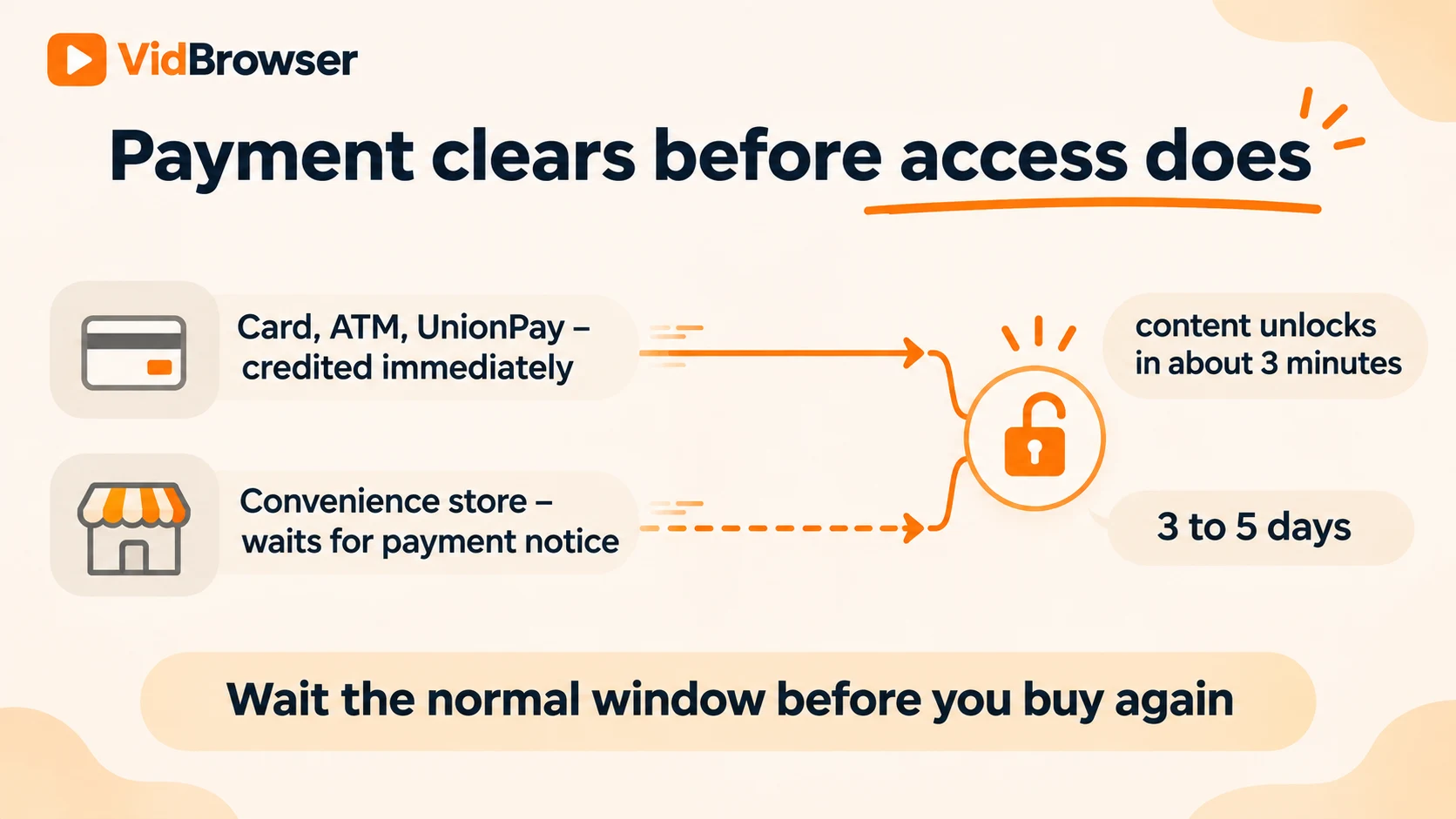
A payment confirmation and content access do not always arrive at exactly the same moment. According to FansOne’s official guidance, credit-card, ATM-transfer and China UnionPay payments are credited immediately, although purchased content may take about three minutes to unlock.
Convenience-store payments can take three to five days because FansOne must receive the payment notification before granting access.
If the payment is complete but the FansOne video remains locked:
- Check that the transaction was completed successfully.
- Confirm that you are using the account that made the purchase.
- Wait for the normal processing period associated with the payment method.
- Refresh the post and check your subscription or purchase status.
- Do not purchase the same content again while the first payment is still processing.
If the expected processing period has passed, keep the order reference and contact FansOne support. Never send a full card number or unnecessary financial information.
4. Check the Creator’s Viewing Permissions
An active subscription does not necessarily provide access to every post on a creator’s page. FansOne allows creators to change the viewing permissions of individual posts, including converting older subscription content into separately paid content.
You may therefore be able to watch recent videos while older posts display a purchase prompt. In this situation, the player and account may both be working normally; the post simply has a different access condition.
Read the creator’s profile, subscription description and post details. If the conditions are unclear, ask whether the video is included in the current subscription or requires a separate payment.
A downloader cannot legitimately repair this type of problem. If the account is not allowed to play the post, neither changing browsers nor installing a FansOne downloader should bypass that restriction.
5. Clear FansOne Site Data and Check Extensions
FansOne recommends clearing browser cookies when login problems continue, but you do not need to erase all browser data. Start by removing only the cookies and stored data associated with fansone.co.
This will sign you out, so make sure you know the correct login details first. After clearing the site data, close the affected tab, reopen FansOne in a supported browser and sign in again.
Content blockers, strict privacy extensions and script-control tools can also interrupt the player. Temporarily disable them for FansOne and reload the page. If the video starts, enable the extensions individually until you identify the conflict.
A private window can provide a useful comparison, although you will need to sign in again and some extensions may behave differently there.
6. Check the Connection, VPN and Device
If the video starts but pauses repeatedly, lowers its quality or returns to a loading indicator, pause other large downloads and test a stable connection. On a phone, compare Wi-Fi with cellular data; on a computer, restart the router if several websites are loading unusually slowly.
Temporarily disable a VPN or proxy for one test. A changing IP address or an overloaded VPN server can interrupt both account sessions and media requests. If playback works after the VPN is disabled, keep one stable route rather than switching locations during the session.
When playback works but a later download fails only while the VPN is enabled, follow the separate guide to downloads that fail while a VPN or proxy is active.
Close unused browser tabs and applications as well, especially on an older phone or computer. If FansOne works on a second device connected to the same network, the problem is probably limited to the original browser or device.
7. What to Do If Only One FansOne Video Fails
For viewers
When other FansOne videos work normally, the affected upload may still be converting, may have failed during processing or may have different viewing permissions.
Open another post from the same creator to confirm that the subscription and browser are working. If they are, send the creator or FansOne support:
- The affected post URL
- A screenshot of the player
- The browser and device used
- Whether the screen is black, loading indefinitely or showing an error
- Whether other posts from the same creator play normally
For creators
FansOne recommends creating a new copy when an uploaded video remains in conversion. One option is to trim approximately one second from the original and upload the newly saved file.
Alternatively, export the video again at 720p or 1080p with a frame rate of 25 FPS, then upload that version. Keep the original file until the replacement has finished processing and plays correctly.
How to Download a FansOne Video with VidBrowser
Once the video plays normally, you may want a local copy for permitted offline viewing or personal backup. Keep in mind that access to a FansOne post does not automatically grant permission to redistribute the creator’s work, so any saved copy should remain within the rights and platform rules that apply to you.
VidBrowser is a desktop video downloader for Windows and Mac that combines normal browsing, media detection, downloading and recording. It cannot unlock an inaccessible FansOne post, but it can work with media that your account is already authorized to view when the page exposes a supported resource.
Step 1: Download and install VidBrowser
Download VidBrowser for Windows or Mac and complete the standard installation.
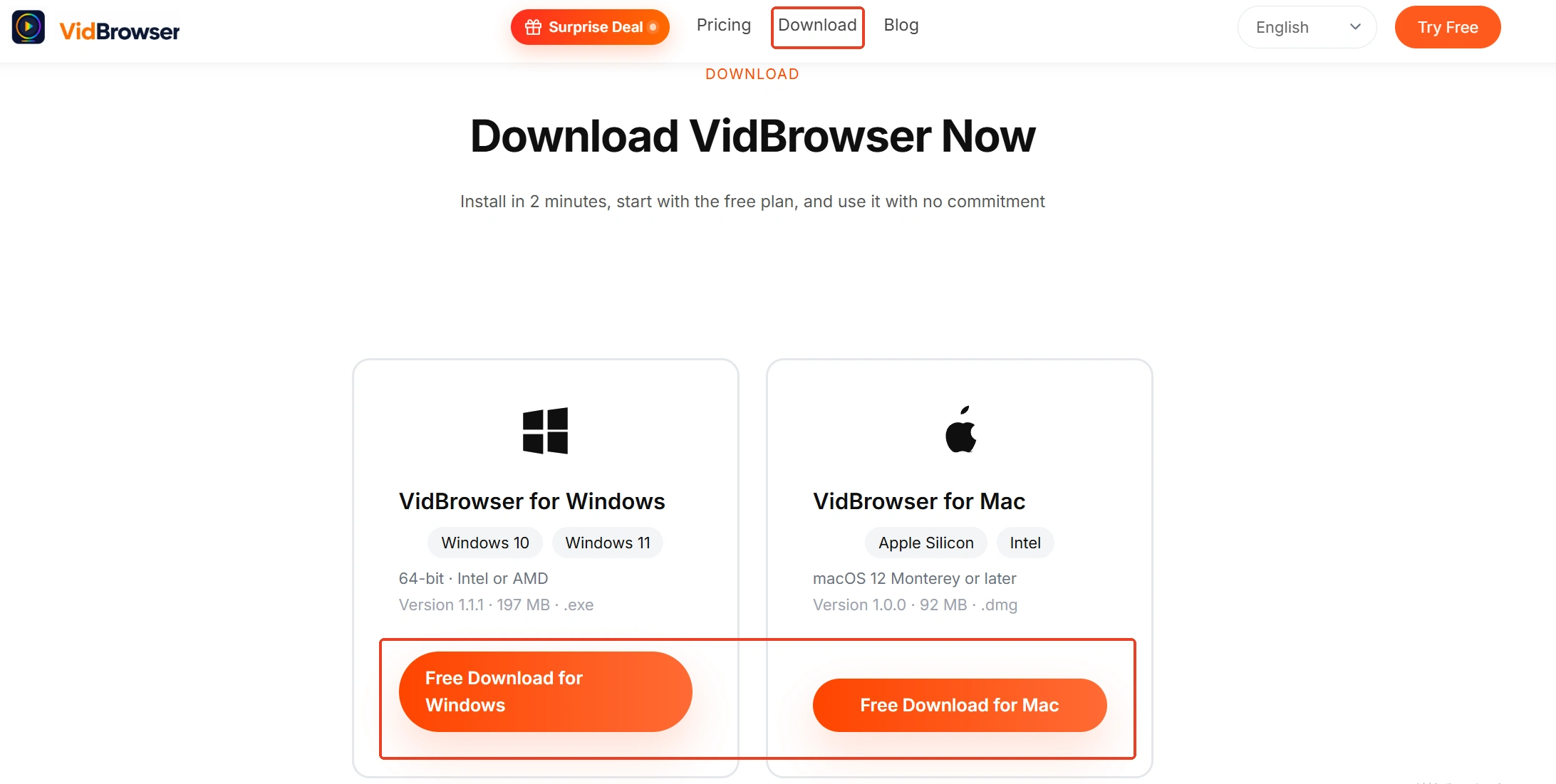
Choose the installer that matches your Windows or Mac computer.
Step 2: Open FansOne inside VidBrowser
Launch VidBrowser, enter fansone.co in the address bar and sign in through the normal FansOne login page. Use the same account that owns the relevant subscription or purchase.
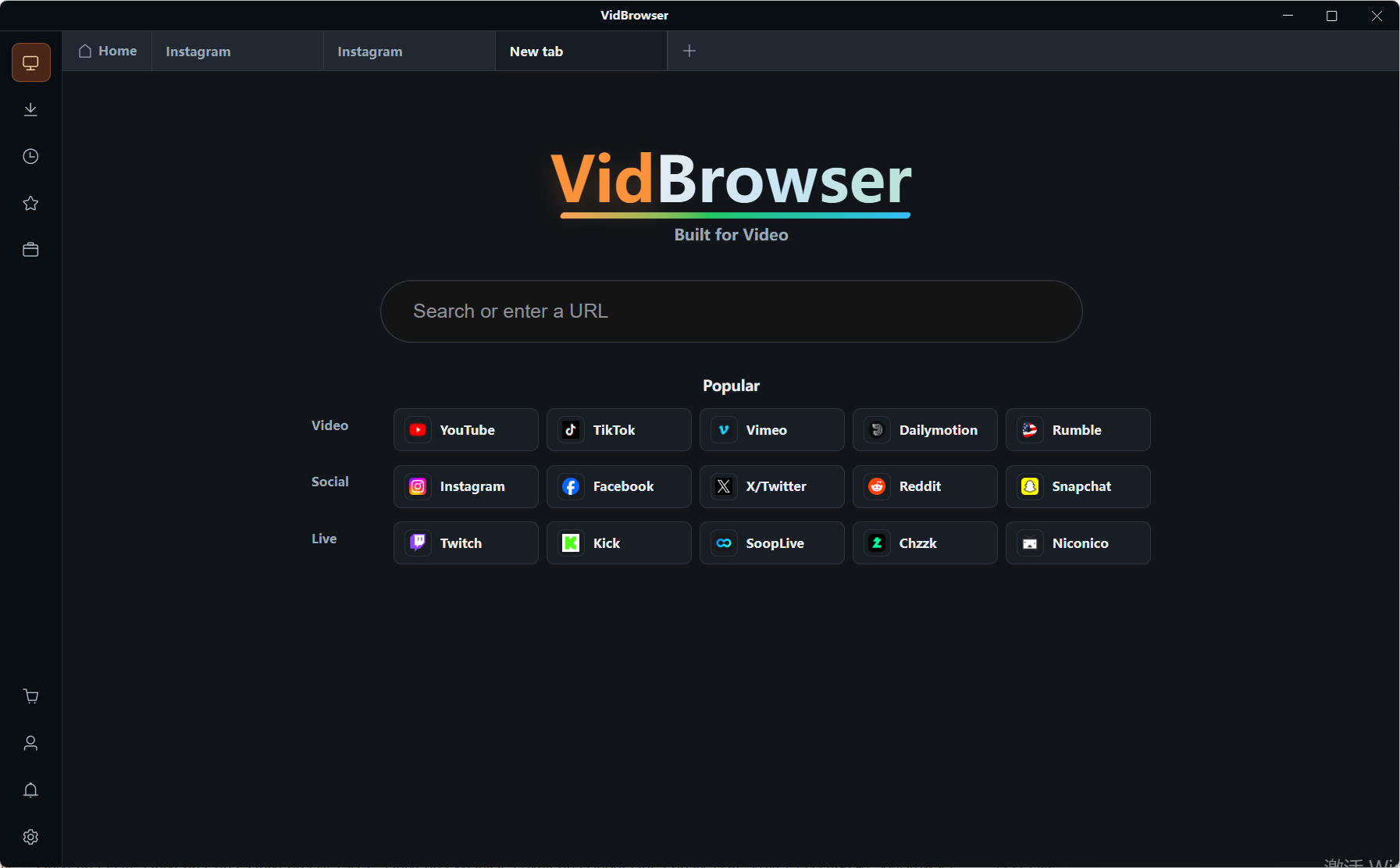
Open the official FansOne address inside VidBrowser before signing in.
Step 3: Play, detect and save the video
Open the authorized post and start playback. When the page exposes an available media resource, VidBrowser lists it in the Video Media Library on the right, where you can review the available resolution and use the orange Download button.
If the video is clearly playing but the library remains empty, use the guide to what happens when the media list stays empty. The video must begin genuine playback before a media request can be detected, and not every page exposes a directly downloadable resource.
When direct downloading is unavailable and you have permission to record the content, hover over the player to display the recording controls. Depending on the available options, you can select 1x, 2x or 4x and use Record All to capture the complete video.
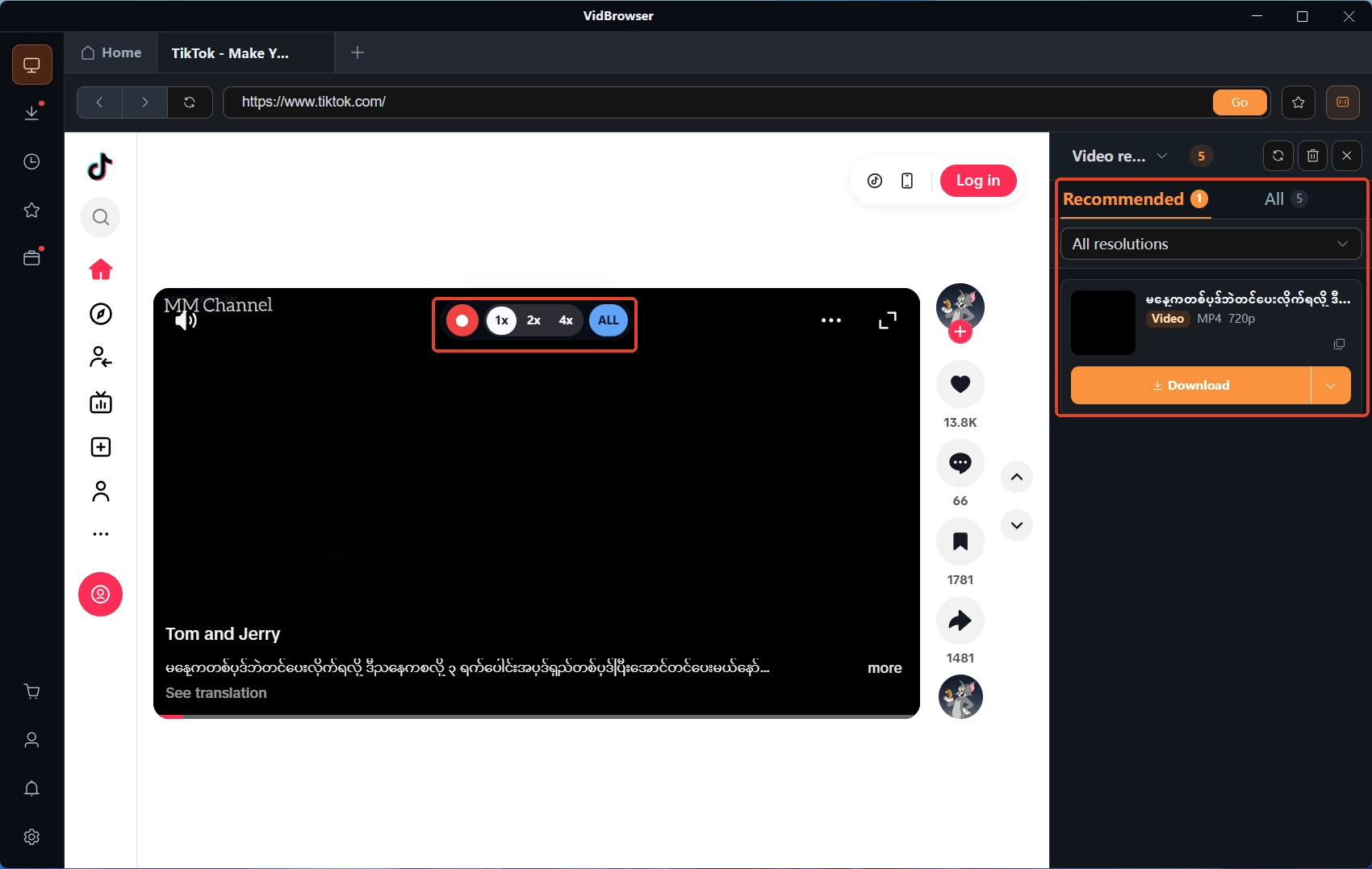
Available formats, resolutions and recording options depend on the media supplied by the page.
Step 4: Check the completed FansOne download
Open the download history from the left sidebar to see the task status, file size, completion time and local save path.
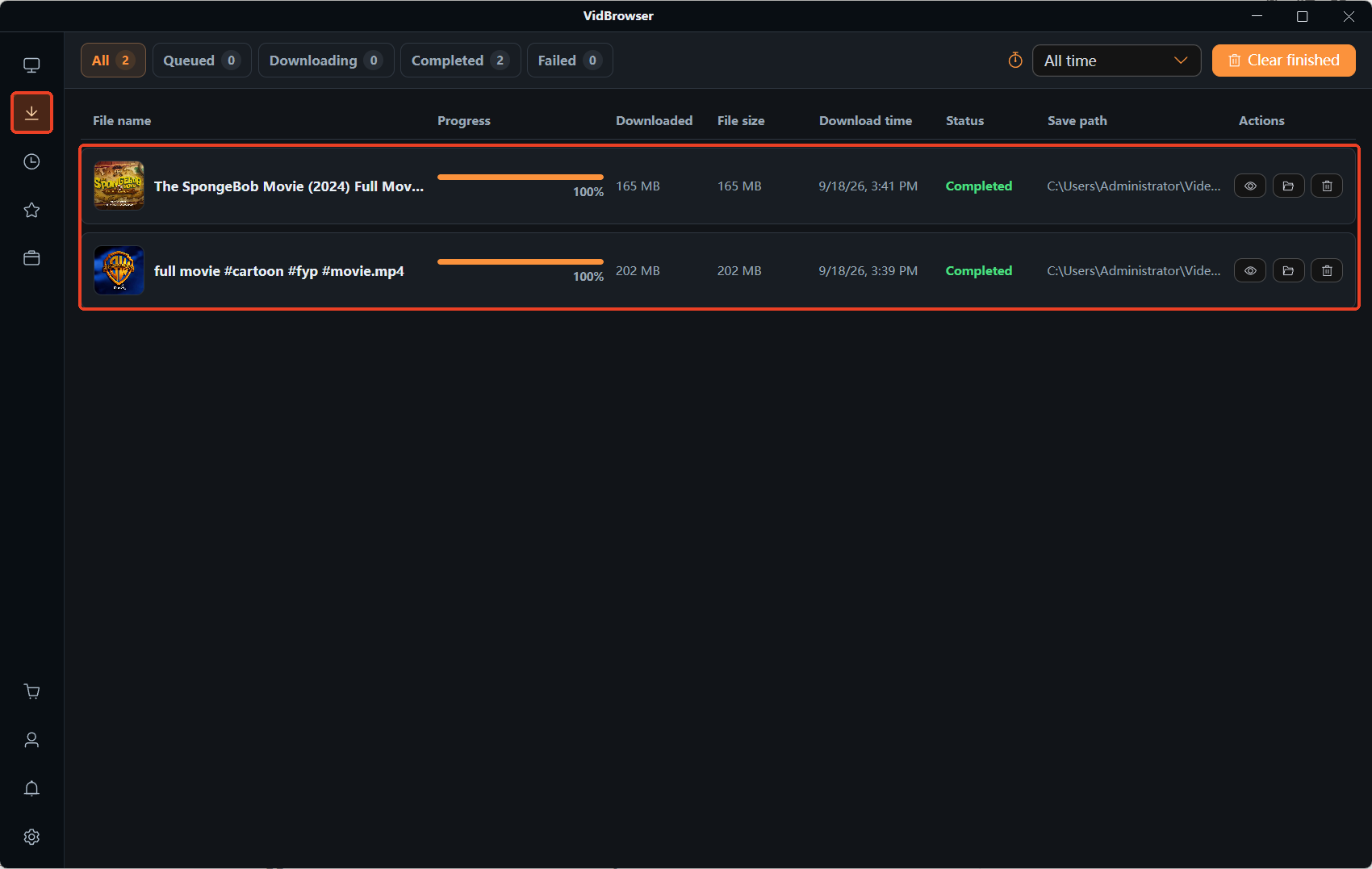
The download history keeps completed files and their save locations together.
Use a FansOne video downloader only for content you own or have permission to save. Do not repost, distribute or sell a creator’s work, and follow the platform rules and applicable laws.
When to Contact FansOne Support
Contact FansOne support when the expected payment-processing period has passed, the same video fails in every supported browser or all devices show the same account-related error.
Include:
- Device and operating system
- Browser name and version
- Affected post URL
- Whether one video or all videos fail
- Screenshot or exact error message
- Payment method and approximate payment time
- Order reference without full financial credentials
The official contact option is listed on the FansOne Help page.
Frequently Asked Questions
FansOne Videos Not Playing: What Should You Check First?
First determine whether every video fails or only one post is affected. Multiple failures usually point to the browser, account or network, while a single failed post is more likely to involve that upload, its conversion status or its viewing permissions.
What is the best browser for FansOne?
FansOne recommends Chrome on Windows and Mac, Safari as an alternative on Mac, Safari on iPhone and iPad, and Firefox on Android.
Why is a FansOne video locked when my subscription is active?
You may be using the wrong account, the payment may still be processing, or the creator may have changed the post’s viewing permission. Older subscription posts can be converted into separately paid content.
Is there a free FansOne download option?
FansOne does not promise a downloadable file for every post. VidBrowser has a free plan with usage limits, but a FansOne download is possible only when your account can access the video and the page provides a supported media resource or permits recording.
Can a FansOne video downloader unlock paid content?
No. A legitimate FansOne video downloader should not bypass payments, subscriptions or creator permissions. Resolve the account or access problem before attempting to save the video.
Why is the FansOne downloader not detecting the video?
Make sure the video is genuinely playing rather than displaying a poster or preview, let it run for several seconds and check the Video Media Library again. Some pages may not expose a supported downloadable resource, even when playback works.
Is FansOne safe?
Use the official fansone.co address, protect your login credentials and avoid third-party sites that imitate the brand or promise access to locked content. Review the creator’s terms and payment conditions before subscribing.